
Looking to merge or combine videos in Premiere Pro?
In this article, we’ll show you how to combine or merge two video clips together using Adobe Premiere Pro with clear step-by-step instructions and pictures.
Also, we’ll show you an easier way to merge or combine clips online.
How to Combine Multiple Video Clips in Adobe Premiere Pro
Here are the steps to combine 2 or more videos using Adobe Premiere Pro:
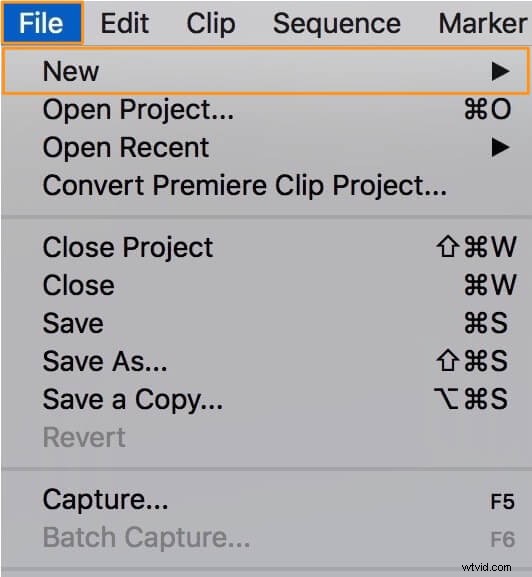
- Open Adobe Premiere Pro and create a new project. Click on the File menu from the menu bar and select New.
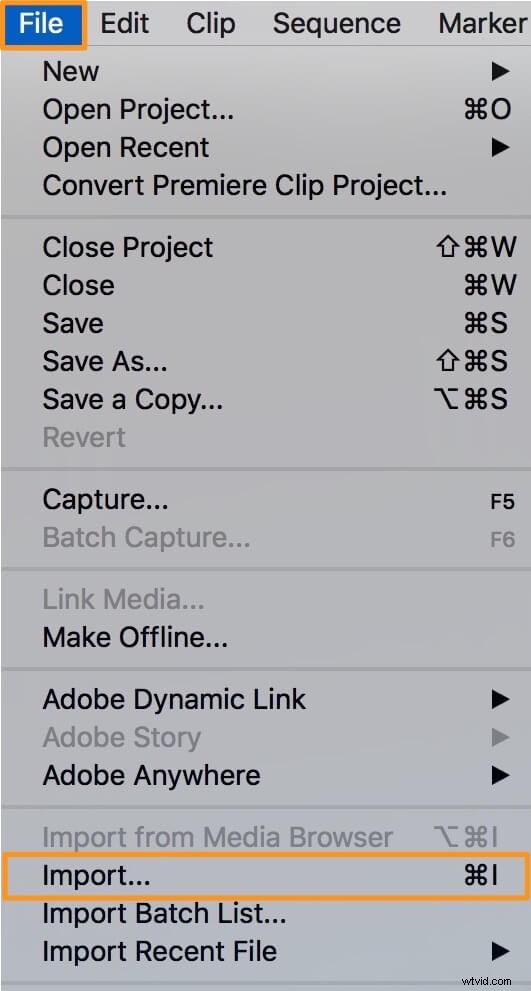
- Now import the videos you want to combine. Click on the File menu in the menu bar and select Import.
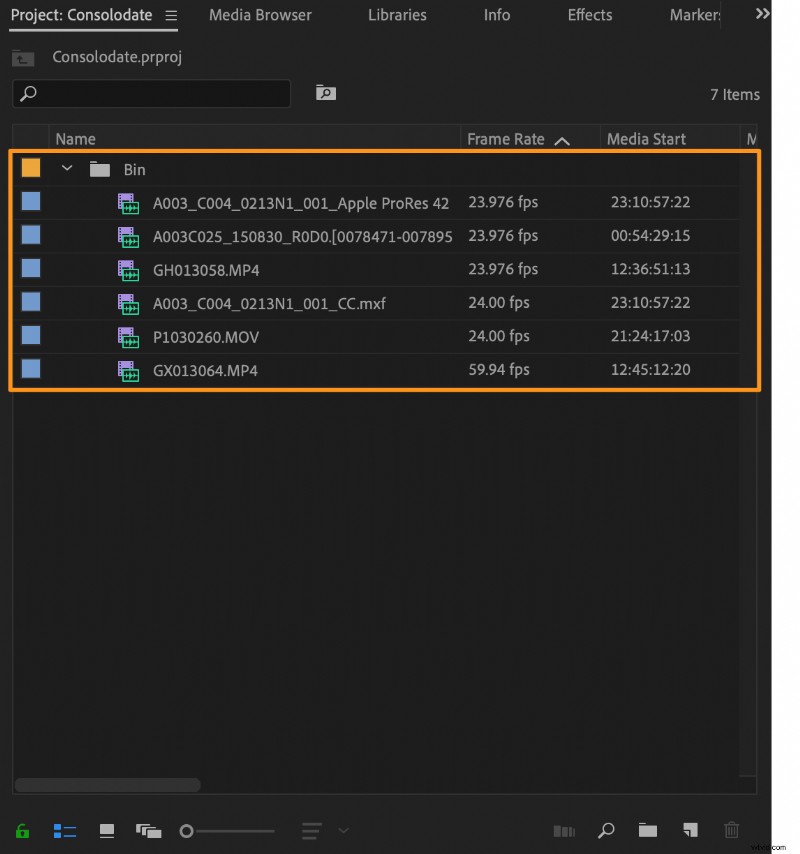
- Once you’ve imported the videos you want to merge, they’ll appear in the Project panel. Now drag and drop the videos onto the timeline.
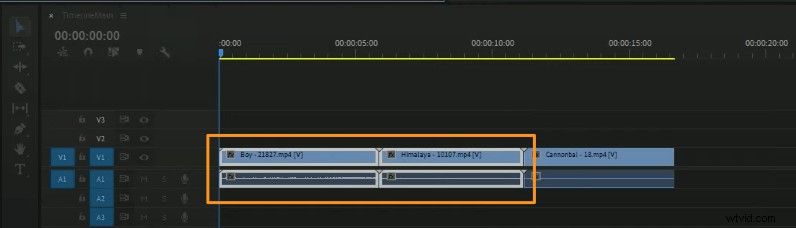
- Then select the two videos you want to combine. Press and hold the shift key and click on the two videos to select them.
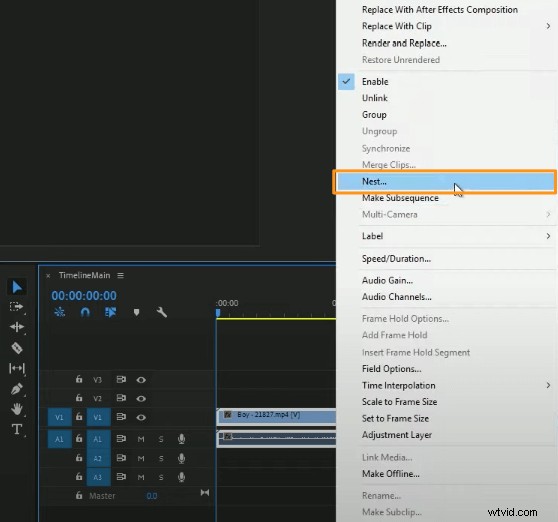
- Now right-click one of the selected clips and select Nest from the resulting dropdown menu. Regardless of the number of video clips you’ve selected, you’ll only have to right-click one of the selected clips to bring up the dropdown menu.
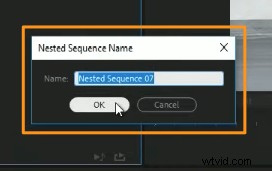
- In the Nested Sequence Name window, enter a name and hit OK.
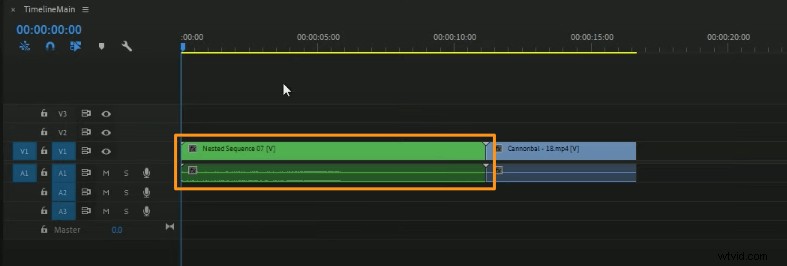
You’ll now notice that the background color has changed to green to indicate that the two videos have been merged.
A Simple Way to Merge or Combine Videos On Windows or Mac
If you’re on Windows or Mac, you can use Animaker’s merge video tool to easily merge several videos together for free! All it takes is 3 simple steps to merge all your videos using our super-simple video merging tool.
For those who are unaware of Animaker, it is an all-in-one DIY video-making app designed to help non-designers make professional-quality videos from the comfort of their browser.
Our video merging software works on Chrome, Firefox, Safari, Internet Explorer, etc., and if you use one of these browsers, you can easily merge or combine your videos on your Windows or Mac computer.
If you’re looking to easily merge your videos for Instagram, YouTube, or Facebook, then Animaker’s video merger is the best tool for the job. Also, you can merge videos in MP4, MPG, WebM, MOV, and more formats.
Combine Your Videos in 3 Simple Steps using Animaker
Sign up/Log in and Pick the Dimensions
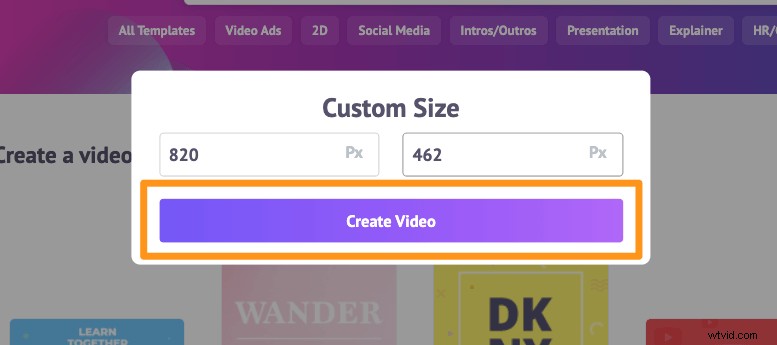
Log into your account or create a free one. Now choose the dimensions for your video. What dimensions do you want your output video file to be in? Do you want it to be horizontal or vertical or square? You can pick one of the premade dimensions from the Create a video section in your dashboard.
Or you can enter custom dimensions for your video by picking the Custom Size Video option from the same section above. Enter the width and height in pixels and hit Create Video.
Upload Your Videos and Merge Them Together
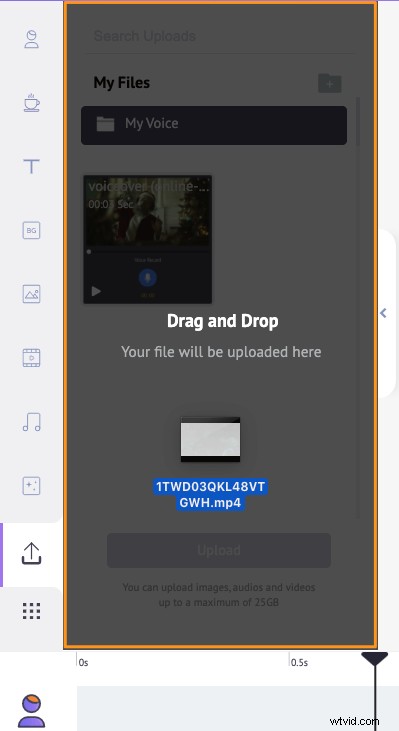
You can upload videos up to 20 GB in size. To upload your videos, go to the Upload tab in the main menu bar and click on the Upload button at the bottom of the tab window.
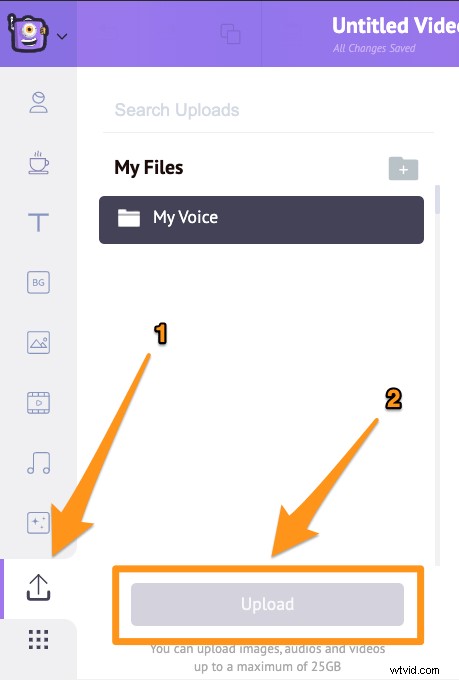
Alternatively, you can simply drag and drop your videos onto the area shown below.
In the Scenes section, you can see that a scene has already been added to the project.
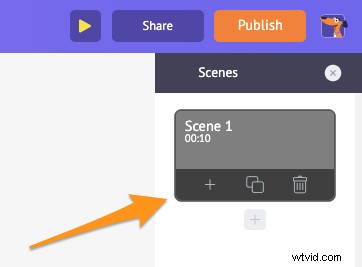
You can now set your first video onto that existing scene. Simply click on a video in the Uploads section to set it onto a scene.
Now add a new scene for each video. To add a new scene, click on the plus button at the bottom of the scene.
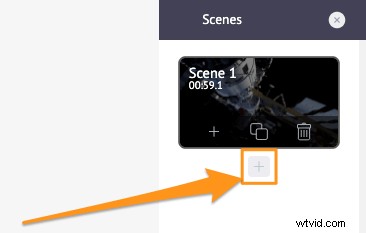
Now click on another uploaded video you’d like to add to this new scene. Repeat the same process for other videos you’d like to add and merge together.
Optionally, you can fine-tune the video footage you just added. You can trim, resize, crop, rotate, flip, mute, and adjust the brightness and contrast of your video files.
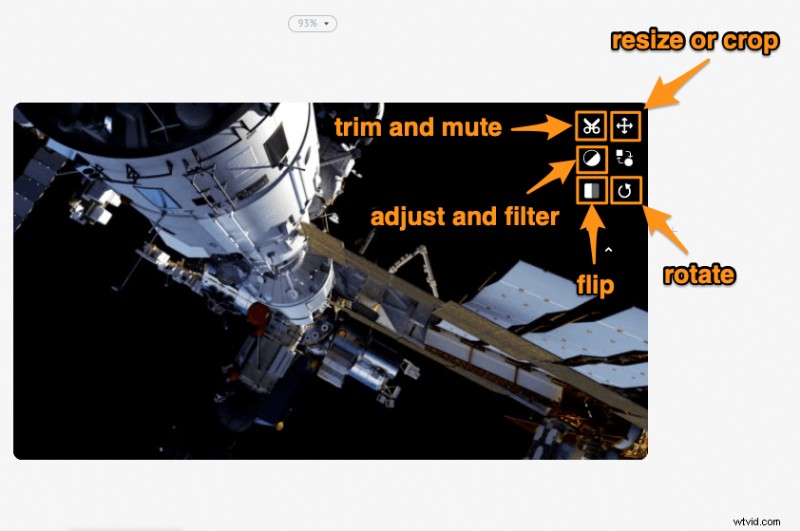
You can also add music, transitions, images, emojis, shapes, stickers, GIFs, etc.
Preview and Download the Video
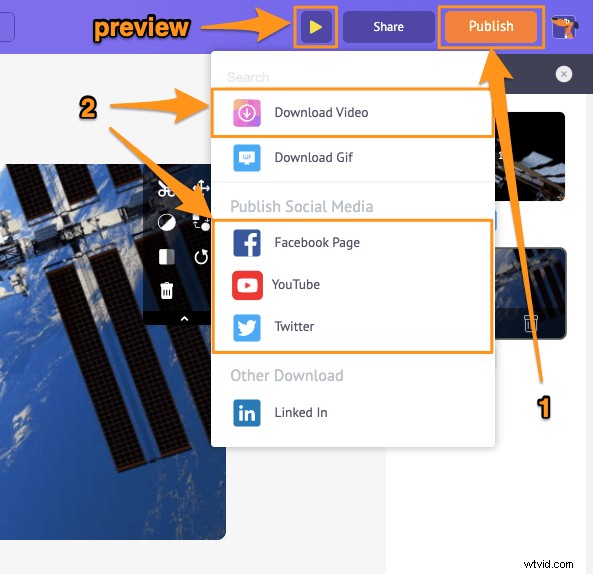
Once you’re done adding all your video files and fine-tuning them, you can preview the video by clicking on the play icon beside the Publish button. You can download the video to your local computer by clicking on the Publish button and then selecting Download Video from the resulting dropdown menu. Or you can share it directly to a social media platform from within the app.
Using Animaker’s online video editor, you can:
- Trim videos
- Rotate videos
- Flip videos
- Remove audio from videos
- Adjust video brightness, contrast, etc.
- Add filters to videos
And the list goes on… feel free to check out these video editing tools and learn why it’s the go-to video editor for marketers and content creators.
Got any questions about merging or combining your videos in Premiere Pro or on your Windows computer? Any interesting tips or tools to merge videos on Windows or Mac that we seem to have left out? Please let us know about them in the comment section below.