
How to make a video and photo collage
However, monotonous posts with pictures or a couple of simple videos can get boring for readers. To diversify, enliven your content and make it more attractive, you can make a video collage. What does such a collage look like?
A collage is a composition made with several photos, pics, and videos contained in one story. Aside from adding variety to your feed, video or picture collages can also be used to show questions from your followers along with you answering them. Also, this is the perfect tool if you want to use different shots for comparison.
So how to collage videos together with images or other videos? There are many photo or video collage makers, but if you plan to make collages on different devices and don't want to look for different apps for them, you can use our tool! In addition to being multi-platform, it only requires an internet connection to work.
Plus, it's really simple to use, just follow the steps below:
Add media files
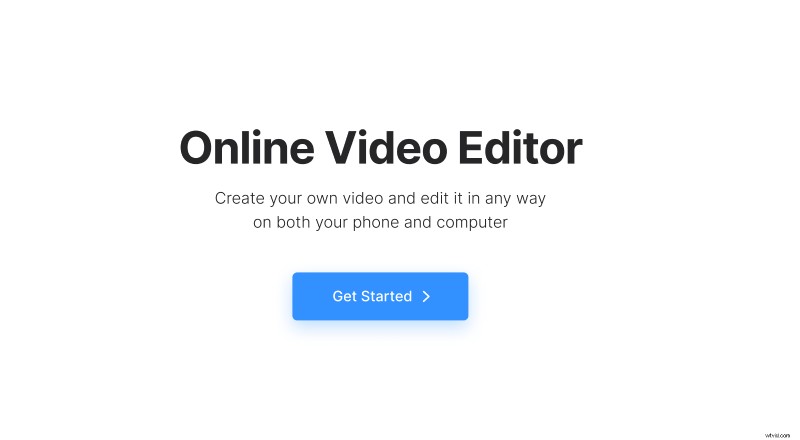
Open Clideo’s Online Video Editor and click "Get started".
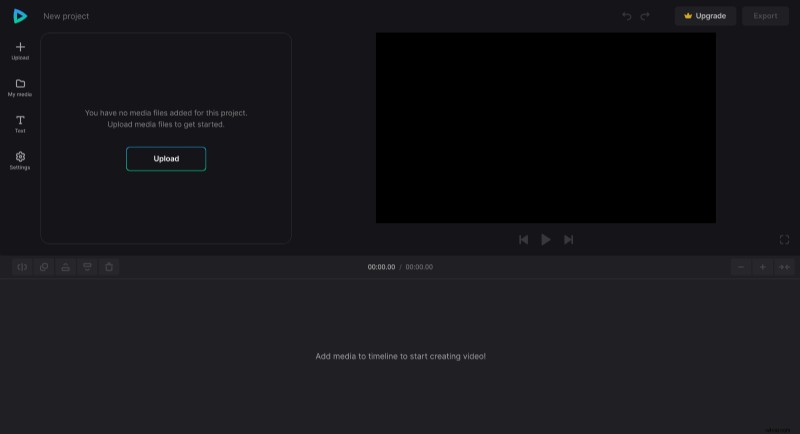
Click "Upload" to add the media you want to use – it can be images, video, audio files, etc. You can upload them from the device as well as from your Google Drive or Dropbox storage.
Make a video collage
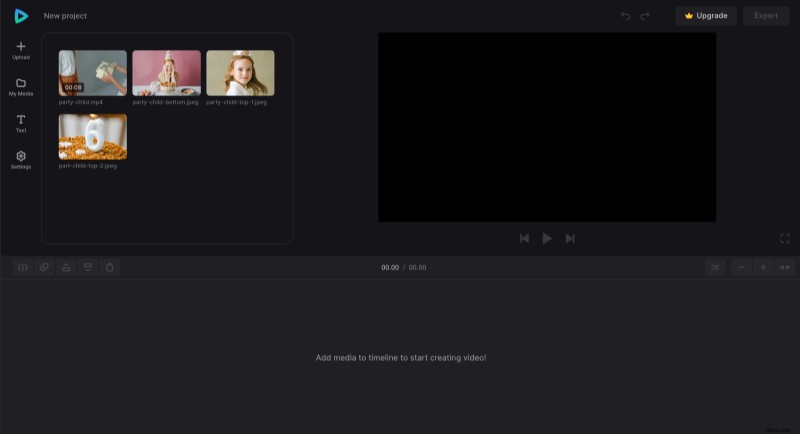
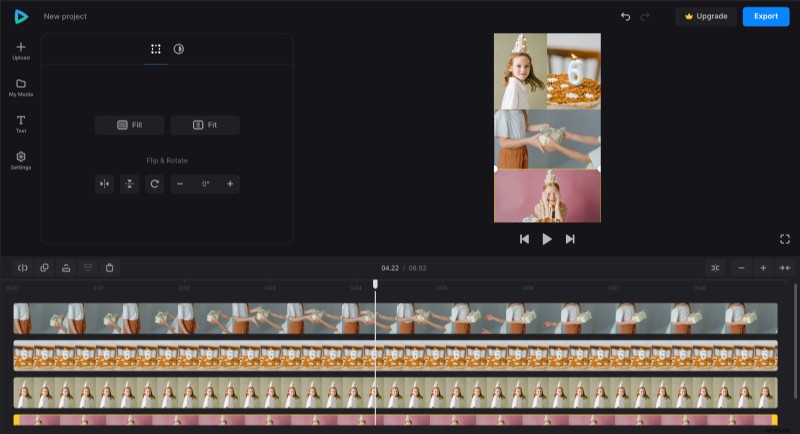
Drag media files from "My Media" to the preview area or timeline.
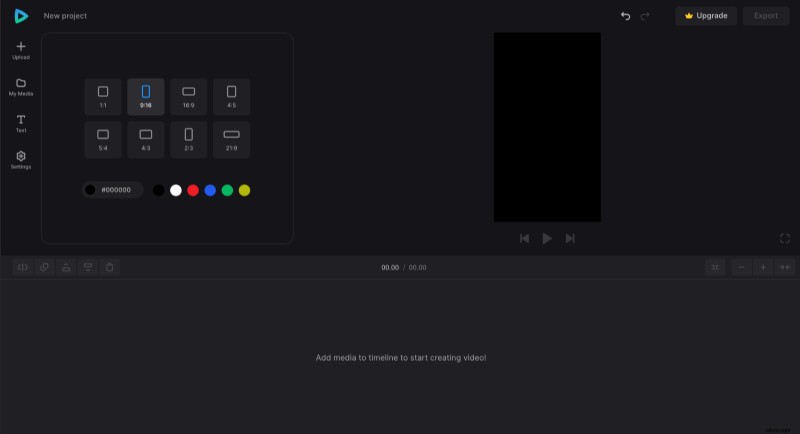
Before you start editing, you can change the aspect ratio depending on where you're going to post the video. To do so, select a preset in the "Settings" tab – it can be 16:9 for YouTube, 9:16 for Instagram stories or reels, etc.
Then put the video in the middle, so it's the center of attention, and put the rest of the pictures above and below it. To resize them, select the image in the preview and drag its corners.
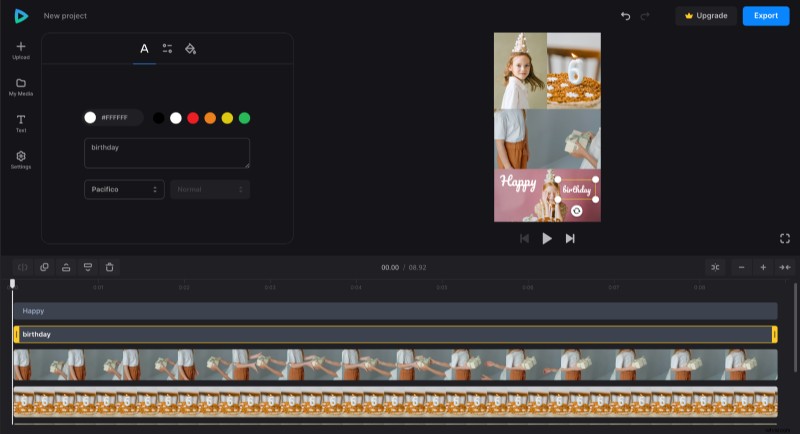
If you want to add captions to tell a story or explain something in the video, choose a suitable preset in the "Text" tab and modify it according to your taste.
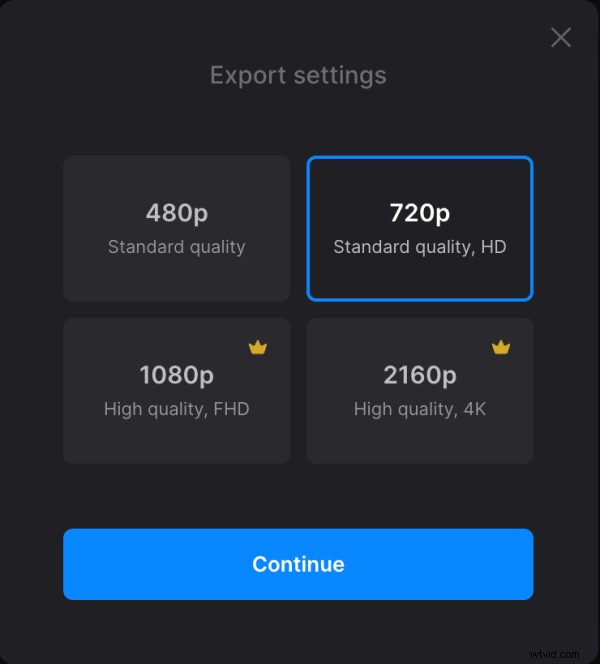
When you finish editing, click "Export" and choose the export option you like.
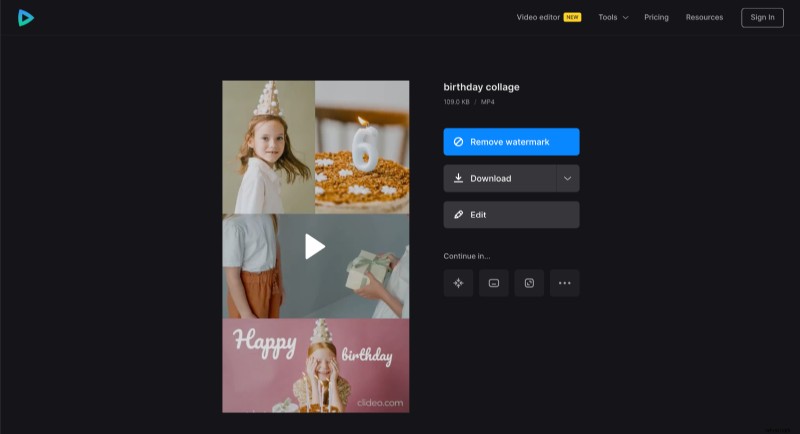
Download the collage
Watch the playback to confirm that the final result looks like you want it to. If not, click "Edit" to add changes. Otherwise, click "Download" to save the video.
If you are interested in learning more about other features, you can find more information in our Video Editor Help Center.