
The best way to show your audience how to use your product or how your service works is by sharing tutorials. Well-structured and informative tutorials are a great method to teach and inform people. Besides, they can help you effectively promote your company and build a strong community.
Tutorials come in different forms and formats – how-to articles, videos with screen records, animated tutorials, etc.. But, in all cases, they should be catchy to keep the attention of your audience.
The most effective form of tutorials is video. According to a survey, 65% of people enjoy watching videos more than reading articles, and it makes video tutorials the best way to explain and show something.
With Renderforest, it’s convenient to incorporate your screen records into an animated video, turning it into an even more engaging tutorial. Here’s an example of a tutorial you can create with one of our video templates.
Now, let’s see how easy it is to create and download your own tutorial video on our platform.
To create your tutorial video, you will first need to Sign up or Sign in to Renderforest. Then, go to the “Create video” page and choose the “Explainer animations” section in the “Animation videos” category.
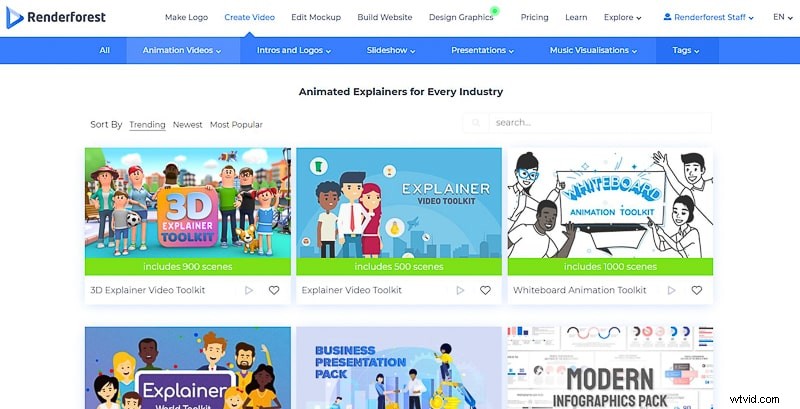
Here you will see a list of templates that can help you create the video you need. Our tutorial was created with the “3D Explainer Video Toolkit”, which includes over 900 animated scenes, but, of course, there are other templates to choose from. Next, click “Create now” to start.
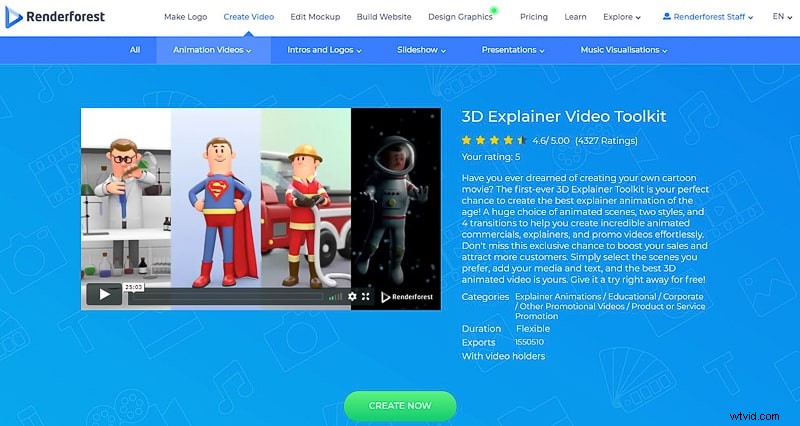
There are three ways for you to create a tutorial video with this template. Each of these options is helpful in their own way.
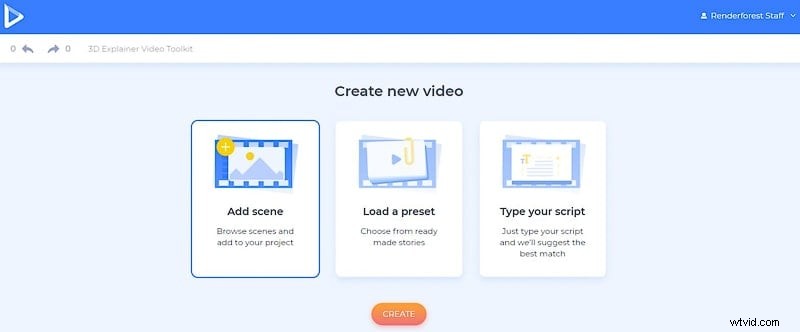
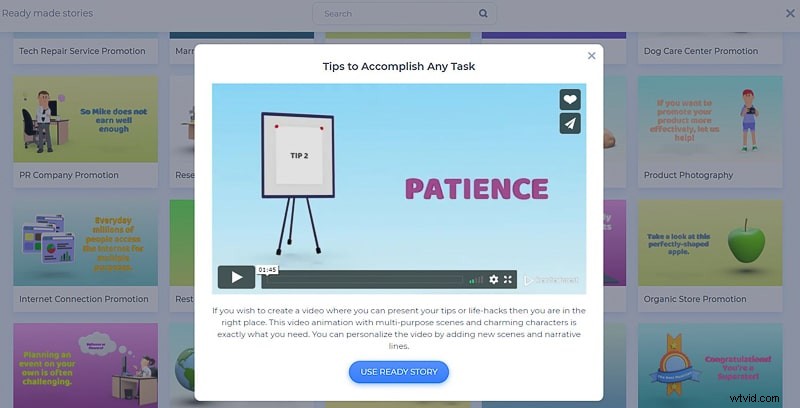
With the “Load a preset” option you choose one of the presets full of already selected scenes and start editing them with your media files and text. There are presets for explainer videos and tutorials, promotions, introductions, presentations, and more. Choose the preset you need and click “Use ready story”, to start editing the scenes.
In case you already have your video script ready for your tutorial video, you can select the “Type your script” option, and add your video script in the field. Click on the “Generate project” button next, to automatically get a collection of the appropriate scenes along with your typed-in text.
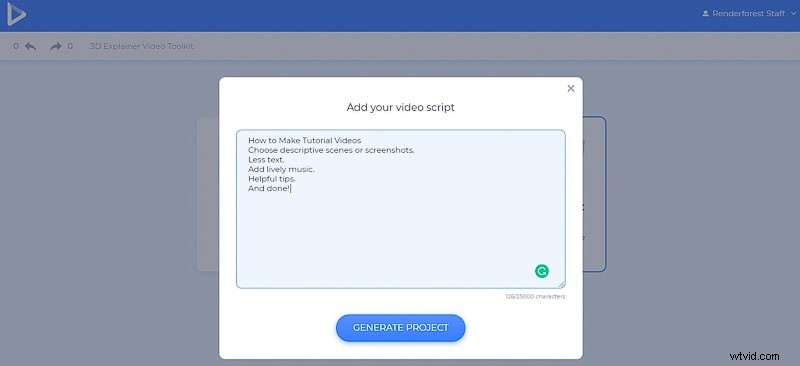
The last “Add scene” option, will allow you to create your video from scratch. It will offer you a long list of scene categories, from where you can choose all the ones you need, to create a good tutorial video.
Choose the scenes from our library to customize them. Male and female characters with different occupations, background and office animations, video holders, typography, checkmarks, x-marks, and many other scenes are available here.
You have everything to make a memorable tutorial.
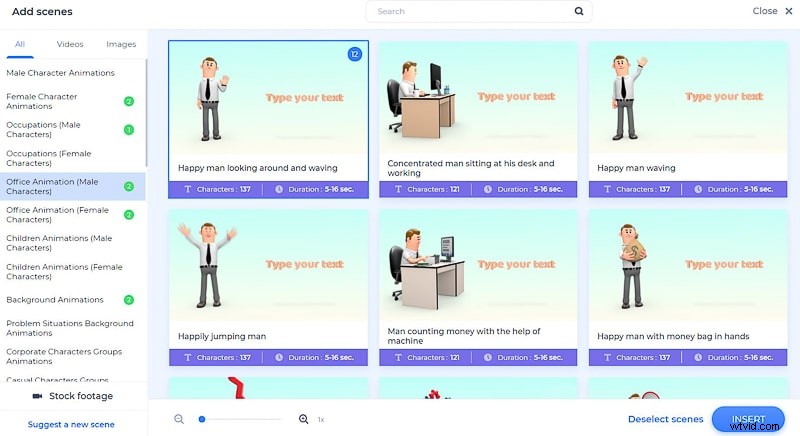
Once you select the scenes you need, click “Insert” to move to your dashboard. Here you will find the scenes in your selected order, but changing their order or deleting the scenes you don’t need, will still be doable. Duplicate and replace the scenes as well, by clicking on the three-dot menu on every scene.
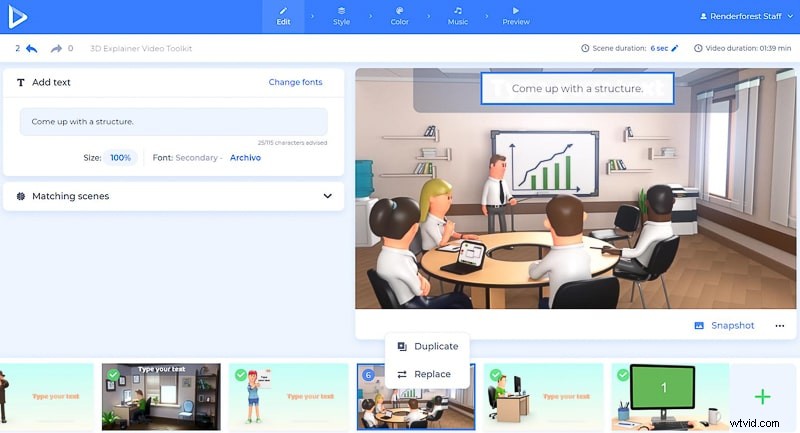
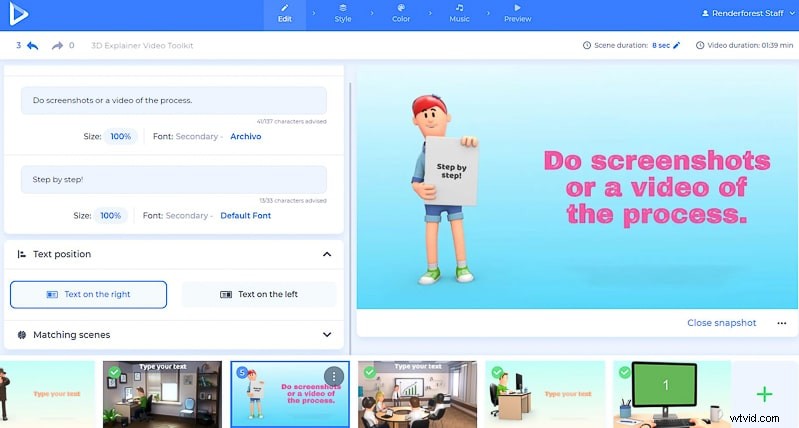
To edit the texts, click on the spaces with the default text, and paste or type in yours.
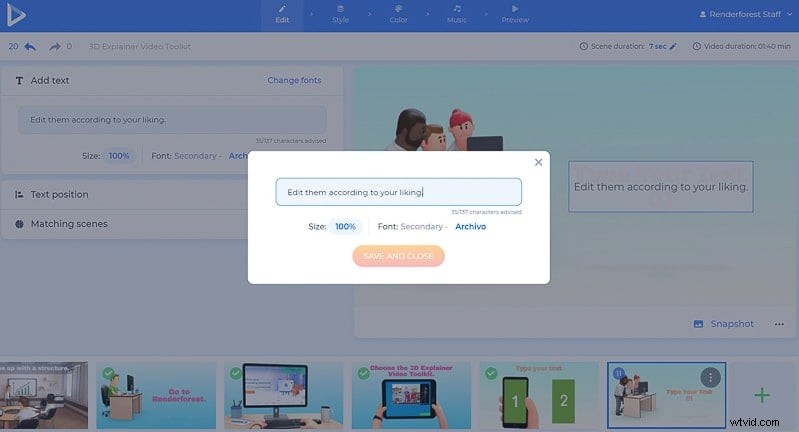
Change the text position on some scenes as well, if you need some parts to be a little different.
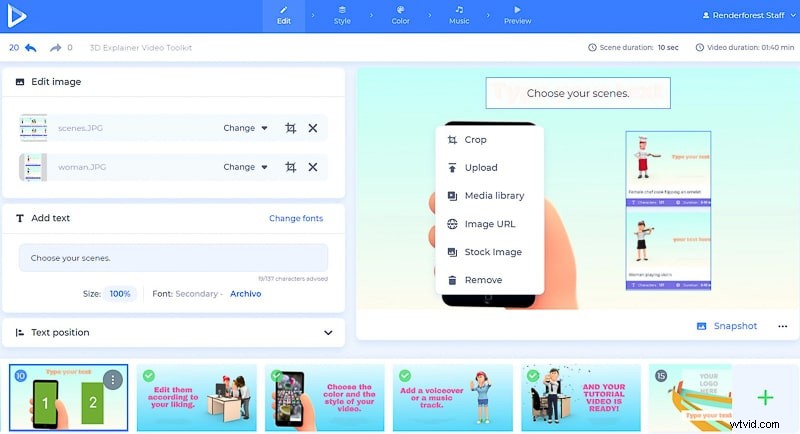
To add your video and image files to the scenes with media holders, click on the suggested fields, and choose “Upload”, or “Media library,” if you want to choose one from your previous uploads. In case you have a media file you want to add from the web, choose “Video URL” or “Image URL” respectively, and paste the links.
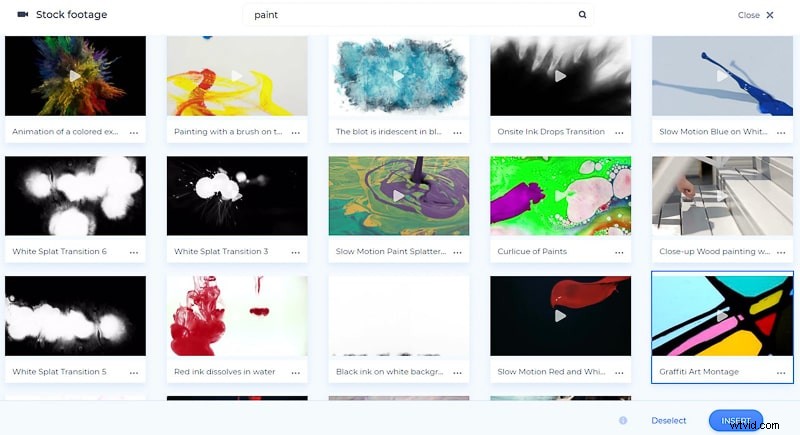
Another option included in the list is “Stock footage” or “Stock image”, which will help you choose a photo or a video from our media library, in case you don’t have a suitable one. Type the topic you are looking for, or select one of the most searched ones, choose the media file you like, and click “Insert”.
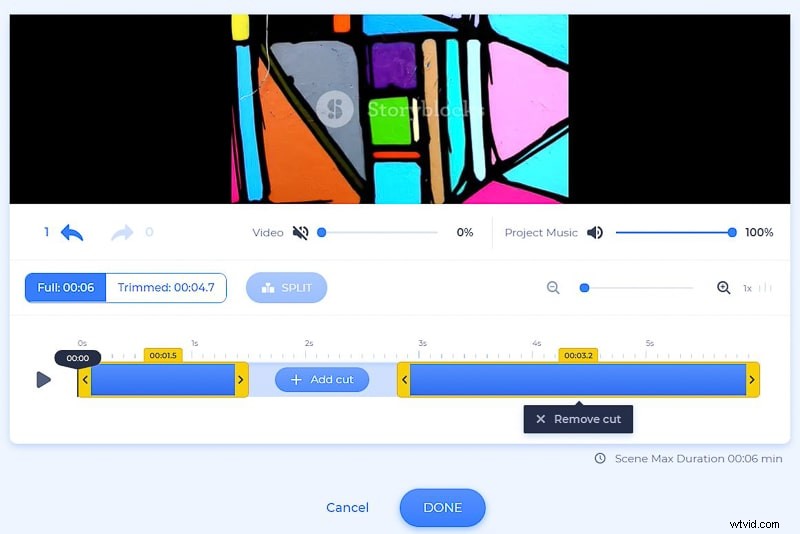
The added videos can be trimmed and muted, depending on your preferences.
Crop, flip, or apply filters to the added photos as well, all on the spot.
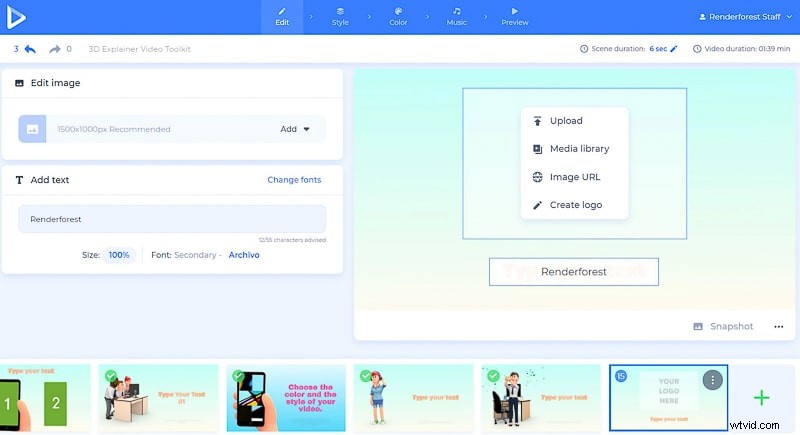
Add an animated logo scene as well to highlight your brand. Don’t have a logo yet, create one with Renderforest within minutes.
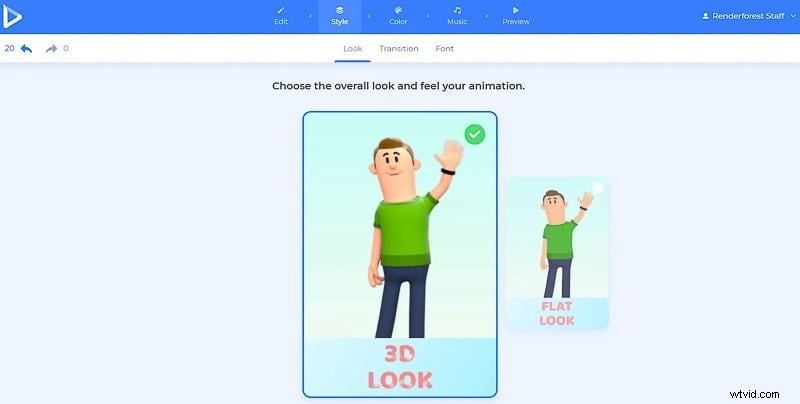
Next, move to the “Style” section, where you’ll be able to choose the look of your animation, for it to be either 3D or flat.
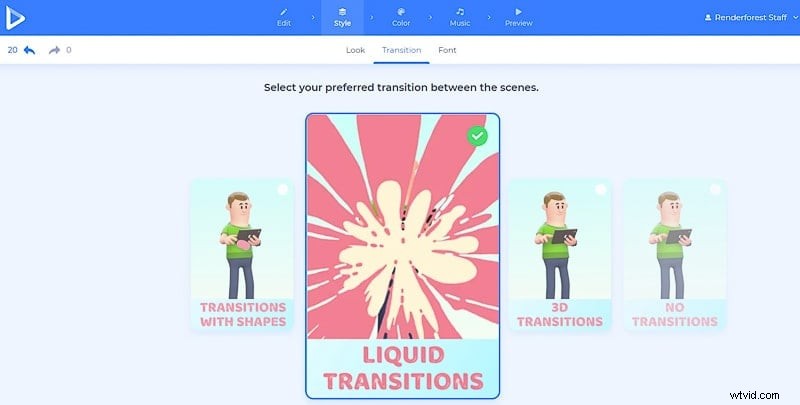
Select a transition style as well, to turn your tutorial into a more active and colorful masterpiece.
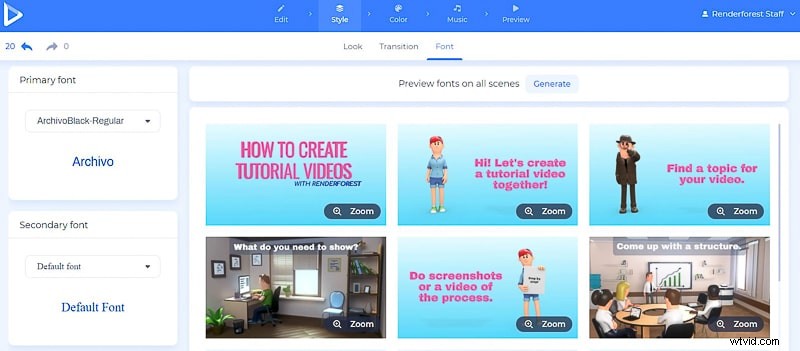
Don’t forget to choose a text style as well. You can change the font of your video text, be it a primary or a secondary one. Click “Generate” to apply and see the changes, before moving on.
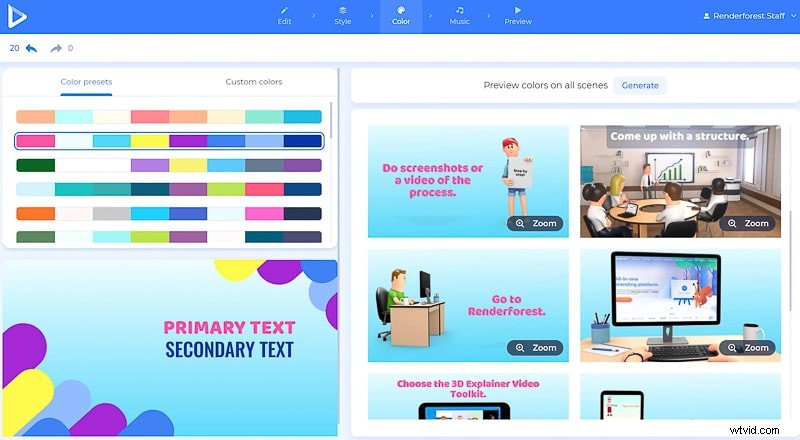
The next “Color” section will offer you various color combinations, to give your tutorial video the vibe you like. Again, the “Generate” button will apply the changes to your scenes.
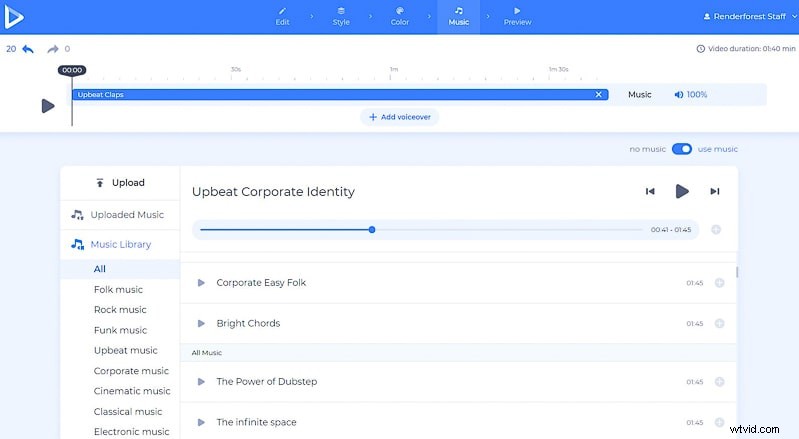
The last step before previewing your video is adding a music track or a voiceover to your creation. Choose a track from our music library, upload yours, or record a voiceover right on the spot. This way, your tutorial will have all the features people enjoy in a video.
Done! It’s time for you to “Preview” your tutorial, and see the work you’ve done before exporting it.
There are several options to export your creation. The first one is the free option, with which you can download your video with SD360 quality and a watermark.
With the other “High quality” option you will be able to choose one of our paid subscription plans. See all the details of our pricing here.
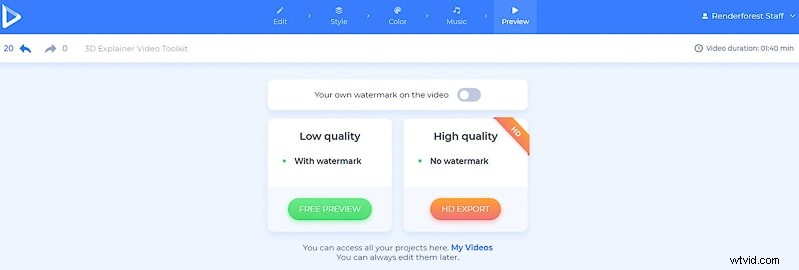
That’s it! Your tutorial video is ready to help your audience learn a thing or two and help perform their desired actions on your platform without a problem. The video will be saved in your Renderforest account, and ready to be edited or extracted in the “My videos” section.
Are you ready to create your next tutorial? Let’s start right away!
Explainer Video Toolkit
Create new animation stories, tutorial videos, or captivating explainers with over 500 scenes, lovely characters, and more. Try it now!
Whiteboard Animation Toolkit
Explain difficult concepts, show step-by-step tutorials, or create unique promotional or announcement videos using this toolkit, full of easy-to-use features.
Line-Style Explainer Video Toolkit
This minimalist and yet colorful toolkit is here to help you create different types of amazing explainer animations and promotional videos. With extraordinary and relatable characters and backgrounds, you and your audience will definitely not get bored.