Looking to brighten a video on your smartphone or computer?
Whether you want to edit the brightness of a video on iOS, Android, Mac, or Windows, we’ve got you covered.
In this article, we’ll show you how to make a video brighter on iPhone, Android, Mac, and Windows with clear step-by-step instructions and pictures.
Here’s everything we’ll cover, please feel free to jump around:
How to brighten a video on iPhone and Android
How to brighten up a video in iMovie on Mac
How to add brightness to a video in VLC
How to lighten a dark video in Windows 7/8/10 using Windows Movie Maker
How to lighten up a video in Adobe Premiere Pro
A simple way to brighten a video on Mac and Windows
How to Brighten a Video on iPhone and Android
If you’re on Android or iOS, you can use Inshot to brighten a video. Inshot is available on both iOS and Android. It’s the ideal tool if you want to brighten the video and post it on social media platforms such as YouTube, Instagram, Tik Tok, or Twitter.
Here’s how to brighten a dark video on iPhone or Android using Inshot:
- Open Inshot and tap Video to import the video.

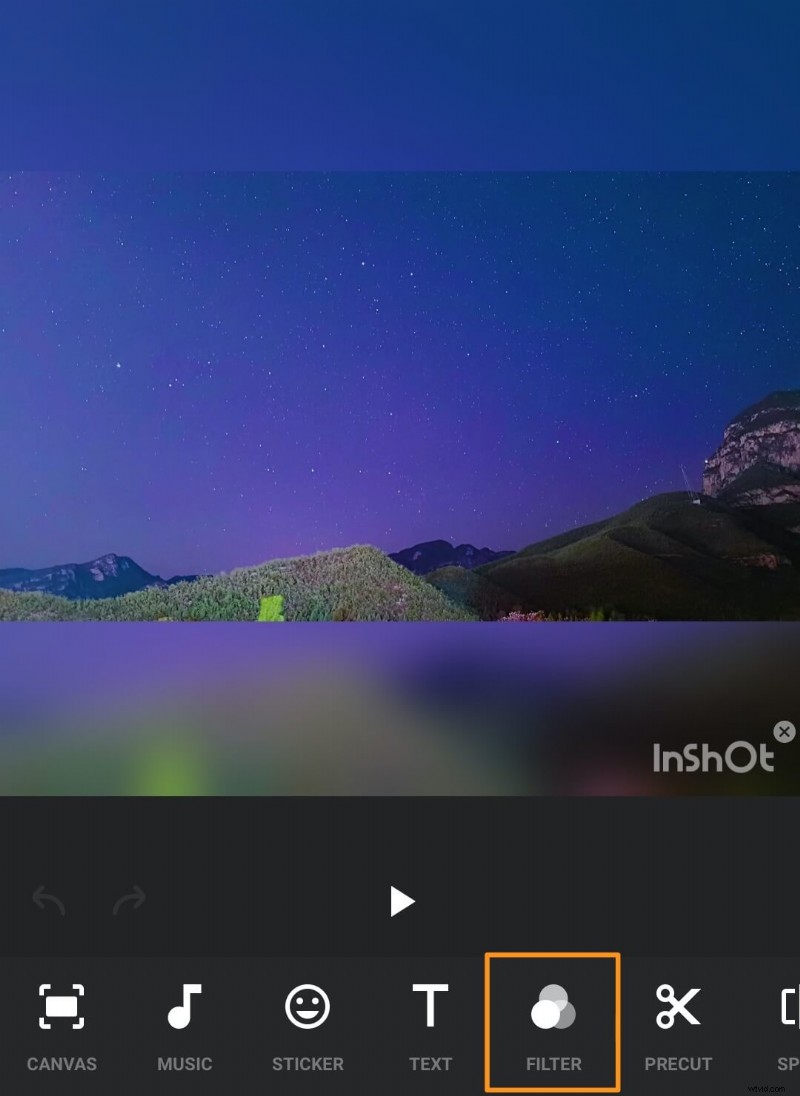
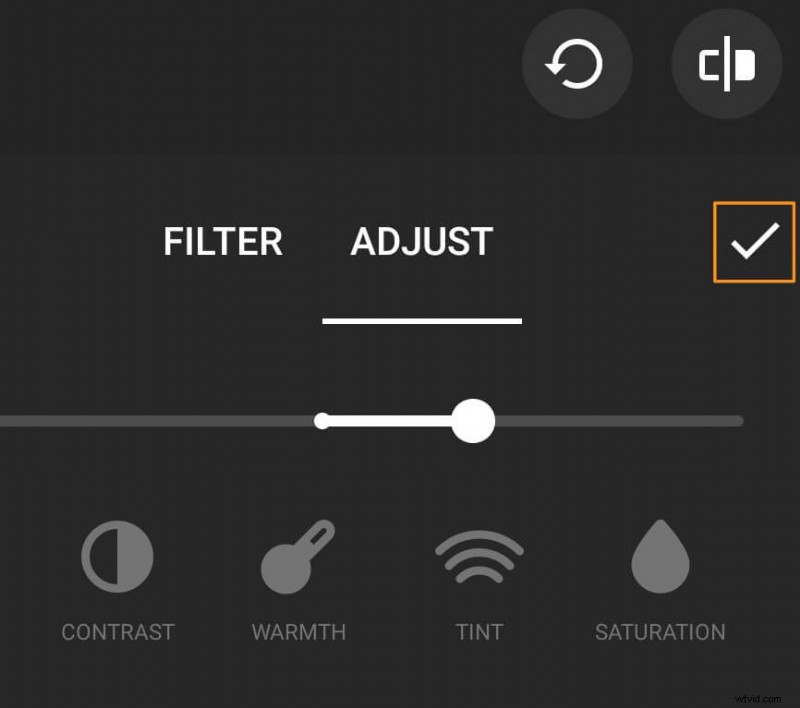
- Once the video has been imported, navigate to the Filter tab.
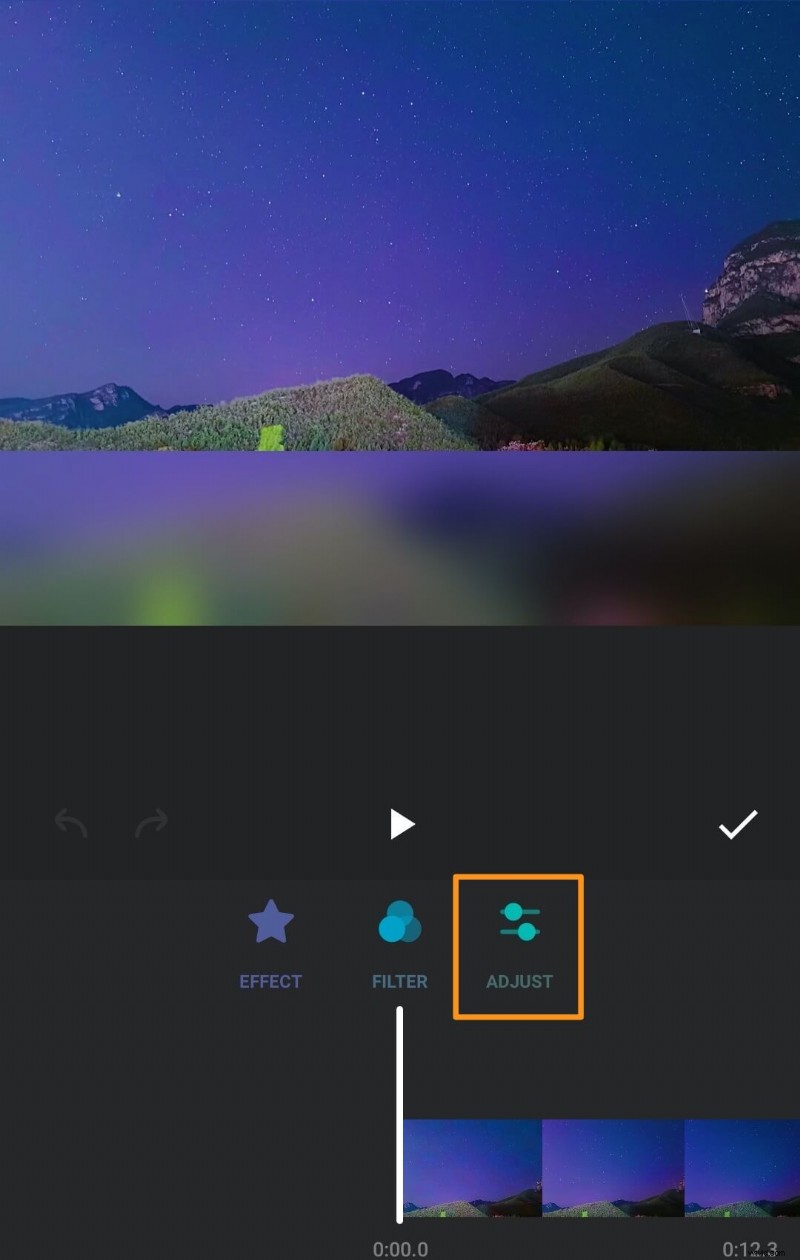
- Now tap on the Adjust button.
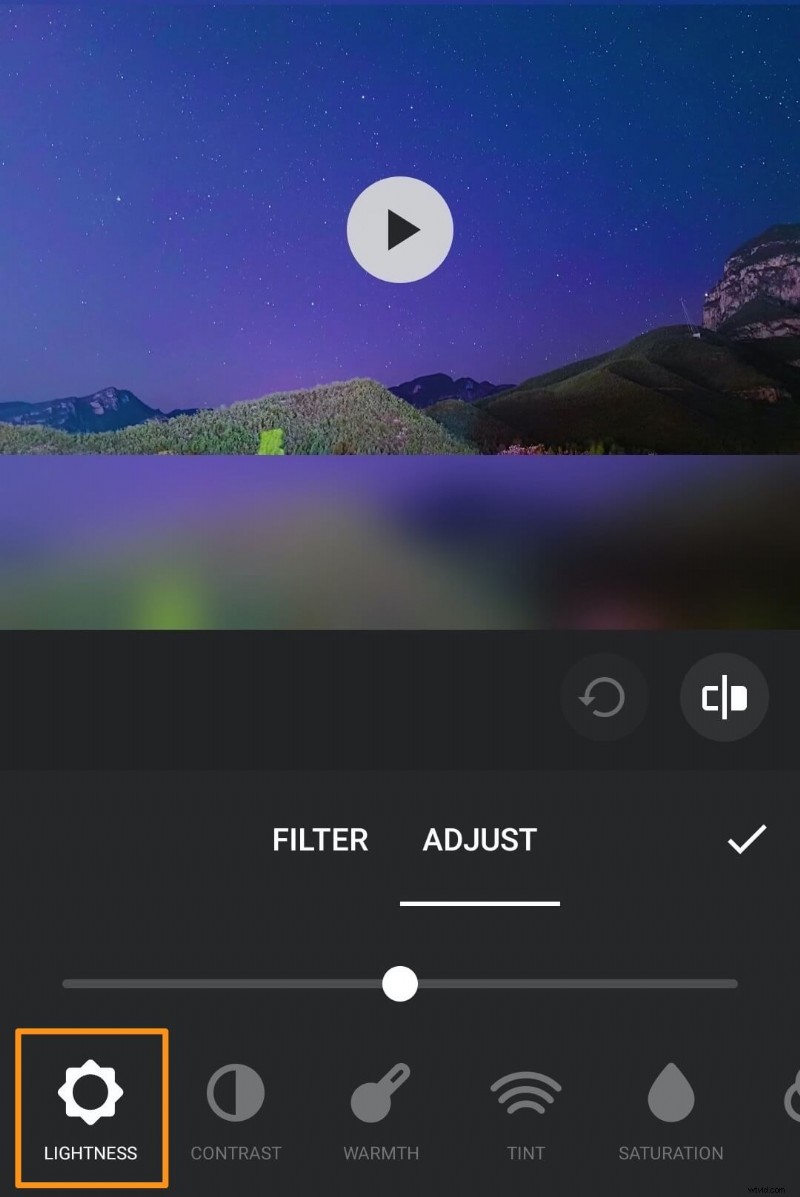
- You can now adjust the brightness of your video from the Lightness tab.
- Tap and drag the handle to the right or left to increase or decrease the brightness of your video.
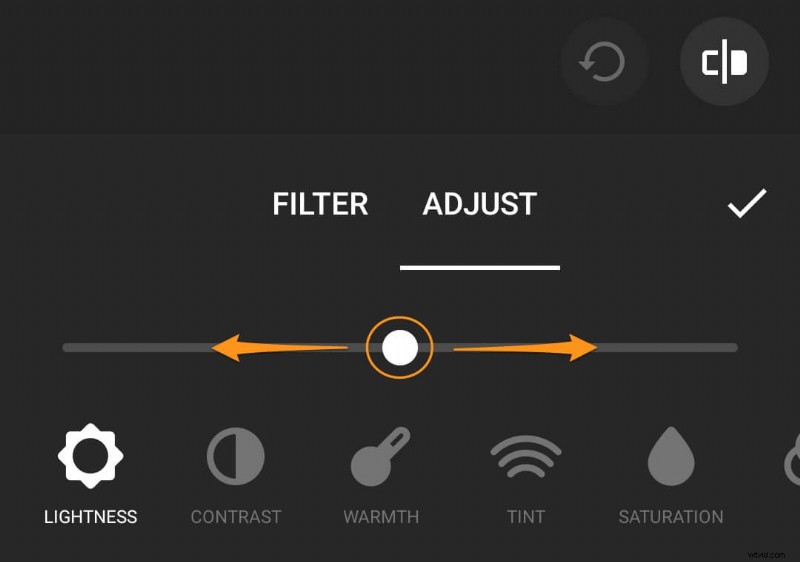
- Now save the changes you made by clicking on the tick icon.
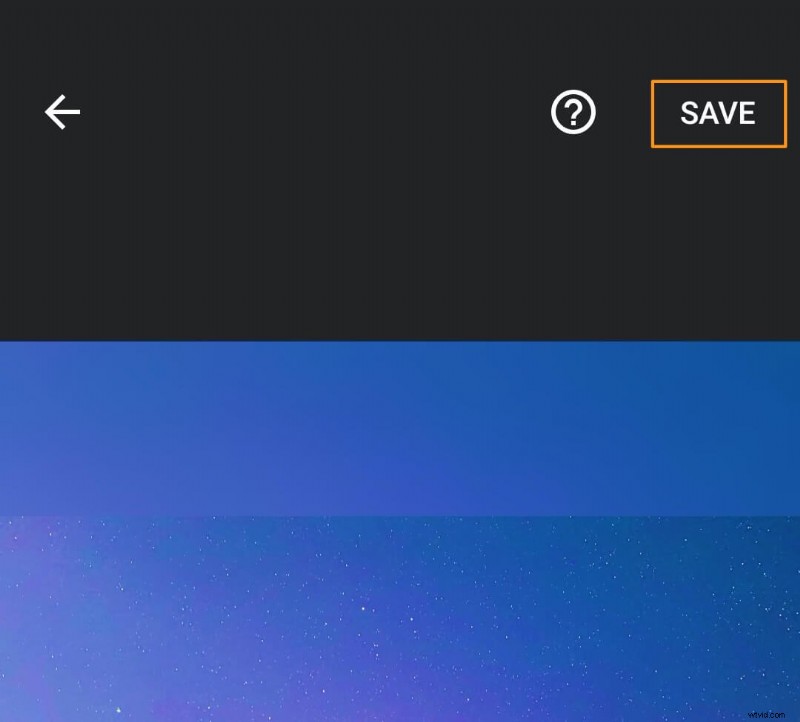
- Finally, tap the SAVE button in the top right corner of the app screen to save the video.
How to Brighten up a Video in iMovie on Mac
iMovie is a free tool that comes preinstalled on Mac OS. Follow the below steps to brighten a video on Mac using the iMovie desktop software:
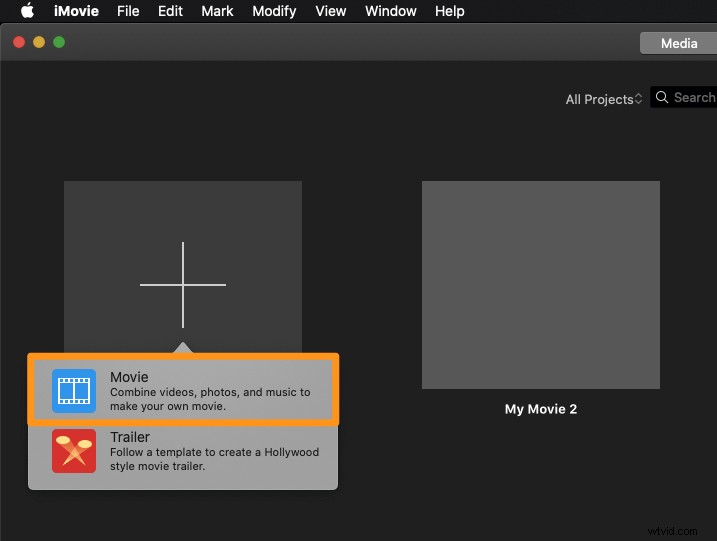
- Open iMovie and click on the Create New button.
- Pick Movie from the resulting dropdown menu.
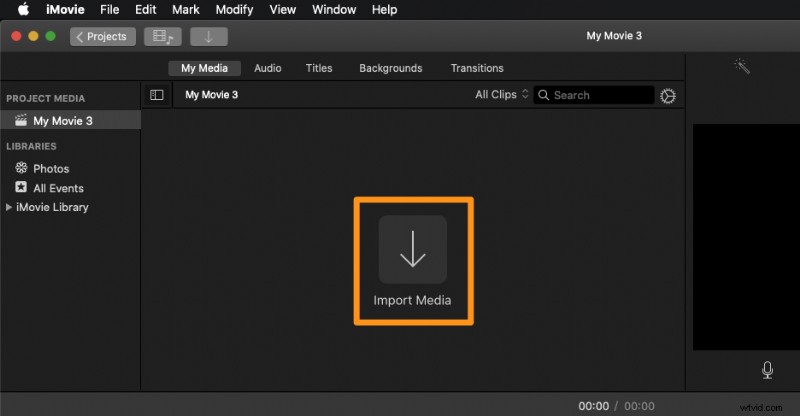
- Click on the Import Media button to import the video you want to brighten.
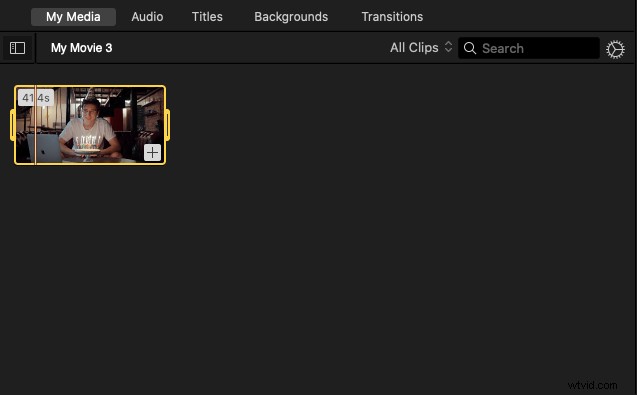
- Once the video has been imported, click on it to select the video—the video will be highlighted in yellow to indicate that it has been selected.
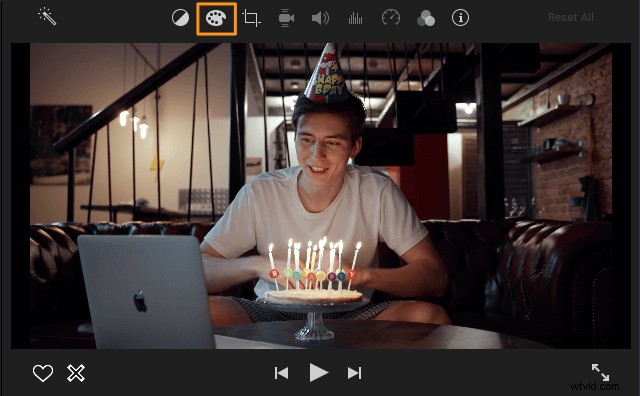
- Click on the Color correction button in the toolbar right above the video player panel.
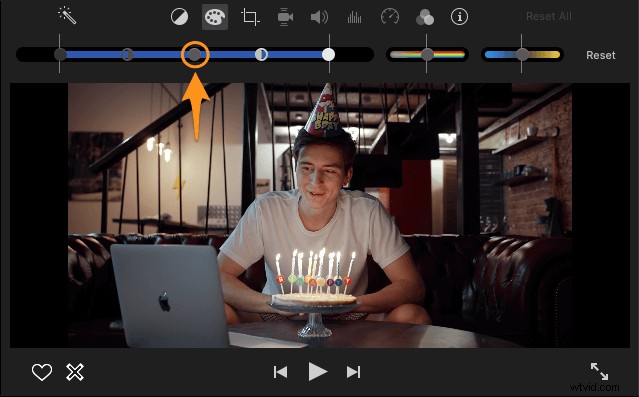
- Now click and drag the handle at the center to your right or left to increase or decrease the brightness of your video.
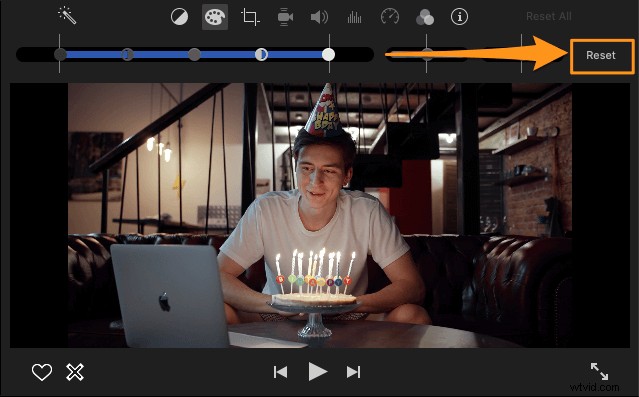
If you’d like to adjust the brightness all over again and undo the changes you’ve made so far, click on the Reset button in the top right corner of the app window.
Also, iMovie allows you to adjust the contrast, saturation, temperature, etc., of your video.
How to Add Brightness to a Video in VLC
VLC media player is a free tool available on both Windows and Mac. If you don’t have it installed, you can download VLC for Windows or VLC for Mac.
Once you’ve installed VLC on your computer, follow the steps below to brighten a video in Windows 10 or Mac using VLC media player:
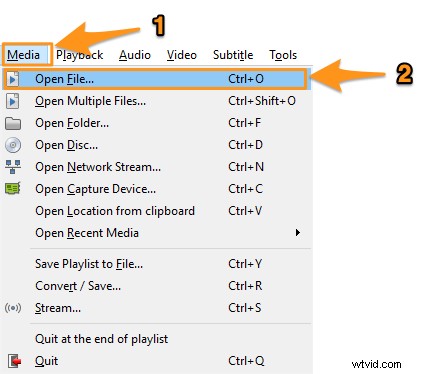
- Open VLC and open the file you want to brighten by going to Media > Open File.
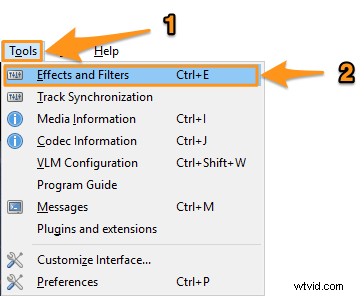
- Once you’ve opened the video, go to Tools > Effects and Filters.
- In the Adjustments and Effects window, go to the Video Effects tab. Now under the Essential tab, you’d see the controls to adjust the brightness, contrast, saturation, etc.

- Click on the Image adjust checkbox to enable these controls.
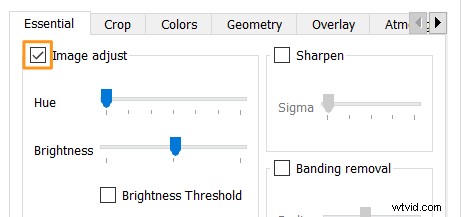
- Drag the slider handle to the left or right to adjust the brightness of your video. Dragging the handle to the right lightens the video while dragging the handle to the left darkens the video.
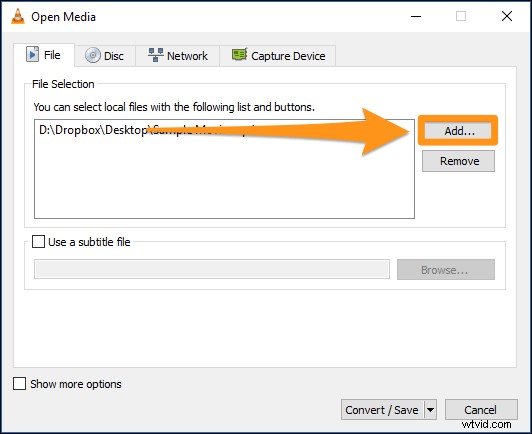
You can also use VLC to perform color correction. It allows you to easily adjust the saturation, hue, and contrast of your video. - Once you’re done making the adjustments to your video, go to Media > Convert / Save.
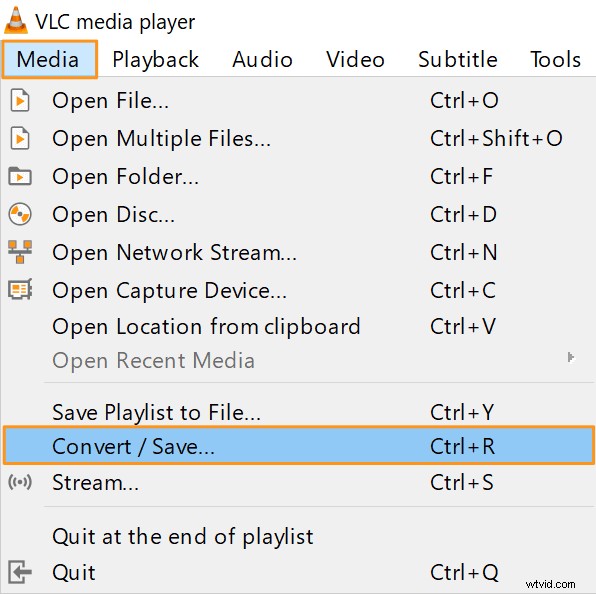
- Now click on the Add button to import the video you had brightened earlier.
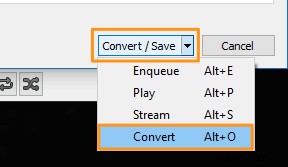
- Once you’ve selected and imported the video, click on the Convert / Save dropdown button in the bottom right corner of the window and select Convert from the resulting dropdown menu.
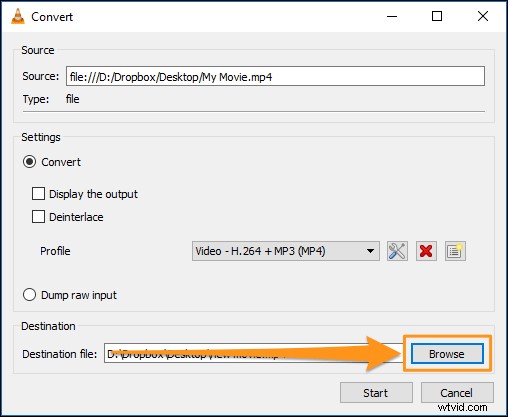
- In the Convert window, click on the Browse button to select a location for the brightened video on your computer.
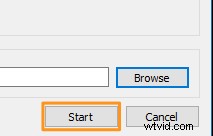
- Finally, click Start to save the brightened video.
How to Lighten a Dark Video in Windows 7/8/10 using Windows Movie Maker
Microsoft has ended the support for the Windows Essentials suite. You can, however, download the official installer using this download link. We retrieved that link using a web archiving service.
Here are the steps to install and brighten a video using the Windows Movie Maker:
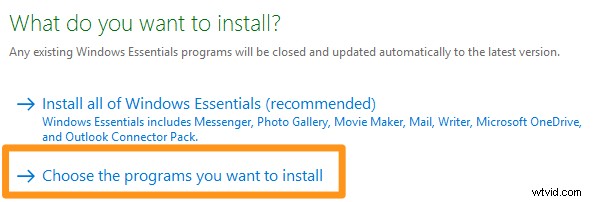
- First, install Windows Movie Maker on your computer. Double-click the installer and pick Choose the programs you want to install option from the first window that appears.
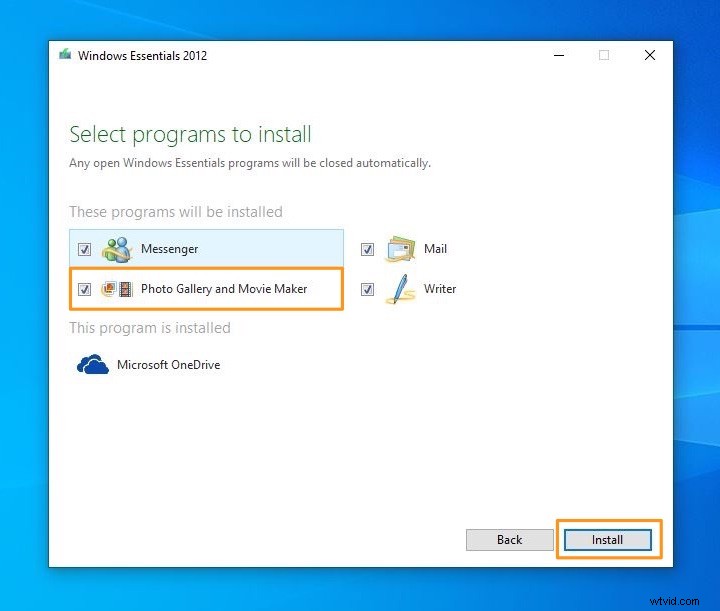
- Leave the photo gallery and movie maker checkbox ticked. Untick the rest of the checkboxes as you wouldn’t need the other tools that come with this suite and click on the Install button.
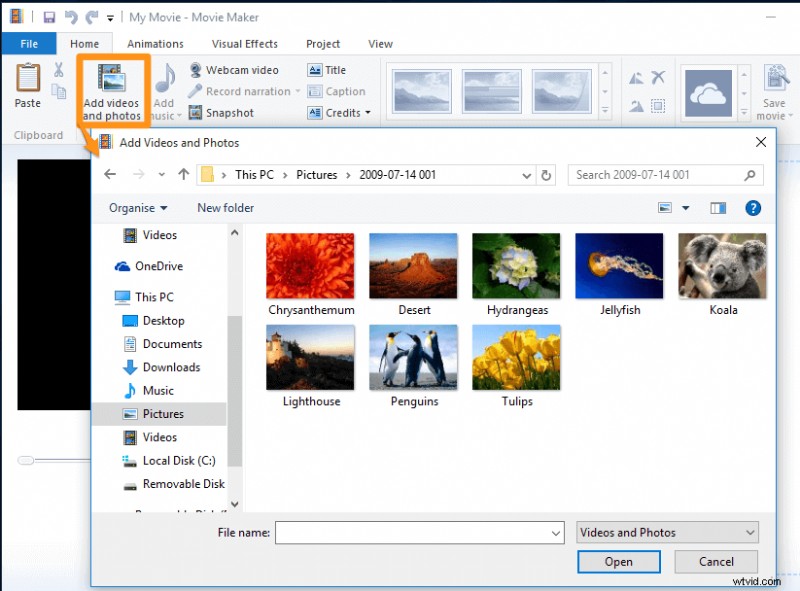
- Once you’ve installed Windows Movie Maker, open it and import the video you want to brighten.
You can simply drag and drop the video onto the software window. Or you can import the video by going to the Home tab and clicking on the Add Photos and Videos button.
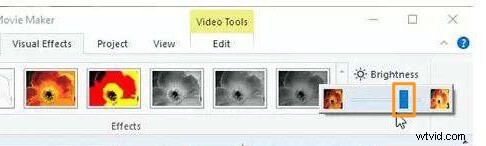
- Now go to the Visual Effects tab and click on the button that says Brightness.
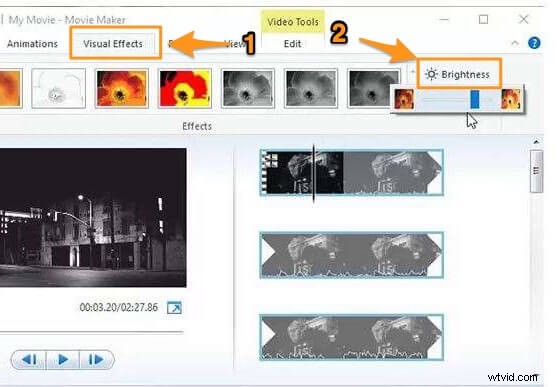
- Then click and drag the handle to adjust the brightness of your video. Drag the slider handle to the right to lighten the video and to the left to darken the video.
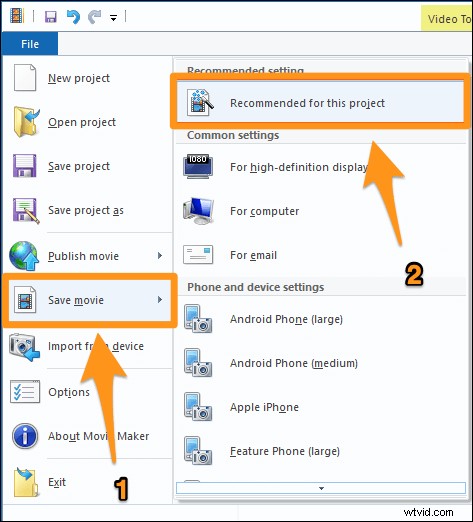
- Finally, save the video you just brightened. To save the video, go to the File tab, select Save movie, and then select Recommended for this project.
How to Lighten up a Video in Premiere Pro
Adobe Premiere Pro is a paid, professional video editing software designed to be used by professionals. If you already have it installed on your computer, you can use it to brighten a video.
Here are the steps to make a video brighter in Premiere Pro:
1. Create a New Project
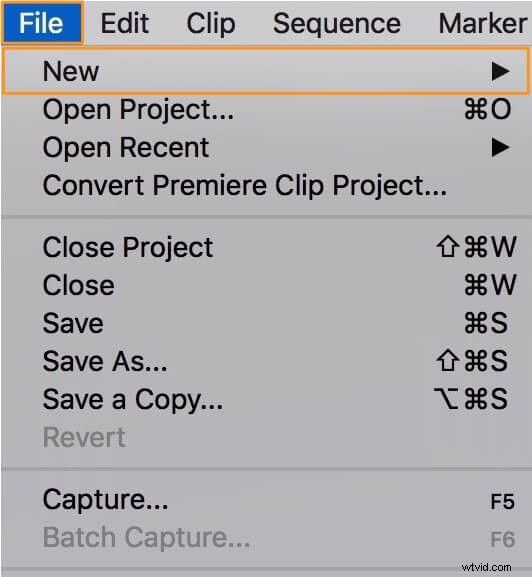
Go to File > New to create a new project.
2. Import the Video
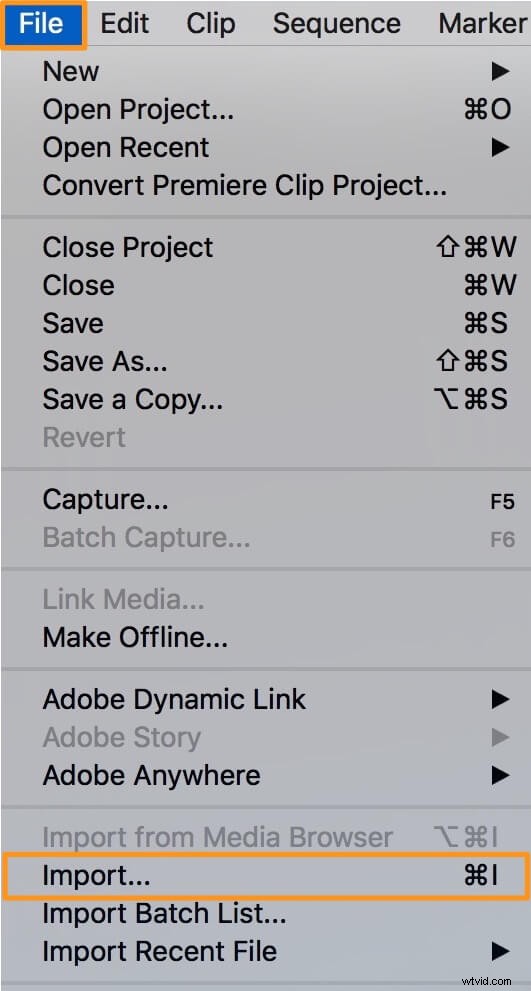
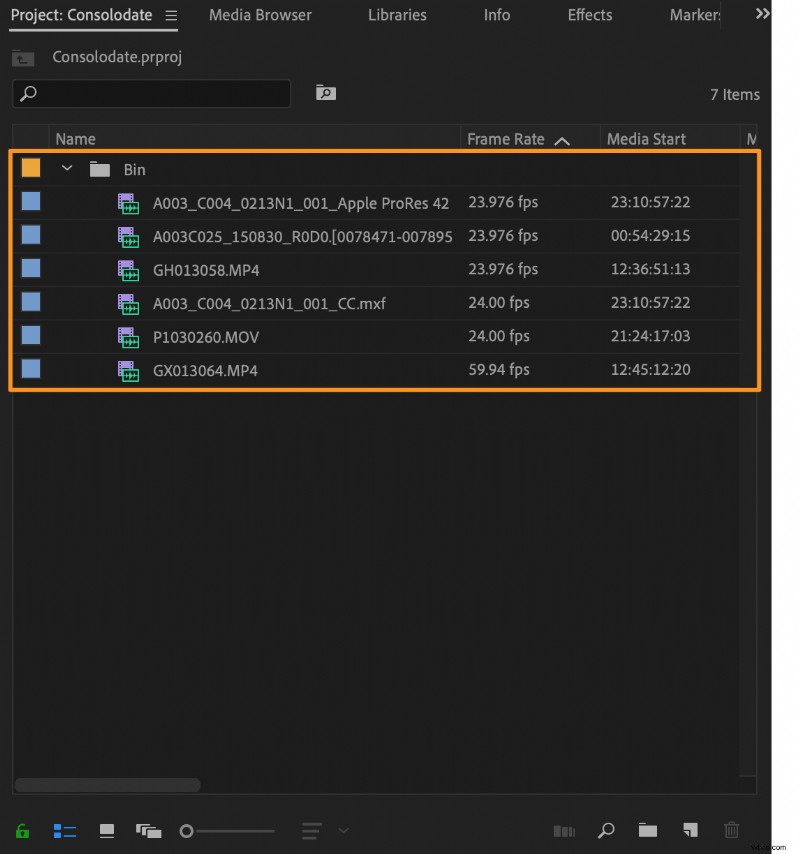
Go to File > Import to import the video you want to brighten.
3. Add the Video to the Timeline
Drag and drop the imported video from the Project panel onto the timeline.
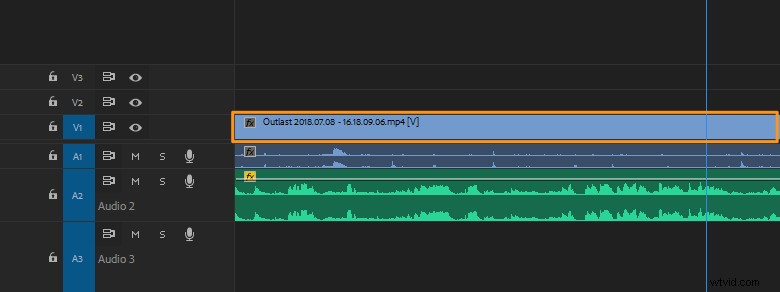
4. Select the Video from the Timeline Panel
From the timeline, click on the video to select it.
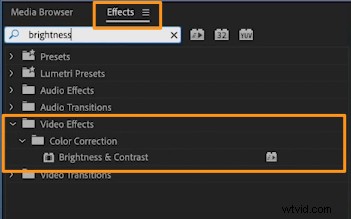
5. Add the Brightness Effect
Navigate to the Effects tab in the Project panel and then go to Video Effects > Color Correction > Brightness & Contrast. Now double-click on the Brightness & Contrast option to add the brightness effect to the video.
6. Adjust the Brightness
Once you’ve added the effect to the video, you can now see that the controls to adjust this effect appears in the Effect Controls panel.
You can see that there’s a number (in blue color) beside Brightness. You can click on the number and drag to your right or left to increase or decrease the number.
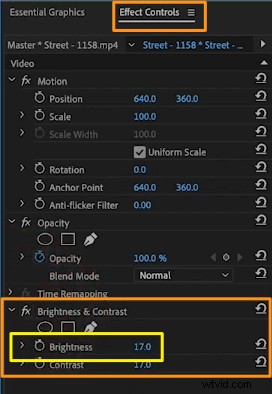
Increasing the number increases the brightness or adds more light to the video and decreasing the number decreases the brightness or darkens the video.
You can also adjust the contrast the same way you adjusted the brightness of the video.
A Simple Way to Brighten a Video on Your Mac or Windows Computer
If you’re looking to brighten your video online, you can use Animaker’s Adjust Video Tool.
For those who are unaware of Animaker, it is an all-in-one DIY video-making app designed to help non-designers make professional-quality videos from the comfort of their browser.
It’s a simple tool that lets you easily darken or brighten your videos for free! All it takes is 3 simple steps to brighten and download your videos using our super-simple, free video brightening software.
It works on Chrome, Firefox, Safari, Internet Explorer, etc., and if you use one of these browsers, you can easily brighten your videos on your Windows or Mac computer.
Moreover, you can upload and brighten your videos in multiple formats such as MP4, MPG, WebM, MOV, and more formats.
Follow the steps below to brighten a video using Animaker:
Step 1: Sign Up / Login and Pick the Dimensions
First, sign in to your account or create a free one. Then pick the dimensions for your video depending on the social media platform you want to post it on.
Want it to be Horizontal or Square or Vertical in size? Pick one of the premade dimensions from the Create a video section in your dashboard.

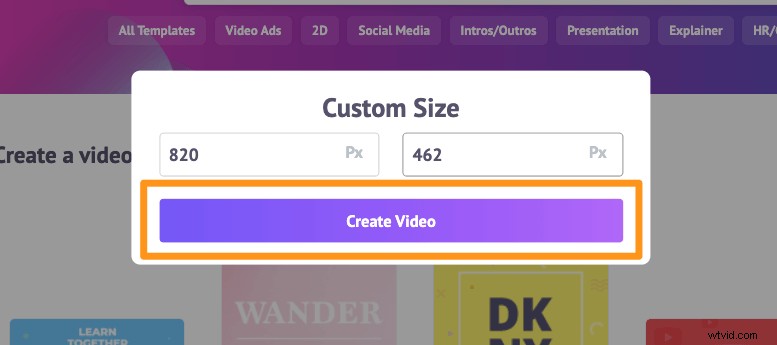
You can also pick custom dimensions for your video by clicking on the Custom Size Video button from the same section above. Simply enter your desired width and height and hit Create Video.
Step 2: Upload the Video and Brighten It
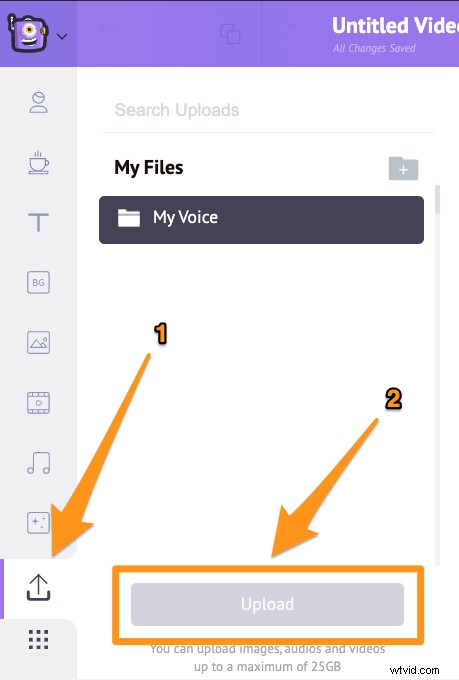
Upload the video you wish to brighten. Animaker allows you to upload videos up to 20 GB in size. Navigate to the Upload tab in the main navigation bar and click on the Upload button at the bottom of the tab window.
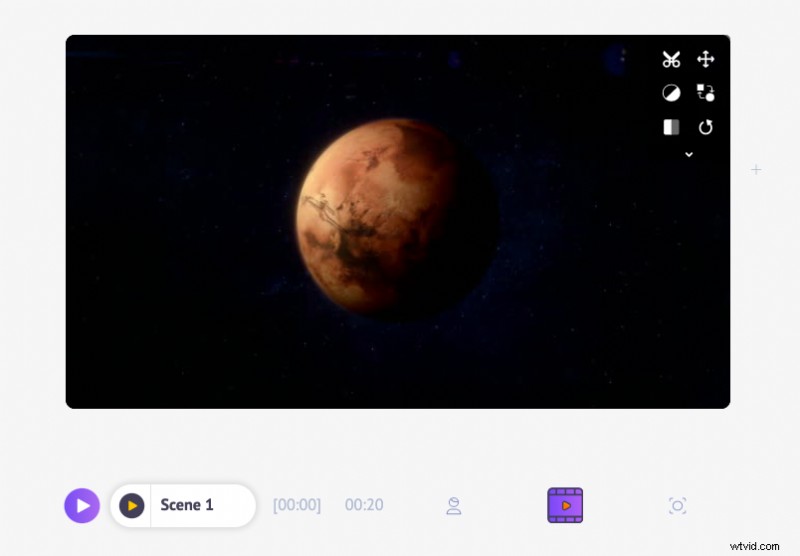
Once the video has been uploaded, click on the video to set it onto the canvas.
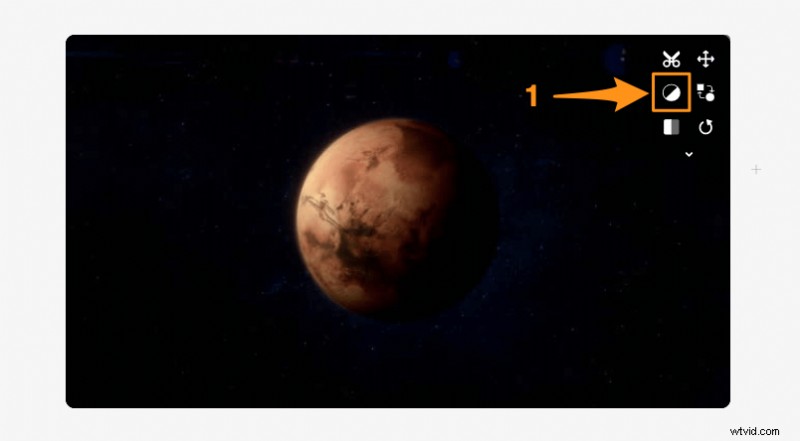
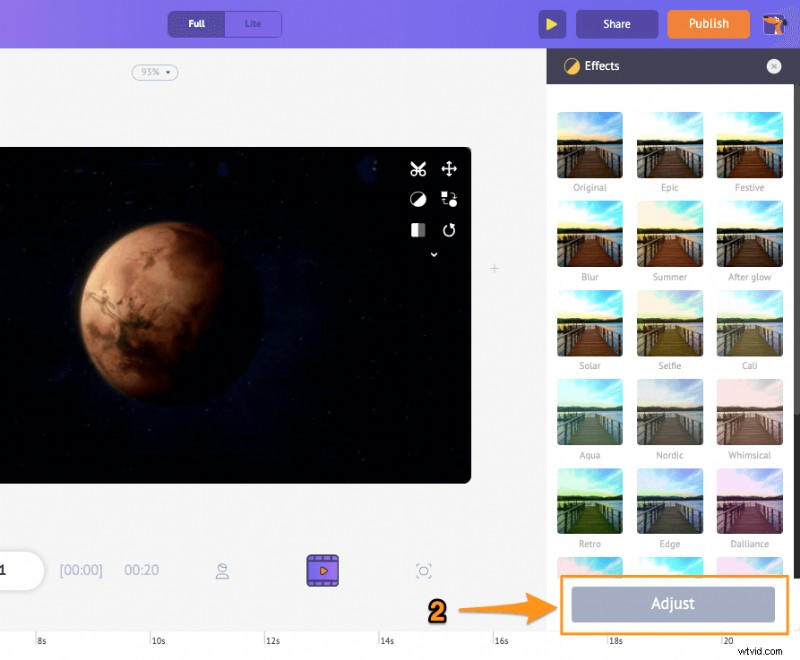
Now click on the Filters icon and click on the Adjust button at the bottom of the Effects panel. You’ll now see the controls to adjust the brightness, contrast, saturation, hue, tint, etc. You can also blur the video.
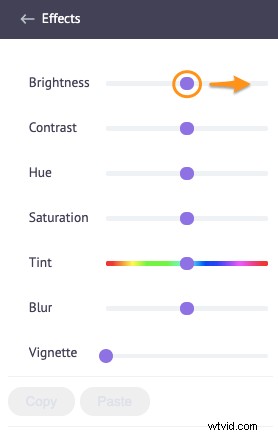
To brighten your video, click and drag the handle of the Brightness slider to the right.
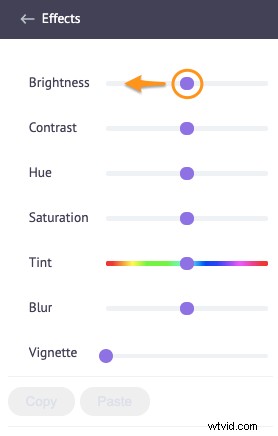
If you want to darken the video, simply click and drag the handle to the left.
Step 3: Download the Video
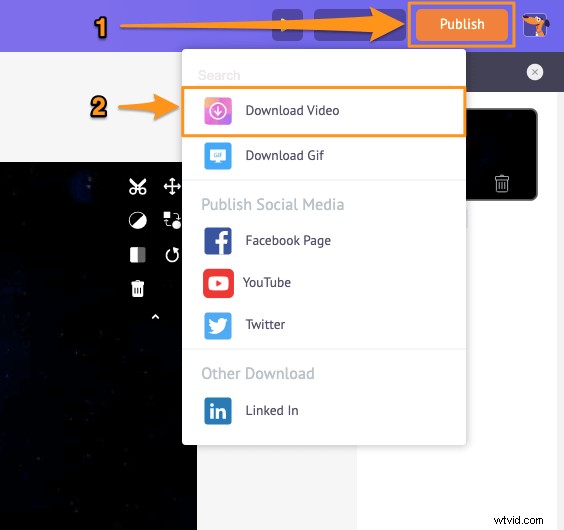
You can download the video to your local computer by clicking the Publish button and selecting Download video option from the dropdown menu. You can also share the video directly to various social media platforms from within the app.
Apart from letting you easily brighten or darken your videos, Animaker offers all the video editing tools you’d need to edit and fine-tune your video footage.
You can use Animaker’s video editor to:
- Trim videos
- Rotate videos
- Crop or resize videos
- Flip videos
- Remove audio from videos
- Add filters to videos
- Merge or combine videos
- Loop videos
- Add voiceover to videos
- Add pictures to videos
- Add subtitles to videos
And the list goes on… feel free to check out all our video editing software tools and learn why they’re the go-to tools for marketers, content creators, and people with no video editing experience.
Got any questions about adjusting the brightness of a video on Windows, Mac, Android, or iOS? Any interesting tips or tools to adjust brightness or correct the color of your videos on your phone or computer that we haven’t covered? Please let us know about them in the comment section below.