
Adding a voiceover to Google Slides presentations is straightforward if you’ve already created a voiceover, and you’re looking to add the audio file to a slide in your presentation.
If you haven’t created a voiceover, and you’re looking to use Google Slides to record a voiceover, well, Google Slides doesn’t have built-in functionality to record voiceovers.
You can only insert audio files into your presentations on Google Slides. You’ll have to create the voiceover separately and then add it to your presentation on Google Slides.
We’ll first show you how to record or generate a voiceover using free tools online and then give you step-by-step instructions on how to add a voiceover in Google Slides.
Here’s what we’ll cover in this article, feel free to jump to a section that’s relevant to you:
How to quickly create voiceovers for your Google Slides presentations for free
How to add a voiceover to Google Slides presentations
How to Create Voiceovers for Your Google Slides Presentations for Free
You can either record your own voiceover using a voice recording tool or generate a voiceover using text-to-speech software.
Let’s see how you can record a voiceover. We’ll be using Rev’s free online voice recording tool to record your voiceover.
You can also use offline voice recording software such as Apple’s GarageBand or Audacity.
Record a Voiceover for Your Google Slides Presentations in 3 Simple Steps using a Free Voice Recorder App
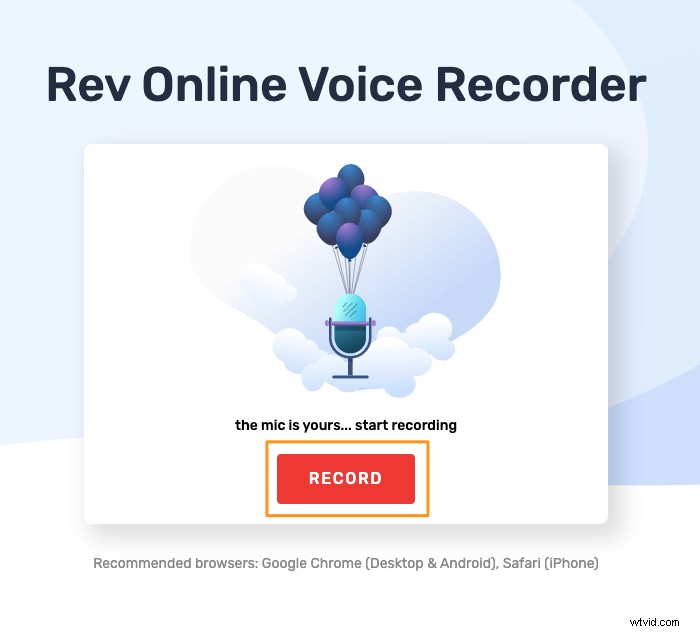
- Open the tool and click on the Record button to start recording your voiceover.
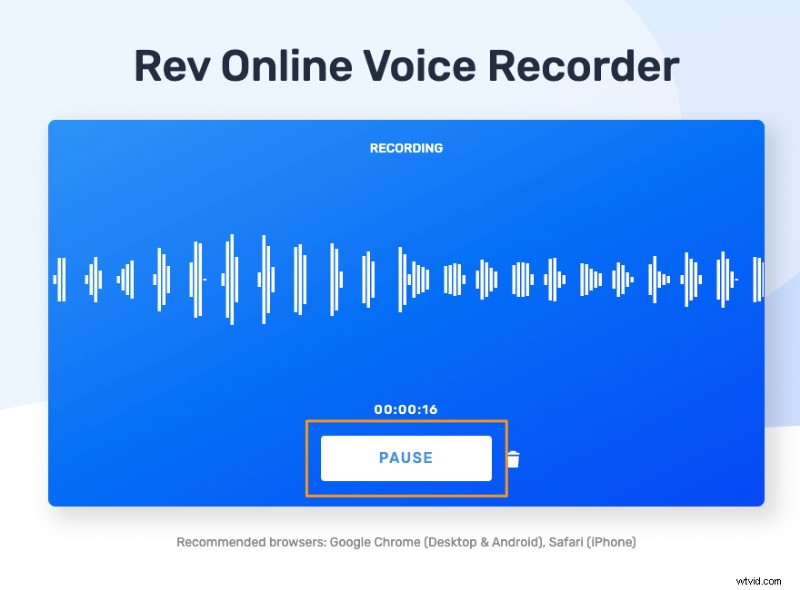
- You can now pause the recording by clicking on the Pause button.
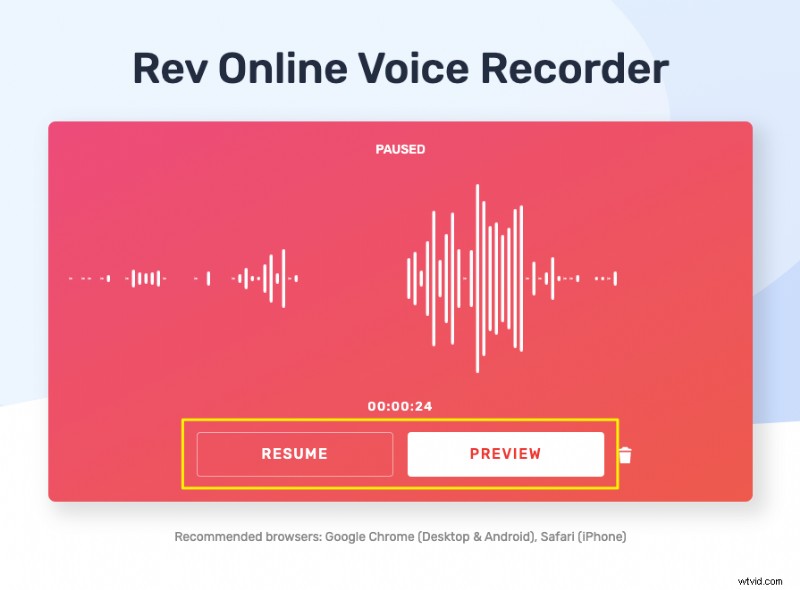
- You can then resume recording by clicking on the Resume button or preview what you’ve recorded by clicking on the Preview button.
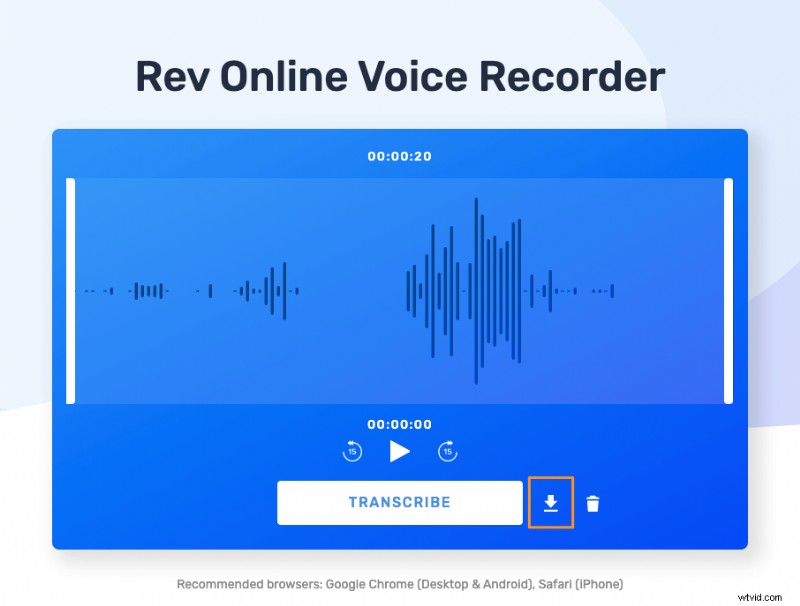
Clicking on the preview button will take you to a window where you can preview, transcribe, or download the recording. Click on the download icon right next to the transcribe button to download the recording.
If you’d rather generate a voiceover using text-to-speech software, you can use Animaker’s free text-to-speech tool.

Animaker uses the NTTS (Neural Text To Speech) model to generate ultra-realistic, crystal-clear audio narrations!
Generate a Human-like Natural-sounding Voice with Text in 3 Simple Steps using Animaker
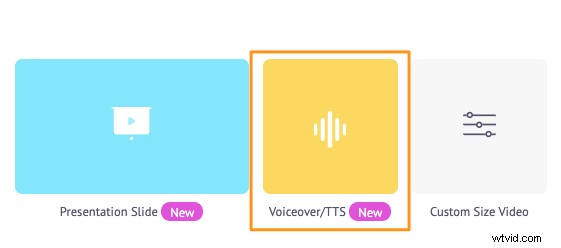
Step 1: First, sign up or sign in to Animaker. Then from the Create project section in your dashboard, click on the yellow, Voiceover/TTS button.
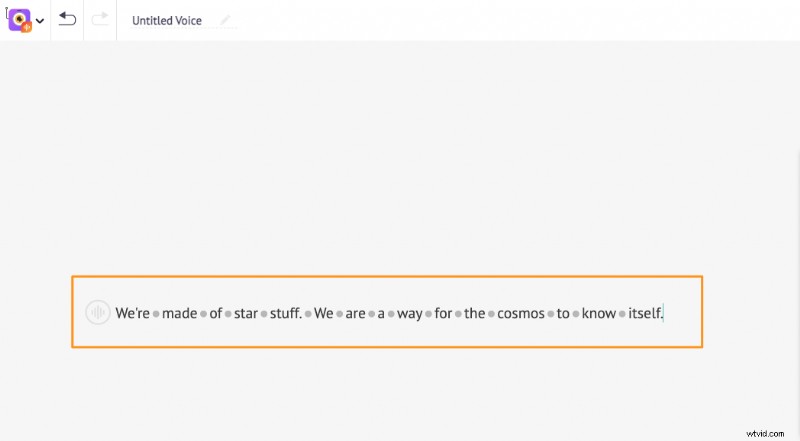
Step 2: Now start entering the text in the window that appears next.
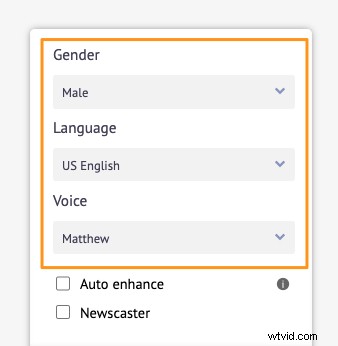
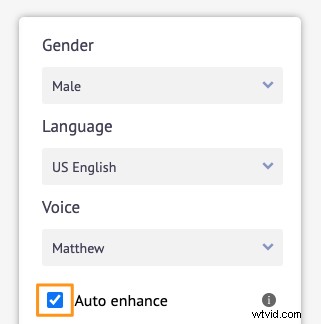
You can then pick a Gender, Language, or Voice for your voiceover.
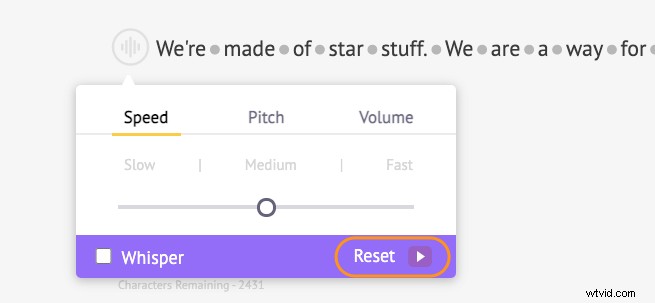
Click on the round button in the top left corner of the window to adjust your voiceover’s Speed, Pitch, and Volume.
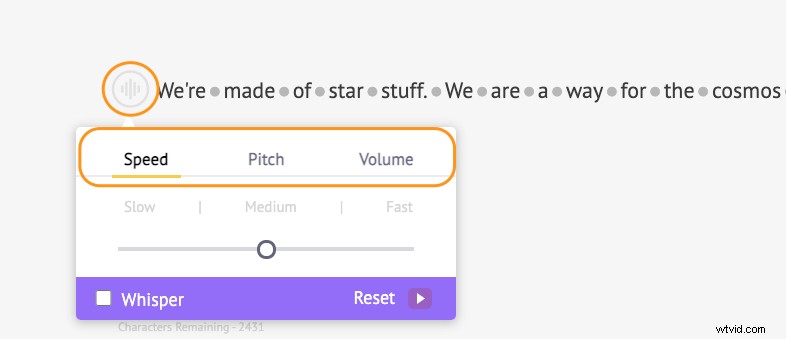
If you made changes to the speed, pitch, or volume, you can undo these changes by clicking on the Reset button.
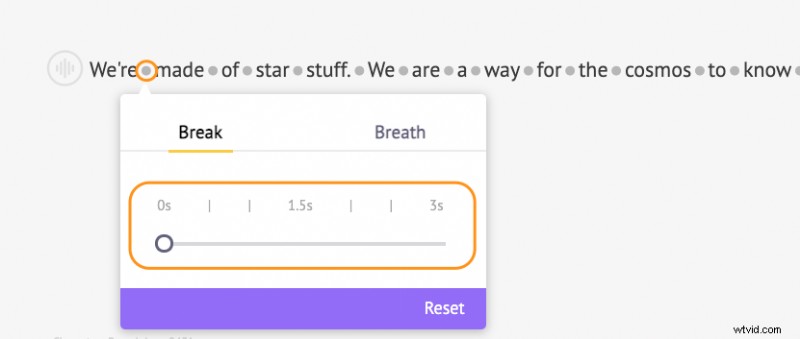
Also, you can add a breath or break effect between each word and adjust how long it should last. Simply click on the dot between any two words to add a Breath or Break between them.
You can also let AI take care of making your voiceover sound good by using the auto-enhance functionality. This feature automatically adds the breath effect, speed, pitch, volume, etc., based on the text you’ve entered. Tick the Auto enhance checkbox to auto-enhance your voiceovers.
Step 3: Click the Preview button to play and preview the voiceover.

And then click on the Download button in the top right corner of the window to instantly download your voiceover to your local computer in MP3 format.
One thing to keep in mind is that in order for you to be able to add an audio file to your Google Slides presentations, it must be in MP3 or WAV audio format.
How to Add a Voiceover to Google Slides Presentations
Now that you have the voiceover file with you, you can go ahead and add it to your Google Slides presentations. Here are the steps to add a voiceover on Google Slides:
Step 1: Upload the Audio File to Google Drive
To upload an audio file, you can open google drive on your browser and simply drag and drop the audio file onto the browser window.
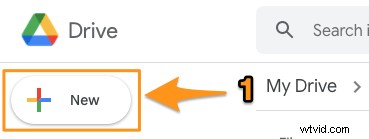
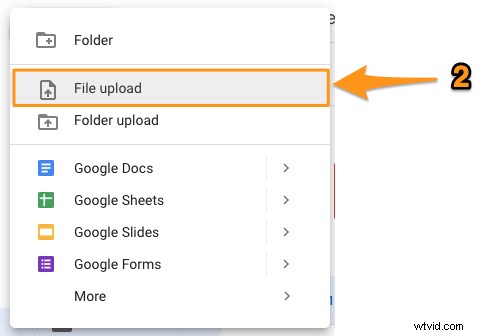
You can also upload the audio file by clicking on the New button in the top right corner of the window and selecting the File upload option from the dropdown menu.
Step 2: Customize the Audio File’s Accessibility Settings
You can now change the accessibility settings of your audio file depending on who you want to hear it.
Click on the audio file to select it and then click on the Get link button in the top right corner of the window.
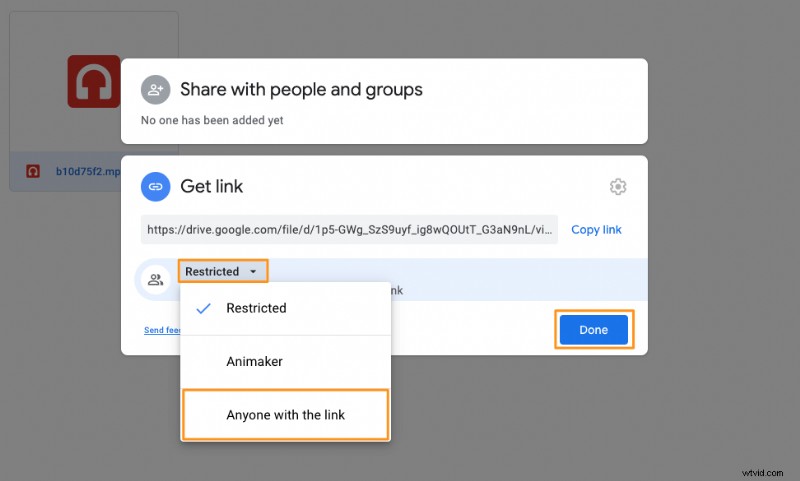
Then in the popup window that appears next, click on the Restricted dropdown button and select Anyone with the link to set the access level to “Viewer”. Once you’re done, click the Done button in the bottom right corner of the popup window.
Step 3: Embed or Insert the Audio File
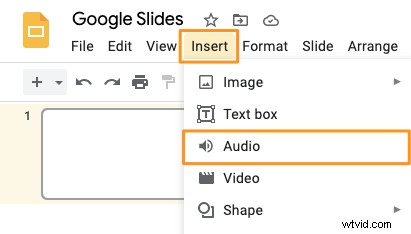
Open Google Slides on your browser, open the presentation, and navigate to the slide to which you want to add this voiceover. Then click on the Insert menu from the menu bar and select the Audio option from the dropdown menu.
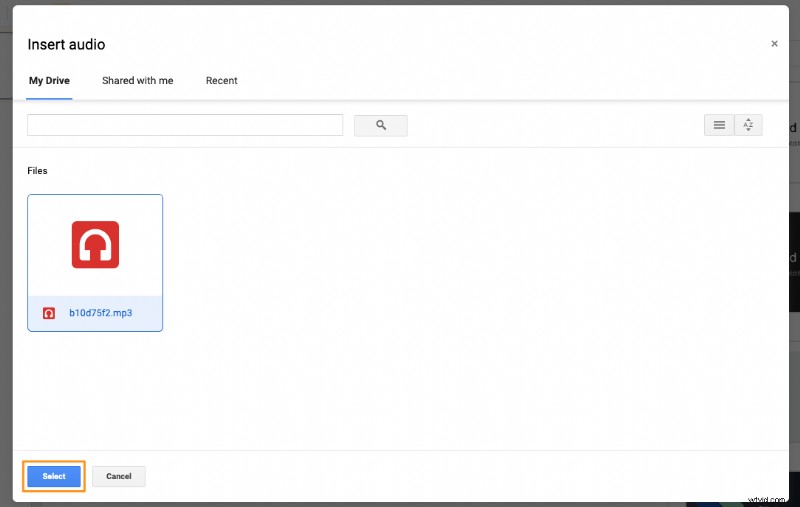
In the Insert audio window that opens next, click on the relevant audio file and hit the Select button in the bottom left corner of the window to embed that audio file into the slide.
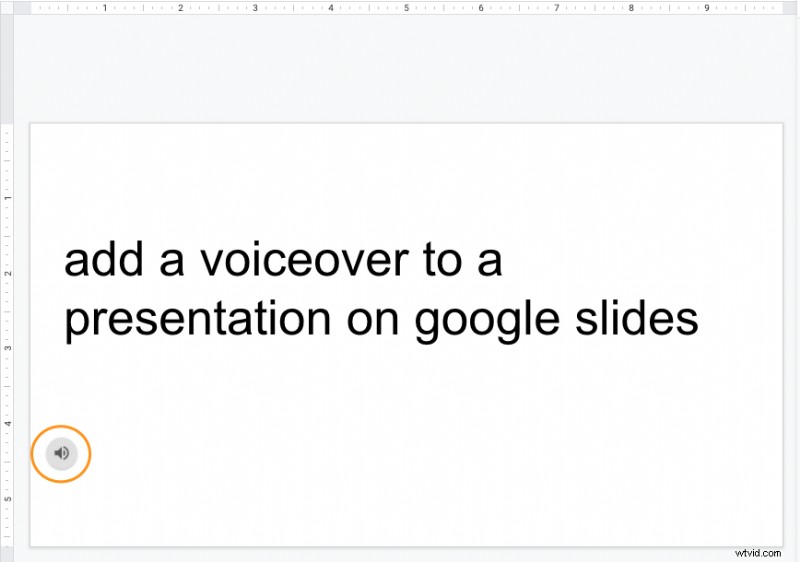
You’ll now notice that an audio icon appears on your slide.
If you’d like to create and add voiceovers to videos, check out our free video voiceover tool.
Got any questions about adding a voiceover to a presentation on Google Slides? Any interesting tips or tools to create and add voiceovers to your presentations on Google Slides that we haven’t covered? Please let us know about them in the comment section below.