
Adding media files like audio to Google Slides is a nice choice to make your presentation attractive. How to add audio to Google Slides? In this post, I will show you 3 methods to insert audio into Google Slides. Let’s dive into this post right now!
Do you want to draw audience’s attention when making a presentation? If so, the following things should be taken into consideration: well-organized structure, brief content, appealing media files like photo, audio, and video, etc. To make a slideshow for your presentation, try MiniTool MovieMaker!
So, let’s let started with the easiest way to prefect your presentation – add audio to Google Slides.
Add Narration to Google Slides
If you need to add narration to Google Slides and share it with your students, colleagues, or …, the following steps will illustrate how to add audio recording to Google Slides in detail.
Step 1. Choose a good voice recorder and record the audio narration for the selected slide.
Step 2. After recording the narration, go to the Google Slides and click on File > Open > Upload to upload the audio recording.
Step 3. Then click on Insert and choose the Audio option from the drop-down list.
Step 4. From the Insert Audio window, choose the target audio recording and click the Select button to insert audio into the selected slide.
Step 5. Move the speaker icon to where you want to put.
Step 6. Press on Present in the top right corner, and play the narration.
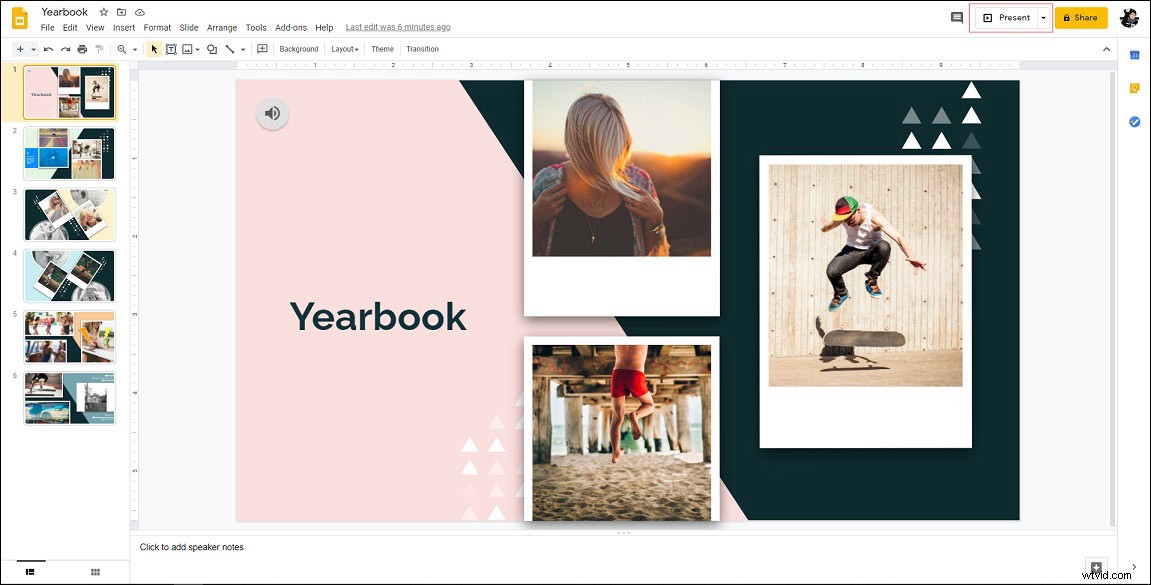
Step 7. If it’s OK, save the Google Slides.
Add Audio to Google Slides via Link
The second method is to add audio to Google Slides by link. Below are the detailed steps on how to add audio to Google Slides.
Step 1. Open the Google Slides.
Step 2. Find the target slide that you want to add audio.
Step 3. Choose a picture or text, press the Ctrl + K key to paste the audio link and click on Apply.
Step 4. Preview the Google Slides and check if the link is correct.
Step 5. Then save changes.
Add YouTube Audio to Google Slides
For those who desire to add YouTube audio to Google Slides, here’s a quick guide:
Step 1. Go to Google Slides and click the target Google Slides to edit it.
Step 2. Select the slide that needs to add YouTube audio.
Step 3. Navigate to Insert > Video to access the Insert video window.
Step 4. Go to By URL tab and paste the YouTube audio link. Then click on Select.
Step 5. Resize and move the video outside the slide.
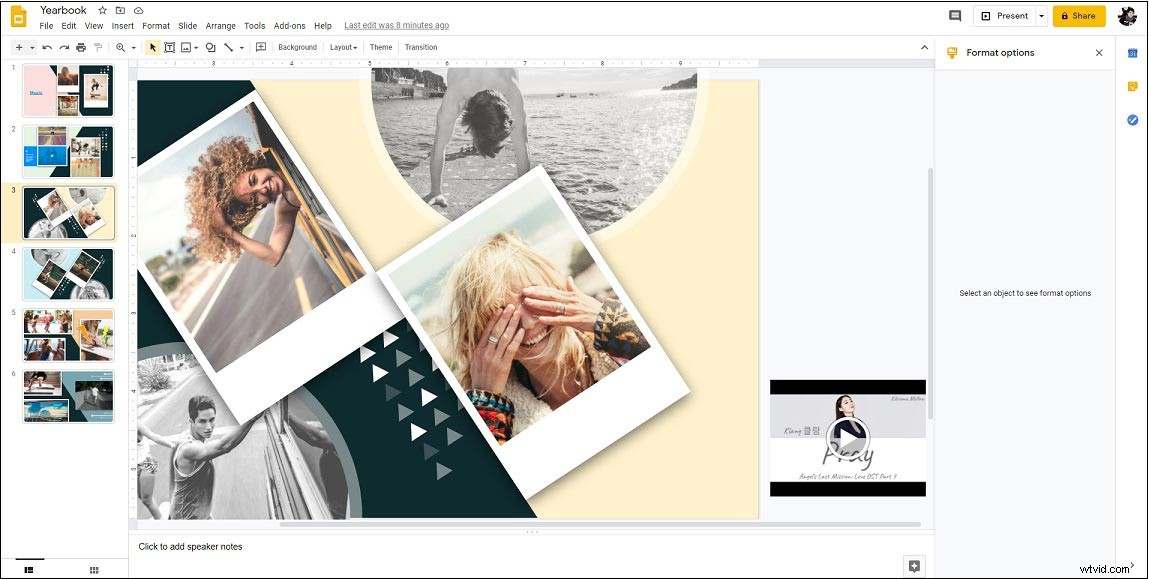
Step 6. Right click on the video and check the Autoplay when presenting box in the right panel.
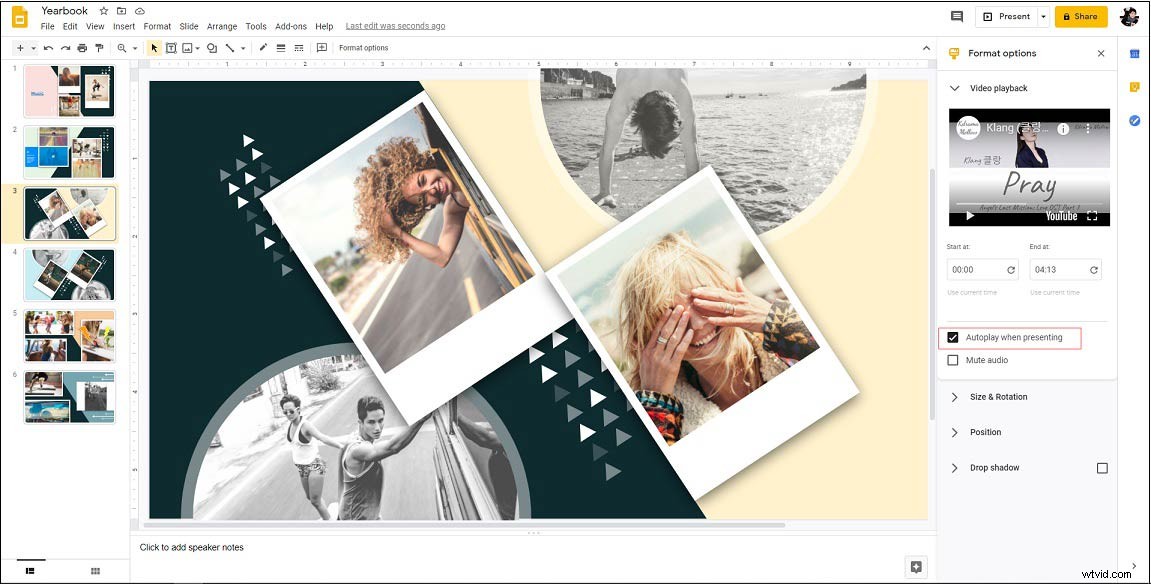
Step 7. Now, you’ve inserted the YouTube audio into Google Slides.
Related article: How to Add Music to PowerPoint - Solved
Conclusion
This post provides 3 methods to insert audio into Google Slides. After reading this post, have you learned how to add audio to Google Slides?