
Titles and captions are important factors in videos because they enable viewers to understand your videos easier. Do you want to add text in Premiere? How to add text in Premiere? Don’t worry, this post is going to offer you clear instructions on how to add captions and titles in Premiere.
Adobe Premiere is a professional video editor to create amazing video products. It gives a variety of tools to edit videos and unleash their creativity. They can fine-tune the audio, adjust video color, add video transitions and effects, and do more to create professional-looking results.
In this post, you’ll learn how to add text in Adobe Premiere. And if you want to find a free video editor, MiniTool MovieMaker is recommended here. With it, you add text to videos and GIFs.
How to Add Text in Premiere
As one of the most popular video editors, Adobe Premiere also allows you to add text to video with a wide range of font selection options and text styles. How to add text in Adobe Premiere? Let’s continue to read this post.
How to Add Captions in Premiere
Premiere Pro provides a series of caption features to let you edit, create, and export captions in all supported formats.
This part will show you how to add captions in Premiere step by step. Here’s the how-to guide:
Step 1. Download and install Premiere on your computer.
Step 2. Launch it, choose the File > New > Captions.
Step 3. Hit the New Item and then select the Captions in the pop-up list.
Step 4. A New Captions pop-up window appears presenting the video settings.
Note: After the dialog box appearing, Premiere will match the caption video settings to the open sequence. Please make assure that the frame rate of the caption file you want to add is compatible with the frame rate of the sequence that you want to use it in.Step 5. Select the caption Standard, Stream, and Timebase in the New Captions pop-up window, and then click OK to add a caption file.
Step 6. Double-click the caption file, choose the Window > Captions.
Step 7. Enter your captions in the captions panel, adjust the position, change the text color, and background color.
Step 8. Click Add Caption or Delete Caption to add more captions or delete a caption block.
Step 9. Drag the caption file onto the source sequence in the Timeline.
Step 10. Choose File> Import to import the embedded caption file.
Step 11. Click + to open the editor button and drag the button.
Step 12. Hit the wrench icon to display the captions.
How to Add Titles in Premiere
Here’re the steps on how to add titles in Premiere.
Step 1. Launch Premiere and open a project.
Step 2. At the top of the screen, select Window > Workspaces > Titles.
Step 3. Choose Title > New Title > Default Still. Name the title clip and click OK.
Step 4. Click Window > Title Tools.
Step 5. Hit the inside title area to enter your title.
Step 6. Choose Windows > Title Styles to change the title font, size, and alignment options.
Step 7. Select Windows > Title Styles > Selection Tool to relocate the title.
Step 8. Drag the title clip to the sequence in the timeline.
Bonus Tip – How to Add Text in MiniTool MovieMaker
MiniTool MovieMaker is a 100% free video editor without watermarks. It helps you create videos with pictures, video clips, and music and provides many editing tools. With it, you can add text to video or GIF, apply video effects, rotate, trim, split videos, rotate GIF, add music to GIF or videos. Undoubtedly, you can add text to videos or GIFs in MiniTool MovieMaker. And it offers different styles of titles, captions, and credits.
The following will show you how to add text in MiniTool MovieMaker.
Step 1. Download and install MiniTool MovieMaker.
Step 2. Open it, close the pop-up window, and click Import Media Files to upload your target video or GIF files.
Step 3. Drag and drop the file to the timeline.
Step 4. Tap on the Text, choose a text style and click +.
Step 5. Delete the sample text and type your text.
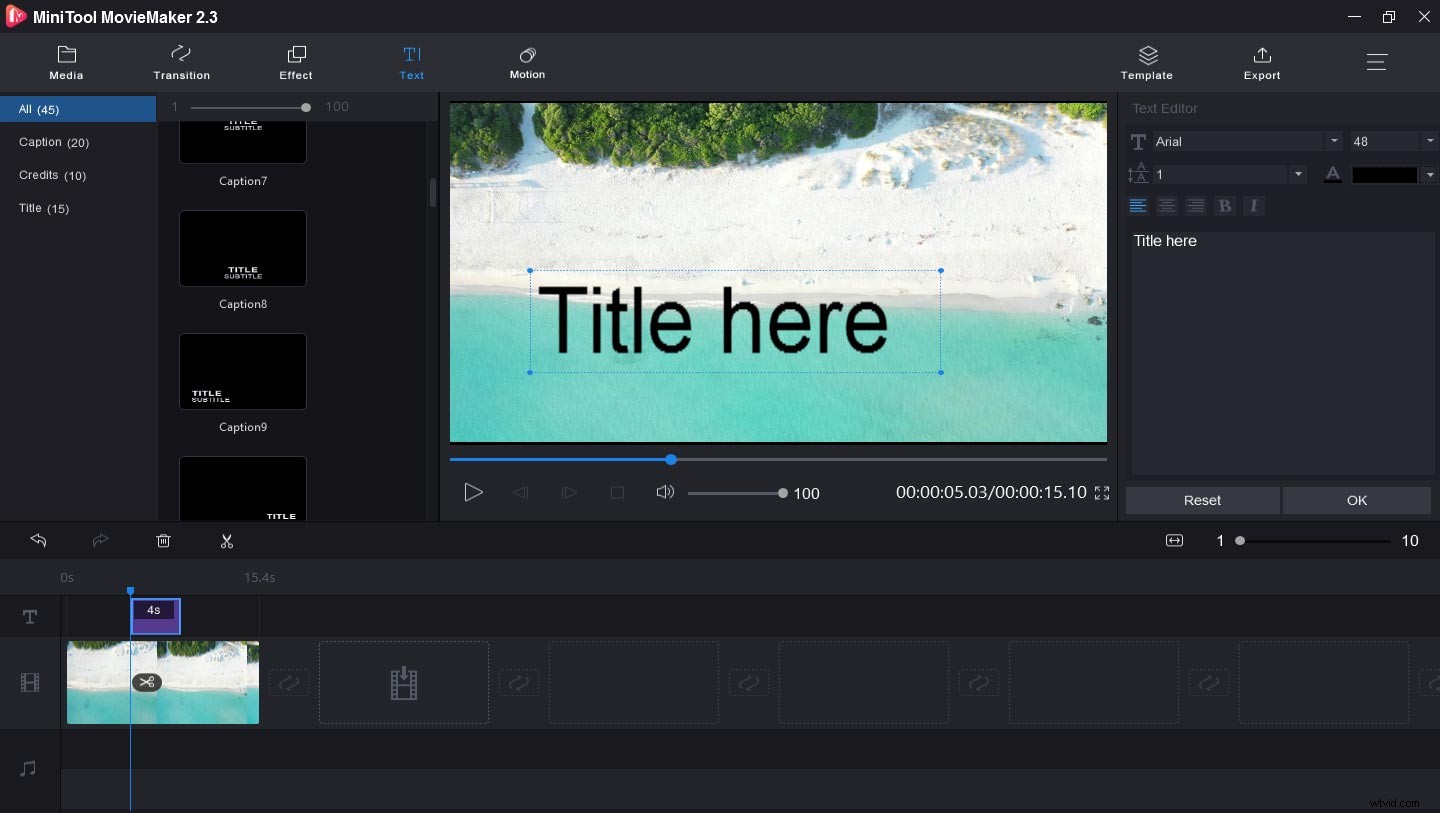
Step 6. Adjust the text size, color, font, and position.
Step 7. Hit the Export to export and save your file.
Bottom Line
Do you master the methods on how to add text in Premiere? Now, it’s your turn to practice adding captions or titles in it. If you think it’s a little complicated to add text in Premiere, you can try MiniTool MovieMaker. And if you have any questions about how to add text with them, please contact us via admin@wtvid.com.