
Can you add gridlines to a photo? How to add grid to photo on the computer without installing third-party software? This post will show you how to put a grid on a picture in Paint and Paint 3D. If you want to create a video with pictures, MiniTool MovieMaker is recommended here.
Paint and Paint 3D are basic image editors for Windows 10. If you need to add grid to photo, you must try them. Just with several clicks, you can put a grid on a picture. But how to add grid to photo with the 2 apps? Just look at the following part.
How to Add Grid to Photo in Paint?
Step 1. Enter Paint in the Type here to search box, and click it to open this program.
Step 2. Select the View button, then check the Gridlines option to add a grid to the canvas.
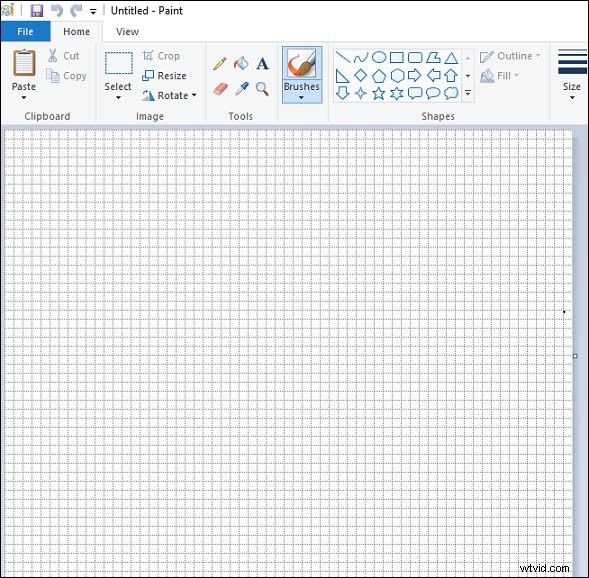
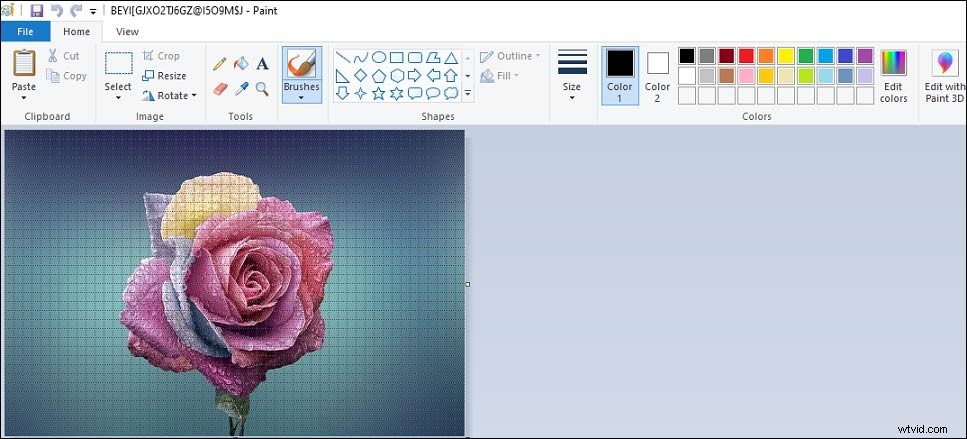
Step 3. Go to the File > Open to browse for the target folder and select your image, then click the Open to upload the photo to Paint.
Step 4. The grid overlay will remain on your photo.
How to Add Grid to Photo in Paint 3D?
Compared with Paint, Paint 3D doesn’t offer a gridlines option. Therefore, you need to prepare the transparent grid you need. You can try Pngtree, Freepick, etc. If you want to download transparent gridlines for free, FreeiconsPNG is recommended here. All of the pictures are free for personal use.
Here’s how to put a grid on a picture in Paint 3D.
Step 1. Type Paint 3D in the search bar and open it, or open this app on the Start menu.
Step 2. Click on Menu button, then choose the Browse files to open the target image.
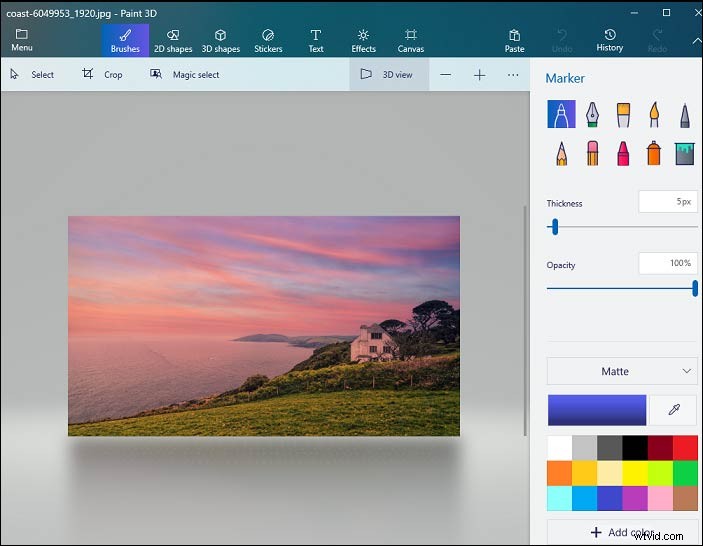
Step 3. Tap on Menu button again and hit the Insert option.
Step 4. Browse for the downloaded grid and click the Open to add the grid to the picture.
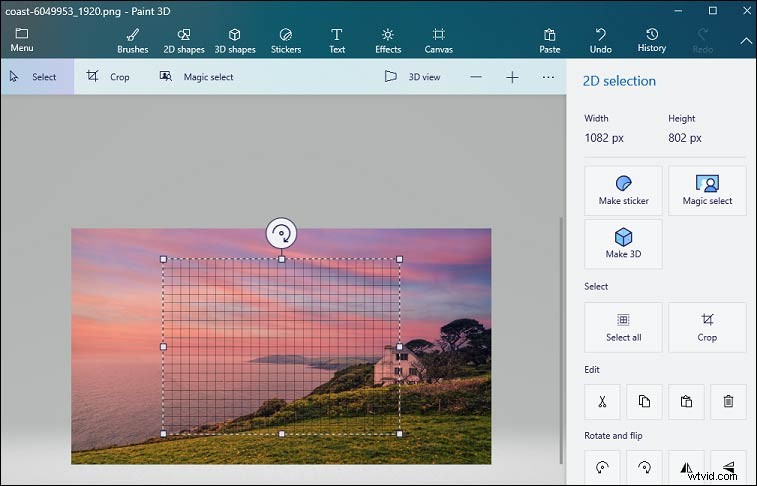
Step 5. Drag the grid to adjust it to fit the photo perfectly, or click the Crop button to crop the image to let it contain the current grid.
How to Add Grid to Photo Online?
MockoFUN is an online graphic design tool that allows you to create logos, edit photos and text online. But how to put a grid on a picture with MockoFUN? Here’s the guide.
Step 1. Open the MockoFun website and log in.
Step 2. Select the UPLOADS > Upload Your Images to open your photo.
Step 3. Go to Elements > Effects > Grid to select one grid picture, and adjust the size of the grid.
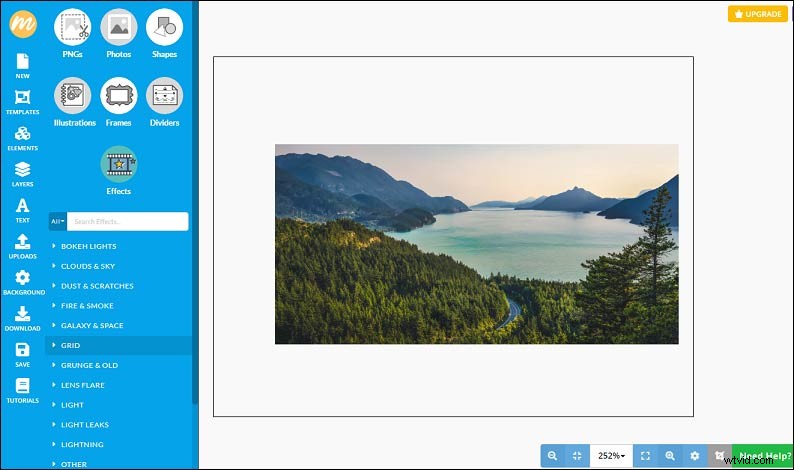
Step 4. Save and download the photo.
How to Add Grid to Photo on Android or iPhone?
To add grid to photo on Android, you can try Drawing Grid Maker. After opening a picture on it, you need to set the number of rows and columns, the color of the grid, and the line width. And if you’re an iPhone user, the best tool is Grid # - Add grid on image. This app has 5 types of grids, and it also lets you adjust the line width.
Conclusion
This post tells you how to add grid to photo on the computer and 2 apps that helps you put a grid on a picture on phone. If you need to add grid to photo, the first method is recommended.