
Uploading a video on Facebook is a great way to share your favorite personal moments or your favorite video with more people around the world. And this post will detail how to upload video to Facebook using the Facebook desktop website or the mobile app.
Do you want to create an awesome video with the best video maker - MiniTool MovieMaker and then share it on Facebook? In this guide, we will introduce how to post a video on Facebook using 2 different methods.
How to Post a Video on Facebook
From a Computer
Step 1. Visit the Facebook website on your browser and head over to the Facebook home page where you’d like to upload your video.
Step 2. Click the Photo/Video button to upload your video. Then select the video file you’d like to upload and tap on Open.
Step 3. Type in your thought about the video in the What’s on your mind section. Then click the Edit option to open the video-editing window where you can add captions, crop video, rotate video, tag photo, etc.
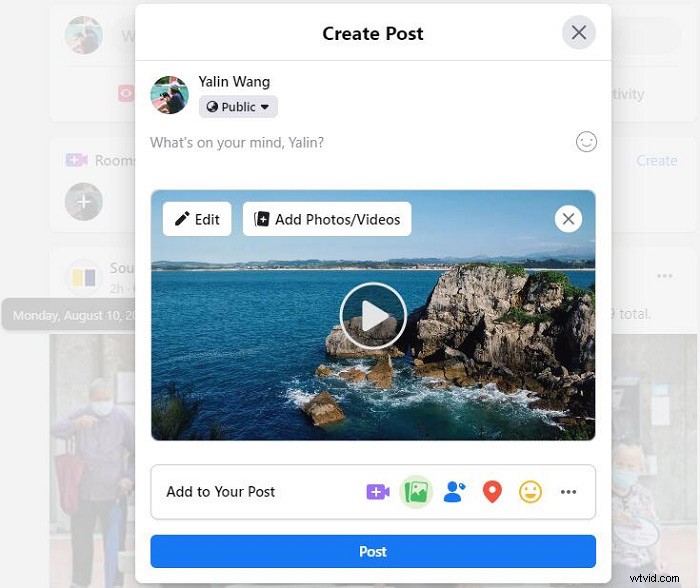
Step 4. Once you’ve input all the details, it’s time to publish. Simply tap on the blue Post button at the bottom.
From a Mobile Device
Step 1. Open your Facebook app and click the Photo option, and then your Cameral Roll will appear here. Select the video you want to post on Facebook and click Done. Or you can click the Record icon to record a new video and hit Next.
Step 2. Now, you can type in the description of the video, tag your friends, tell your feelings about this video, add the video location, etc.
Step 3. When you’re done, tap on Post in the upper-right corner of the screen. The video will be added to Facebook soon.
Related article: How to Download Facebook Live Videos | 2 Methods
Facebook Video Upload Specifications
- Video Ratio: 9:16 to 16:9
- Video File Size: 4GB
- Video Length Minimum: 1 second
- Video Length Maximum: 240 minutes
- Recommended Video Format: MP4 and MOV
- Recommended Resolution: Upload the highest video resolution available that meets file size and ratio limits
How to Post a YouTube Video on Facebook
You can use YouTube’s Share feature to post a YouTube video on Facebook within just a few clicks or taps.
Step 1. Go to the YouTube site on your device.
Step 2. Search for and select the video you’d like to share.
Step 3. Once you’ve selected a video, find and click the Share icon under the video player.
Step 4. Select Facebook from the sharing options in the pop-up menu. You can also alter the video's start time by checking the box at the bottom and entering the start time as you like.

Step 5. If you are already signed into Facebook on your desktop, the video will appear in the post. The video post destination is set as News Feed by default, or you can choose to add it to Your Story by checking the box.
Step 6. Once finished, click Post to Facebook at the bottom of the page.
Bottom Line
Have you mastered how to post a video on Facebook after reading the post? Is it easier or tougher than you think? If you have any questions or suggestions about it, please let us know via admin@wtvid.com or share them in the comments section below.