
In most cases, you may need to merge the video clips that you just captured to make a perfect video. There are many desktop software, mobile apps, and online tools that allow you to combine and join several video clips into one. You do not need to try it one by one and figure out which one is the best solution to merge video clips in different formats or different frame rate or even different aspect ratios. Filmora will merge and combine the videos just as the way you want without any degradation of quality. Let’s check how to join video clips with this video merger.
Watch the introduction video below to check how to use Filmora in details.
Video file merging can be done quickly and easily with the stylish and solid video merger: Wondershare Filmora This program has a high compatibility with nearly all the media formats including AVI, MPEG-4, MPEG 1/2, MOV, FLV, 3GP, VOB, MTS, M2TS, DivX, XviD, WMV, MKV, M4V, MP3, WMA, WAV, AAC, AC3, AIFF, TRP, TP, MOD, TOD, etc. After merging into one big file, you can play the shot camera videos, recorded TV programs, downloaded YouTube videos, or presentation video/audio files without any interruption. Now let's walk through below detailed guide.
Note: Video Merger has two versions available: Wondershare Filmora and Wondershare Filmora for Mac. These two versions share the same feature and below guide takes Windows version screenshots. Just make sure you download the right version.
Learn how to combine videos together using Filmora with the step-by-step guide below:
1. Import your video files
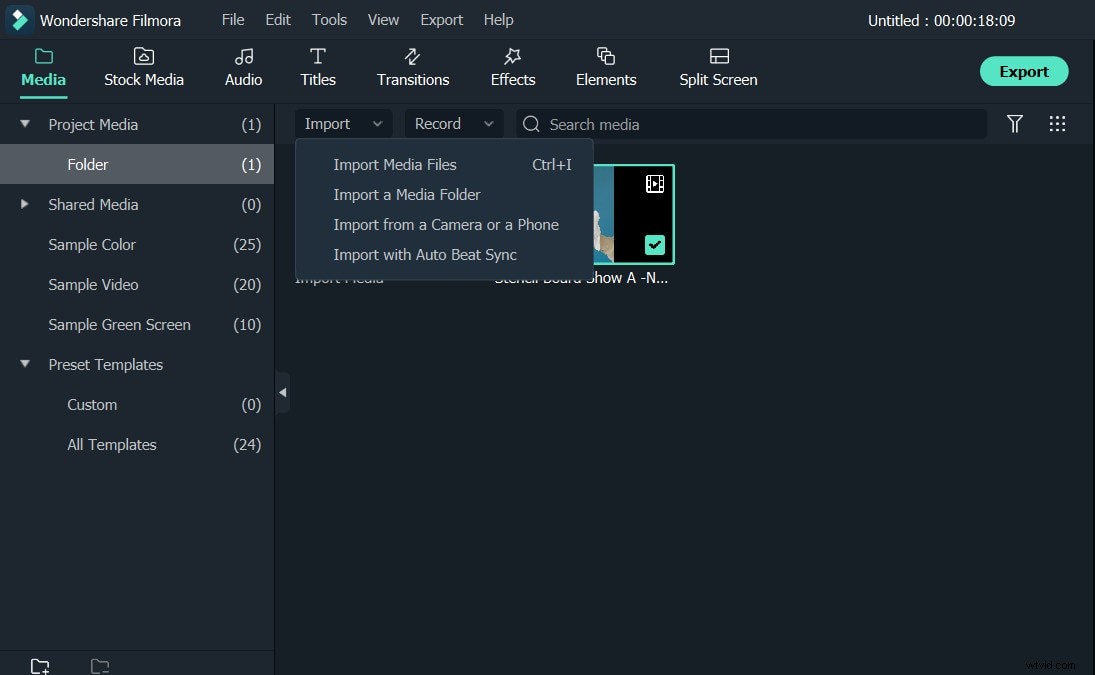
After installing Filmora, you need to load the video clips to it. You can add videos, audio files and photos in Filmora Video Merger with ease. Video Merger provides a User's Album for you to add video, audio or photos. Click Import to add your video files or directly drag them to media library. After you import all of them, they'll show as thumbnails in the left window.
Note: If you have problem to transfer your recorded camcorder videos, please refer to How to Transfer Videos from Camcorder to Computer.
2. Merge video by drag-and-drop
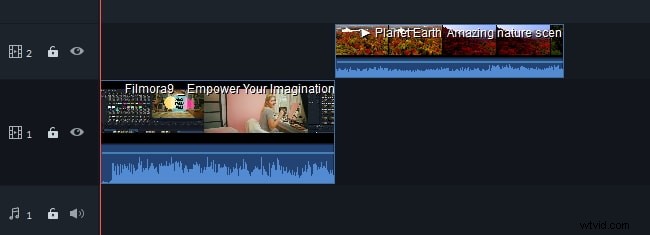
Now simply drag and drop the files you want to merge from media library to timeline, and then you'll get the merged video seamlessly. Pretty cool, right? That's true, you can click the Play button to check on the Preview window. If you are satisfied with it, you can export it directly, but you can also add transitions, filters or overlays to make the video better.
Tips:
- You'd better drag MOV files one by one so that these MOV files are arranged according to the play order.
- Don't drag one file onto another file, or you'll split the latter. If necessary, you can drag another file to the rest timeline.
3. Trim, add transitions (optional)
Maybe you also think of merging only segments of your video clips, and add transition effects to make your videos more unique and stylish. It couldn't be easier with this Wondershare Filmora.
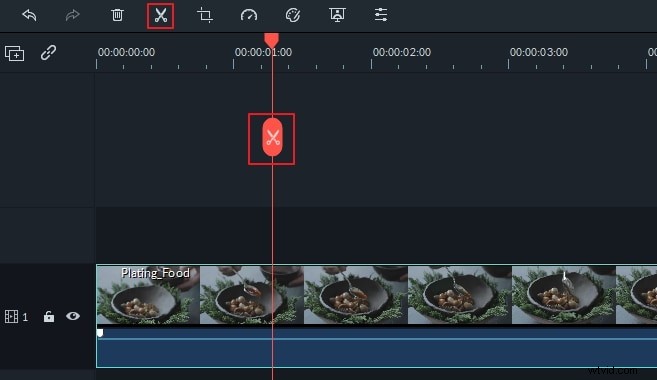
To trim your videos, please click the video clip in timeline. Move the playhead to where you want to cut first, and then click the slipt icon in the toolbar Then move the playhead to another frame. Click split icon again.
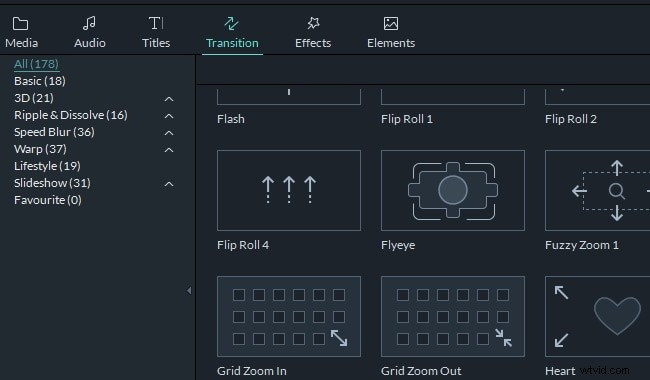
To add transitions, just hit Transition at the top, and drag your favorite transition effect between two clips. Also, you can right click on any transition to Apply to Favouriate.
Additionally, Video Merger can crop, rotate, split the media formats, add subtitles, apply effects filters. For more details, please refer to Filmora's guide.
4. Export your merged big file
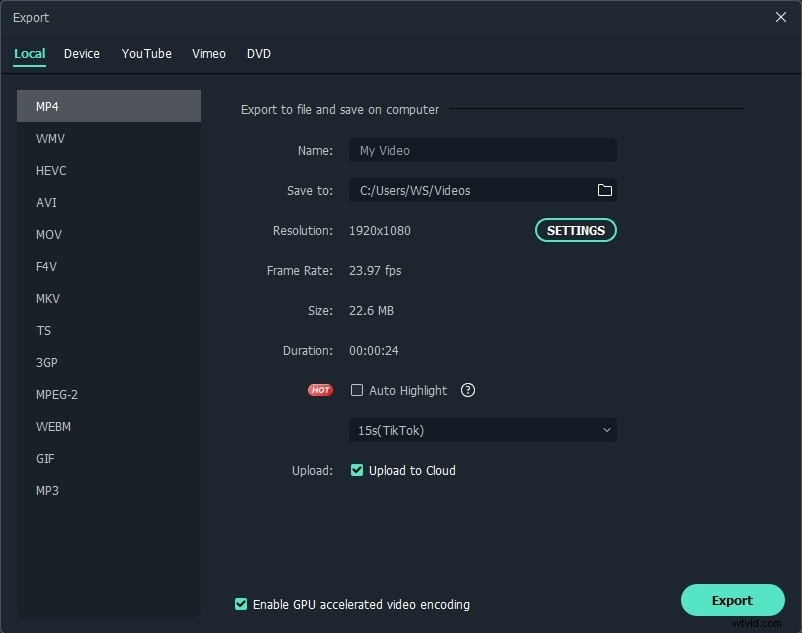
When all modifications satisfied, just hit EXPORT tab to export your videos now. You can export your original video formats or directly convert to your portable devices like iPhone, iPad, HTC, Samsung Galaxy, etc. They'll play perfect on your devices.
Alternatively, you can share your creation to YouTube or Vimeo directly from this software, or burn to DVD for better preservation. Just go for it, and then click EXPORT to finish the exporting.
Conclusion
That’s it. With Filmora video editing software you can easily combine multiple videos into one, add transitions, overlay and filters and many more elements. Let's have a quick look at the video tutorial about how to combine several video clips with Filmora Video Merger seamlessly and efficiently.