
If you’re searching for a method to make your text stand out, undoubtedly, you can try to outline the text. Photoshop, a comprehensive design editing software, can allow you to do it. If you don’t know how to outline text in Photoshop, don’t worry because this post will describe the step-by-step guidance.
Sometimes, you may need to make the text on an image more striking, adding outline text in Photoshop is the top choice to meet your needs. The following sections will present detailed instructions on how to outline text in Photoshop. Moreover, if you want to put text to video or gif, MiniTool MovieMaker should be the top priority.
How to Outline Text in Photoshop
Step 1. Download and install Photoshop on the computer.
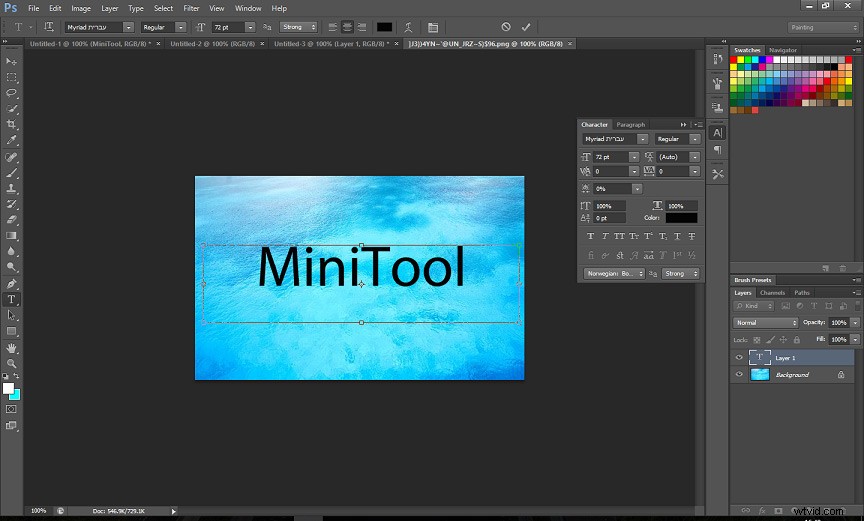
Step 2. Open it, tap on the File > New, and then click the Type Tool to enter your text. And you can also the File > Open to import a desired picture, and then create your text.
Step 3. Select the text, and then you can change the font, size, and color of the text.
Step 4. In the lower right corner, right-click the Layer and choose Blending Options.
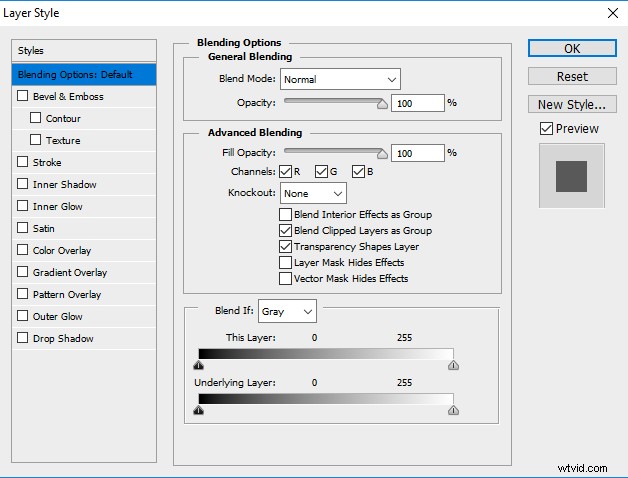
Step 5. In the pop-up window, choose the Stroke on the left.
Step 6. Move the slider to change the size and width of the outline.
Step 7. Change the color of the text to make it more visible.
Step 8. If you need, you can choose the Gradient or Pattern in the Full Type section.
Step 9. Tap on the Position to select a position for the outline: Outside, Inside, and Center.
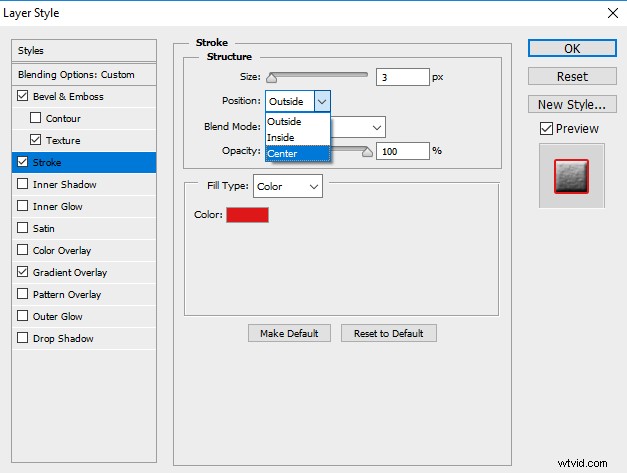
Step 10. Move the Opacity slider to adjust the degree of transparency for the stroke.
Step 11. Click OK to save your settings.
The above is the detailed content about the Photoshop text outline. But do you know how to outline a few letters in Photoshop? Continue to read this post and learn how to edit the outline text separately.
How to Outline a Few Letters in Photoshop
Sometimes, you might try to outline some of the words to highlight them. Here’s the clear steps on how to outline a few letters in Photoshop.
Step 1. Launch Photoshop, click File > New, and then create your text.
Step 2. Copy the text layer and rename it.
Step 3. Add outline text with methods in the previous part.
Step 4. Right-click the layer and choose Rasterize Type.
Step 5. Select the text you don’t want to add outline text and hit Delete.
Step 6. Click the Layer button and merge all the layers.
Bonus Tip – How to Add Text to Photo in Photoshop
Adding text to video can enable your viewers to understand your video better. Similarly, adding text to photo can help you express yourself better and protect your copyright.
The following will show you how to add text to photo in Photoshop.
Step 1. Download, install, and launch Photoshop.
Step 2. Click File > Open to upload the image into Photoshop.
Step 3. Tap on the Windows > Tools, choose the position where you desire to put the text.
Step 4. Enter your text, and then choose the words to adjust the desired color, size, and font.
Bottom Line
Do you master the way on how to add outline text in Photoshop? Now, it’s your turn to practice putting outline text in Photoshop.