
If you regularly watch videos on the Internet, then you must have seen some videos in which the intros have a zoom-through text effect. In this effect, the video starts with a text, and then slowly, the text gets larger, and video clips start emerging from the text. The effect is pretty cool to watch, and it adds a lot of value to your videos.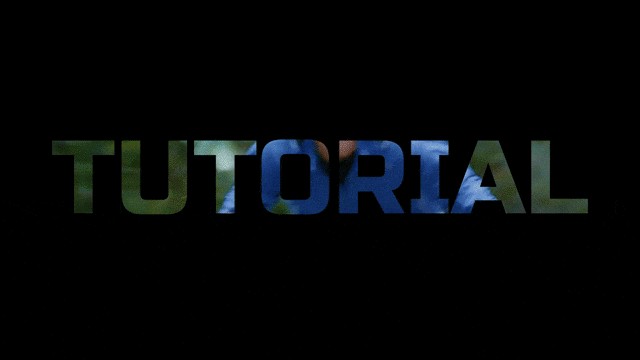
Now you might be thinking that you can create your own zoom through text effects. If that's the case, then you just landed on the right page. Zoom through text effects is easy to create using different video editors. In this article, we will show you how you can create your own zoom through text effects videos using Filmora X video editor. We are using Filmora X because it is the most premium video editing program out there, and it is simple and easy to use. It has a user-friendly interface, and everyone can learn it quickly, even if they don't have any prior experience in video editing.
So, Let’s dig deep into the topic and see how you can create your own zoom through text effects and use them in your videos.
Step by Step Guide for Creating Zoom Thorugh Text Effect Using Filmora X
If you want to learn how to create zoom through text effect, then we are going to make things a lot easier for you. We will provide you a simple step-by-step guide following which you can easily create your zoom through text videos and amaze your friends. So, follow the steps given below in sequence and enjoy the results.
Step1: The first step is to download the Filmora X video editor from their official website and install it on your computer. If it is already installed in your system, then run the program, click on the new project. Select the full widescreen resolution.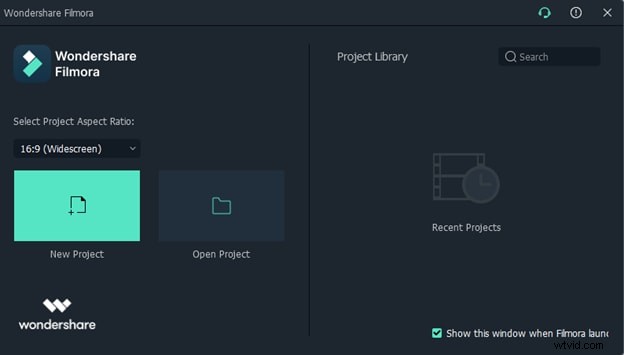
Step2: Now, it will open the interface of the Filmora X video editor. You will find it simple and interesting.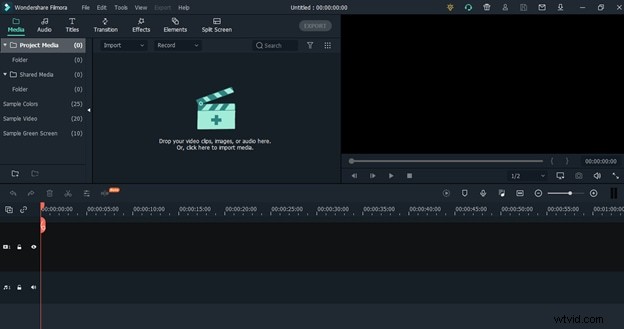
Step3: To create Zoom through text effect, first of all, you need to click on sample colors from the left menu, then drag and drop the black color in track 1 of the timeline.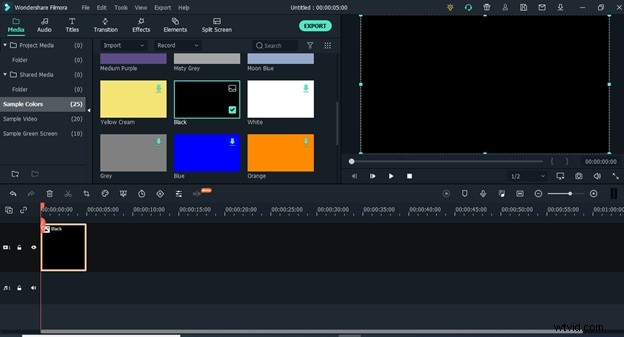
Step 4: Now click on the titles from the top menu and select titles from the menu that will appear on the left side.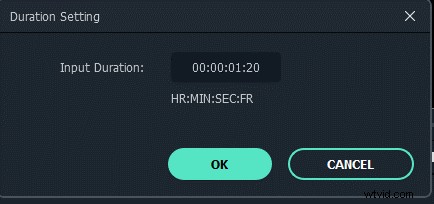
Step 5: Now drag the default title and drop it in the track above the black color track.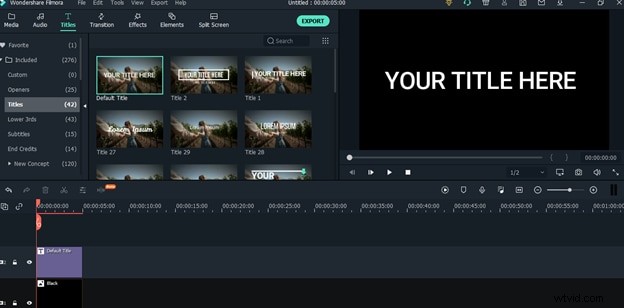
Step 6: Now, Double click on the title track, and it will take you to a settings window where you will see different settings for your text.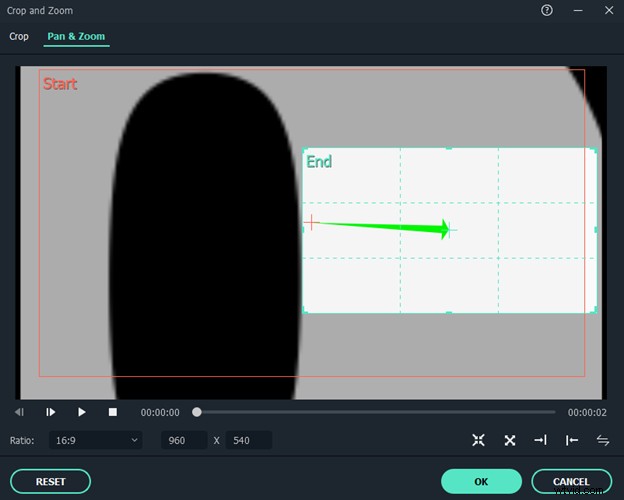
Step 7: Click on the advanced button present on the screen, and it will open advanced text settings. From there, you can change the text and type any custom text that you want to use in your effect. In this guide, we will use "TUTORIAL" as an example just to show you how things work. Now change the font and select a font that is bolder. Also, change the size of the font and make it 125 or larger. Just make sure that it fits on the screen well. Once you are done with all settings, click on the "OK" button to apply them.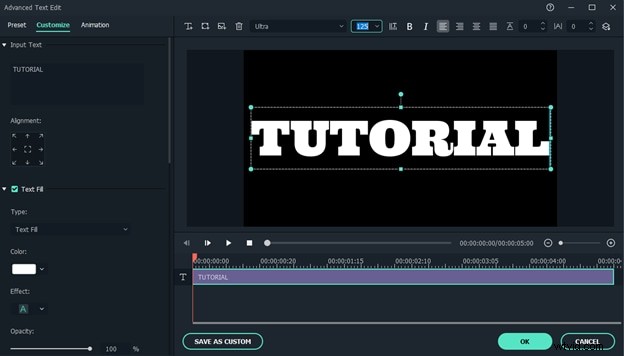
Step 8: Now, Adjust the text to make sure it is in the center and take a snapshot of the text by clicking on the snapshot icon present at the bottom of the preview window.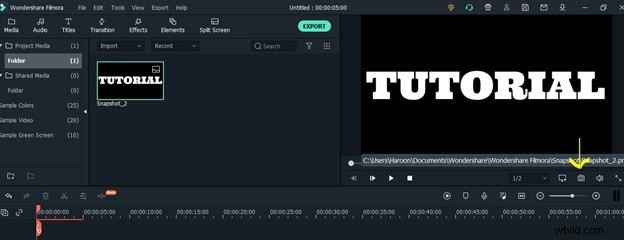
Step 9. Once you have taken the snapshot, delete both the sample color and the title layers present in the timeline and drag and drop the snapshot in track 2.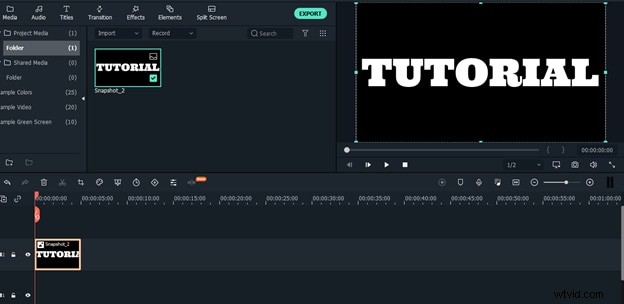
Step 10: Now right-click on the snapshot track, click on the duration, and set the duration according to the video that you want to use for creating zoom through text effect.
Step 11: Now again, right-click on the snapshot track and select Crop and Zoom from the menu. Then select Pan and zoom from the top of the window that will appear on your screen.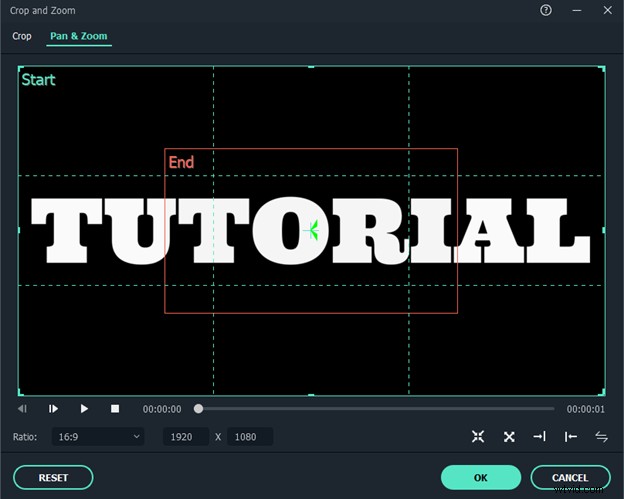
Step 12: Click on the center and then drag the center box from one of its corners and make it as small as possible. Once you have shrunk it to the maximum, drag and drop it in the middle of the text and click the OK button, you will see that Pan and zoom effect has been applied to the text.
Step 13: Now play the track and go to the very end where it stops. Again take a snapshot where the track ends and place the snapshot in track two following the first snapshot on which we already applied the Pan and zoom effect.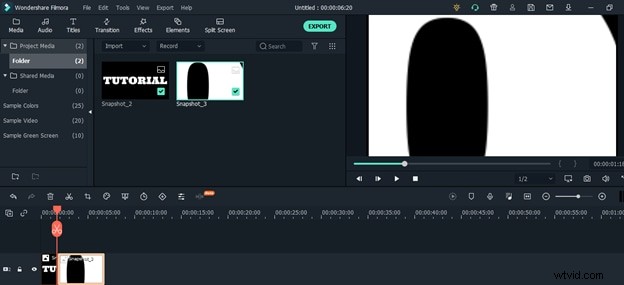
Step 14: Now right-click on the second snapshot, click on duration, and adjust the duration of this snapshot also.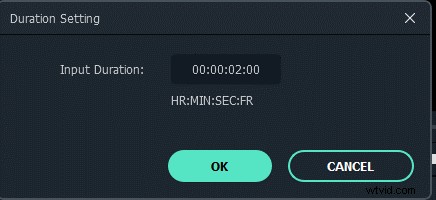
Step 15: Now repeat the 11th step again for this snapshot.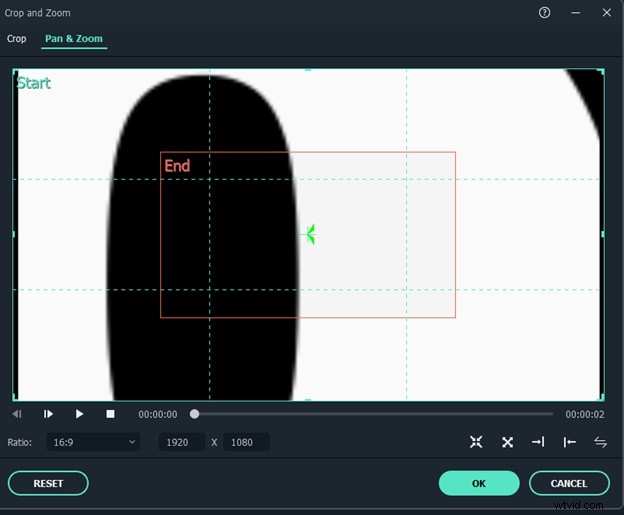
Step 16: This is an important step. First, click on the outer section and make it a bit smaller, and adjust it to the center. Then click on the middle section and adjust it on the white portion of the text and make sure it isn't on the black portion. Once you are done with the adjustments, click the OK button.
Step 17: Now import the video into Filmora that you want to use and place the video in track one right below track 2.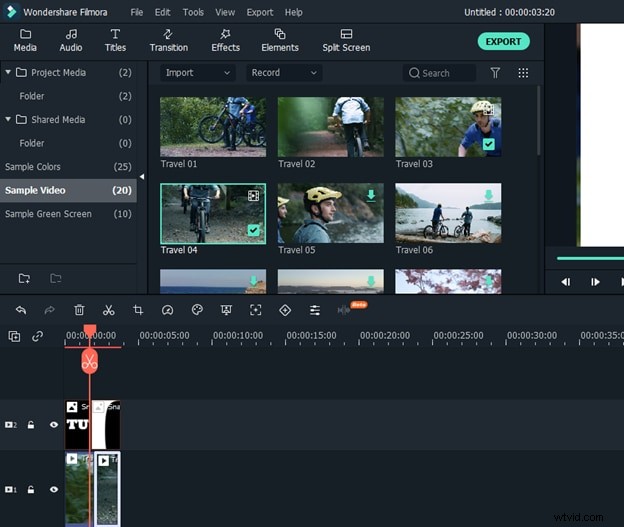
Step 18: Now double click the first snapshot, go to composition settings, and select multiply from the blending mode. Do the same for the second snapshot.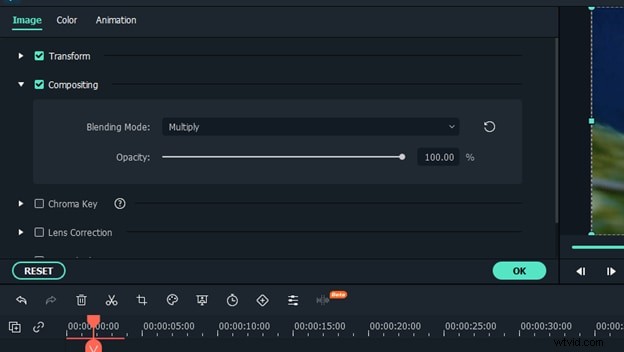
Step 19: Now, Click the OK button, and you are good to go. Now play the video, and you will see that the zoom-through text effect has been created. Now all you need to do is export the video to your computer and share it with your friends.
Conclusion:
These are some simple steps that you can follow to create zoom through text videos. The steps may seem a bit lengthy, but they are very simple, and we have clarified every point in detail with screenshots. You can easily follow this guide and create your own amazing zoom-through text effects.