
Add a fade transition effect online
If you record a video in a natural way, as a single piece, you usually don’t have any problems with the footage. But when you want to edit it, merge it with another recording or cut out a snippet, the frame transition issue becomes much more critical.
There are different types of transitions, depending on your aims:
- Fade in. This effect is applied at the very beginning of the visual track: the image is gradually appearing out of the dark screen.
- Fade out. Quite the opposite, it’s an effect at the end of the recording, and the image is gradually disappearing.
- Crossfade. This type of transition is essential for seamless merging of two different videos. It may also come in handy if you want to cut out a piece of the recording and merge the rest.
-
Upload visuals
Open Clideo’s Video Maker in any browser. Make sure your internet connection is stable and sound.
Hit the "Choose files" button to upload files from your device (multiple selection is available). You may also just drag and drop the visuals to the tool’s homepage. The service works with video files, pictures, and GIFs.

If you want to use content stored in the cloud, call the drop-down menu on the same button and select Google Drive or Dropbox.
-
Apply a crossfade effect
If you haven’t added more files yet, you can do it now, on the timeline below the player or in the top right corner of the screen.
Mind, this tool is not a fade-in fade-out video editor, it has only a crossfade effect. To apply it, check the corresponding box to the right of the player.
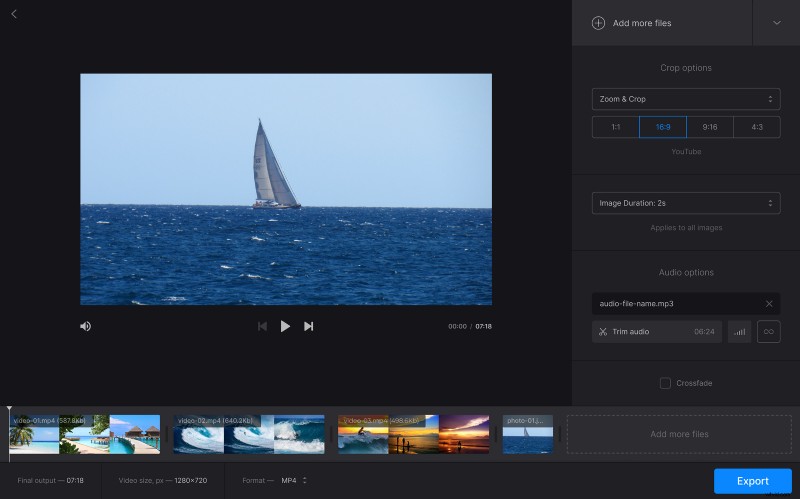
Here you may also edit your footage to make it meet social media’s specs. Just choose the needed crop option and one of the four aspect ratio presets. If your project includes static pictures, set their duration. Mind, the tool will apply this setting to all the images equally.
If you want to add some sound, hit the "Add audio" pane. When you select an audiotrack from your device or cloud storage account, you may trim it and adjust its volume.
Additionally, at the bottom, you can change file format of your video shuld you need any other format then MP4.
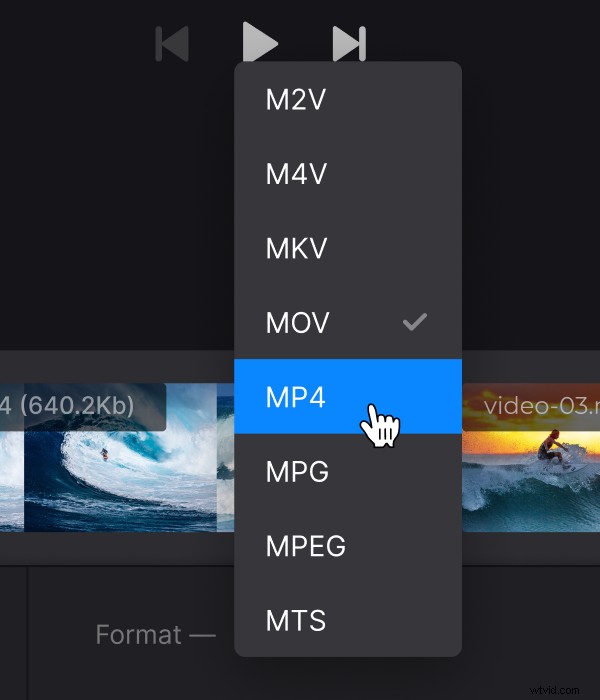
When everything is ready, select an output format in the bottom left corner of the screen and press the "Export" button.
-
Save the video
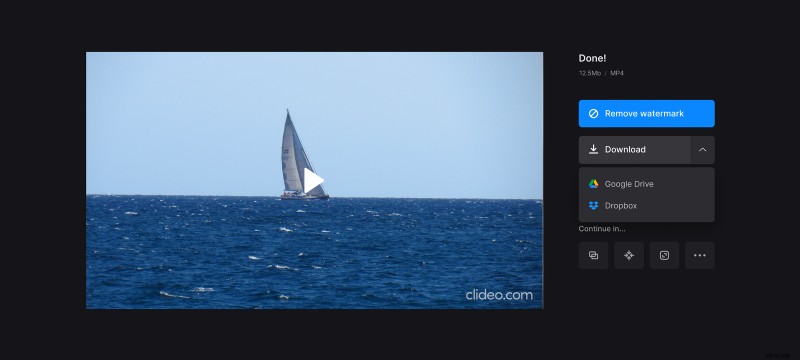
Give your project the final run to make sure you like what you see. If so, save it to your device or upload it to Google Drive or Dropbox. If you want to fix anything, hit "Edit". If you are not so happy with a tiny watermark, consider upgrading your account to Clideo Pro.
Read on and get to know how to add a video to another video and apply a simple crossfade effect.