How to use a video speed editor
Don't confuse the video type with time-lapse photography and videos, whereby the frequency of a film is captured 30 frames per second in order to capture 12 hours-worth of footage within two minutes. However, if recording in time-lapse you’ll be unable to slow down or adjust the speed of the video afterward.
With a video speed editor, you can capture great moments at a standard pace and then accelerate them to shorten the video length time. It helps in creating unique and interesting content. The feature is great if you want to film a makeup, craft, art, construction, or building video.
For instance, if you want to film a makeup tutorial, you need to record all the sequences in real-time and at normal speed. The section of the video where you're applying the makeup could then be sped up using an appropriate tool. Turning a 30-minute makeup tutorial into only ten-minutes’ worth reduces the time spent by people watching the video.
How to make videos faster with Clideo
Using Video Speed Editor by Clideo you can quickly accelerate your film in three simple steps. It's online, so you won’t waste your precious time downloading and installing it on your device.
Upload a video for editing
After choosing a video you want to speed up, upload the file straight from your Mac or PC. If you’re a phone user, don’t worry, it also works with Android and iPhone.

For more convenience, you can add a video from Google Drive or Dropbox. The app supports all the popular formats such as WMV, AVI, MP4, MOV, etc.
Adjust video speed
As soon as the video is ready for editing, change its speed. Moreover, you can mute the sound if necessary.
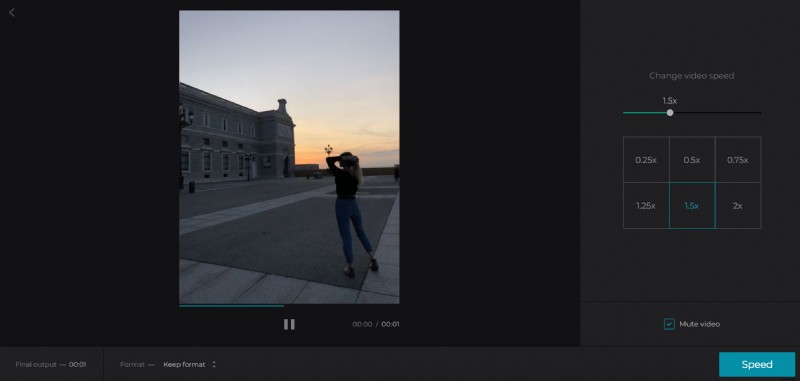
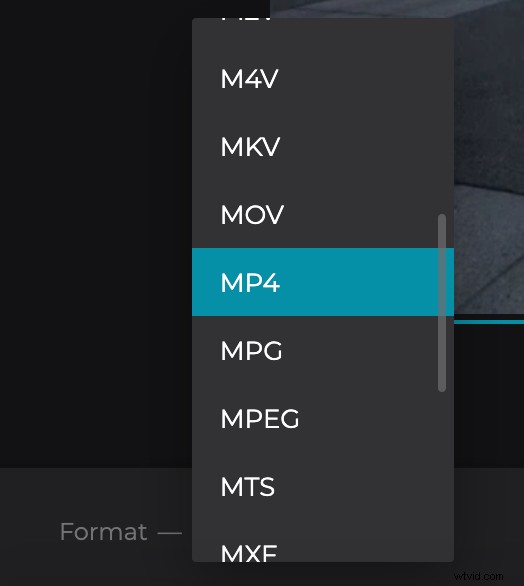
Choose an output format clicking on "Speed". If you're going to share your video on social media, pick MP4 as it's the most common format.
Save the video to your device
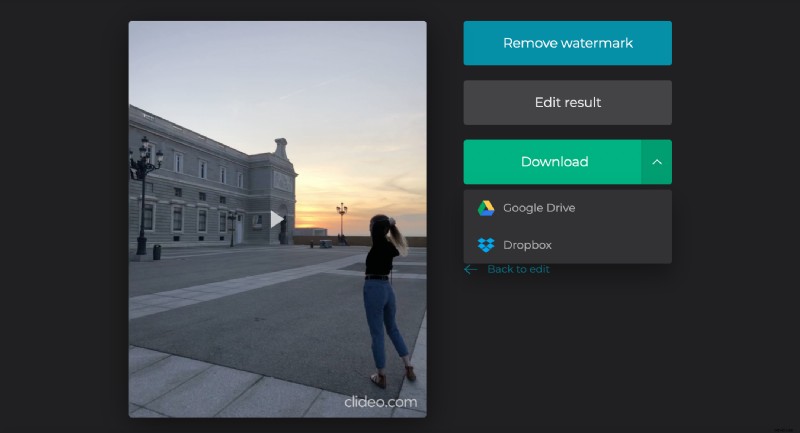
Before downloading, make sure you’re satisfied with the finished video. Otherwise, you can go back and change the settings as required. It’s possible to save your film to your device, computer or back to a storage service.