
Speed up video for Instagram in 3 easy steps
However, capturing such content would normally require you to select a specific timelapse option from your device’s camera app before you hit the record button.
So if you forgot to do this, and you have a super long clip that’s too lengthy for an Instagram post’s 1-minute time limit, then it might mean you’d have to record it all over again.
Thankfully, there’s a workaround. You can speed up (or slow down for a different effect) the existing video, online and for free - all without having to download and install any expensive or storage-draining software. Read our three simple steps to find out how.
Upload a video to adjust its speed
Head over to Clideo’s video speed tool from your web browser. This will work from any device, including iPhones, Android smartphones and tablets, iPads, Mac and Windows computers - just make sure you’ve got an Internet connection.
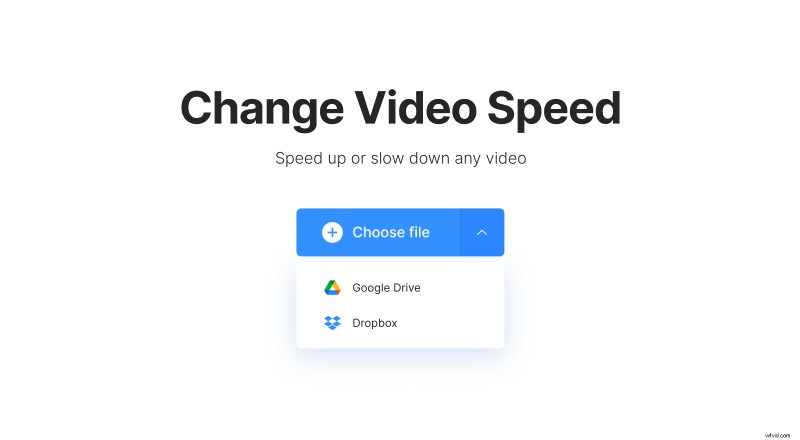
On the home page, you’ll find a large blue ‘Choose file’ button in the top centre. Tap this to upload your clip from the physical device in which it’s stored.
By hitting the downwards arrow on the right-hand side, you can add a file from Google Drive or Dropbox cloud storage.
Also note that most popular formats are supported in the tool, including MP4, AVI, MPG, VOB, WMV, MOV and more.
Speed up the video for Instagram
Once the clip’s been added, you can speed it up. Do this by adjusting the speed settings on the right.
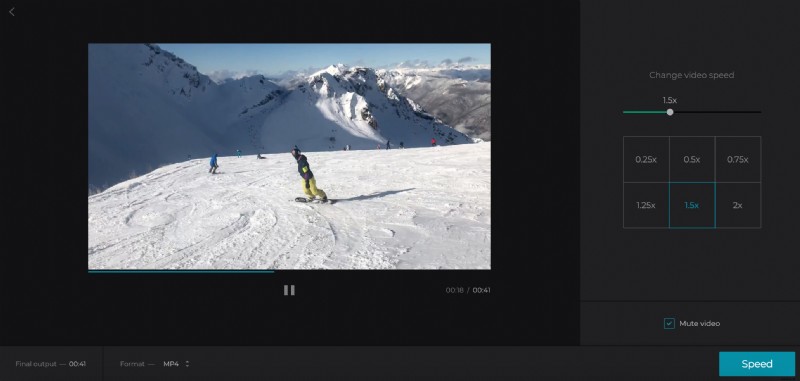
The ‘Change video speed’ bar at the top will allow you to do this easily with a mouse or finger. Note that anything above 1.0x will speed it up to the desired speed. To make things easier, there are also some pre-selected speed options of 1.25x, 1.5x and 2x.
You can also slow it down to create a slow-mo effect if you like, just choose any speed below 1.0x.
Don’t want sound? At the bottom of the tool, you’ll find a checkbox to mute it. You can also change the file’s output format on the bottom left (MP4 is recommended for Instagram).
Hit the ‘Speed’ button at the bottom right and it will begin processing.
Download the speeded-up video
Now, your new clip is ready for download. Preview it first in the player to double-check it’s to your liking and if you’re happy with the result, click the green 'Download' button.
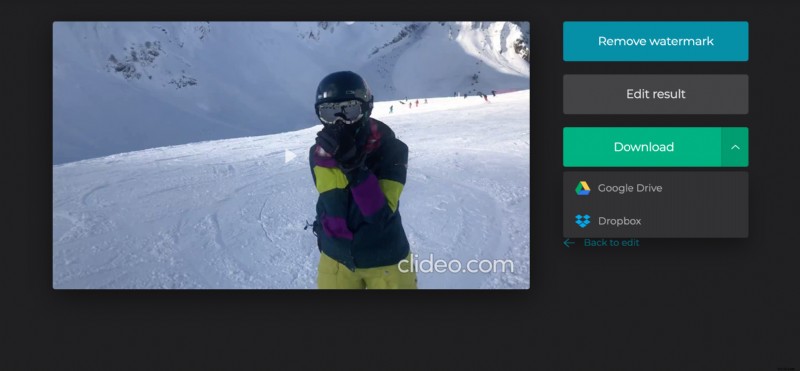
Again, you can hit the down arrow on the right-hand side for the option to either save back to a cloud storage account instead.
Check out other Clideo’s online editing tools to see how you can make even more creative clips in different ways.