
Crop video on Android in three easy steps
Have you taken a video on your Android smartphone or tablet and it’s just not the right size for your social media posts?
You might find you can’t do this as most Android devices don’t always have the option baked into their software, meaning you’ll have to do it externally. Normally, this would require downloading software or apps which can take up valuable storage space on your device.
However, there’s a way to do it online - through your web browser on Android - without downloading a thing. Read our three steps below to find out.
Upload a file
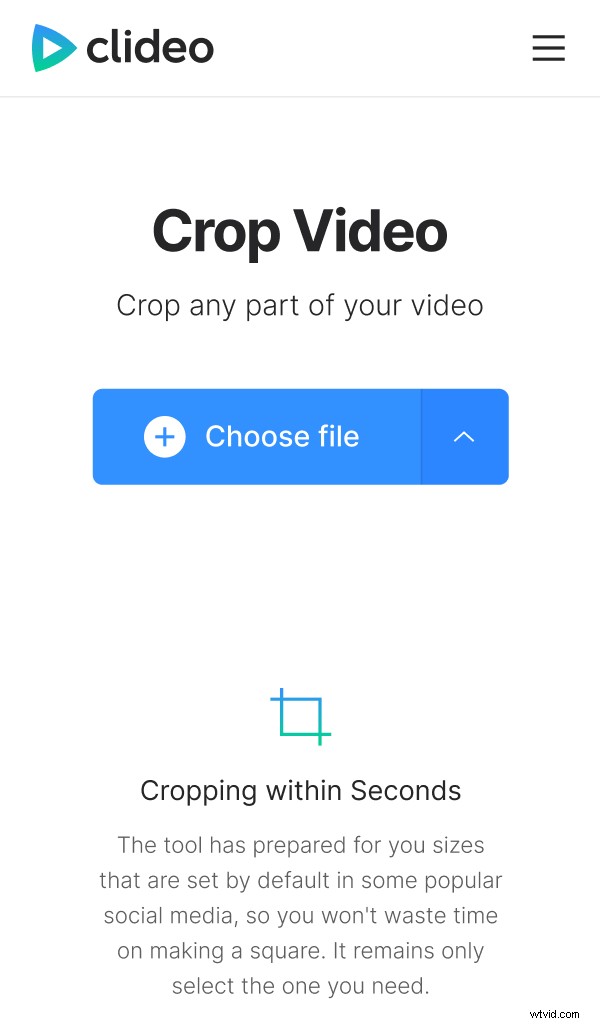
To get started, head over to Clideo’s Android crop video tool from the browser on your smartphone. Here you’ll find a ‘Choose File’ button. Hit that to upload the recording you’d like to crop the size of.
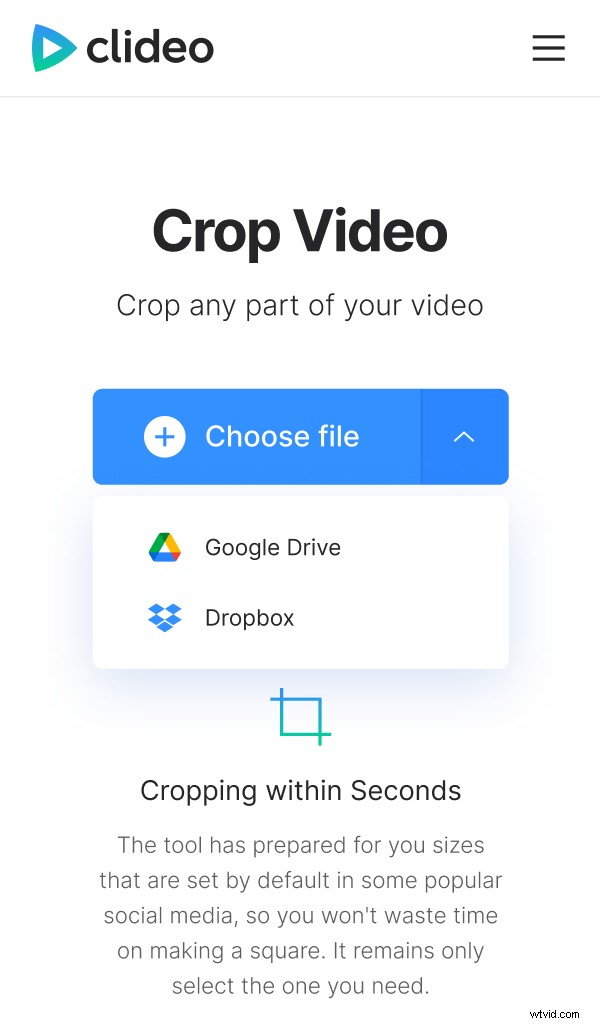
Alternatively, you can upload directly from cloud storage. Tap the down-arrow on the right-hand side of the button and you’ll find the option to add a clip from your Dropbox or Google Drive account.
Once your clip has been uploaded you’ll be taken to the editing tool page.
Please note that the Online Video Cropper supports the most popular formats, including AVI, MPG, MP4, MOV, WMV and more. It will also allow you to crop a recording up to 500 MB for free.
Crop it!
Once you’re in the editor, you’ll be able to select the desired area and crop the video.
Use the blue markers within the image frame to select the required crop size. On the top right, there are also some preset screen ratios depending on where you’re planning to publish your masterpiece.
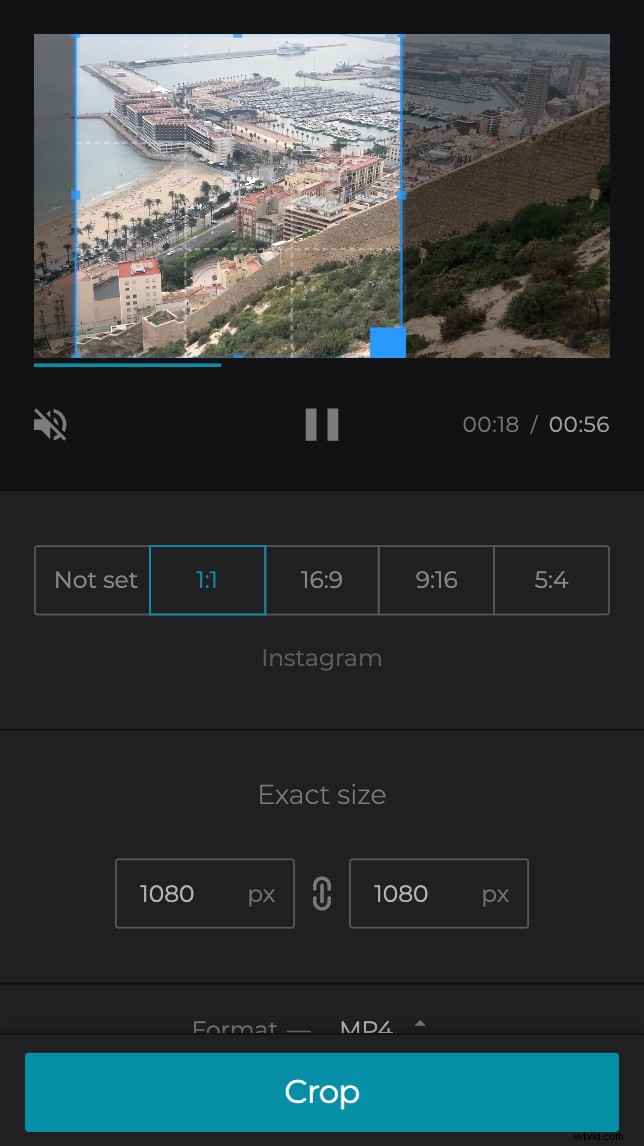
1:1 is best for cropping Android videos to a square for Instagram feed posts, 16:9 for YouTube, 9:16 for Instagram Stories and 5:4 for Facebook posts.
Alternatively, on the bottom right you can play around with the size by pixel number.
Before you move onto the next step, specify an output format for your file. For Android, MP4 format is recommended.
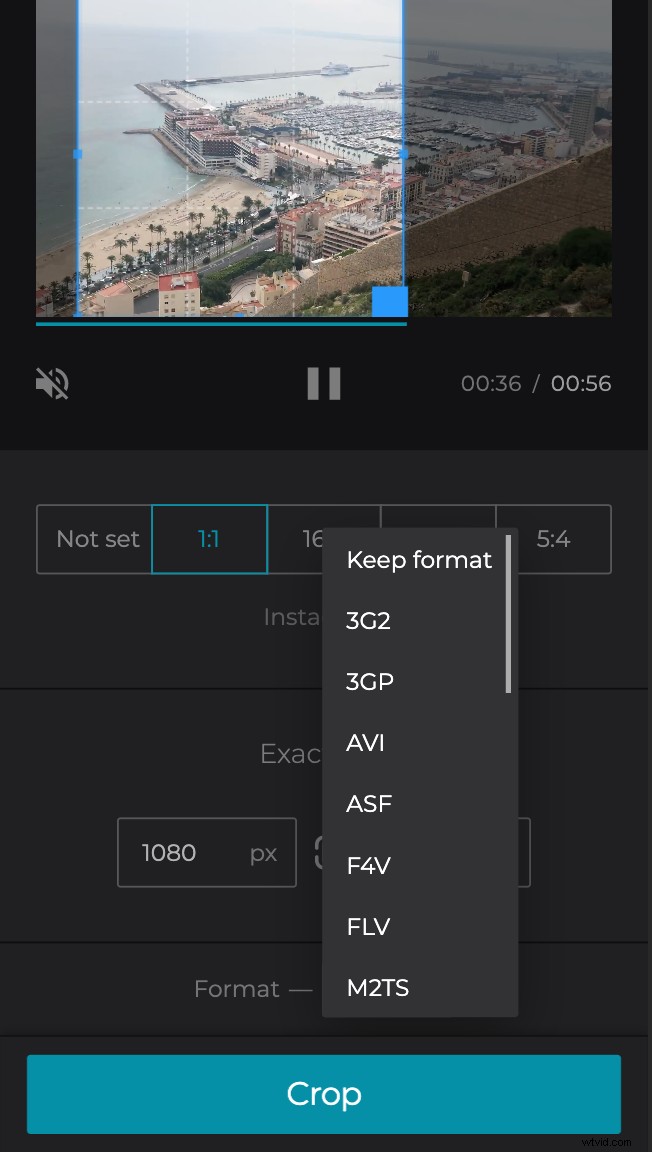
All done? Hit the ‘Crop’ button on the bottom right.
Save and download
Your file is cropped and converted, now you can preview it before saving to your Android device or - again - you have the option to save it directly to Google Drive or Dropbox.
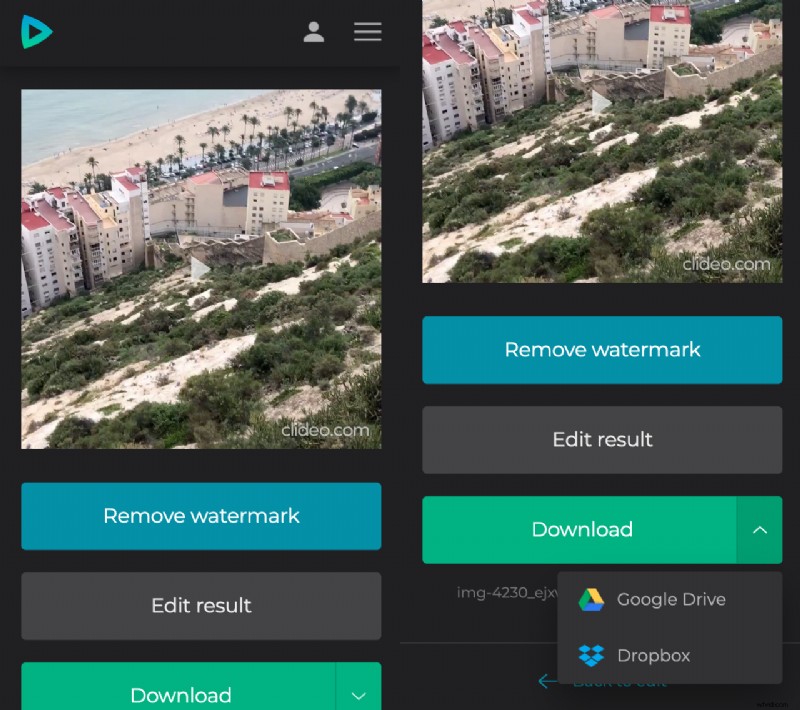
Got some edits to make? Simply tap the ‘Back to Edit’ button to be taken back without having to start all over again.
And that’s how you crop videos without an app for Android.