
Trim a video on Android in several steps
Let’s learn how to trim a video on an Android phone, as every operating system and each device have their own peculiarities and different interfaces.
Upload your file
Open Online Video Trimmer by Clideo in any browser. Select one of the recordings from your camera roll by hitting a central blue pane. The editor works not only with Android but also with all the other OS.
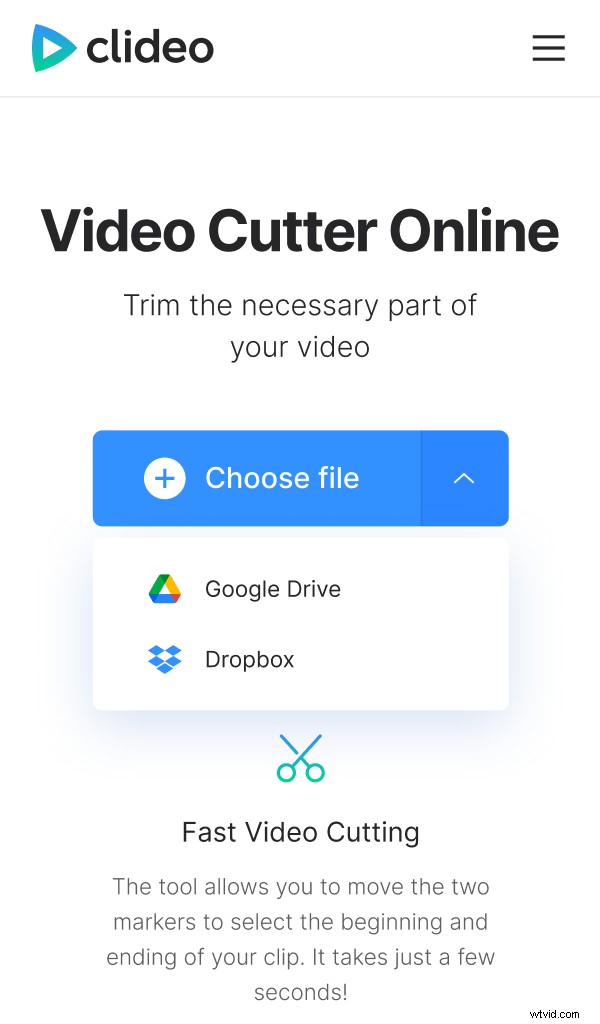
By calling a drop-down menu you may also export a file from Google Drive or Dropbox. The tool works for free with all the files up to 500 MB. There is no quantity limit!
Trim the video on Android
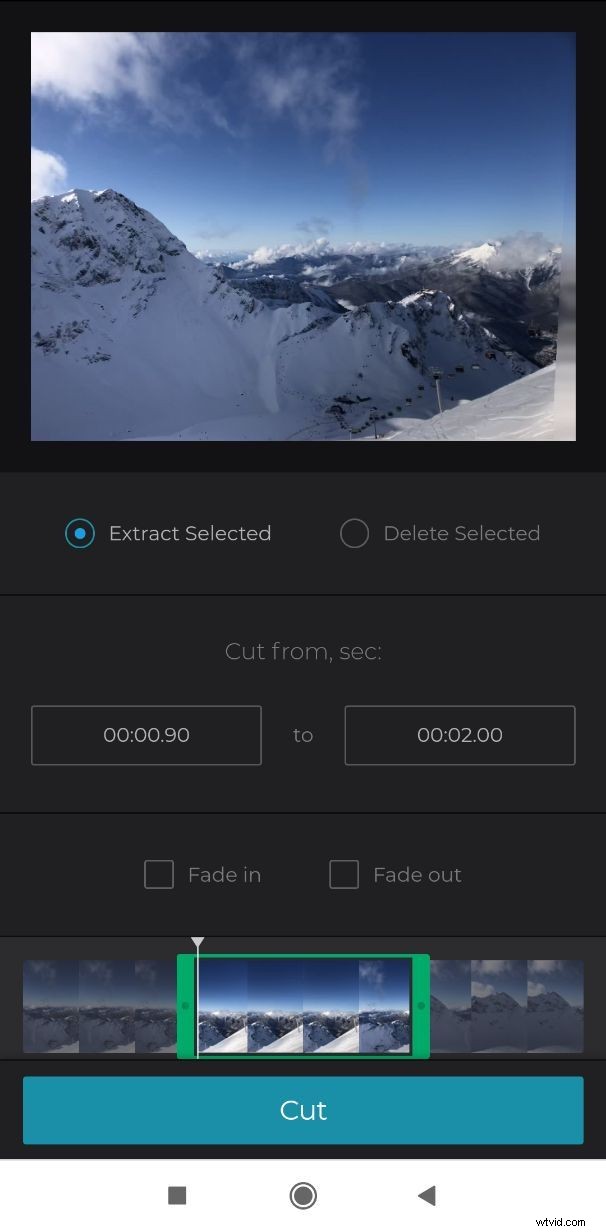
There are two ways to cut the recording: set an exact start/end time in the boxes on the right side or use the sliders below the initial video.
Choose the needed interval first. If you tick “Extract Selected”, it will be your actual clip for further editing. Don’t forget to tick “Fade in” and “Fade out” boxes for the better visuals.
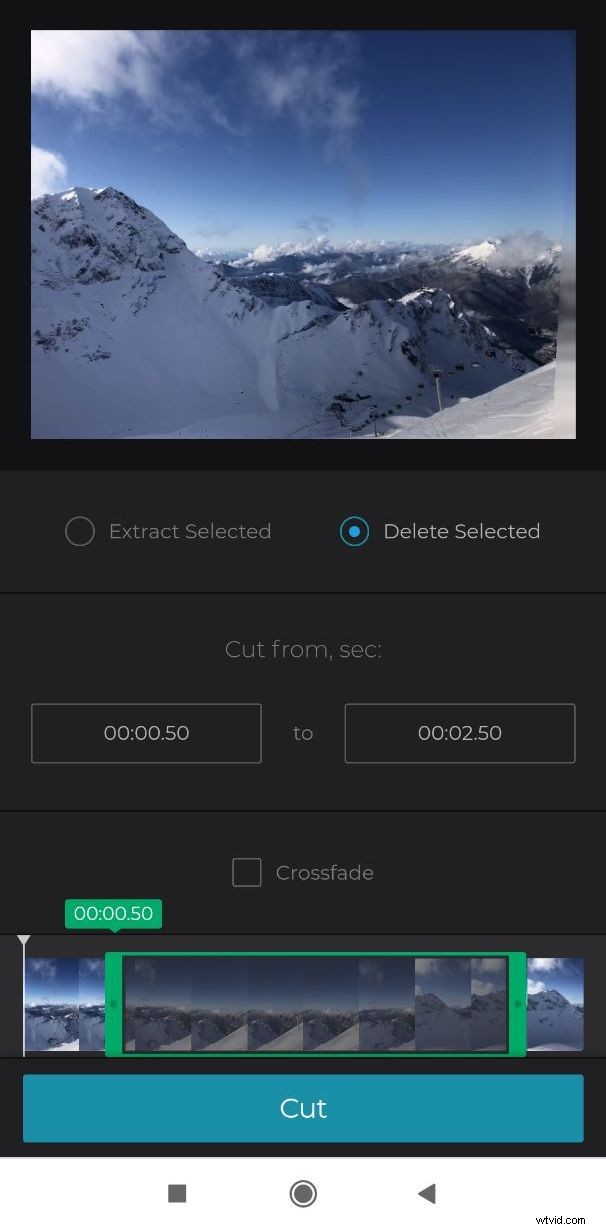
By hitting “Delete Selected” you’ll cut out a part of the video, it will be excluded from the film, and the rest will be merged. Tick a “Crossfade” box to make it look natural. This option comes handy if you want to keep the recording as it is and only delete a moment from the middle.
Select the output format or keep the initial one. If you decide to change it, you’ll have a list of all the modern video extensions, including MP4, MOV, FLV, 3GP, AVI, etc.
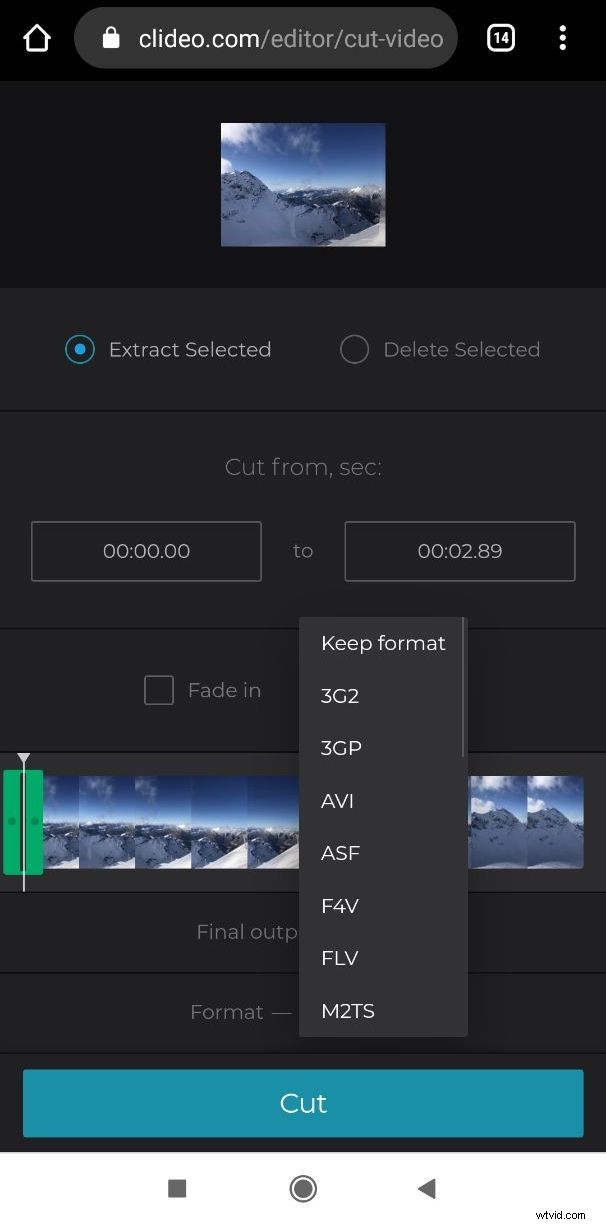
Click the “Cut” button and wait several seconds.
Save the result back to Android
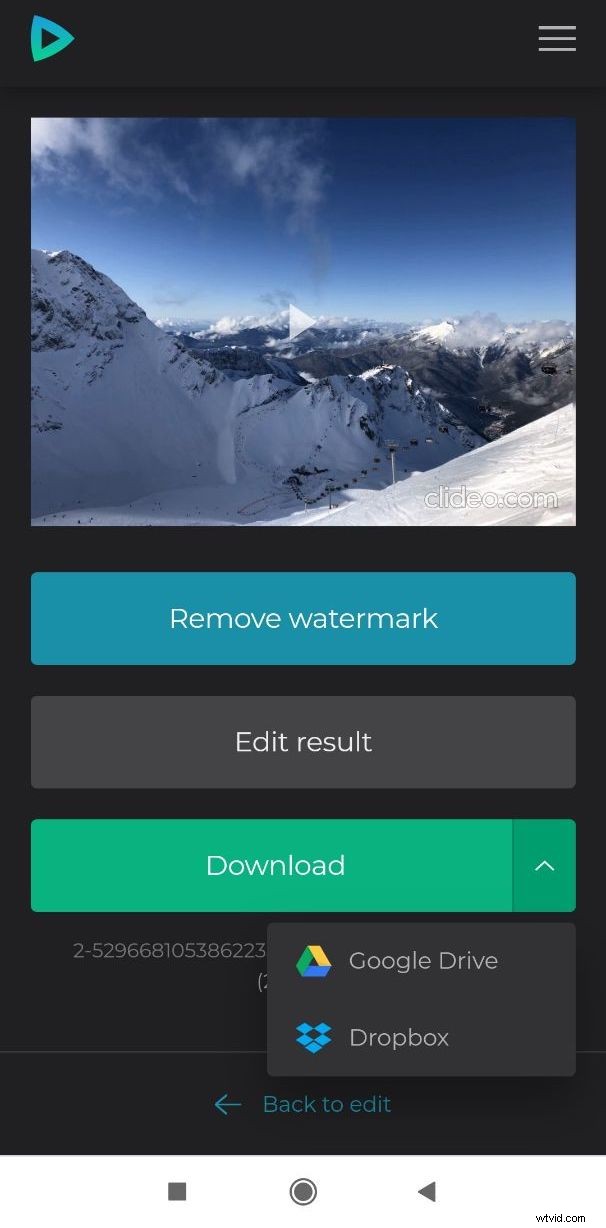
When the recording is processed, have a brief review and save it to your Android smartphone or any other device. Alternatively, you may upload it to the cloud. If the result is still far from ideal, click “Back to edit” and keep enhancing your clip as long as you need.