
Flip videos on Android in three easy steps
So if you have a video on your phone but not a fan of the way it's been recorded, don’t fret — there’s an easy way to flip it the right way around in your web browser, with just one click. And luckily, you don’t need to find and download some random or expensive editing app from the Internet to do it.
Upload your video
Head over to Online Video Flipper by Clideo and select the clip you’re wanting to mirror. The good news is it will work from any Android device — just ensure that you’re connected to the Internet!
To get started, hit the blue Choose file button on the homepage to find the video in your phone’s gallery.
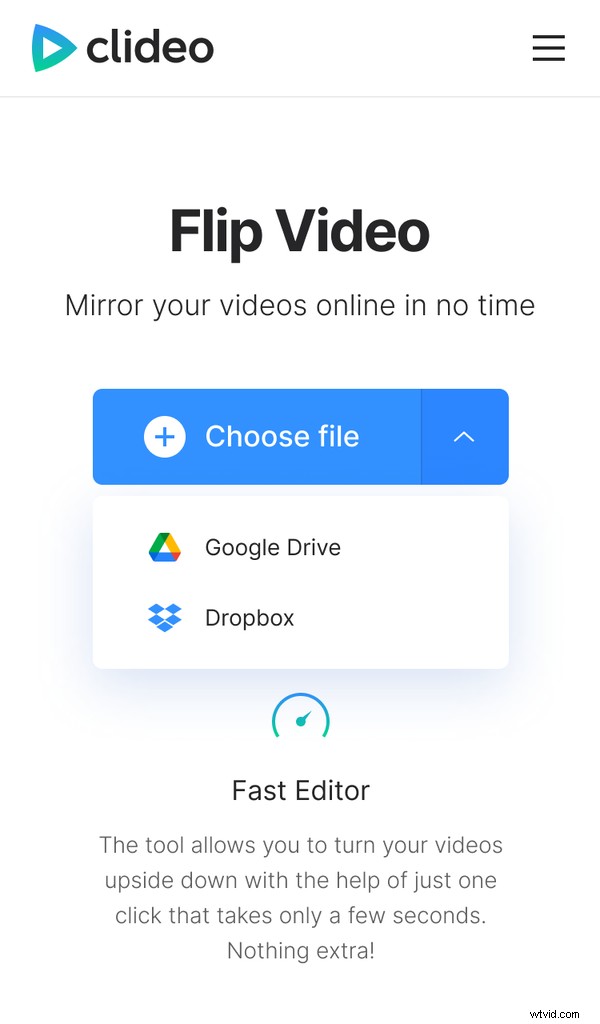
Alternatively, you can upload it from Google Drive or Dropbox by tapping the downward-facing arrow on the right-hand side.
You can upload videos files up to 500 MB, for free, and all popular video formats are supported. Once you’ve clicked OK, your clip will begin uploading to the Clideo servers.
Flip the clip!
When the video is uploaded, you can flip it horizontally or vertically by 180 degrees, using the controls on the right-hand side. Before you finish, preview the clip via the Play button in the center under the video pane.
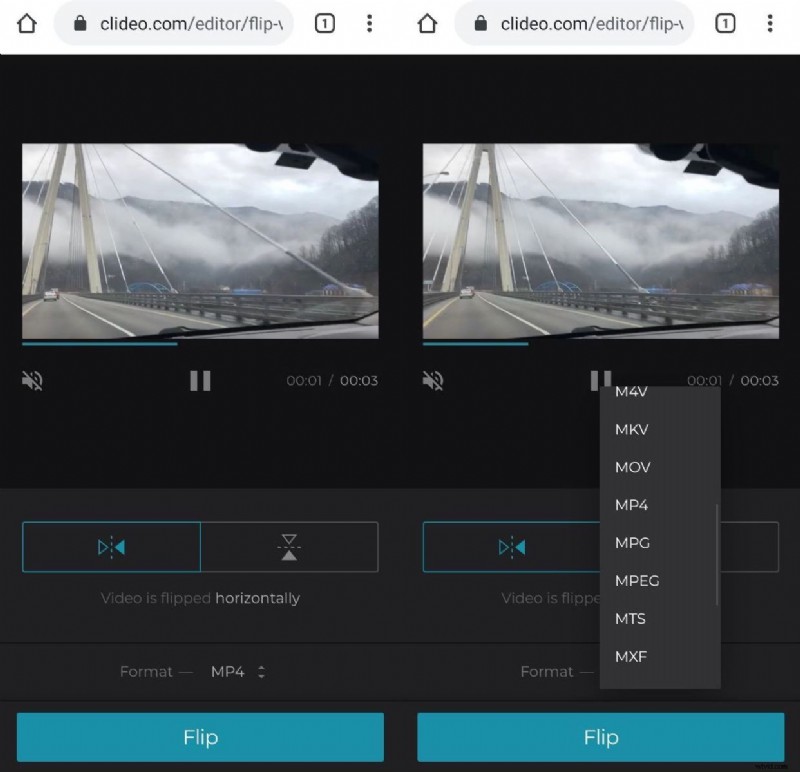
Don’t forget to choose an output format for the file, too. Please note that for Android devices, it is best to save it in the MP4 extension.
Once you’re all done, tap the Flip icon on the bottom right and your new, mirrored video will begin processing. It’ll be ready in a jiffy!
Enjoy your new video
After you’ve completed the editing process and your video is flipped and converted, you can save it back to your device by clicking the big green "Download" button. Again, you can choose to save straight to Google Drive or Dropbox cloud storage accounts if you prefer.
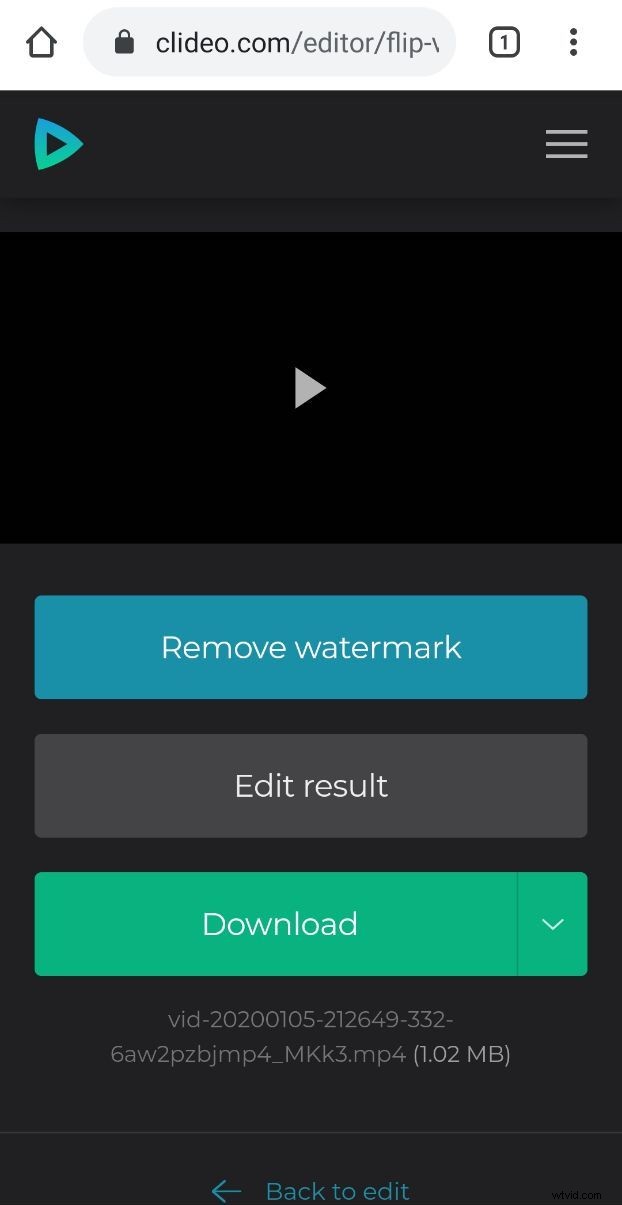
Not quite happy with your creation? Don’t worry, you can select the “Back to edit” link under the Download button and this will take you back to the video editor where you can start all over and make changes if needed.