
How to mirror a video easily
When we talk about "flipping" footage, we usually mean vertically. This means turning it upside down (though you'll usually flip a movie when it's already upside down and you want it right-side up).
"Mirroring" a video is usually a horizontal reflection. If someone in your clip is walking from the left side of the screen to the right, mirroring it will make them walk from the right to the left. This can be useful for all sorts of reasons, for example, if you recorded it in a mirror.
Whatever the case, you can solve it in just a few seconds with the Video Flipper by Clideo.
It's online and secure. There's nothing to download. You don't need to pay for expensive software or take up space on your hard drive.
You can edit videos up to 500 MB for free (you can upload even bigger files with subscription).
Let's take a look at how to turn a video 180 degrees or mirror.
Upload your file to the flipper
Open the tool and click "Choose file" to pick a clip from your computer. Use your Windows, Mac, Android, or iPhone file explorer to find the one you want.
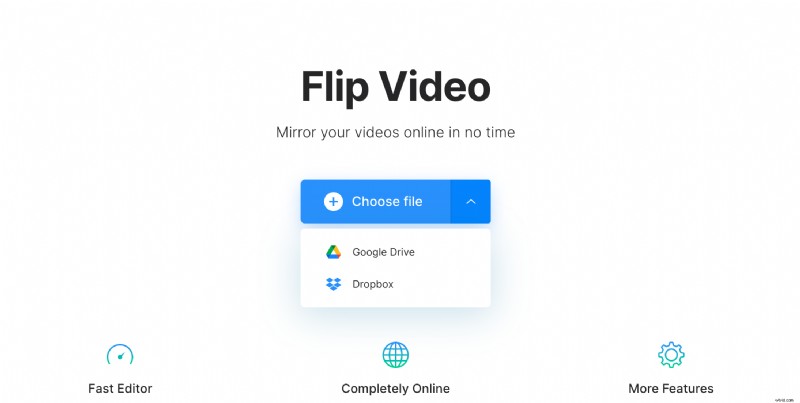
Click on the arrow on the right side of the button, it'll let you use a clip from your Google Drive or Dropbox account.
Edit your video
Once your file has been uploaded, you'll see two buttons on the right panel.
Click the button on the left to mirror your movie horizontally. Or click the button on the right to flip it vertically.
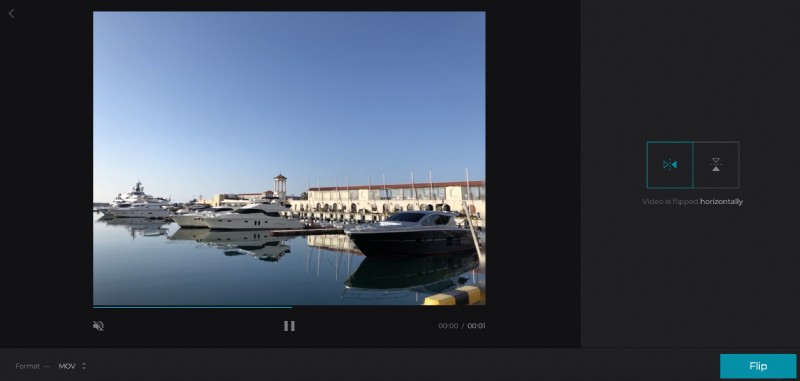
You can also click both to flip and mirror the video.
Choose an output format. If you're going to share it on social media, you can find the right format in our specs guide.
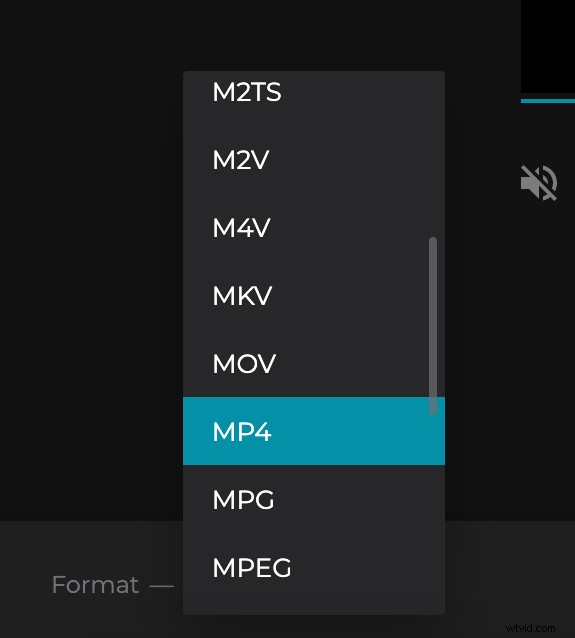
Once you've chosen the correct file type, click "Flip."
Watch, download, and save your video
Click the play button to preview the final result. You'll see what your video looks like after being flipped or mirrored.
You can now click "Download" to save the movie to your computer. You can also click the Google Drive or Dropbox buttons to add the clip to your cloud storage.
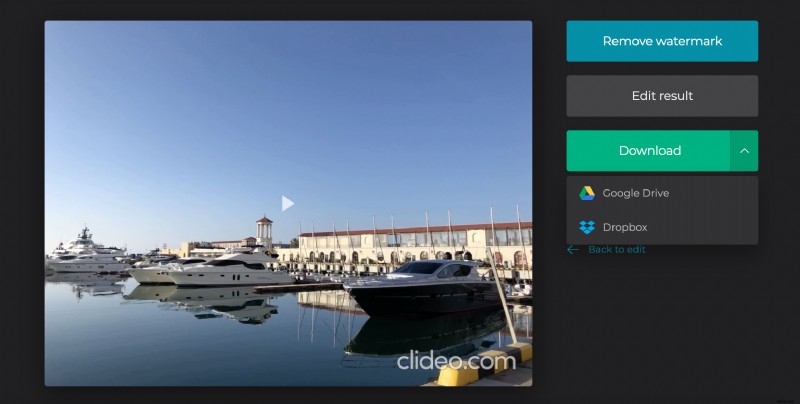
If you have a Clideo account, the file will be saved to your account to access it later. The tool will store your recording for 24 hours and then delete it, so you don't need to worry about your clip being on someone else's servers. You can also delete yourself at anytime