
Want to take a video clip and turn it into a slow-mo video? The slow-motion effect is easy to create, no matter your video editing skills or budget.
Slow down a regular speed video to create a slow-motion artistic effect, build suspense, romance, or even stress in a moment of your video. Read on to learn how to make slow-motion videos with Clipchamp's free online video editor.
How to make slow-motion videos in Clipchamo
How to make a slow motion video on iPhone
Frequently asked questions
How to make slow-motion videos in Clipchamp
Let’s take a look at how slow-mo video works in our free online video editor.
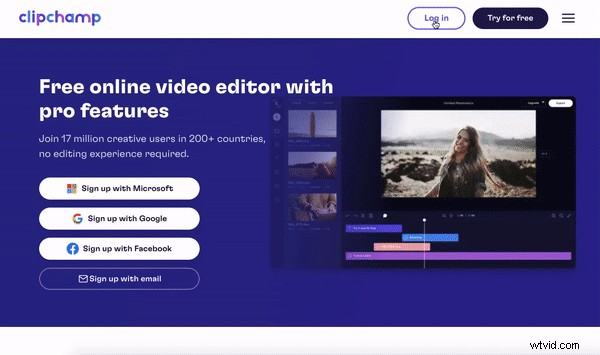
Step 1. Log in to Clipchamp or sign up for free
To turn video into slow motion, you’ll need to log in to your Clipchamp account or sign up for free. The editor homepage will automatically open once logged in.
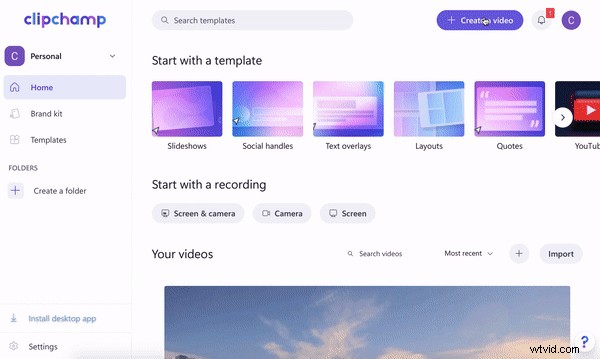
Step 2. Create a new video
To turn video into slow motion, you’ll first need to create a new video. Click on the + create a video button at the top right corner of your screen. The editor will automatically open. Click on Untitled video and rename your video.
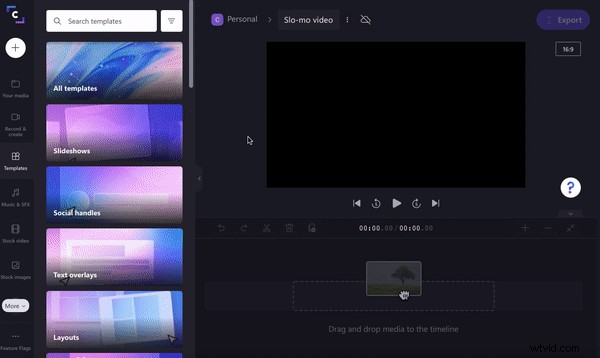
Step 3. Import a video or stock footage
To import your video or footage that you would like to turn into slow motion, click on the + symbol on the left toolbar. A pull-out tab will appear. Upload a video from your computer, Dropbox, Google Drive, OneDrive, Zoom, Box, Google Photos, or smartphone device. You can also drag and drop your video file into the white pull-out tab. Your videos will appear in the Your media tab on the left toolbar. Drag and drop your video onto the timeline.
If you would like to use stock footage, click on the Stock video tab on the left toolbar. Scroll through the categorized folders, or search a keyword. Click the Add to my media button to add your chosen stock to Your media. Drag and drop the stock video onto your timeline. Alternatively, click on Add to timeline if you want to add footage directly to your timeline.
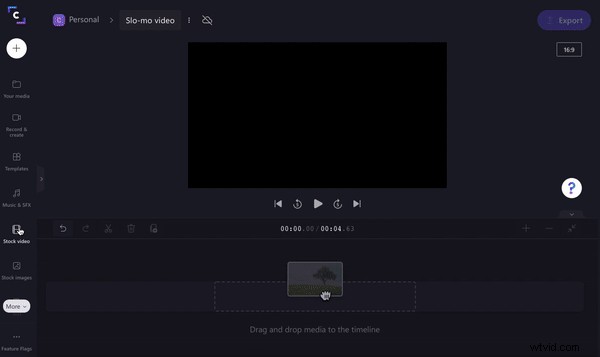
Step 4. Turn video clips into slow mo videos
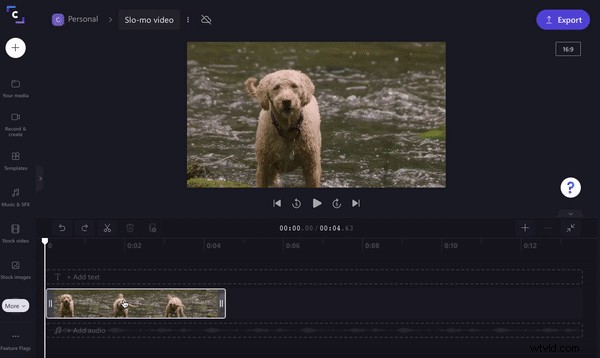
Either turn your entire video clip into a slow-mo video or select a certain section. To turn the whole video into slow motion, click on the video clip on your timeline to its highlighted green. At the top of your video preview, click on the Speed editing option. Click on the Slow clip speed option. Select from 0.1x to 0.5x. Your video clip will become longer on your timeline as the clip has turned into slow motion.
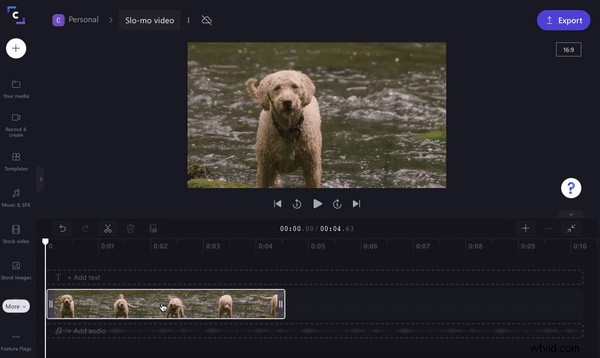
If you would like to only turn a section of your clip into a slow-mo video, simply use the snipping tool to cut your clip. Click on the video clip on your timeline to its highlighted green. Move your cursor to where you would like to split your video. Click the scissors icon to split your clip into three sections. Click on the clip you would like to turn into a slow-mo video so it's highlighted green. Click on the Speed editing option above the video preview. Click on the Slow clip speed option. Select from 0.1x to 0.5x. Your video clip will become longer on your timeline as the clip has turned into slow motion.
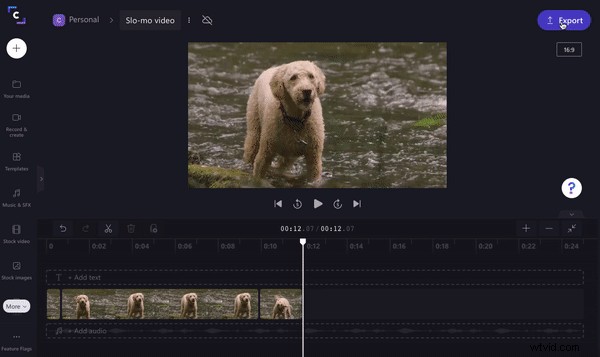
Step 5. Save and export your slow-motion video
Once you have finished editing your slow-motion video, click on the purple Export button at the top right corner of the editor. Saving options will appear. Click on 480p, 720p, or 1080p resolution saving option, then click Continue. Your slow-mo video will automatically save to your computer. You can also send or save your slow-mo video via Clipchamp’s integrations like Google Drive, YouTube, TikTok, OneDrive, Dropbox, Pinterest, Box, or LinkedIn.
How to make a slow motion video on iPhone
If you don't have a desktop computer or want to edit your video on the go, slow-mo videos can be easily created on Clipchamp’s free iOS app. Let’s take a look at how to make a video slow motion on iPhone.
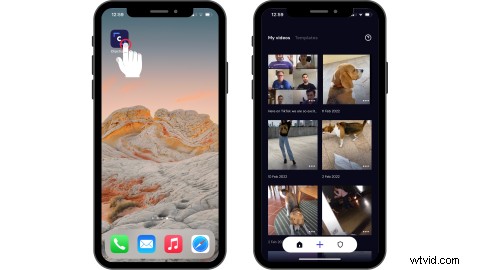
Step 1. Open your Clipchamp app and log in
Locate your Clipchamp app on your iPhone, open it, and log in. Your editor homepage will automatically open.
If you do not have Clipchamp’s iOS app downloaded, you will first need to head over to the App Store. Search for “Clipchamp” and download the free Clipchamp iOS app. You can find the app under the Photo & Video category. Click Open when the app is finished installing.
Step 2. Create a new video
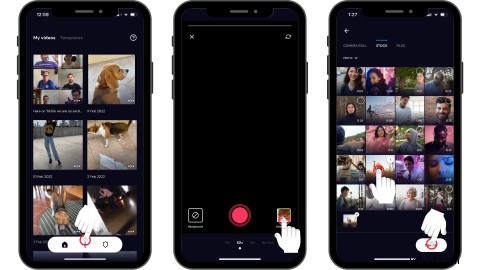
Tap on the + symbol to create a new video. Either record a video from the app or upload your video clip. Tap Select video to upload personal footage from your camera roll or files, or select a stock video. Tap Next once you have selected the video.
Step 3. Turn your clip into a slow-motion video
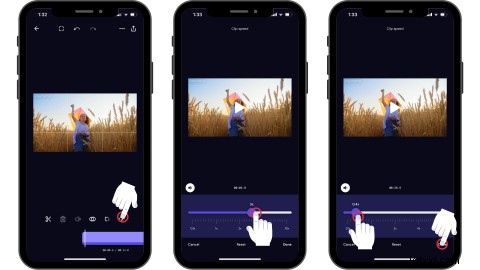
Tap on the timeline to launch editing options. Tap on the Speed tab. Drag your cursor left and right to change the speed of your video. The lower the number, the more slow-motion your video will be. Tap Done when finished editing.
Step 4. Save your slow-mo video
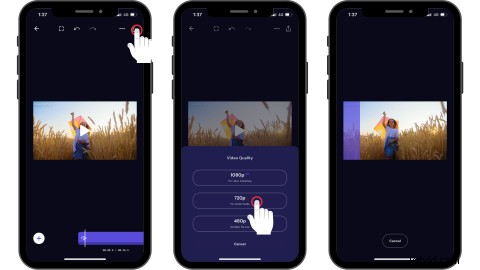
Tap on the Export button at the top right corner of your screen. Save your video either in 480p, 720p, or 1080p. Your video will automatically save to your iPhone.
Frequently asked questions
Can audio become slow-mo as well?
Yes. If your video clip has sound, the sound will turn into slow motion as well. If you don’t want to alter the sound of your clip, simply detach the sound from your video, and only edit your video.
What videos work best with slow motion?
Creators can turn absolutely any video genre into a slow-mo video. From action sports, cooking tutorials, pets, kids, special events, to even promotional marketing videos.
Turn video into slow motion with Clipchamp
In just a few clicks (or taps) easily turn your clips into awesome slow-mo videos with Clipchamp.