
From a funny TikTok voice effects to trending songs, the right TikTok sounds can make your video more enjoyable. It can also increase your video's shareability and inspire other creators.
But you don’t have to always use another creator's trending sounds on TikTok. With the help of AI voiceover technology, webcam recorder, and speed selection, you can make your own TikTok sound in minutes with Clipchamp video editor.

Read on to explore how to make a TikTok sound with Clipchamp for free and how to add your own sound on TikTok. We’ve also listed some trending sounds on TikTok to get you inspired.
How to make a TikTok sound with Clipchamp
Instead of using an existing TikTok sound made by another creator, why not make your own sound on TikTok instead? The TikTok audio might even make it onto the trending sounds on TikTok list!
To create your own TikTok sound, you will have to create your TikTok video in our editor. Follow the steps below to learn how to make a TikTok sound with Clipchamp’s free online video editor.
Step 1. Log in to Clipchamp or sign up for free
To make your own TikTok audio, log in to your Clipchamp account. If you do not have an account, simply sign up for free.

Step 2. Create a new TikTok video
Click on the + Create a video button at the top right corner of the editor homepage. The editor will automatically open. Rename your new TikTok video by clicking on the Untitled video tab.
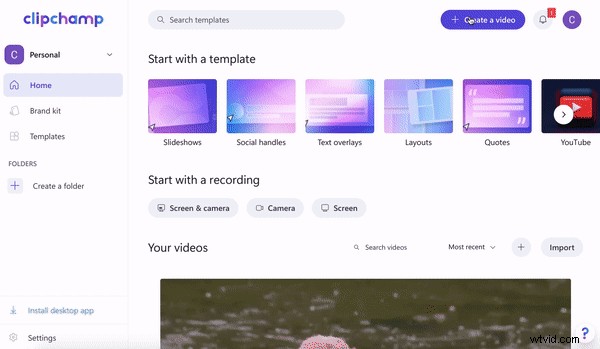
Step 3. Resize your video to suit TikTok video guidelines
Before you start creating your new TikTok sound, make sure to change your TikTok video aspect ratio. The editor automatically launches in a 16:9 widescreen aspect ratio. Click on the 16:9 aspect ratio button at the right side of your screen, then the click 9:16 aspect ratio option. All TikTok videos must be created and exported in a 9:16 portrait aspect ratio.
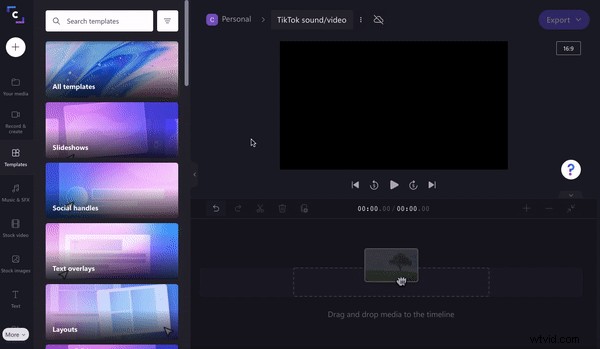
Step 4. Upload TikTok video, personal video clips, stock footage, or a template
To start creating TikTok sounds, you will first need to create a TikTok video in the editor or upload an existing TikTok video. You can do this in three different ways:
A) Upload an existing TikTok video or personal video clips
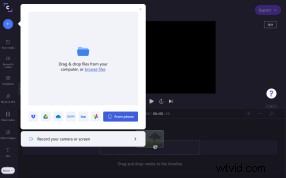
To upload a ready-made TikTok video or personal footage, click on the + symbol on the left toolbar. A pull-out tab will appear. Upload a video from your computer, Dropbox, Google Drive, OneDrive, Zoom, Box, Google Photos, or smartphone device. You can also drag and drop your video file into the white pull-out tab. Your videos will appear in the Your media tab on the left toolbar. Drag and drop your video onto the timeline.
B) Select stock footage to create a new TikTok video
If you would like to use stock footage, click on the Stock video tab on the left toolbar. Scroll through the categorized folders, or search a keyword. Click the Add to my media button to add your chosen stock to Your media. Drag and drop the stock video onto your timeline. Alternatively, click on Add to timeline if you want to add footage directly to your timeline.
C) Start with a TikTok video template
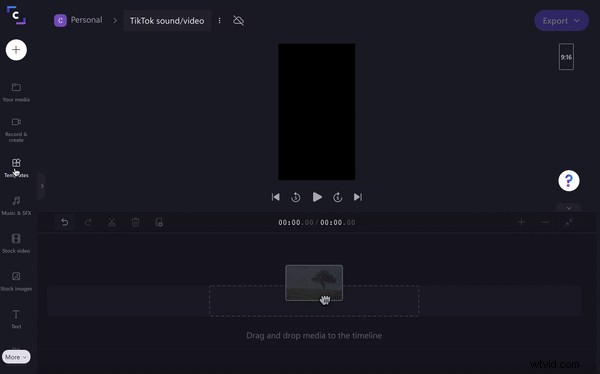
If you’re not sure how to create a TikTok video, start off with a ready-to-use TikTok template. Click on the Template tab on the left sidebar. Scroll down to the TikTok template folder. Once you have found a TikTok template that you like, click on the + button to add the TikTok video to your timeline.
Step 5. Create your TikTok sound
Not sure how to make a TikTok sound? It’s easy! With a few different TikTok sound options to choose from, your video will be ready in no time. Either create a TikTok voice effect using our AI text to speech feature, record your own voiceover, or add stock audio to your video.
A) Add a TikTok voice effect with AI voiceovers
Adding a TikTok voice effect to a video is a popular editing choice. And with our free online text-to-speech generator, you can use artificial intelligence technology to turn your words into TikTok voiceovers. Voice effects on TikTok are quite limited, but we have over 170 lifelike voices supporting over 70 languages.
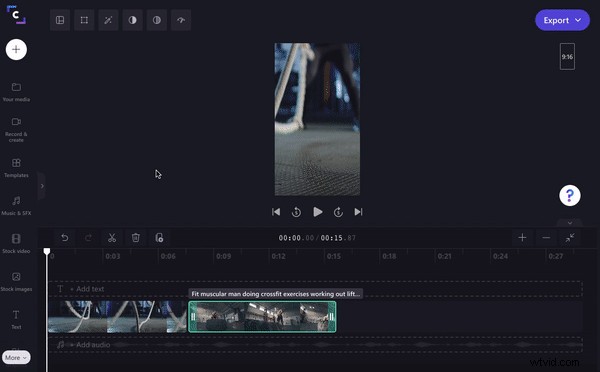
Click on the Record & create tab on the left sidebar. Next, click on the Text to speech option. A popup window will appear with text to speech options. You will be able to choose a language, voice, and speech speed. Enter your text in the text box, then preview the TikTok voiceover before clicking the Save to media button. Drag and drop the TikTok audio onto your timeline.
B) Create your own TikTok sound voiceover
If you would like to use your own TikTok voiceover instead of an AI voice, you can create a TikTok voice effect using our online camera recorder. All you need to do is record a webcam video, then add it to your timeline. If you don’t want to use the webcam recording video, but still want the sound, simply place the video under your TikTok on the timeline. Only the audio will be heard, the webcam video won’t be shown.
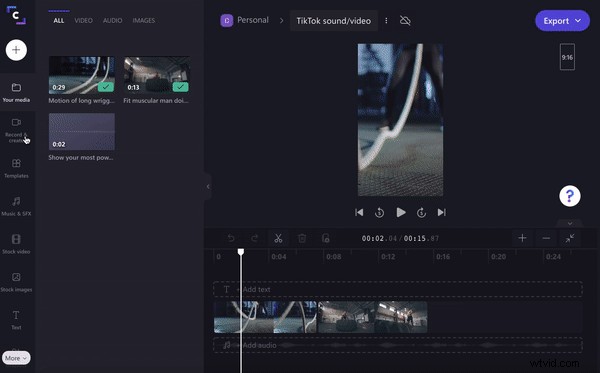
Click on the Record & create tab on the left sidebar. Next, click the Camera recording option. Click on the red record button to start recording. Your microphone and webcam will record. Once you have finished, click on the same red button. Save your recording. The recording will automatically be added to Your media and your Timeline. Drag and drop the clip under your video so only the sound will be heard if you do not wish to use the webcam video.
C) Add stock audio to your TikTok video
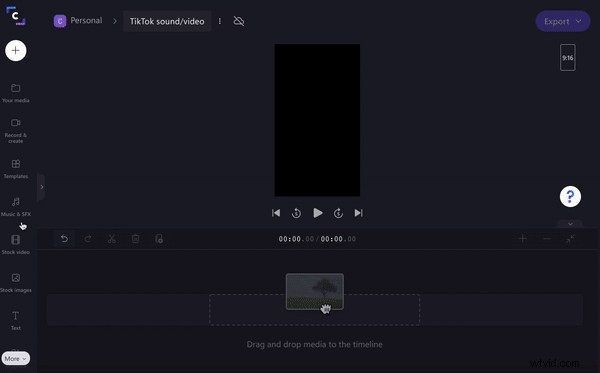
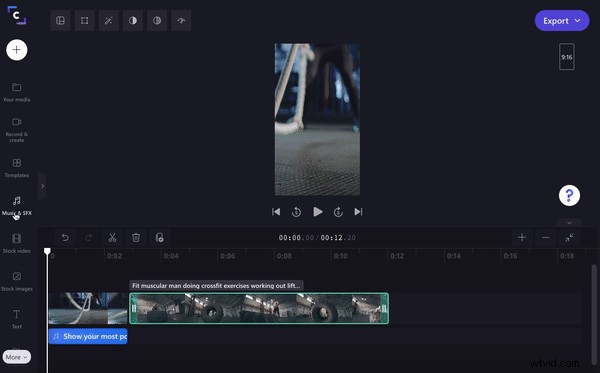
Click on the Music & SFX tab on the left sidebar. Choose an audio file from our extensive stock audio library. Once you have selected the perfect track for your TikTok video, click on the + button to add the audio file to your timeline. Trim the audio to the length of your TikTok video.
Step 6. Add captions to your TikTok video
Don’t forget to add captions to your TikTok video. Click on the Text tab on the left sidebar. Drag and drop a font of your choice onto your timeline. Personalize the text, change the size, font, color, and orientation.
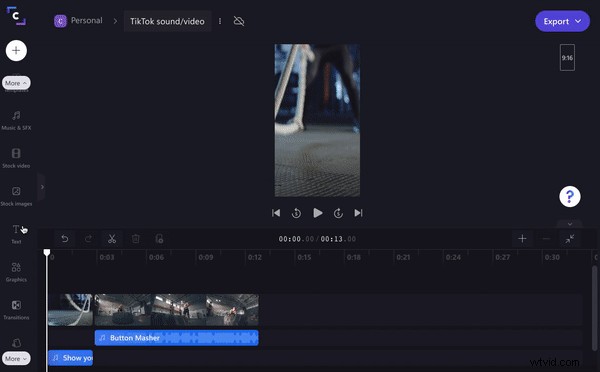
Step 7. Save and export TikTok sound directly to TikTok
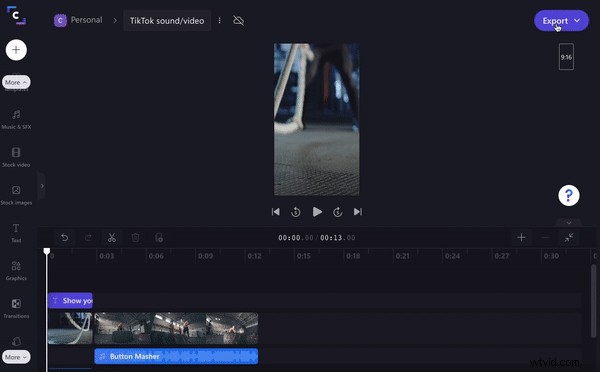
Click on the purple Export button at the top right corner of your screen. Click on 720p video quality. Your TikTok sound and video will automatically start saving. You can directly upload your new TikTok video to TikTok using Clipchamp’s saving integrations.
How to add your own sound on TikTok
Once you have uploaded a video to TikTok, if you haven't used a 'sound or song' from the TikTok library, then your audio automatically becomes a clickable/useable 'original audio'. Make sure to have your TikTok video preferences set to allow others to use your audio or TikTok sounds or will need to create the sound.
Popular TikTok sounds
Not too sure what the popular TikTok sounds are like? There are thousands of TikTok sounds trending on your FYP every day. Whether it's a newly released song or TikTok voice effect, there’s a sound for every genre. Let’s take a look at some examples of popular trending sounds on TikTok.
1. Forever by Labrinth
2. I am obsessed with this by Mallorie
3. Before I knew it by Mason Ramsey
4. Original sound - music.al.quotes by Musicquotes
5. Voice effect on TikTok
Ready to make your own TikTok sound?
In just a few minutes, you can create your very own TikTok sounds using TikTok voice effects, webcam recordings, or stock audio. It might even become the next viral trending sound on TikTok!
Get started and make an iconic TikTok sound with Clipchamp’s online video editor.