
A video presentation is quite convenient when you can't attend a meeting which you are supposed to. If there is no Q&A session, you can even go to sleep since the video presentation can say everything for you. And if you are too shy to speak in public, making a video presentation and playing it in front of everyone else is a way to save you.
However, many people don't know how to make a video presentation. That's why we write this article - to show you how to make a video presentation, or how to record the whole process of your presentation as a playable video. Read the whole article and find a proper way.
Advantages of a Video Presentation Compared to a Typical One
As a video presentation contains images, graphics, and texts combined with narration and sound effects, people can illustrate information more easily than they do with a slide. There are some other advantages, let's have a look.
- More audience: A video presentation can be posted online to reach a broader range of viewers.
- More persuasive: Videos rely on audio-visual storytelling, people retain better the information they glean from videos, making them more convincing.
- Less awkwardness: People who are afraid of speaking in public can avoid the awkwardness of standing on the stage.
- Relationship building: People are more likely to trust you and build a relationship with you through in-person interaction. A video can be seen as a kind of face-to-face interaction.
Part 1. Make a Video Presentation with PowerPoint
Since many of us present with a slide, if you don't need narration for this video, the easiest way to make a video presentation is to save your PowerPoint slides into a video format. But if you need narration, you can record your voice before saving the slide as a video. Here's what you need to do to make a video presentation with PowerPoint:
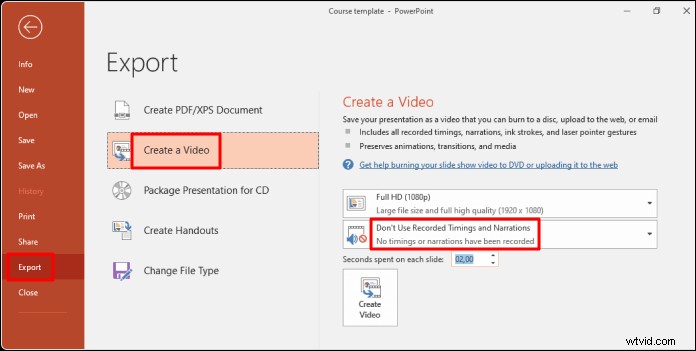
Step 1. Open the presentation, go to "File" on the PowerPoint toolbar and select "Export" to view the export options.
Step 2. In the "Export" menu, select "Create a Video". Then you can choose to add a narration to the presentation or not.
Step 3. In the drop-down menu, choose to export the presentation "with narration" (you've already recorded it) or "without". If you want to record a narration at this point, click "Record Timings and Narration".
Step 4. Set the duration of each slide. Manage the speed of the demonstration in the small drop-down menu.
Step 5. Click on the "Create video" button to start downloading your slides as a video.
Part 2. Make a Video Presentation with EaseUS RecExperts
PowerPoint can convert a PPT slide into a video with narration, but if you want people to see you in the video, you may record the camera when you are presenting a PPT slide. To do so, you need a screen recording software that can record the screen(playing your slides), your microphone, and the camera at the same time. EaseUS RecExperts is just the one you need.
This tool allows capturing the internal and external sound together or separately. Therefore, you can turn off the microphone when you don't want your voice or the environment noise to be recorded. And when you want to emphasize a part on your slide, you can zoom it in to make it bigger, or you can mark that content to tell your audience that is important.
Key Features:
- Record your PPT slides as a playable video
- Capture yourself while presenting the slides
- Mark important content to emphasize it
- Put a watermark on the recorded video presentation
- Export the video in many different formats
Download EaseUS RecExperts and follow the steps below to make a video presentation.
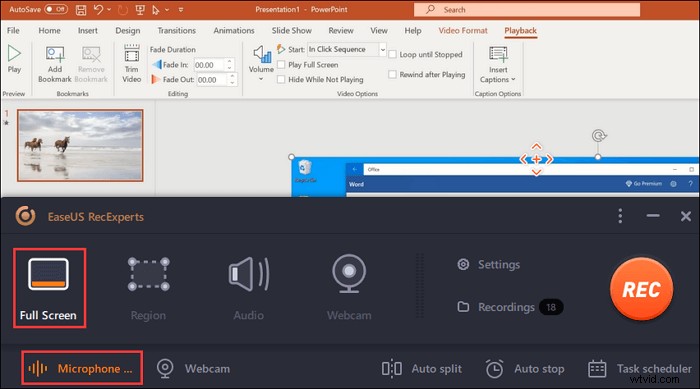
Step 1. After downloading EaseUS RecExperts, you open the PowerPoint slides.
In the mian interface of the screen recorder, you choose "Full Screen". To capture the sound and slides at the sam time, you click the speaker icon in the lower left corner of the toolbar.
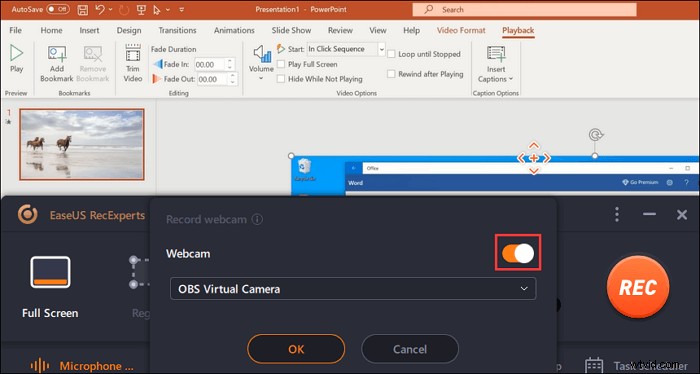
Step 2. To record your face when presenting the powerpoint, you choose the Webcam function from the main interface. Click it and enable this feature. Also, choose the resource of the webcam.
Step 3. Back to the main interface, click "REC" to start the mission. Now, present your slides with a microphone. At the same time, see the webcam window in the lower left corner.
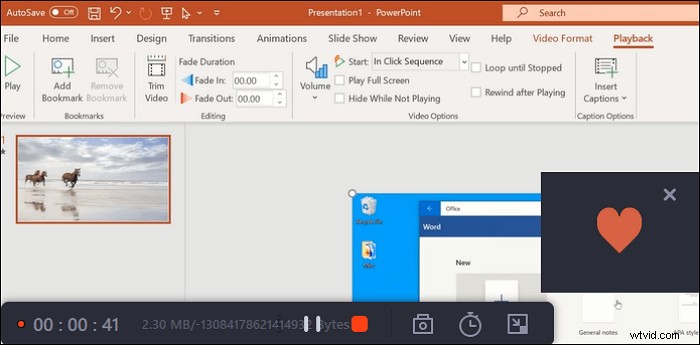
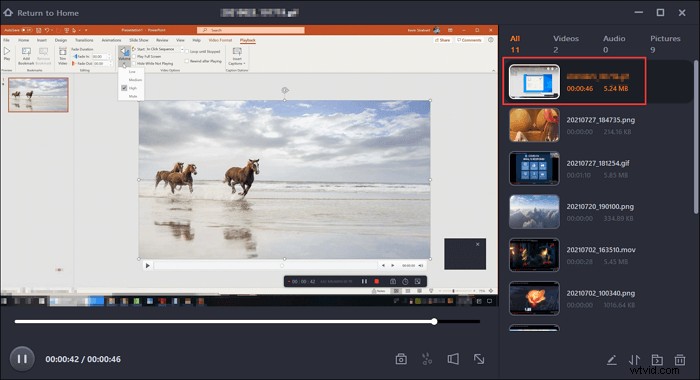
Step 4. To finish the recording, click the "Stop" button. Then, you see the saved video in its "Recordings". Back to the mian interface and click it. The recent one is at the top.
Part 3. Other Tools You Can Choose
If you don't want to use the two tools above, we give you the other two below. You may choose one from them.
Tool 1. Loom
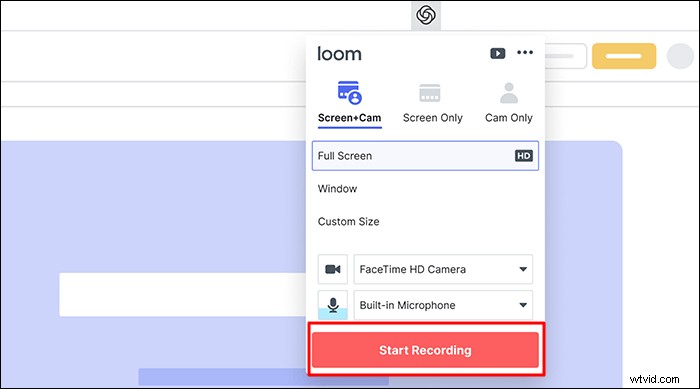
Works on PC, Mac, and mobile devices, Loom makes it easy to create, edit, and share your videos with your audience. With Loom, you can add audio to your Google Slides, PowerPoint slides, or other presentation by recording your screen and narration. Whether you're making a video presentation for marketing, employee training, online courses, or any other purpose, with the help of Loom, it is just a few clicks.
Pros
- Adding voice to the recorded Google Slides, PowerPoint, etc.
- Share your videos with your friends
- Edit the recorded video to make it better
Cons
- Lack of advanced features
- It is not always stable
Tool 2. Adobe Presenter
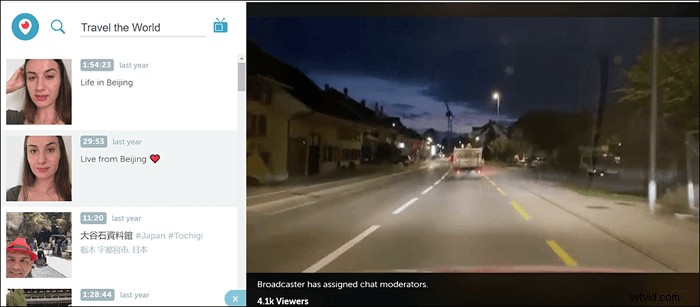
Adobe Presenter is another video presentation software we want to introduce to you. Unlike other applications, with Adobe Presenter, you can add quizzes to your video presentations, making them interactive and more engaging. When recording the presentation, the screen, and the webcam can both be captured. And the speech-to-text conversion functionality automatically generates closed captions for audio tracks. After recording, you can create HD videos easily.
Pros
- Publish PowerPoint content directly to HTML5
- Customize the background of your video presentation
- Published the recorded videos across multiple systems
Cons
- Requires a fast and stable internet connection
- Some functions are not free
Conclusion
After reading this article, we hope you now understand the benefits of creating a video presentation and how to make one. Turning a PPT slide into a video is a faster and easier way to make a video presentation. And in this article, we showed you how to do so with four different tools. For Windows users, we recommend you to download EaseUS RecExperts since it is comprehensive and user-friendly at the same time.