
Have you ever felt like the audio on your video was too quiet or too loud?
You’re not alone.
Getting the right volume for your videos can seem tricky if you don’t have access to high-end recording equipment, but that isn’t necessarily true!
There’s an easier way.
Here’s a step-by-step guide on how to make audio louder or softer in your videos, plus some bonus tips for taking your audio to the next level.
Step 1: Record or import your audio
The first step to changing volume in your audio is bringing in an existing file or recording something new. You might already have an audio file in mind, but just in case, we’ll walk you through both options.
The most efficient, high-quality tool for easily adjusting the volume of your video’s audio is TechSmith Camtasia. You can easily record and edit audio, or simply import your own to the program.
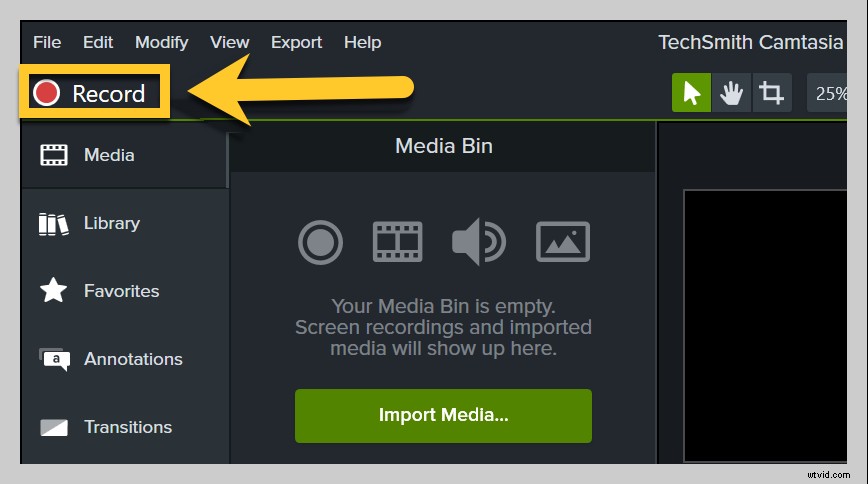
To record audio with Camtasia, open the application and click the red record button. You can choose to record your microphone, video, webcam, and system audio at the same time if you choose.
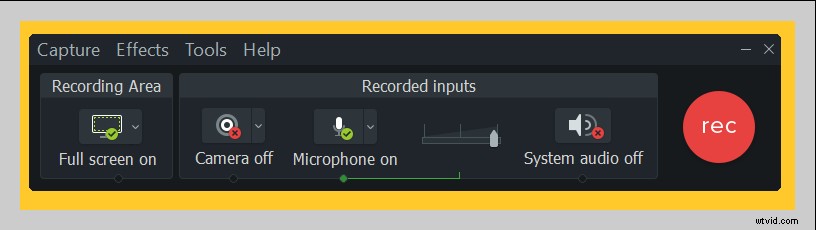
After you’re done recording, click Stop, and your audio will automatically appear on the timeline.
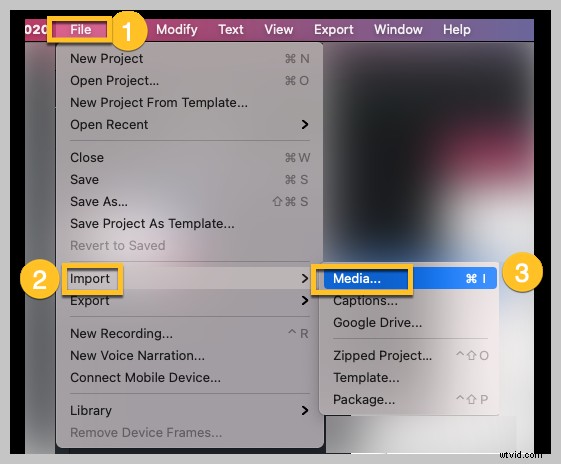
To add music, you want to import your audio files. Click File, Import, and Media. From there, you can drag your recording to the timeline for editing.
Step 2: Change your audio volume
To make a video louder or softer with Camtasia, click on the timeline track that houses your audio.
From there, to change the audio volume, simply click and drag the green audio line. It’s that easy! It’s important to note each clip on the timeline has its own audio line, which is adjusted separately.
If you’ve imported a video with audio attached, right-click on the video on the Camtasia timeline and choose Separate Audio and Video. Then, you can adjust the volume of the newly created audio track as described above.
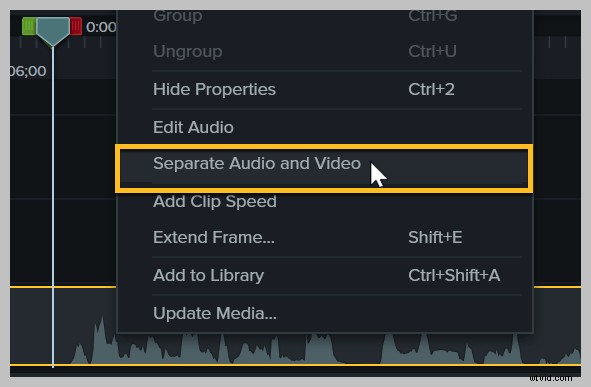
Not sure if your audio is too loud or too quiet? Camtasia’s built-in audio indicators can help with that.
Step 3: Add audio points
Odds are, you might want your video volume to get louder or softer at different points in the recording. Camtasia has a solution for this, too!
To add audio points, double click the audio line, then click and drag an audio point to change the volume. Camtasia adjusts the volume from one point to the next.
Camtasia’s video editor also has lots of other powerful editing features for audio and video, including audio effects like fade in or out.
Bonus: Take your audio to the next level
If you’re really looking to impress with some amazing audio editing for your videos, we highly recommend giving Audiate a try.
Audiate records and transcribes what you say in real time. Then, you can literally edit your audio just like you would edit text in a document.
Audiate even automatically flags all your ums, ahs, and other hesitations so you can easily find and remove them. You can even select and delete them all at the same time.
Great audio makes great videos
You’re ready to create videos with perfect audio! No more worrying about if viewers can hear you or not because your microphone didn’t pick you up perfectly. You’ve got the knowledge and the tools to get out there and share your content with crisp, clear sound at the right volume.
Frequently asked questions:
How can I edit background noise out of my video?
Camtasia is a powerful video editing tool that can easily help you remove background noise. Simply click and drag the Noise Removal tool found in the Audio Effects tab onto the audio clips you want to edit. Or, select Analyze to have Camtasia automatically detect and remove background noise.
How can I make a video get louder over time?
To gradually increase the volume of a video, use Camtasia to apply audio points or use a Fade In effect. From there, you can manually adjust how quickly you want the volume to increase and how loud you want it to get.