
Stop the scroll with letterbox videos.

Perfect for Facebook, Instagram and LinkedIn, start using letterbox videos to make your video stand out and be accessible to everyone.
Read on to learn how to create letterbox videos in a few fast and easy taps using the free Clipchamp iOS app.
What is a letterbox video?
Letterboxes are small bars you can apply to the top and bottom of your video footage. It’s a format commonly used for memes, with text added to the top and bottom of viral images or GIFs. They are also referred to as "meme style videos" and "presenter style videos" online.
Right now, more and more professionals and thought leaders are utilizing letterbox videos to stand out from the crowd on social media and quickly get their point across.
Considering that 92% of consumers watching videos on mute, letterbox videos are a great tool to get noticed.
Speakers, coaches and consultants typically use letterbox videos to add their main point or call to action at the top of their video, while using captions underneath to make their videos accessible to everyone.
How to use Clipchamp’s letterbox video templates
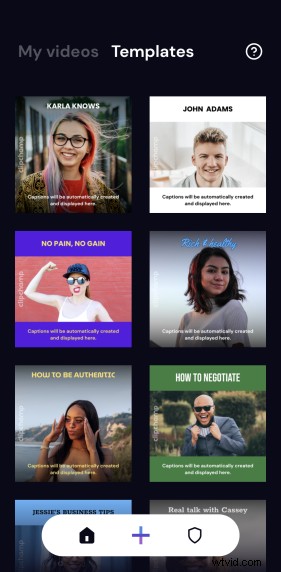
1. Tap the Templates tab on the home screen
Open the Clipchamp app and select the letterbox video template you want to use from the Templates tab on the home screen.
Clipchamp has a range of fun letterbox templates to suit your personal brand. You can always edit the look of the text later in the editor.
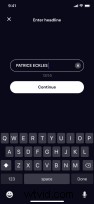
2. Change the headline text
This is the text that will appear at the top of your letterbox video so edit it to suit your video's message.
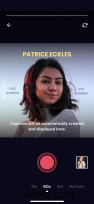
3. Record video
Start recording your video.
Clipchamp provides a handy social media-friendly duration limit that allows you to stop your recording after 15 seconds, 60 seconds or 3 minutes.
While you’re speaking, you can pause the recording as many times as you need and pick up right where you left off.
If you make any mistakes, you can always trim these out inside the editor later.
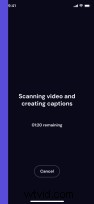
4. Generate video captions
Clipchamp uses AI technology to automatically generate video captions for you.
Our app users rave about how accurate they are, and you can always edit the caption text later if needed.
5. Edit the letterbox video
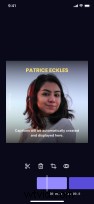
At the bottom of the video editor app, you’ll find your 'timeline'.
Tap any item to bring up the editing menu, where you can split a clip, change the volume, add filters to that video item and even delete.
6. Edit video text and captions
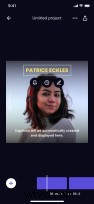
To edit your letterbox video's text and captions, tap your title. Next, tap the pen icon to bring up a suite of editing tools to change the look of your title. You can change the text and the styling here.
The same steps apply to editing your captions.
Pro tip: Jump straight into editing the caption text by double-tapping your caption.
7. Download and share
When you’re done editing, hit the share button to send, save or publish your video to social media.
Download the Clipchamp iOS app to get started
No matter your skill and experience with making videos, Clipchamp makes it easy to create amazing, professional-looking videos in minutes.
You can take on easy edits like trimming, splitting and combining videos, adding auto captions, text, your brand logo, fun filters and effects—all from one free app! Get started with Clipchamp iOS app now.