
Always wanted to make a high-quality video using photographs or video which you shot yourself but didn't know where to start? Well, it's not so difficult and no need to use complex and expensive software like Adobe Premiere or Final Cut Pro. Wondershare Filmora has all you need to create the HD video production you want. The following guide below will direct you how to make a HD video by yourself. Interested? Let's go!
1 Import your photo or video files
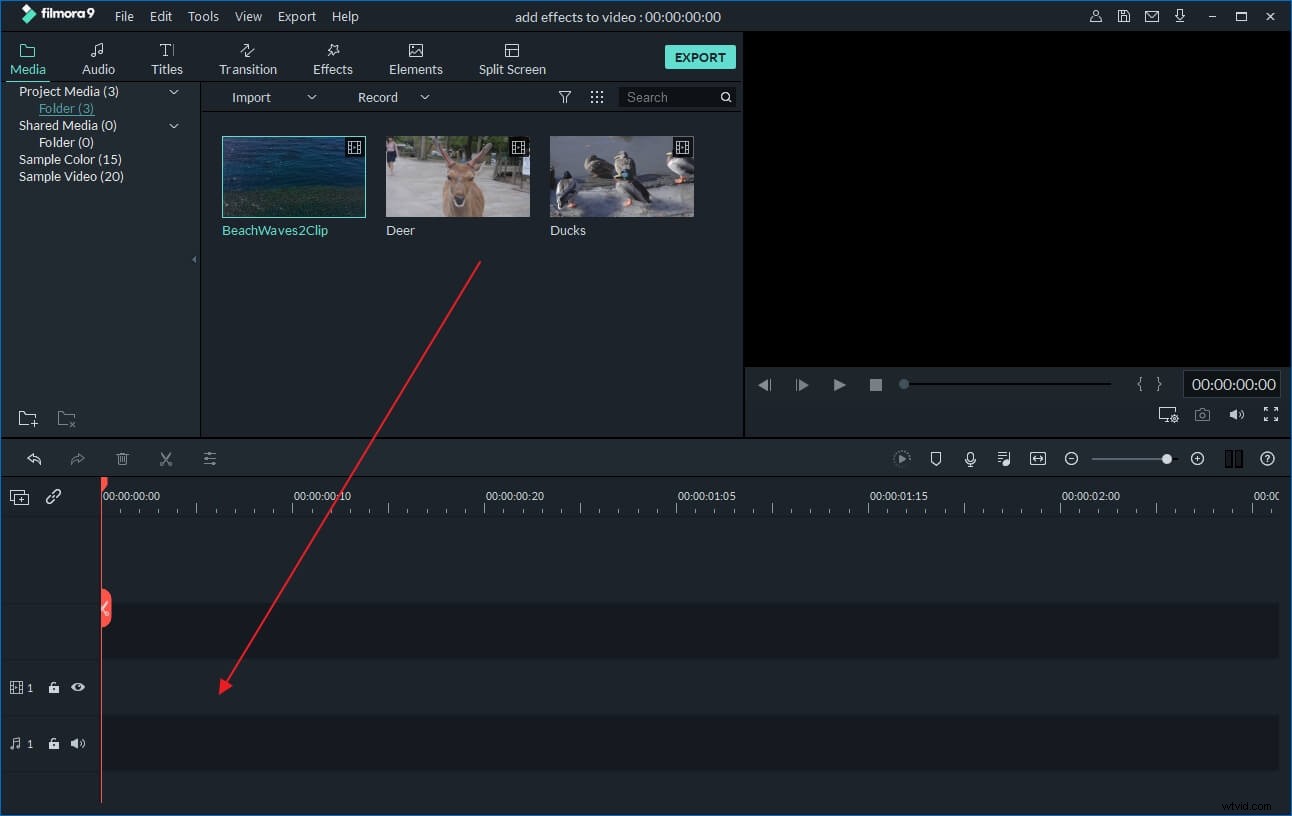
Run Video Editor and choose from “16:9” or “4:3” ratio according to your needs. Then click button "Import" on the Toolbar, a dialog pops up for choosing video or photo files to the program. You can also directly drag and drop the files to the program. Then selected clips will be loaded into the work area of Video Editor.
2 Add more personal touch to the video
Then drag your video clips or photographs to the timeline. The timeline gives you more control over the length of clips, the video and audio tracks, and your transitions and effects. Now you can add more personal touch to the HD video.
Video Editor features a rich array of video editing functions. You can easily import and add music file to the Music timeline or record and add your own voiceover to the audio timeline. Besides that, this is really quite simple to add a title, just click the “Text” button, choose a style and enter your words.
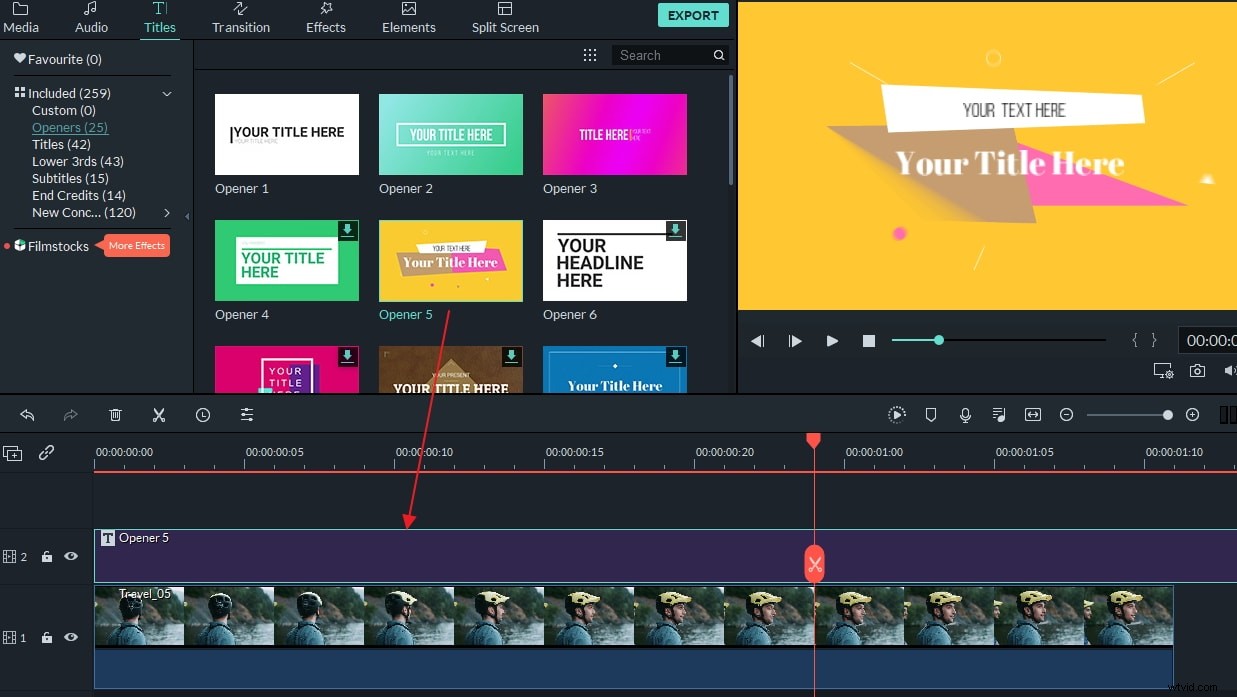
Transition is an important element of any video to ease one scene into another. You can easily apply transition effects by clicking the “Transition” button. You will see all the available transitions in the work area. Drag whichever one you want into the relevant transition between each video clip in the Timeline.
3 Export your HD video
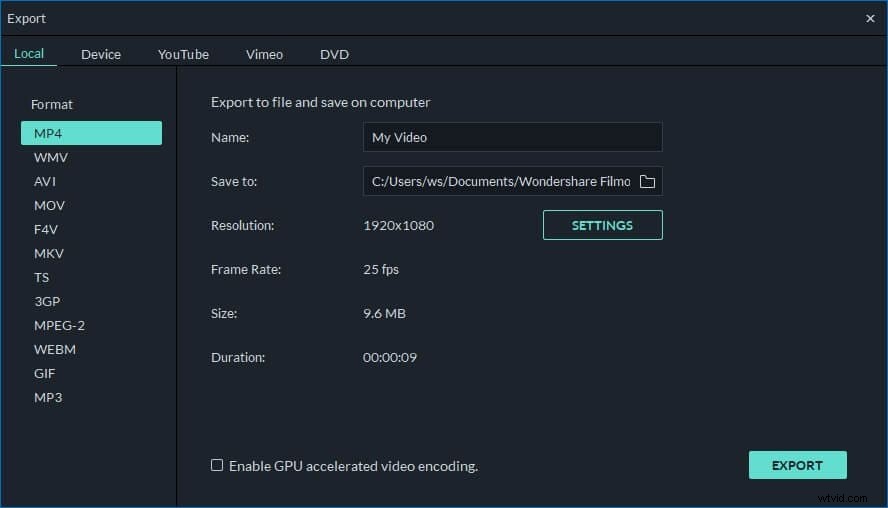
The final step is to save your HD video or publish it for the world to see! Preview your work. If you're satisfied with your work, select “Create” within Video Editor. Click the “YouTube” tab to save, render and upload your video. Make sure you have added a detailed description and smart tags about your video. Tick “Share to Facebook” and “Share to Twitter”, you can also share it with friends on Facebook and Twitter. You can also save your video in different formats and change the advanced settings to make it more perfect or burn to DVD for sharing on DVD player.
Watch this video tutorial below to learn how to make a HD video: