
Windows Movie Maker is designed to be intuitive and interactive. It allows you to easily upload video files and enhance it using different editing features. You can easily adjust the different parameters of the video. Saving your video after your editing process will also be easy. One editing tool that Windows Movie Maker provides is the slow motion/timelapse feature. In case you want to make slow motion/time lapse video in Windows Movie Maker, we provide a comprehensive tutorial for you to follow.
Easier Way to Make Timelapse Video With Best Alternatives to Windows Movie Maker
Wondershare Filmora is a very simple to use video editing software, and it offers a lot of effects, overlays and transitions. There are more than 300 effects available in the latest version. What's more, you can also purchase more effects in the Effects Store, such as the BLOCK BUSTER SET, BEAUTY SET. It also comes with a green screen effects, PIP, audio equalizer and Audio Mixer. It supports different video, audio, and image formats and works perfectly with different operating system. In case you want to make time lapse/slow motion video in Windows Movie Maker but the parameters do not satisfy you, Wondershare Filmora would be a better alternative.
Learn more details about How to Make Timelapse Video
How to Make Timelapse Video in Windows Movie Maker
Step 1 Open Your Windows Movie Maker 2012
Though the official site does not offer the downloading of Windows Movie Maker, you can download it clicking here . If you already installed it, you can simply launch it.
Step 2 Importing Videos and Photos
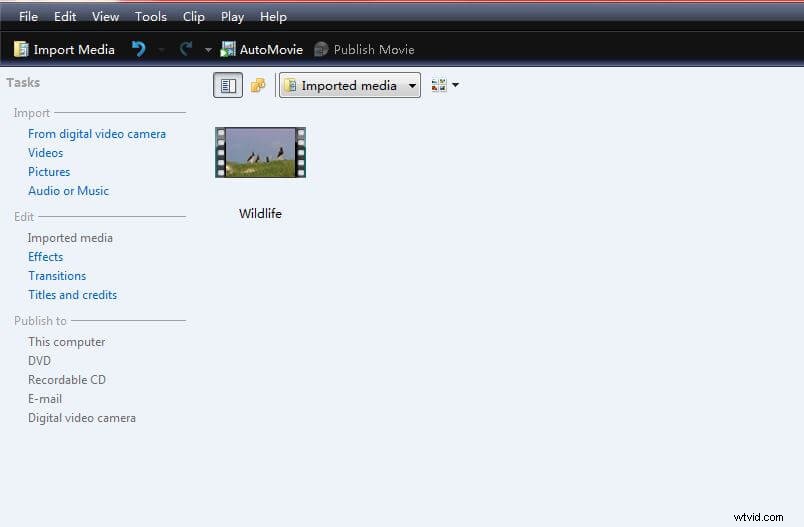
The first thing you need to do is to load all the necessary files. After launching the software, it will relatively be easy to load the videos by selecting import. Make sure that you will only import the videos that you need to make time-lapse video in Windows Movie Maker since adding too many files can make your timeline too congested.
Step 3 Change the Speed
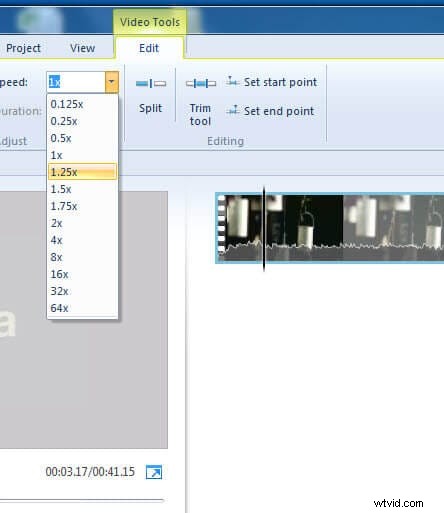
After importing the video files, you may now change the parameters for the video. This step is quite crucial especially if you want to create a high-quality video. You may do this by selecting the tools and then going to option. The first parameter that you have to change would be the length parameters. The smallest time frame is about 0.125, and the largest is 64x.
If you want a Timelapse video, you can choose 4x to 16x, the 32x and 64x would also make your video look weird if your original video was shot under normal speed.
If you want a Slow-motion video, you can choose 0.5x or 0.25x, please be mentioned that the 0.125x will might makes the video look freezing if your original video was shot under normal speed.
Step 4 Save Video
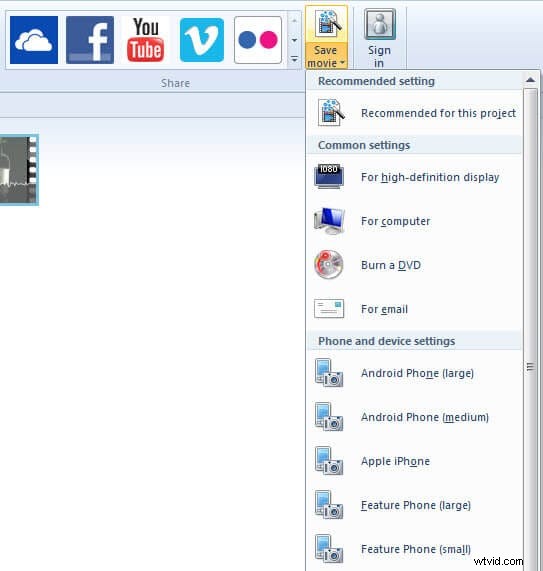
On the menu located at the Top, click File and then choose the publish option. Select ‘Save on the computer’ and you may simply click Next. Choose the desired location of your movie and the parameters. When you make time lapse video in Windows Movie Maker, you can also burn it into a DVD or upload it directly to social media site and video sharing sites like YouTube, Facebook, and Vimeo.
OK, let's take a look at the video below to check the steps about how to make a time lapse video in Windows Movie Maker
Learn more about how to edit your video in Windows Movie Maker.