
Recently I bought a High Definition Video Camera - Sony HDR-SR11. I need a special software tool to play & edit footage from the Camera. Any suggestion?
If you are like this consumer who has recently purchased an HD (high-definition) camcorder, you may have encountered some difficulty editing your HD video files, because many video editing tools don't support editing HD videos.
To help you solve this HD video editing problem, I recommend Wondershare Filmora (for Win and Mac). It’s a professional yet easy-to-use video editing tool for both Standard Definition and High Definition videos. It supports almost all popular video formats, including AVI, H264, FLV, MKV, MP4, M4V, PSP, 3GP, MOV, MPG, MPEG, VOB, DAT, TS, M2TS, WMV and more. With it, you can customize your HD video file by adding text, subtitles, music, transitions, watermarks and artistic effects, clip segments, cut videos and crop frame size. Now follow the steps below to see how to edit HD videos.
1 Import your HD video files
Download the software. Install and run it. Then directly drag and drop your High Definition video files into the program or click “Import” to locate and add your target video files. Then the video clips would appear in the video pane.
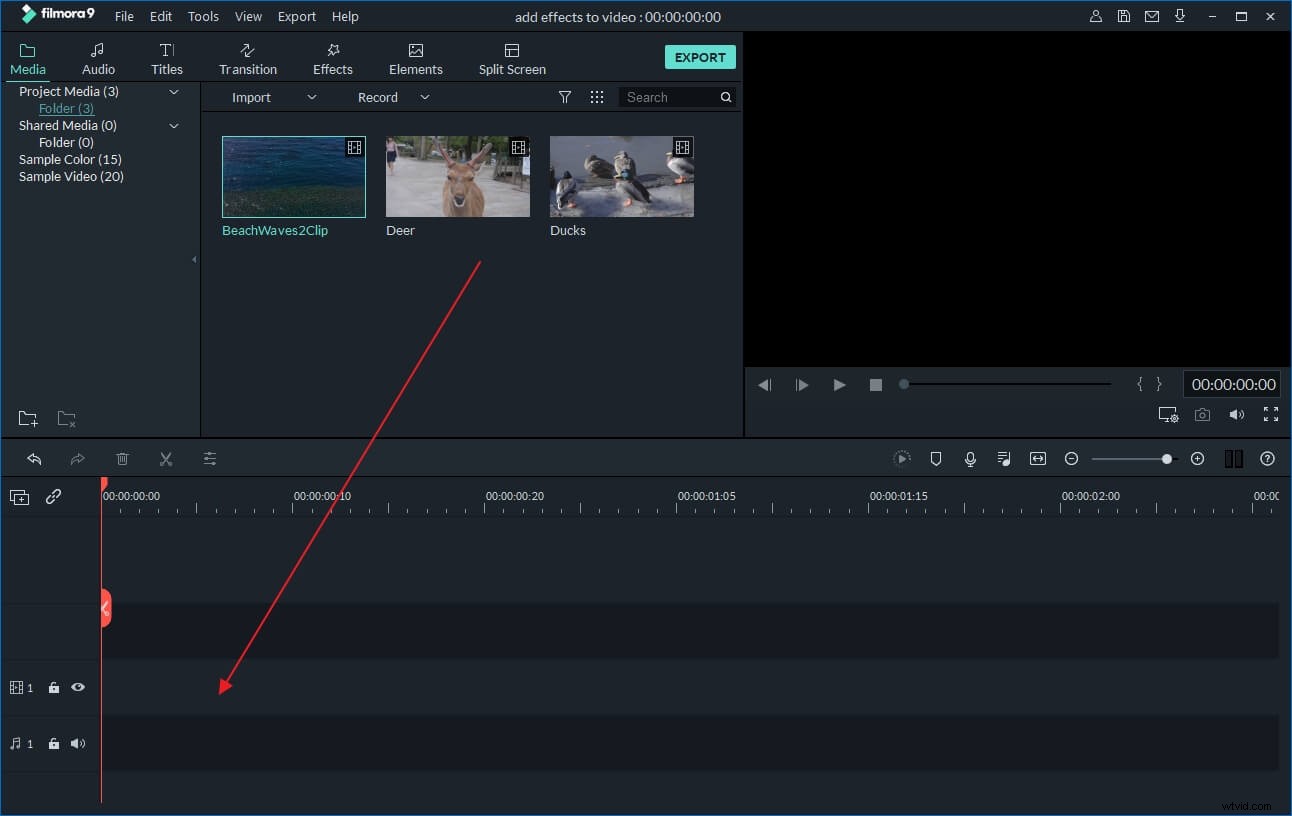
2 Edit your HD videos
Drag the HD videos to the Timeline. If you imported several videos, rearrange the order and even preview them, just in case you want to make sure you got the right files. Then double click on the target clip to open the editing panel. Here you can rotate, crop video, or change video effect and speed in Video bar, edit audio track in Audio bar. With this HD video editor, you can also add video effects, audio track and subtitle, watermark and transitions as you like. Here is a detailed guide for how to edit HD videos.
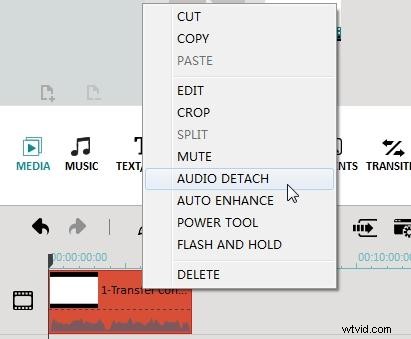
3 Output the new HD videos
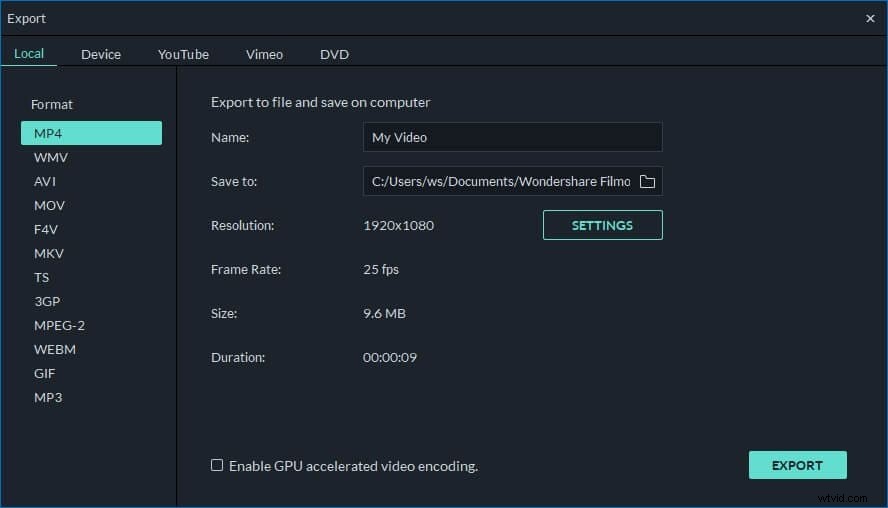
After editing High Definition videos, click “Play” and view the real-time effects in the Preview window. Make some adjustment if you like. Then hit “Create” and choose from several output options: save to different formats (WMV, AVI, MOV, FLV, MKV, ect.) or devices (iPhone, iPod, HTC, Galaxy S II, PSP, PS3, Wii, Xbox 360, Zune), directly share on YouTube or burn to DVD. After that, click the "Create" button to save the edited HD videos.
You see it’s that easy to edit your HD videos using this HD video editor. Now download it and add more personal touch to rich your video life!