
This article teaches you how to reverse videos on TikTok.
TikTok videos are basic 60 second content to the state of the art montages, comedy skits and more. In addition, creators explore their artistic side and product videos worth watching. With millions of videos published daily by creators, it is essential to be unique. There are several ways to do it. The easiest ones can be accessed from inside the TikTok app.
Add the much-needed drama and thrill to your TikTok by adding a reverse video. Go creative with your clips by effects out of the box and make your video stand out. There are no special tools or complex editors needs for it. Instead, learn to do it in FIVE easy steps on the app itself.
How to Make A Reversing in TikTok with Built-in Function
The TikTok app has a reversing feature built-in. You can access it from the effects section while posting a video.
Step 1. Open the TikTok app on your phone
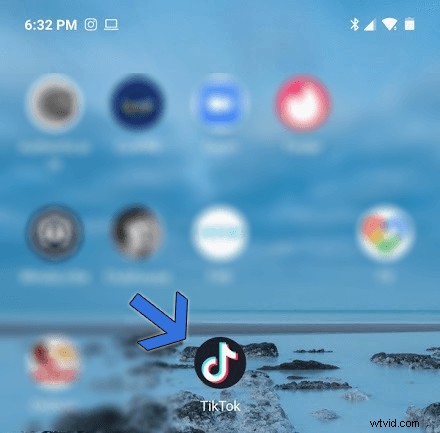
Open TikTok
Step 2. Now, we are in the app. Tap on the “+” button, which is located at the bottom of the screen.

Click the “+” Button
Step 3. The camera will open up for you to shoot the videos in real-time. On the other hand, tap on the upload icon, right next to the record button. It will take you to the gallery of videos, photos that you want to post.
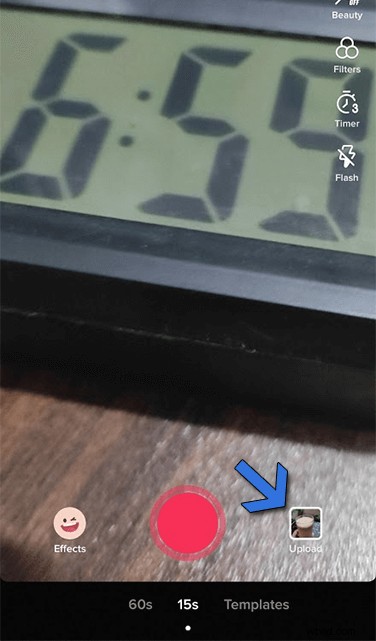
Upload Video/Photo
Step 4. After selecting/creating a video, you will reach the edits page, which has several options for polishing your content. Tap on the Effects option to access its menu.
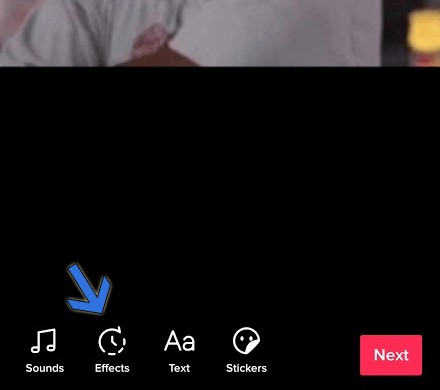
Enter “Effect”
Step 5. There, you will find the Reverse effect. Tap on the option to apply it to the video. The reverse effect will make your video in reverse.
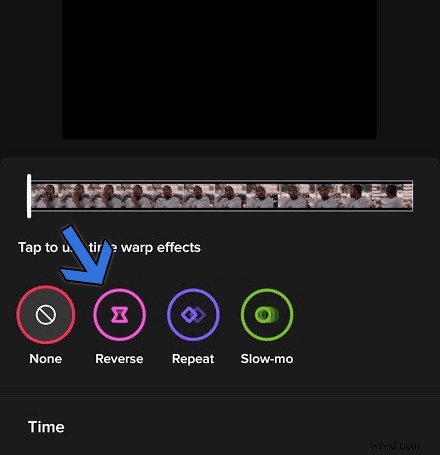
Click the Reverse Button
Finally, tap on the Save button located at the top-right corner of the screen. Then we go to the final posting screen after tapping on the next button. Here you can put captions, privacy settings and more. When everything feels in place, tap the post button.
How to Reverse A TikTok Video on Snapchat
Snapchat is a multimedia messaging app. You send each other videos, photos which are called snaps. Just like TikTok, the videos on Snapchat can be reversed too, using the in-built video filter.
Step 1. Launch the Snapchat app and record a video as you usually do by pressing the circular button turning red when you hold it.
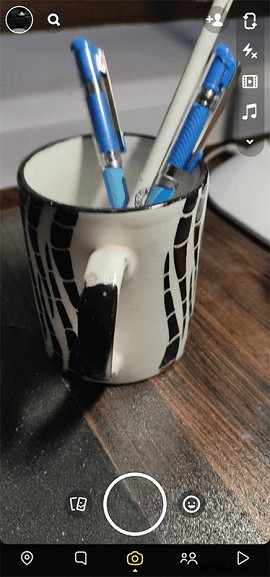
Record a Video
Step 2. Once you have recorded the video, the editing mode will appear. Swipe to the left to see filters, and you will find the reverse filter, which is 8th from the left.
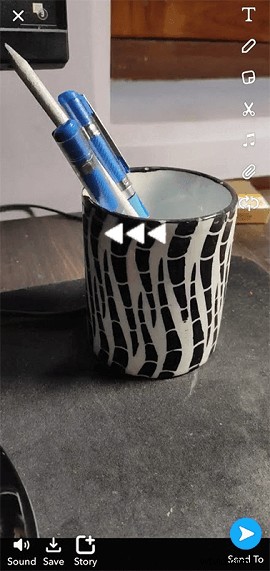
Click the Reverse Button
Step 3. Once applied, press the send button for sending it to different people.
For your information, with the recent update, the reverse filter has been removed from the majority of Android phones. Some users are also using older APKs on Android for using the feature. However, it is available on fewer of the iPhone 11s and above for now.
Conclusion
Whether you want to add drama or create complex content for catching the viewers’ attention, reversing a video is an idea worth exploring. To do that, use TikTok’s very own in-built editor. Ensure that select video(s) make chronological sense in reverse as well. On the other hand, Snapchat has stopped offering the reverse feature on most Android phones. Few iPhone models still have support for it, but how long? That’s is to be seen.