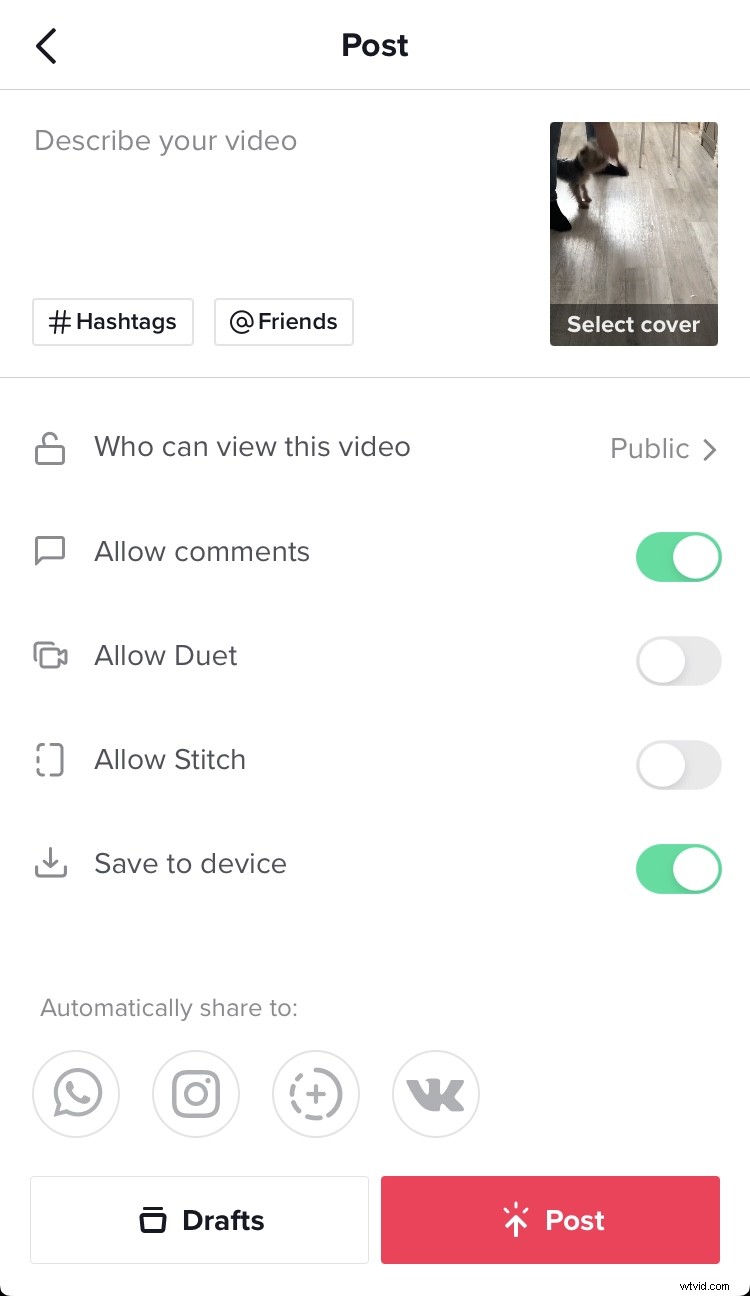
How to reverse a video on TikTok
There are so many inspiring films showing how something fantastic emerges from nothing. And no less amazing is the backward process, which allows you to get back to the very beginning. Watching how a broken vase rebuilds itself, or how you clean up in reverse is so satisfying, isn’t it? So many creative ideas are around us.
So just get the right shot and the right tool to play it backward. We will describe 2 ways how to play a TikTok video in reverse:
- Reverse any video for TikTok using Clideo
- Reverse your video before posting right in TikTok
Reverse any video for TikTok using Clideo
Upload your clip
Go to Clideo’s Online Video Reverser. What is great about using our online tool is that you can upload from anywhere — your device or Google Drive or Dropbox. Click the “Choose file” button or the drop-down arrow on its right.
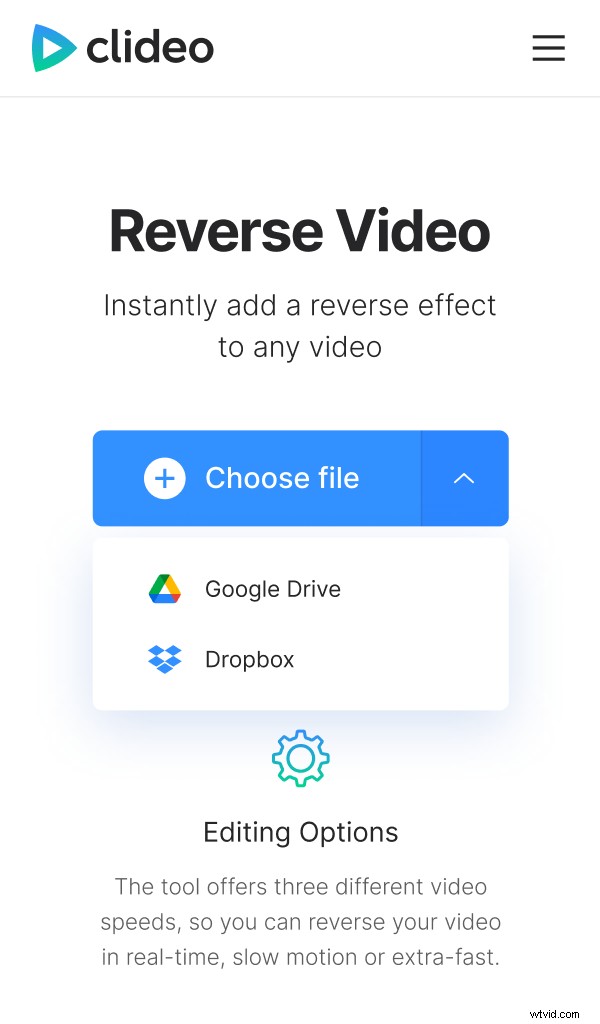
No need to register or pay anything if your file is under 500 MB.
Reverse the video
After the upload, you will see your movie already playing backward. However, you can change additional settings to make your clip even funnier. Select one of the reverse speed buttons, 0.5x, 1x, or 2x, to see which one works best.
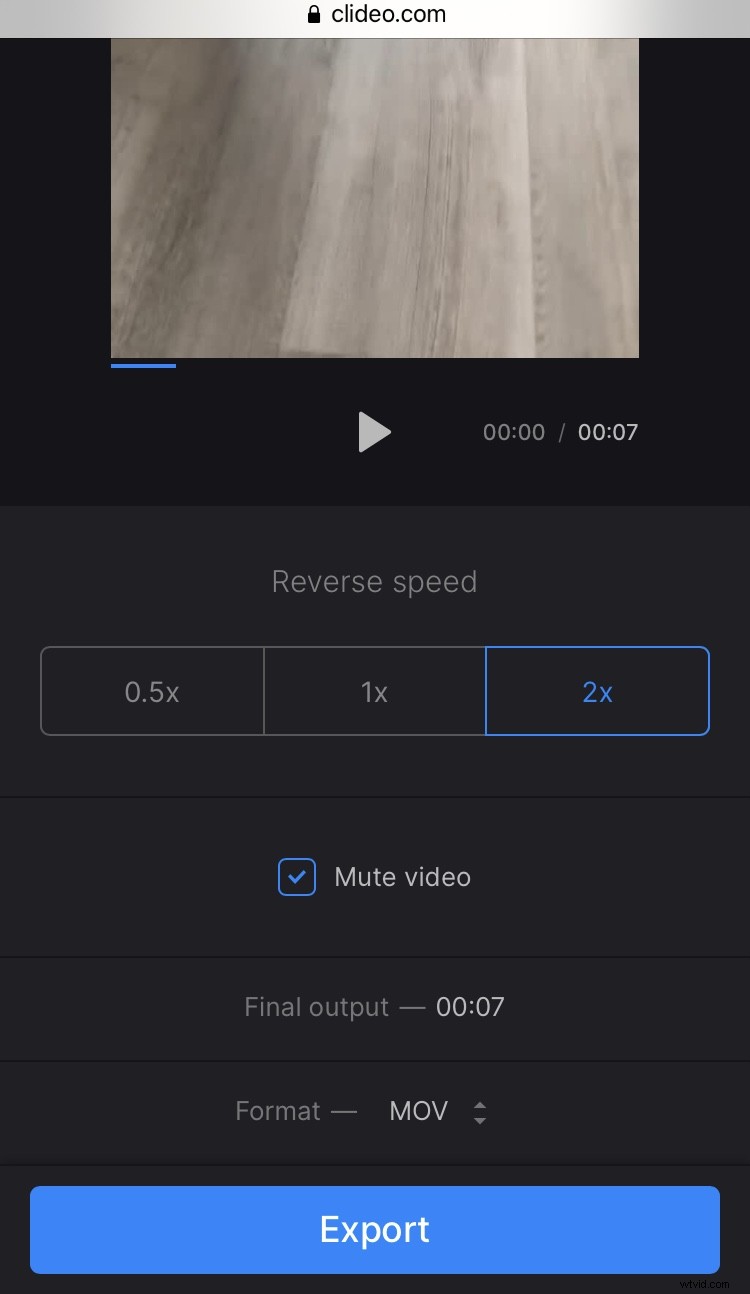
Uncheck “Mute video” to keep the sound if you like, it will also be reversed, so get ready for this weird experience too.
The bottom left panel provides some additional information about the film duration, as well as the file format. In case you need some specific one, call the drop-down menu and you will definitely find the one you need.
To finalize it all, hit “Export”.
Grab your oediv!
You will see the final result in less then no time in the preview area and several options to the right of it. So you can hit “Download” to save the movie and upload it to TikTok. It is also possible to store the film to one of your online storage accounts.
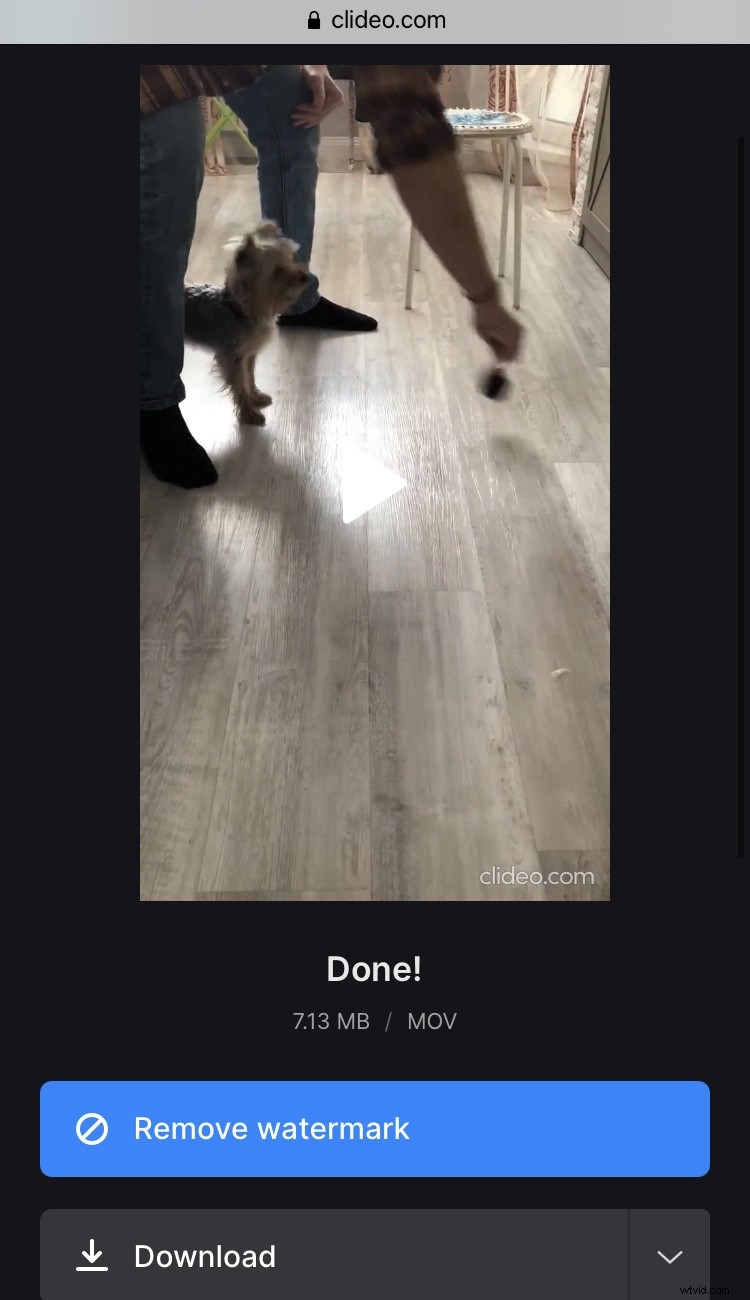
If you think you can do better, use the “Edit” button to get back to the settings page.
Reverse your video before posting right in TikTok
It is also possible to put a TikTok video in reverse right in its built-in editor. However, you can only use your own recording, the original sound won’t be reversed, and you can only do that in the mobile application.
Add a video
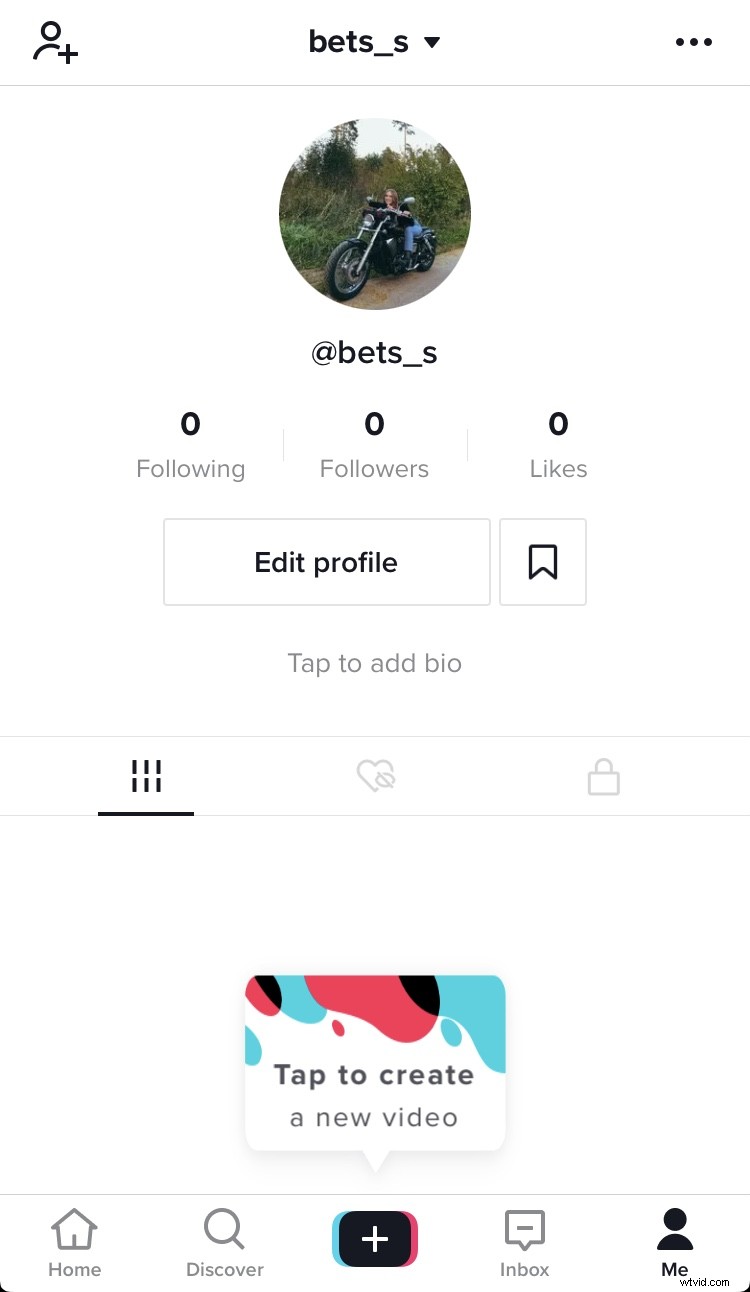
To add a clip to the TikTok editor, you either need to film it or upload the one you already have on your mobile. So tap the “+” button and do one of the above.
Add the reverse effect
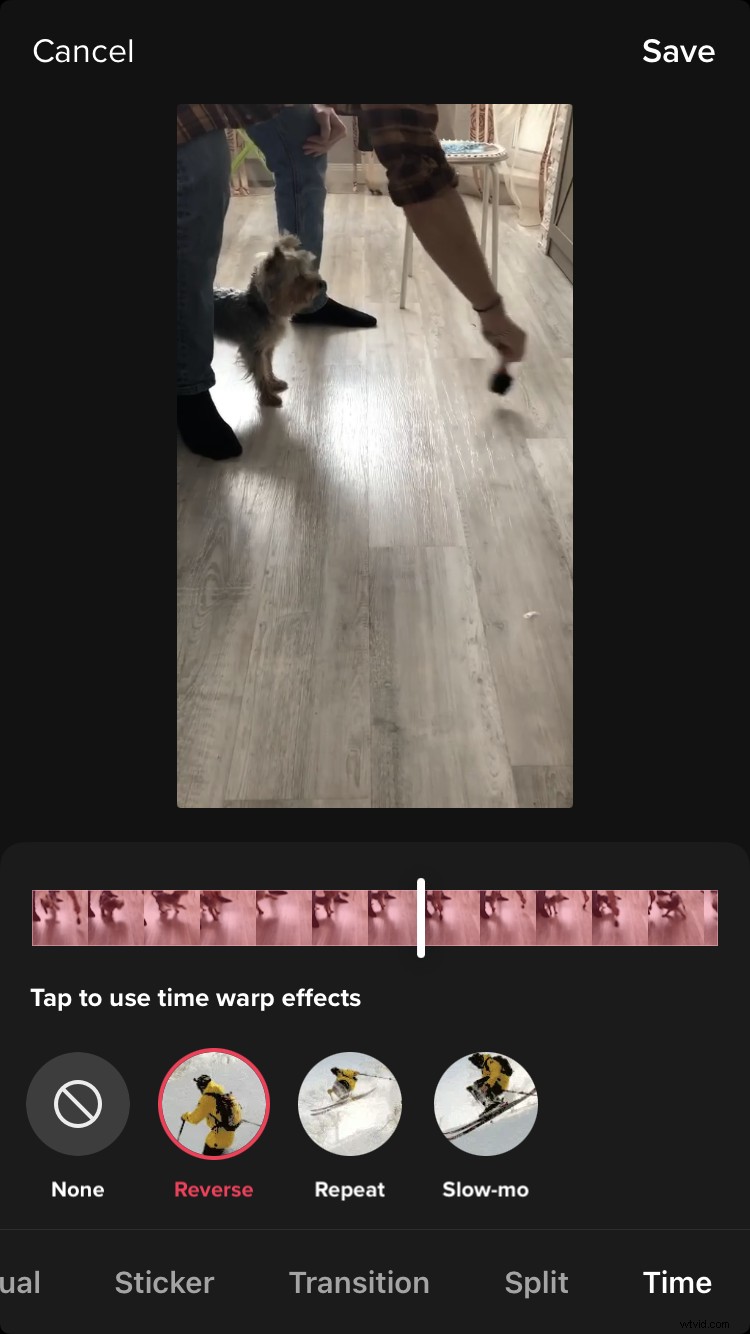
The necessary feature is located under “Effects” in the “Time” category. There you will see 4 options. Tap the “Reverse” icon to apply the effect. In the preview area, you will see your final movie. If all looks fine, tap “Save” at the bottom right of the screen.
Post to TikTok
And this is your last step where you can add the finishing touches — stickers, music, or what else is needed to make the film unforgettable, and then hit the “Post” button. You are done!