
How to reverse for Snapchat
A video with a playing cat or a singing person in reverse is able to cheer up even the most sullen workaholic. A cute animal with its awkward movements, even in slow motion — will irreversibly cause a smile.
Want to learn how to make a video in reverse for Snapchat to surprise your family and friends? It can easily be done with our online tool even if you don’t have skills in editing.
Clideo works right in your favorite browser on any device including Android and iPhone, it’s free for files up to 500 MB in size and it doesn’t have those annoying ads. So let’s see how it works.
Select and upload a clip
Go to Clideo's Video Reverser. To upload a file from your device, simply click on the blue "Select file" button. Alternatively, if you’ve decided to play back another video, you can select a file from Dropbox or Google Drive in the same menu.
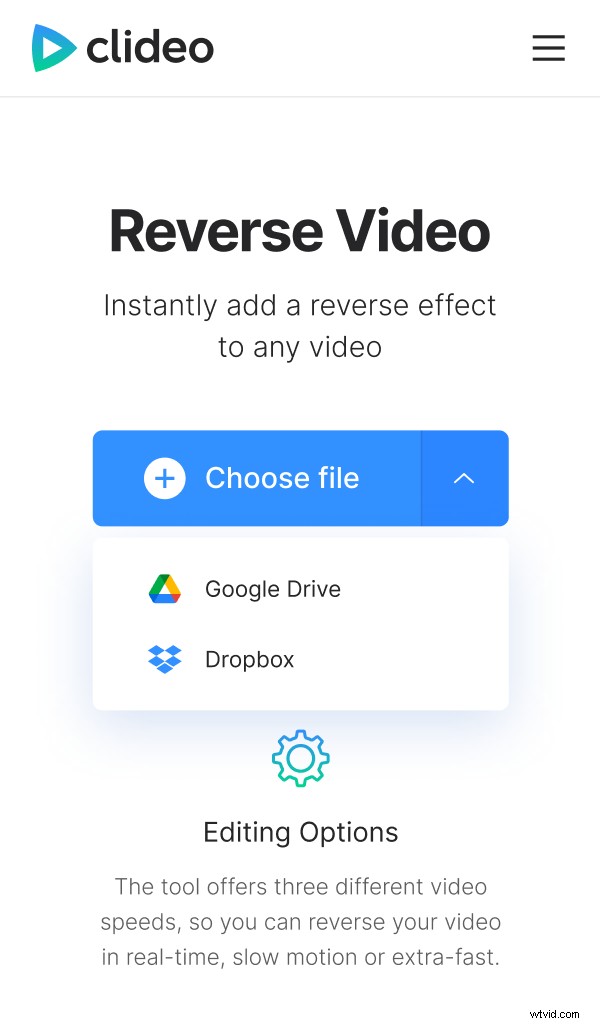
Reverse a Snapchat video
It literally takes a few seconds to upload and process your file but it also depends on your internet speed and the file size.
Now you can choose its speed. This opens up three avenues for how to play your video in reverse for Snapchat and your creativity. By choosing x0.5 you’ll slow down your recording, x2 will speed it up, and x1 will keep the initial speed.
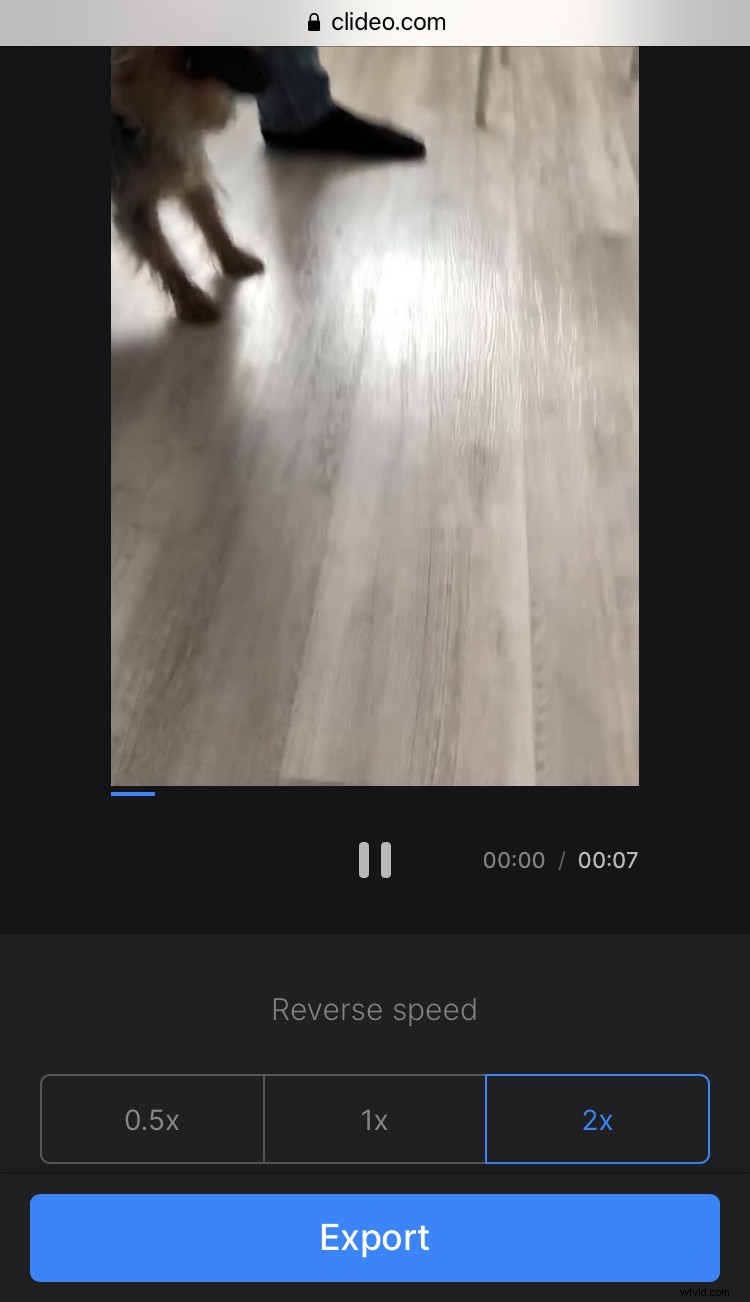
Just below, you'll find the "Mute video" checkbox, select it if you want to remove sound. You can then add music or interesting audio effects and make your content even more engaging.
In the bottom left corner, you will find the option to select the format. The best choice for Snapchat is MP4. Then just click the blue "Export" button.
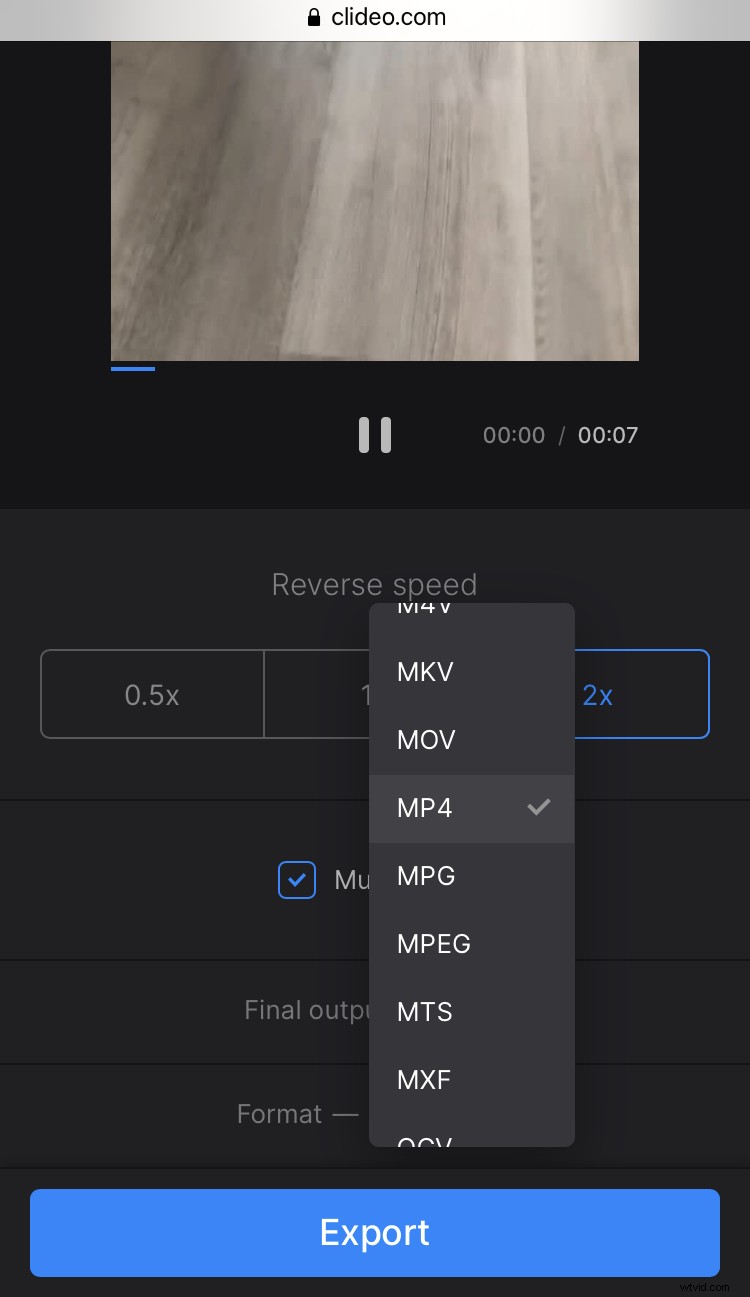
Export the reversed video
Here you can see the size of the finished clip and a download button. The file can be saved either directly to the device or cloud storage by tapping the small arrow.
If you need to change the format or speed, no need to start over! Just click on Edit and you’ll be returned to the previous step.
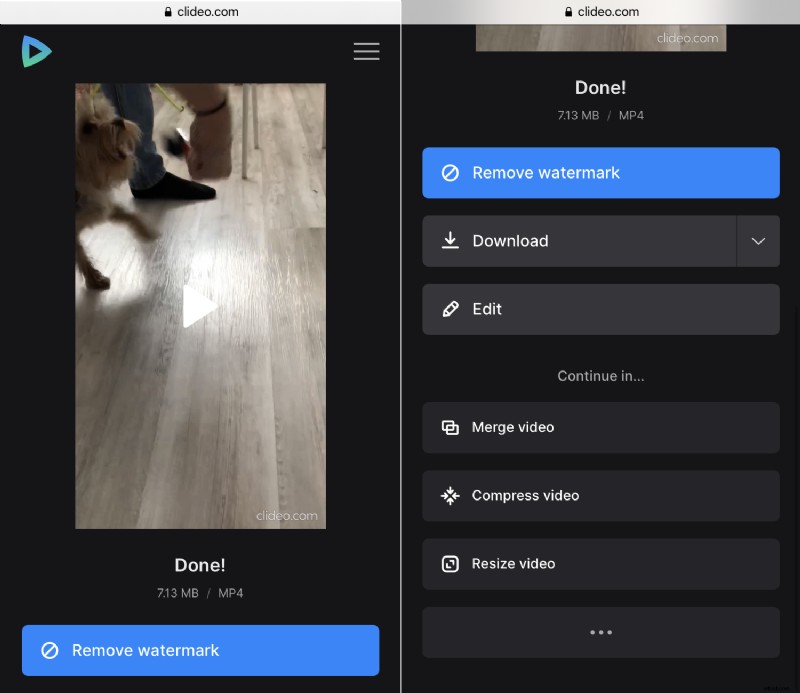
Pro subscribers can continue editing the video in other tools without downloading and uploading all over again, for example, resize, compress, add cool effects, and more.