
How to duet video like on TikTok
Quite often, the second one repeats the first, but it may also contain other content: a reaction, a tutorial, "behind the scenes", etc.
The TikTok app has an inbuilt function for creating Duets. You can find more information on it by checking out this official manual on how to duet on TikTok. But what if you want to post such a video on other social media or want to record this duet clip now and post it later?
Then you can create a Duet in a video editor. Luckily, we have just the right one for you. Not only is it free and user-friendly, but it also works online and doesn't take your phone's or laptop's memory.
So, ready, steady, go!
Upload two videos to the tool
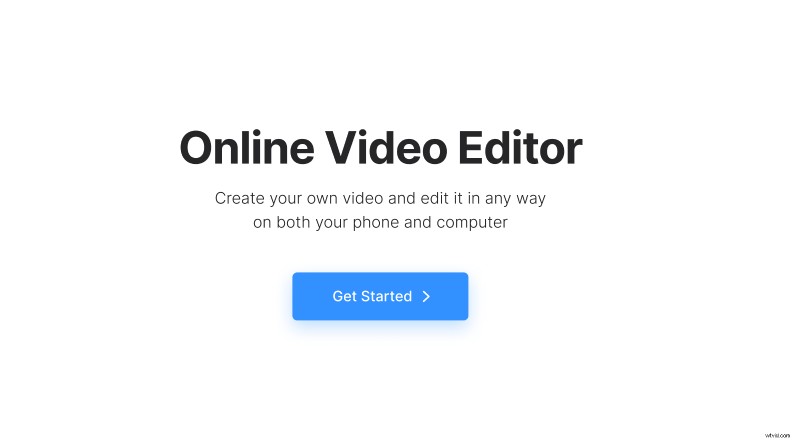
Make sure you've saved both videos to the same folder on your device, Google Drive, or Dropbox. Then open Clideo’s Video Editor in any browser, click the “Get started” button, then hit "Upload" to select both videos.
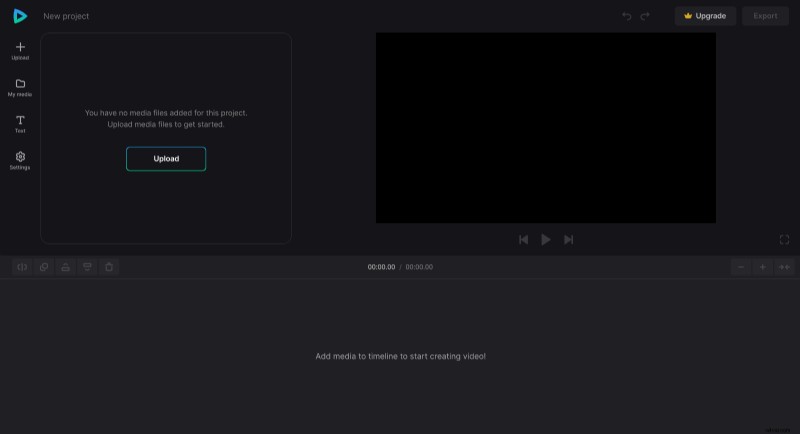
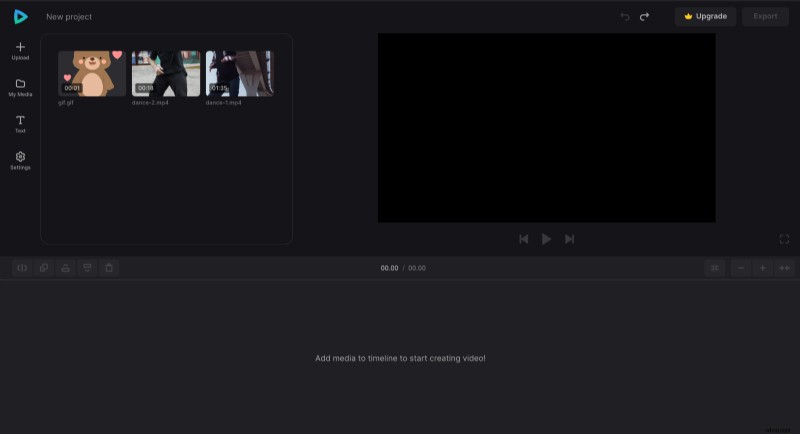
All uploaded files will be placed in the "My media" section. If you want to add more (for example, an audio track, animated GIFs, or stickers), hit the "Upload" icon just above the "My Media" icon in the navigation sidebar.
Arrange files to make a Duet
Go to the "Settings" tab and choose the 9:16 aspect ratio (if you intend to post your video on TikTok). Drag your videos to the canvas, change their size to make them 100% equal, and place them side by side.
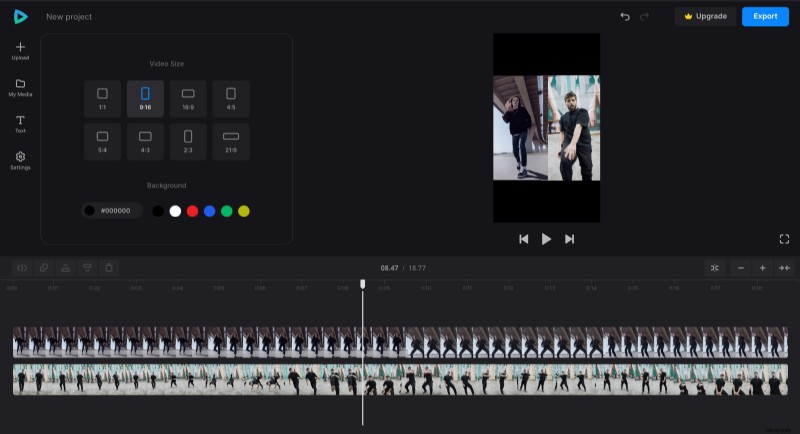
If you have some extra animation, like a GIF, but it's shorter than your videos' length, copy the GIF and paste it as many times as necessary in the timeline.
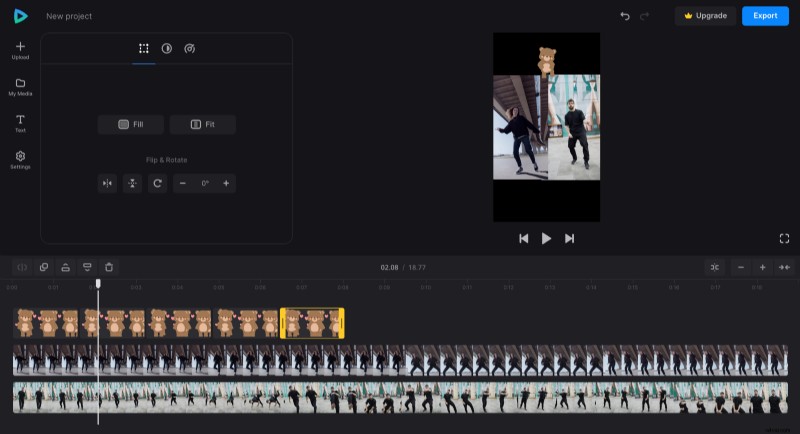
To add some captions go to the "Text" section.
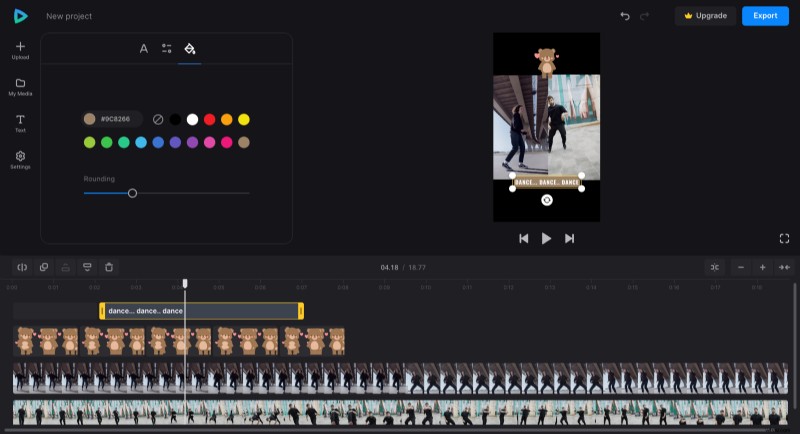
You can edit each file separately by clicking on it. Also, pay attention to the functions above the timeline, they may come in just handy. Don't hesitate to check them all, you can always undo the last action by clicking the reversed arrow in the top right part of the screen.
Save the project
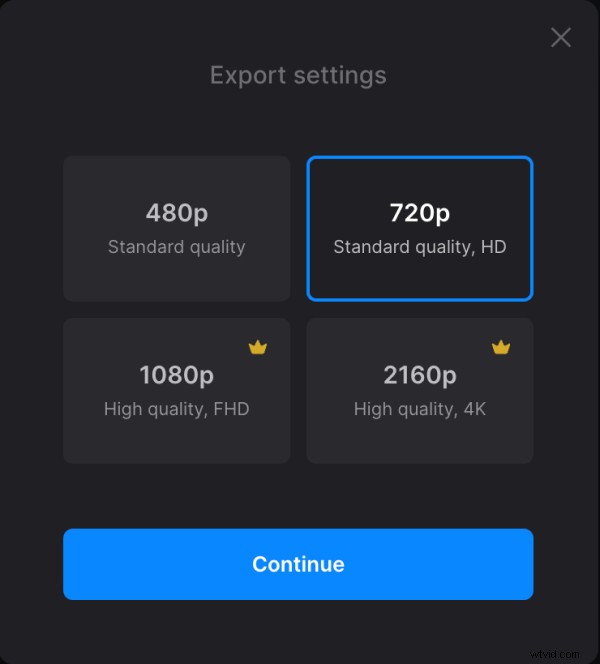
When you are done and happy, find the "Export" button and choose the output quality. For the best options, you’ll have to upgrade your account to Clideo Pro. Then hit the "Continue" button and let the tool do its job.
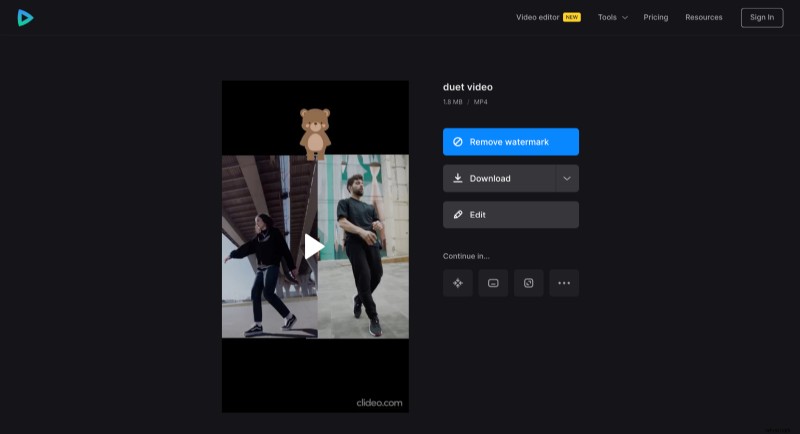
By the way, if you have an upgraded account, you can work on the same project in any other Clideo tool. Look for the "Continue in" option.
Our Video Editor Help Center has, by the way, detailed information about all the features of our all-in-one video editor.