How to reverse a video quickly
Have you ever seen a broken eggshell gluing back to a whole egg? Could you imagine a boy jumping to the tree from the ground? Well, now you can.
Clideo’s video editor allows you to create a reverse video in a couple of clicks, adjust its speed, and change its format if needed.
Our tool is completely free for files up to 500 MB and has no ads or small print tricks. The only favor we ask you to pay us as a tribute to our service is a tiny watermark in the bottom right corner of the screen. But you can easily remove it by upgrading to Clideo Pro.
The reverse tool works online, so you can use it from iPhone, Android smartphone, PC, Macbook and any other device with a stable Internet connection.
Keep reading and learn how to reverse video in no time.
-
Upload an initial video
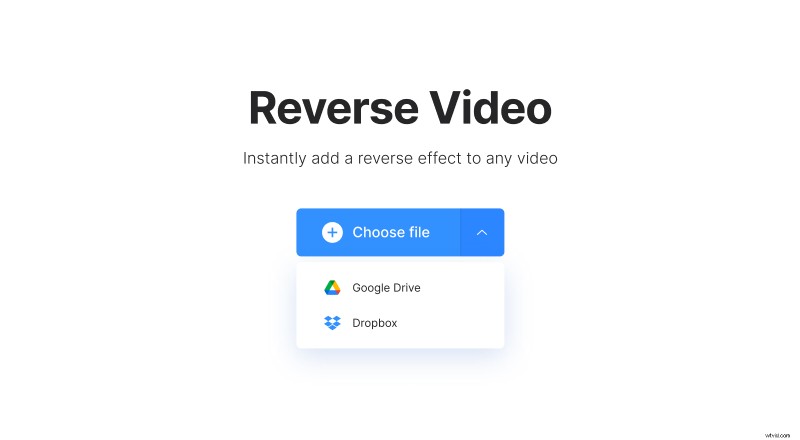
Open Clideo’s Reverse tool in your favorite browser and upload a recording you want to play backward. You can pick your file from two sources:
- Your personal device. Just hit the blue button “Choose file”.
- From your cloud storage account (Google Drive or Dropbox). Hit the small arrow on the abovementioned pane and select the storage you need.
Play video backward
As soon as your recording is uploaded, choose the reverse speed. You can make your video 2 times slower or faster, or just keep it as it is. Don’t forget to tick the “Mute video” box if you don’t need an original soundtrack. If you want, you can later add new audio in another Clideo tool.
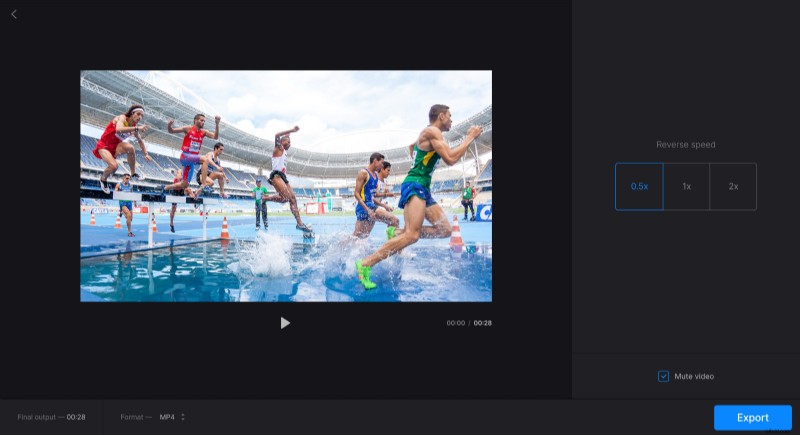
You can also use this tool as an online format converter – just select a new extension from the drop-up menu below the player. If you want to post your project on TikTok, Snapchat or any other social medium, pick up MOV or MP4.
When you are done, click “Export,” and you will be transferred to the final screen in several moments.
Download the reversed video
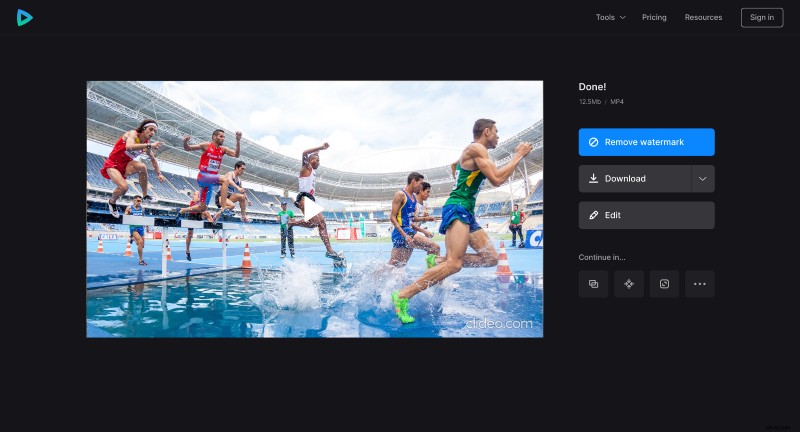
Run your new video in the player to make sure that you like the result. If so, save it to your device or the same cloud storages, as in the first step. If you want to change anything, hit the “Edit” button.