
How to put together a video montage
But sometimes, it seems that writing a text is still easier than filming and editing a video montage. To some extent, this is true if there is no skill in working with the right tools. So how to edit the montage in this case?
For a start, there's no best way to make a video montage – it all depends on what emotions you want to evoke. Watch some funny and dramatic videos, and you will notice the difference in their presentation. However, it's not necessary to use heavily stylized editing because even a simple montage may interest the viewer.
If you're new to video editing, there's no need to install a complex video editor for montages right away, as it's better to start with something easier to work with. Our editing tool will help you out – making video montages is very simple with it! There's no need to download and install anything, as you only have to have an Internet connection to use it.
It's also easy to work with, just follow the steps below:
Add files
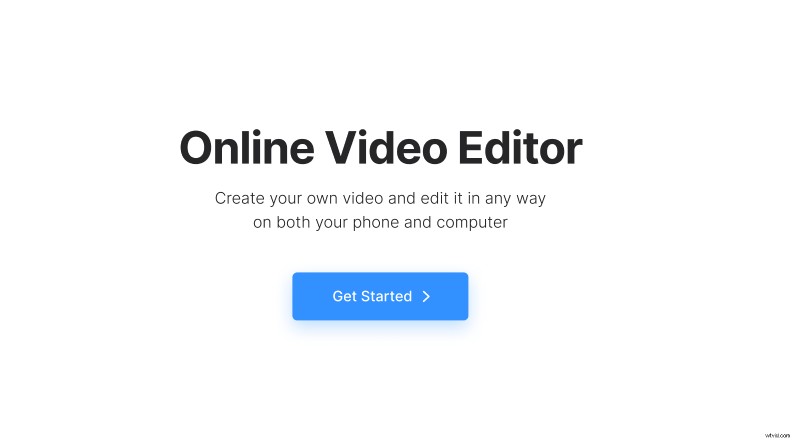
Open Clideo’s Online Video Editor and click "Get started".
Click "Upload" to add the images, video, or audio files you want to use in your project. You can choose them from your device, Google Drive, or Dropbox.
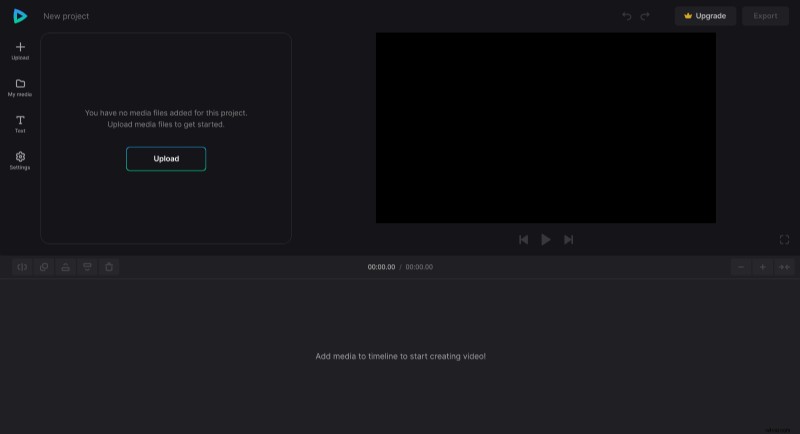
Make a montage
Drag media files from "My Media" to the preview area or timeline.
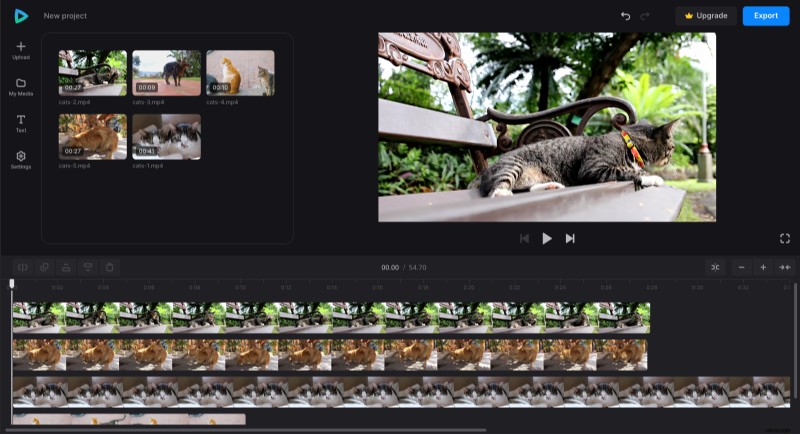
You can change the order of the media files in the timeline and adjust their properties one by one: trim, duplicate, change volume, speed, and so on. You can also move all the files right in the preview, change their size, combine and overlay them.
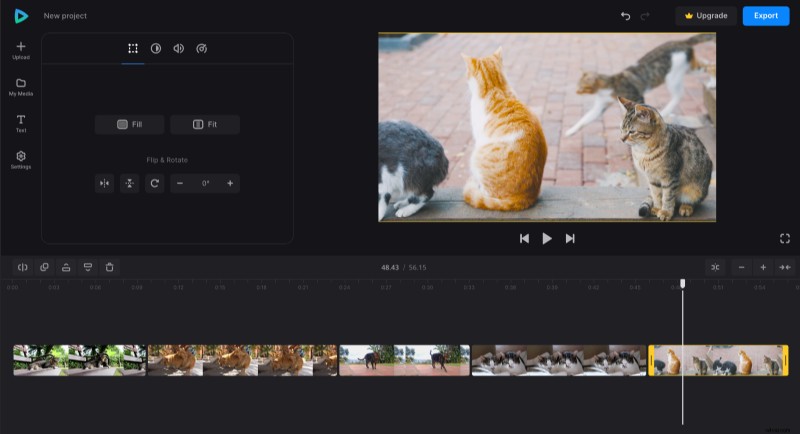
If you plan to post the video on a specific platform, change its aspect ratio by selecting a preset in the "Settings" tab. And if needed, you can add captions through the "Text" tab, set their font, color, size, and so on.
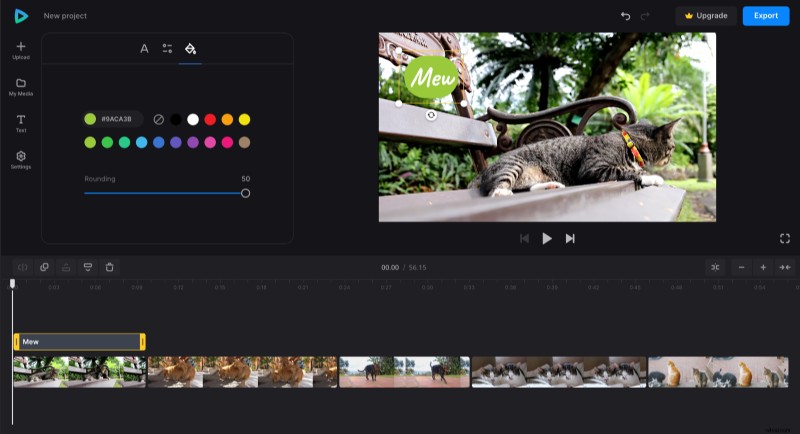
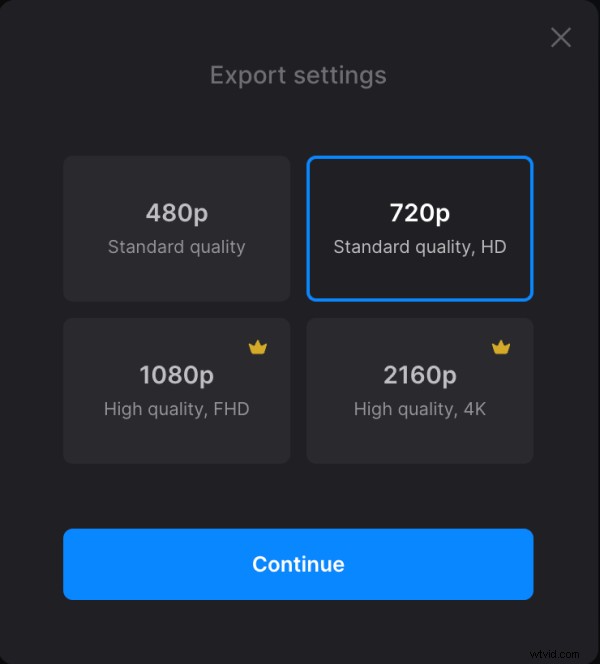
When you finish editing, click "Export" and choose the export option you like.
Save the result
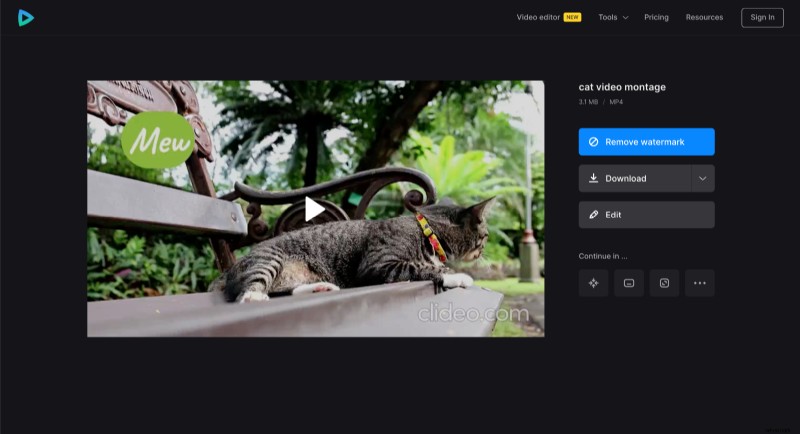
Check if you like how the video looks and if so, click "Download" to save it to your device or cloud storage. Otherwise, click "Edit" to add changes.
If you would like to learn more about our all-in-one video editor options and features, you can find more information in our Help Center.