
On this page, you’ll acquire the basic ideas of a video montage and how to make a great video montage without cost.
Montage is a video editing theory through which the segmentation and combination of shots and scenes, and the selection of materials are carried out to make the content of the performance clearer and guide the audience’s attention. Video montage enables to inspire thinking with limited content displayed.
As a matter of fact, making montage videos is not that tricky a job. On this page, you’ll know what is a video montage and learn from our detailed guide on how to easily make montage videos for free.
What is a Video Montage
What is a video montage? And what are the fundamental ideas of montage? You might be baffled. The way I see it, through the continuous transformation of a series of different and internally connected visuals, an artistic effect is achieved.
Profound as it may sound, montage is nothing more than a film editing technique in which editing, multi-tracking, cutting work together, to bring out the essence of things from perceptual representation. Meaning, everyone can do a montage, as long as you have a clear pursuit in your mind.
All in all, the best and easiest approach to making montage videos could be a natural combination of various intrinsically connected video clips, accompanied by smooth and natural video transition effects. Now that you know what is a video montage, let me show you how to make a good one on your own!
Prerequisites for making a good video montage:
- Intrinsically related video clips, better in high video quality.
- Smooth video transitions for viewing pleasure.
- A competent video montage editor that makes all the editing needs possible.
- And most importantly, a creative brain!
What Program Should You Use to Make a Video Montage
FilmForth is the best video montage maker that allows you to create good montage videos from videos and photos. FilmForth is completely free to use, it offers a variety of smooth transition effects and allows you to merge videos, split videos, fade in/fade out videos, etc. with simple clicks.
FilmForth is freely available from Microsoft store. Hit the download button below to quickly get it for your Windows 10 and Windows 11 PC!

Step-by-step Guide on How to Make a Video Montage
Step 1. Create a Project in FilmForth
To make montage videos with FilmForth, make sure that FilmForth is fully installed, then launch FilmForth from Windows start menu, and hit New Project button in the program.
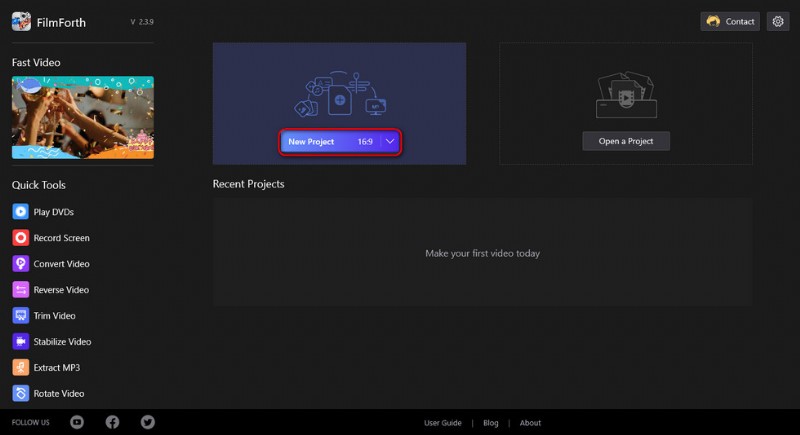
Create a New Project
Step 2. Import Video Clips into FilmForth
Drag and drop the files into the program or click ADD VIDEO/PHOTO CLIPS button to load two or more video clips or photos that you want to create a montage with, and you’ll see them lined up in the timeline. You can drag and drop to reposition them.
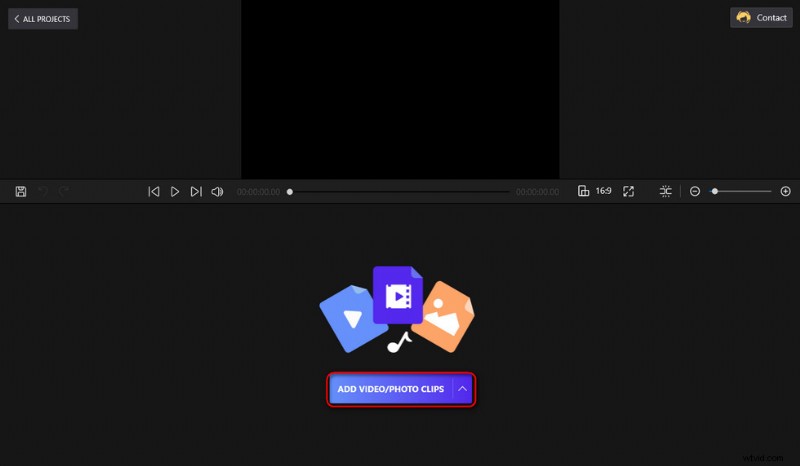
Import Video Files
Step 3. Edit the Added Video Clips
FilmForth allows you to edit your added videos to achieve the best result, for example, you can trim the video clip or change the duration of a picture to make sure that certain scenes are not prolonged.
Video editing features that FilmForth offers include trimming, cropping, changing playback speed, adding stickers/special effects, detaching audio, rotating, splitting videos, etc. To edit a video clip, click to select it in the timeline and hit the pop-up editing options below.
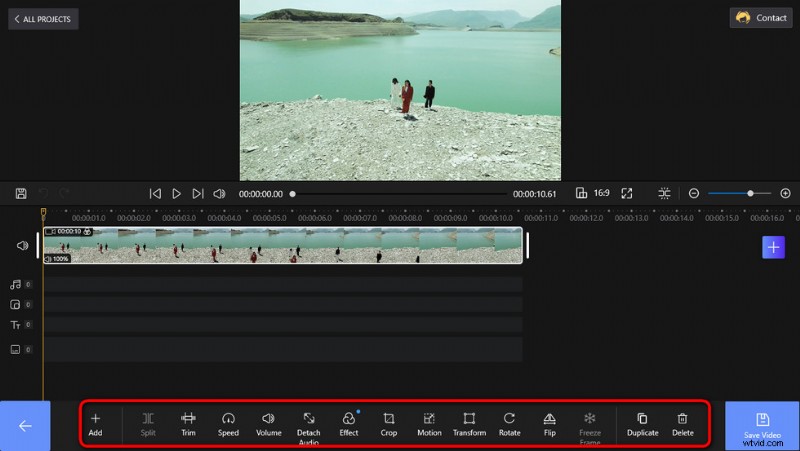
Edit a Video
Step 4. Add Transitions to Video Montage
As mentioned, smooth transition effects are a must for a good montage video. Hit the empty space in the video editing workplace to unselect a video clip/photo in the timeline, and hit the opening, ending, and conjunctive buttons by the sides of adjacent video clips/photos to add transition effects between them.
As you can see, there are many transitions available from our transition pack: fade to black/white, circle in/out, gate open/close, blur, and dozens more, all perfect for a video montage.
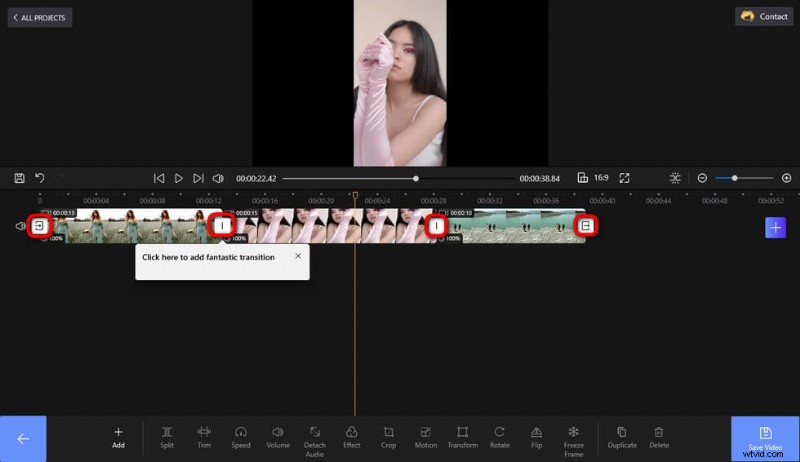
Add Transitions
Step 5. Save and Export the Montage Clip
Videos added to the FilmForth program will be automatically merged after exporting. When you’re done editing, hit the Save Video button from the lower right side to export the video montage.
Customize parameters like video bitrate, frame rate, audio quality, etc., and then define the output file path and export the montage clip.
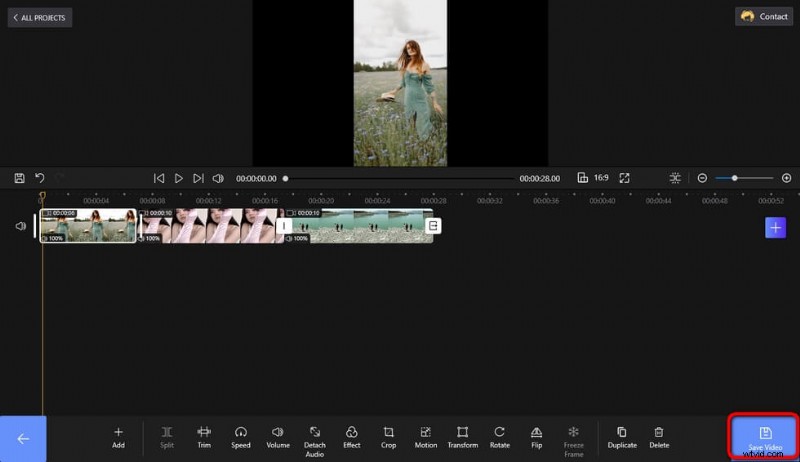
Save and Export Video
At last
That’ll be all the steps to make a video montage! And always remember that there are plenty of other video editing functions that FilmForth offers for you to make your video montage even better! If you haven’t tried FilmForth, hesitate no more! Get FilmForth now, follow the tutorials, and get started on your own video montage!
More Related Articles
- 7 Best Free YouTube Video Editors
- Final Cut Pro Review – Is It Worth it?
- Top 3 Apps to Convert YouTube to MP3 for iPhone
- How to Edit or Create a GIF Free and Easily
- How to Add Music to a Video for Free