
If you want a video to have different speeds at different portions, you should make a velocity edit. And this post will tell you what a velocity edit is and how to make a velocity edit with the best velocity edit app CapCut. Alternatively, you can try MiniTool MovieMaker to change the video speed as you like.
What Is a Velocity Edit?
When it comes to video editing, speed adjustment is a common technique. And the speed change usually refers to speeding up or slowing down an entire video. Sometimes, you might find the video you’re watching has different playback speeds at certain seconds, and this means the video has been done velocity edit.
In fact, a velocity edit is also a great video editing technique used to change the video playback speed at certain seconds of a video. in other words, this feature enables you to speed up and slow down a video simultaneously.
For example, you have a thirty-second video. You can speed up the first ten seconds and slow down the rest of twenty seconds. And the following parts will introduce the best velocity edit app that helps you create impressive videos.
Best Velocity Edit App
CapCut is the best velocity edit app on your Android and iOS devices. Developed by ByteDance, CapCut, a free and powerful video editor, is endowed with a wide range of video editing tools and features. And it’s also one of the most popular video editors for TikTokers.
As for CapCut’s video speed adjustment, it offers two choices, Normal and Curve. The Normal option allows to slow down or speed up an entire video. And the Curve option enables you to do the velocity edit and set different speeds of different parts in a video simultaneously. And CapCut offers several choices for velocity edit and also lets you customize it.
What's more, you can try VN Video Editor, a free video edityor without watermakrs. With the curve speed feature, this video editor allows you to achieve the effects of video speed through its 6 preset curves.
How to Make a Velocity Edit on CapCut
Below are detailed steps on how to make a velocity edit on CapCut video editor.
Step 1. Open the CapCut app on your device, then click the New Project to select a video, and click the Add.
Step 2. Tap the Edit at the bottom left corner, and click the Speed option.
Step 3. Click the Curve option for velocity edit. Then you’ll see Custom and other 6 presets including Montage, Hero, Bullet, Jump Cut, Flash In, Flash Out.
Step 4. You can directly choose and tap a preset, then you’ll get a quick preview. Then, click the preset again edit it. Press and drag any circle to increase (up to 10.0x) or decrease (up to 0.1x) the speed of that area. Tap the Play button to preview the video. And click the tick mark to save your changes.
Step 5. Alternatively, click the Custom and tap it again to open the editing menu, and you can see 5 circles on the horizontal line. Press and drag any circle up or down to increase or reduce the speed of that area.
Step 6. Click the tick mark to apply this change. And then export or share your video.
How to Do a Velocity Edit on CapCut Alternative – MiniTool MovieMaker
MiniTool MovieMaker is a free video editor on Windows and it offers many editing features you need to create stunning videos, such as rotating, trimming, splitting, applying transitions, filters.
Also, it also enables you to change the video speed. To do a velocity edit with MiniTool MovieMaker, you should first split a video into several parts, and then edit the speed of these clips. Here’re the detailed steps on how to make a velocity edit with MiniTool MovieMaker.
Step 1. Download, install and launch MiniTool MovieMaker, and close the pop-up window.
Step 2. Click the Import Media Files to choose a video and click the Open, then drag it to the timeline.
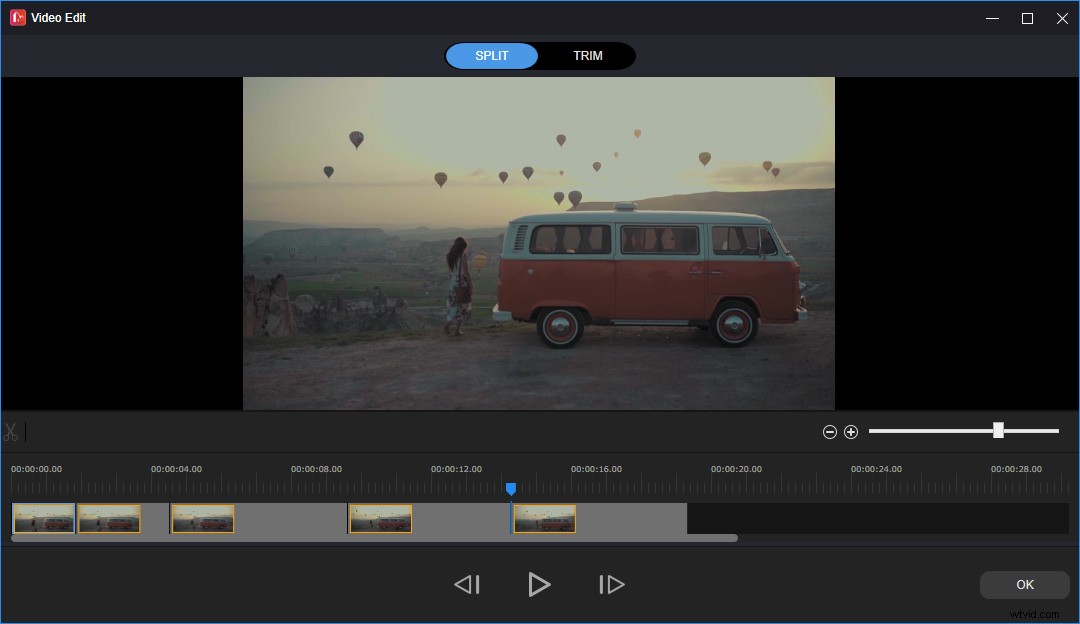
Step 3. Tap the video on the timeline, then click the Split icon (scissor) and choose the Full Split. Drag the playhead to any place, and click the scissor icon. Repeat this step to split this video into as many parts as you like. And click the OK button.
Step 4. Then tap any clip on the timeline, switch to the Speed tab on the right side, drag the speed slider forward or backward to speed up or slow down the clip. Repeat this step to edit the speed of all clips.
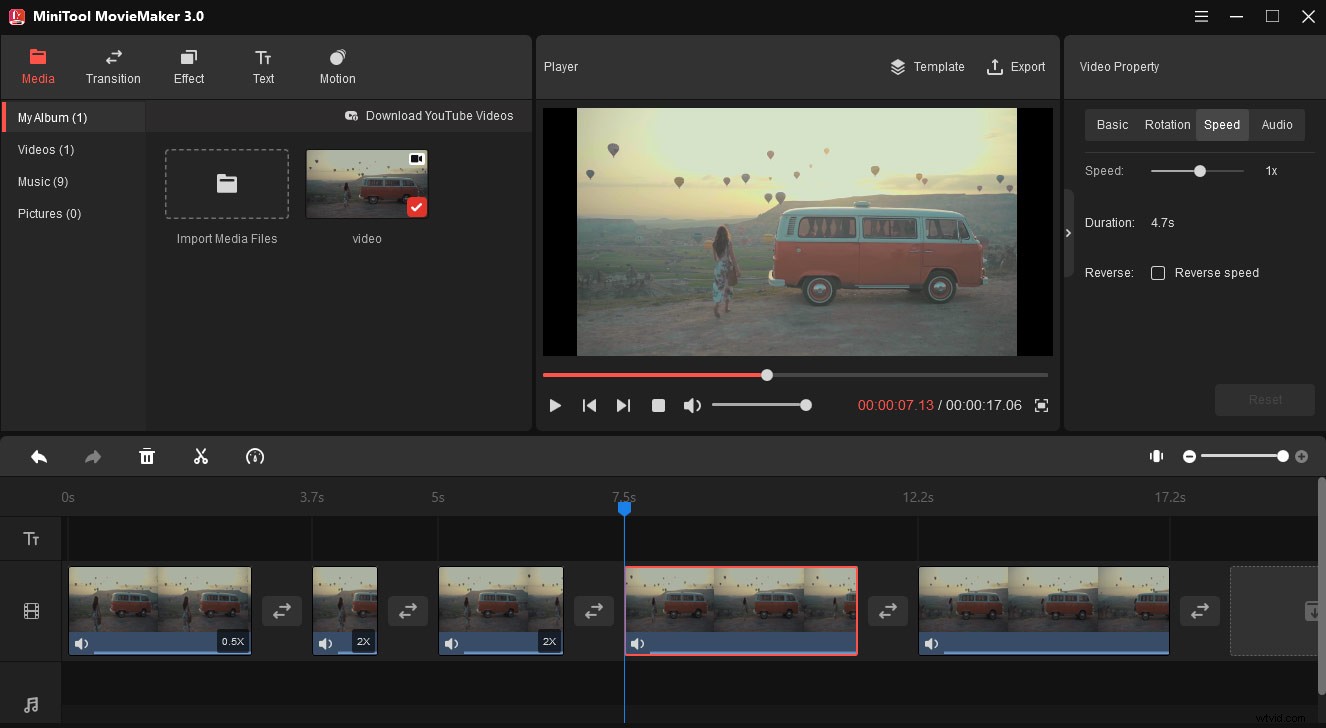
Step 5. After the editing, click the Export, then choose an output folder, give the file a name, and choose an output format. Tap Export again to export the edited video.
Conclusion
It’s easy to make a velocity edit, right? Now, you can try CapCut or MiniTool MovieMaker to do velocity edit for your video on Android and iOS devices or Windows PC.