
How to mirror image or clip in a video
The first one is using our special tool for mirror effects.
Nevertheless, we'd suggest using another tool in this article: the all-in-one video editor. Even though it's not a "specialized" mirror collage maker and might be a little more complicated than the previous one, it has much more functions, which can come in handy during video editing.
Whatever you choose, remember that Clideo works online, so you don't have to install anything. Another point, being a browser tool, it works perfectly for all operating systems and device types.
What is even more important is that Clideo is free for files up to 500 MB each, and we don't have freemium modes where you have to cope with endless advertisements or limits on the projects you can perform per day.
Anyway, if you've decided to use the Video Editor, here is a short and comprehensive manual on it.
Upload an initial file
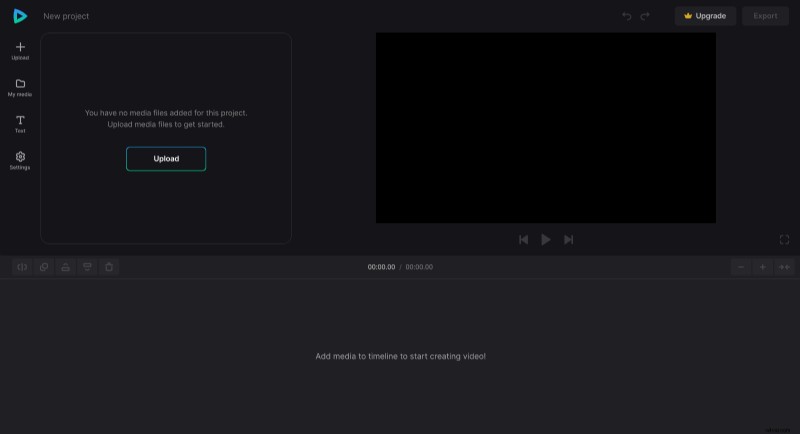
Open Clideo's Video Editor and upload a video or an image you want to mirror from your device, Google Drive or Dropbox.
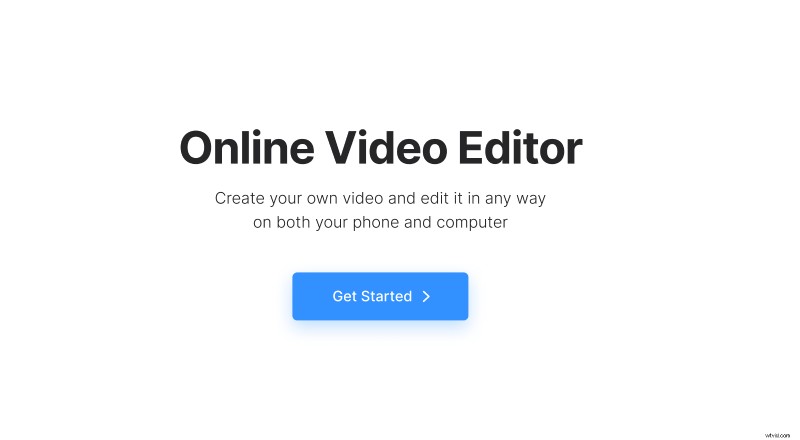
The tool is intuitive: just hit the "Get Started" button and then click "Upload". You can also just drag and drop visuals right on the editing pane.
Mirror or flip an image or a video
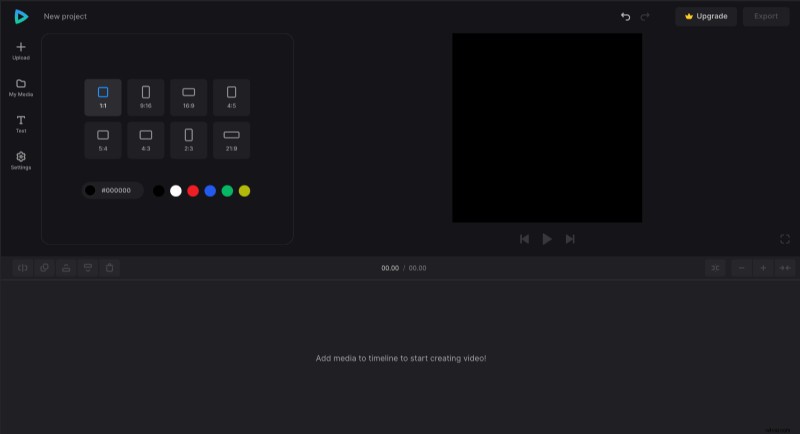
First, to select an aspect ratio for the whole project, go to the "Settings" tab.
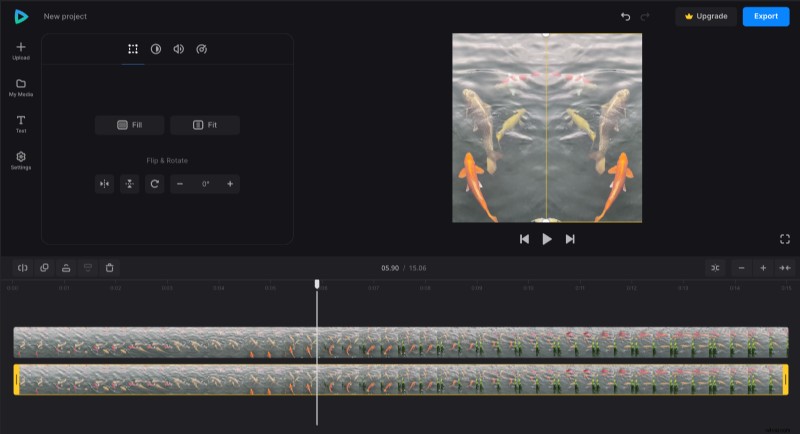
Then drag your visual to the canvas or the timeline and resize it by dragging by the corner. Then hit the "Duplicate" icon that is located at the top left of the timeline, and place the second file side by side with the first one.
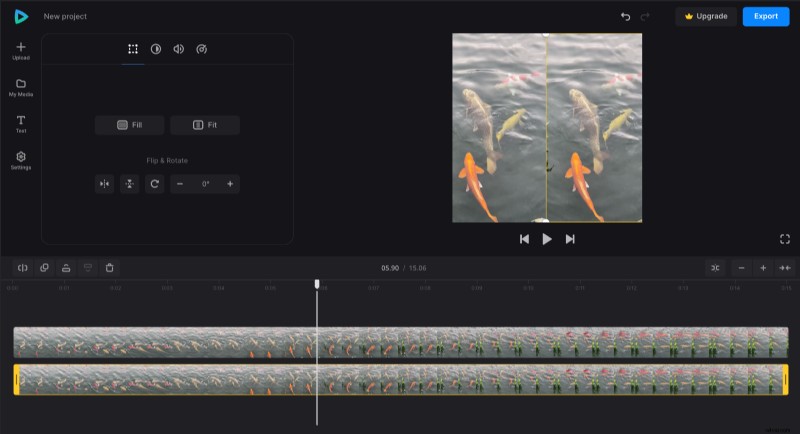
Select a newly created duplicate and flip or rotate it in the "Transform" tab. You can additionally alter the original and mirrored images in any other way you want: change their brightness, crop option, contrast, etc. If you're dealing with videos, you may slow them down or speed them up.
Save the project
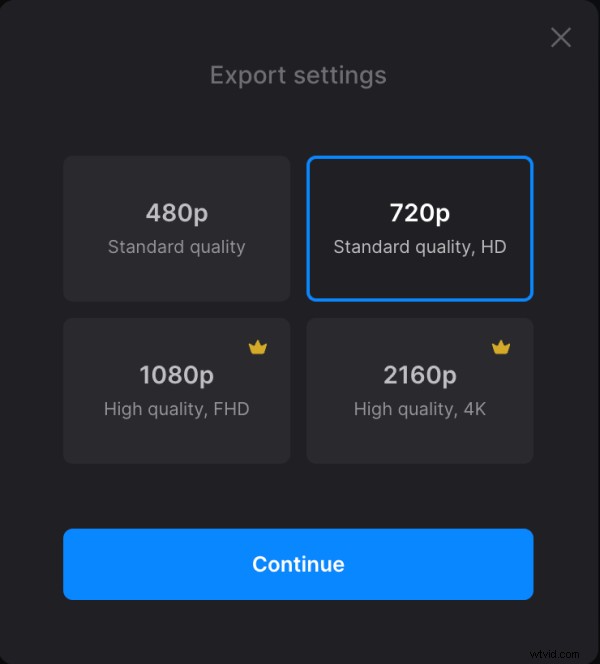
When you're done and happy, hit the "Export" button and select the output quality. 480p and 720p are free, but for the higher quality, you'll have to upgrade your account to Clideo Pro.
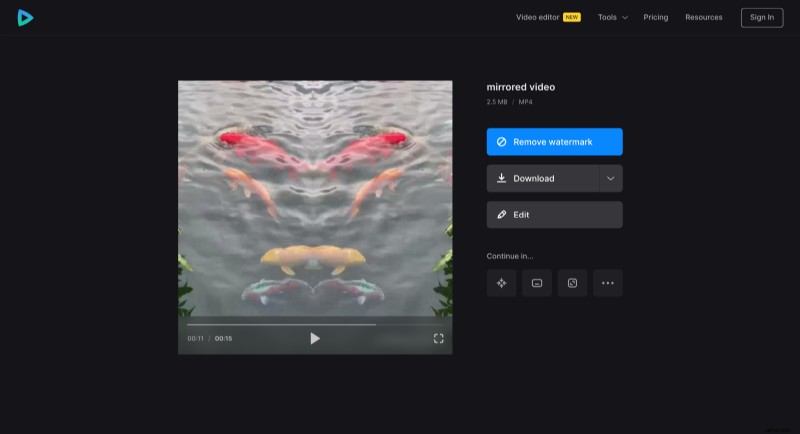
If you do, you'll also get rid of the tiny watermark on the video and be able to edit the same project in other Clideo tools without prior downloading.
Video Editor Help Center is a great source of knowledge about all video editor features we currently have.