
Often vloggers and video artists use the reversing technique to give a more artistic tone to their videos. Play video backward is also used sometimes to give a comical effect to the action on the video.
To create the reverse effect, you will need a capable reverse video editor tool like the iMovie software. In this article, we will show you how to reverse video clips with iMovie and iMovie alternatives.
It only takes 3 steps to complete the video reversal by these two reverse video makers.
- Part 1: How to Reverse Videos in iMovie?
- Part 2: How to Reverse Video with iMovie Alternative - Wondershare Filmora
Part 1: How to Reverse Videos in iMovie?
If you want to reverse video in iMovie, the following 3 steps will help you do it easily.
Step 1: Add the video to iMovie
Open the iMovie interface and let the program automatically find all the legible videos from your main project browser.
You can also manually add the videos or text transition clips that you want to put the reverse effect on, to the project browser panel.
Step 2: Drag the video to iMovie
Drag your video to the timeline first, and then click to select the video you want to edit and let it open onto the clip inspector window. Double-clicking on any of the videos on the project browser panel will open up the clip inspector for that video clip.
It is recommended to mute the audio or detach the audio file before reversing your video footage. Here is the guide to mute audio from video.
Step 3: Start reversing the video
Then go to Modify > Rewind. From here, you can choose the rewind speed. You will see three sliders that appeared in the timeline. Just drag one of the sliders to adjust the playback speed.
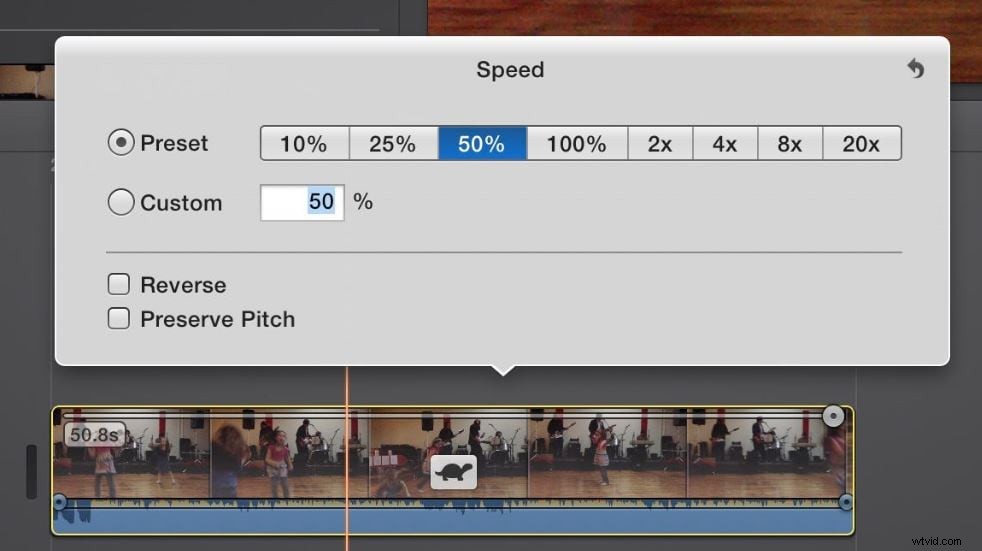
Note: Reversing the video will not have any effect on the duration of the clip. If you want to put in a speed effect, you will need to change the speed presets for the video to add to the reverse effect.
Related:
- How to Add Subtitles to Videos and Movies in iMovie
- Add Transitions between Video Clips in iMovie
While the iMovie software is a highly effective editing tool for Mac users, the interface can be a little confusing for amateurs or beginners simply looking to try the reverse effect on a video for the first time.
Part 2: How to Reverse Videos with iMovie Alternative
If the interface of iMovie is a bit complicated for you, then I recommend you to try Wondershare Filmora. Filmora is a simple and easy-to-operate video editing software. In addition, Filmora has many types of transitions and effects. And it also has some featured functions such as auto-reframe, motion tracking, keyframing.
Related:
- The Best iMovie Alternatives for Windows
- Get Best iMovie Alternatives for Mac
Here's how to reverse videos with Filmora.
Step 1: Import the video to Filmora
You can directly drag and drop the files to the Media Library panel or click Import Media under the File menu to import your media to Filmora.
Step 2: Add the video to the timeline
It is so easy to add a video to the timeline. Just drag and drop the thumbnail of the media file in the media library panel to the timeline.
Step 3: Play the video in Reverse
Double-click the video clip (or right-click to choose Edit), tick the option to Play video clip in reverse. Press the Space or Play button to start creating preview renders. It will play the video in reverse after rendering.
Step 4: Export the video
Once you are satisfied with the changes, click on Export to save the file with the reverse effect in a new file format.
Note: Filmora is available for both Mac and Windows versions. The tutorial above is shot with the Windows system, but the reverse process is similar.