
How to add audio to drone footage
Proper audio can give your drone video a whole new dynamic. It can make it relaxing, exciting, epic, and evoke any other feeling that can usually be conveyed through music when you have a good soundtrack to add.
Looking for the best way to add music to your drone video for free and without having to deal with complex editors? Our tool will do just that! As of now, it works with the most popular video formats like MP4, MOV, WMV, AVI, MKV, and others. The majority of drones can record footage in formats MP4 and MOV, so it will work just fine with drone videos.
The rest is pretty simple, just take a look at the instructions below:
Upload a video
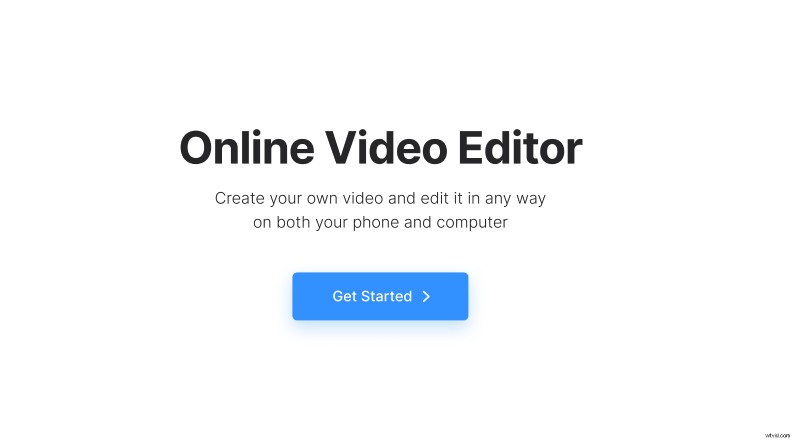
Open Clideo’s Online Video Editor and click "Get started".
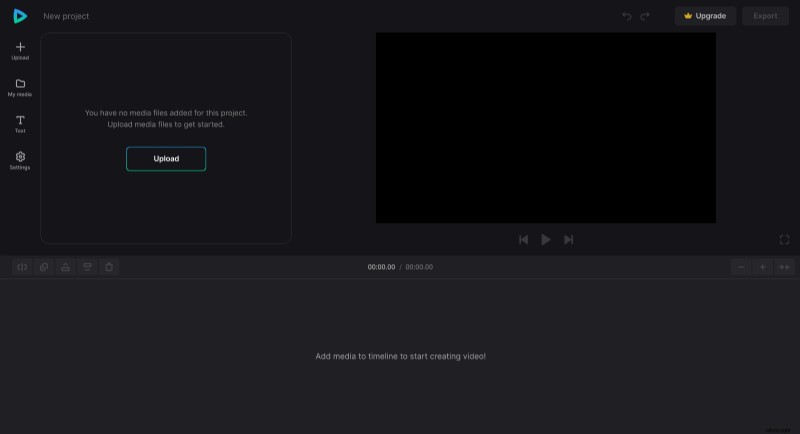
Once in the editor, click "+Upload" and add your drone video and audio files from your device or pick them from your Google Drive or Dropbox account. If necessary, you can add more files later in the same way.
Add audio to the video
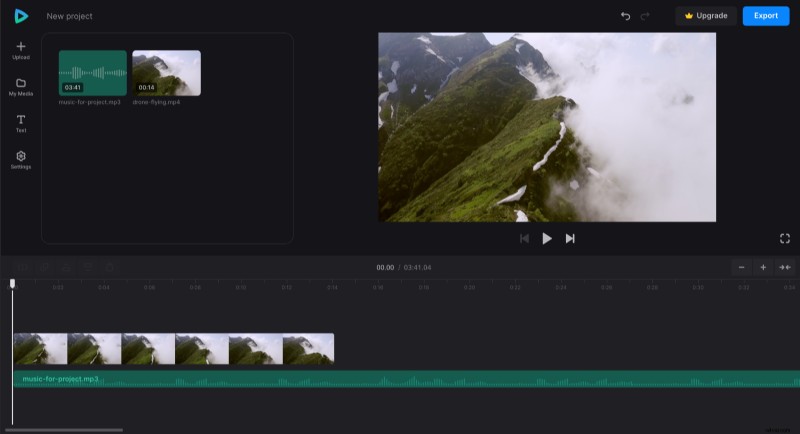
Uploaded files are in the "My Media" tab. Now, to combine your video with the audio, simply click the "+" sign or manually drag the files to the same point in the timeline. Then you can edit them further.
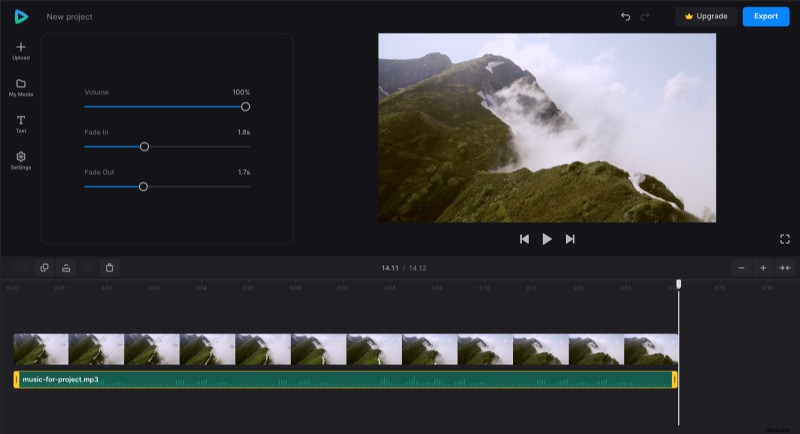
Make the duration of the video and audio files the same by dragging the yellow handles of the audio element. If you need to adjust the size of the timeline to the screen of your device, use the buttons at the top right of the timeline. +/– buttons will zoom in/out, and the →← symbol will make the timeline fit the screen. There are also undo/redo arrows at the top right of the player to reverse the most recent changes.
Then, click the video element if you want to edit drone video settings as well: apply the different crop, saturation, and many other settings that you may need. There are also options to change the speed and volume of the video.
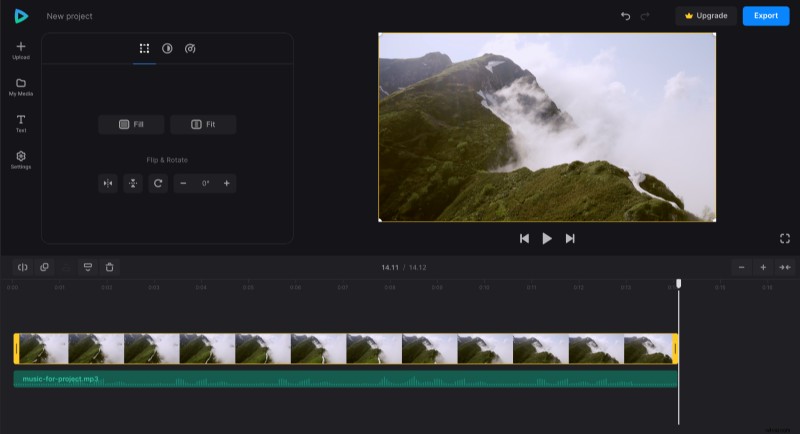
If needed, click the "Text" tab to add text to your video. In the "Settings" tab, you can change the video’s aspect ratio by applying the preset according to your needs.
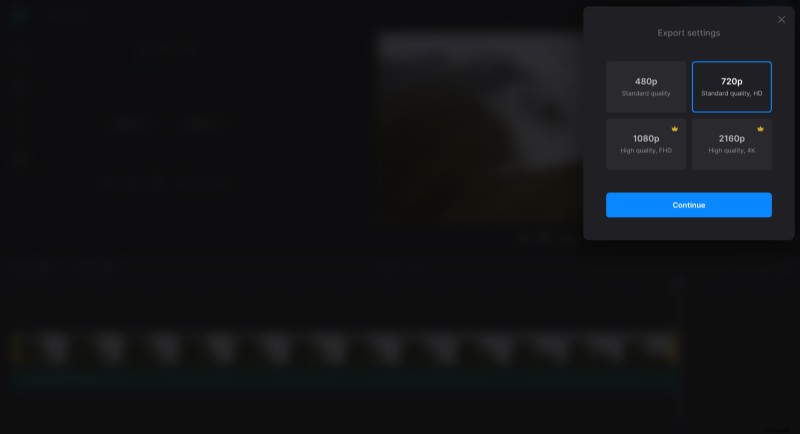
When you finish editing, click "Export" and choose the export option you like. The exporting process may take some time depending on the size of the project.
Download the result
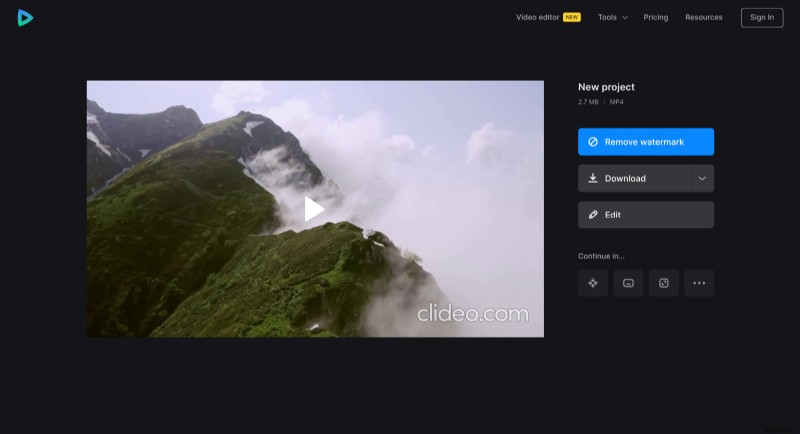
Watch the playback to see how the final result looks. If some changes are needed, click "Edit". Otherwise, click "Download" to save your new drone video to your device or upload it to the cloud storage.
If you are interested in all the features you can refer to our Video Editor Help Center.