Even a boring, at first glance, video sequence can become fun with the help of the right soundtrack. This is especially true when there’s a need to add voice over to video to explain something or narrate the story, or to add voice memo for the intended receiver of the video.
If you’re an iPhone user, you know that there’s a video editor that allows you to do some edits like trimming videos, adding filters, and flipping clips. But there’s no option to add sound or recording from another file to your video. Therefore, additional editing is mostly done through different apps.
So if you’re looking for an iPhone app to voice over your videos, we’ve got it! It’s free and after downloading you can use it offline if you only plan to work with the audio files on the device or want to record your own voice over.
Using it is also pretty straightforward, just take a look at the instructions below:
Choose a video
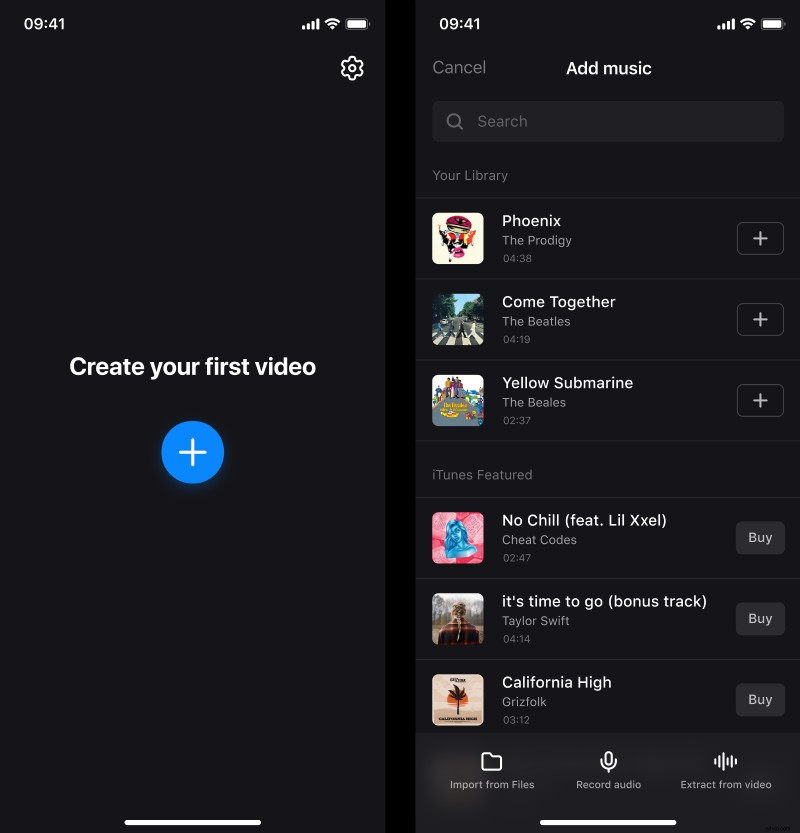
Open the Add Music to Video app, then tap the blue "+" icon to choose the video from your Library. You can also tap the camera icon in the top right to record a new video.
After choosing a clip, you can see a few options to add audio. You can:
- add a track from your Library by tapping the "+" icon next to its title;
- upload a file from your phone storage through the "Import from Files" option on the bottom;
- get the sound from another video by using the "Extract from video" option.
Add voice over
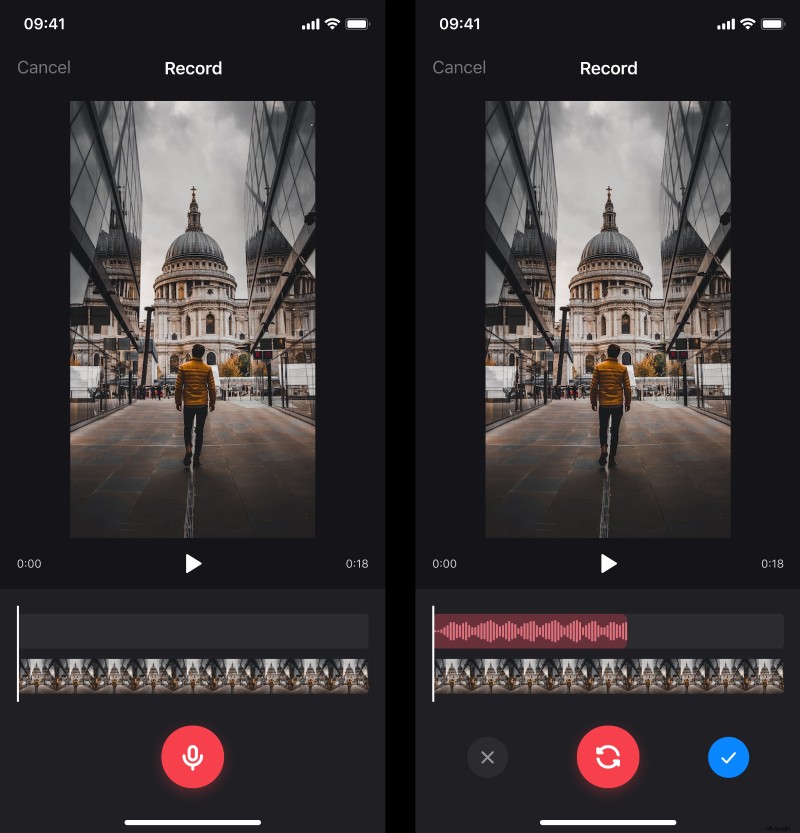
Other than that, to create your own voice over, simply tap the "Record audio" tab. Here, touch the microphone button, then record the audio and tap the stop button when you're finished. If there are some problems with the recording, use the replay button to redo it. And if everything’s okay, tap the blue checkmark icon.
Combine the video with the voice over
When both video and audio files are added, you can edit them separately in their respective timelines under the player.
Above is the sound timeline. Tap on it to adjust such audio settings:
- To define where the track should start, you can drag it in the timeline.
- If you want to use a part of the recording and cut out the rest, use the "Trim" button, then drag the handles to change the duration.
- In the “Volume” tab, you can adjust how loud the audio will be. There you can also apply the fade in/fade out effects if needed.
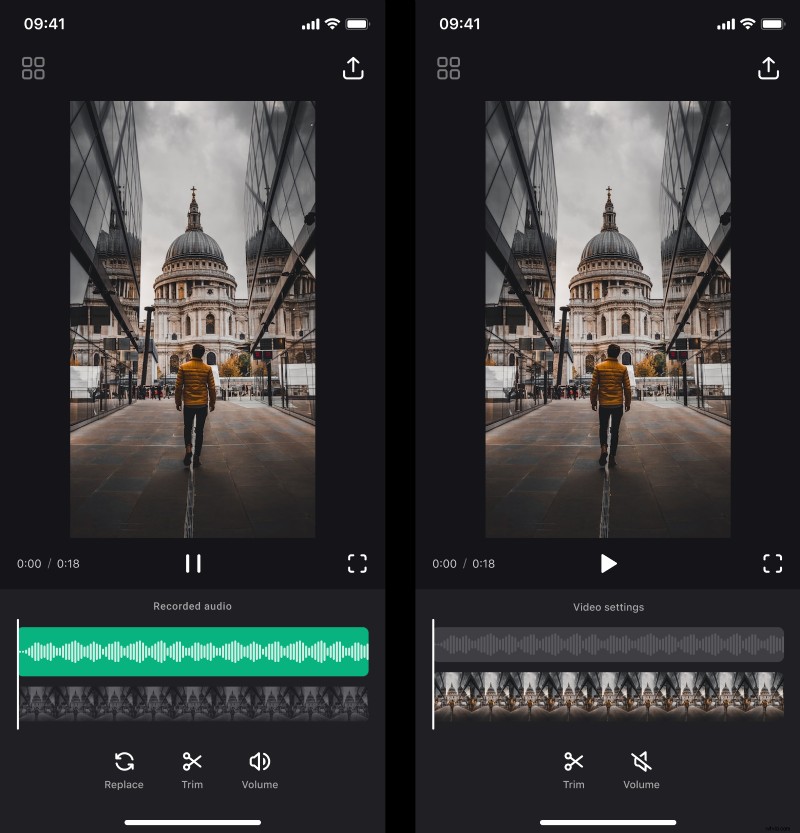
To edit the clip, tap the video timeline. There are trim and volume options that work the same as in the sound timeline.
To see the result, tap the play button right below the player. If you want to watch it on the full screen, click on the frame sign to the right of the play button.
Save the video with your voiceover
To download the result to your device, tap the "Export" icon in the top right corner of the screen, then hit "Save". Note that you should not lock the screen or switch to other apps because it will interrupt the saving process.
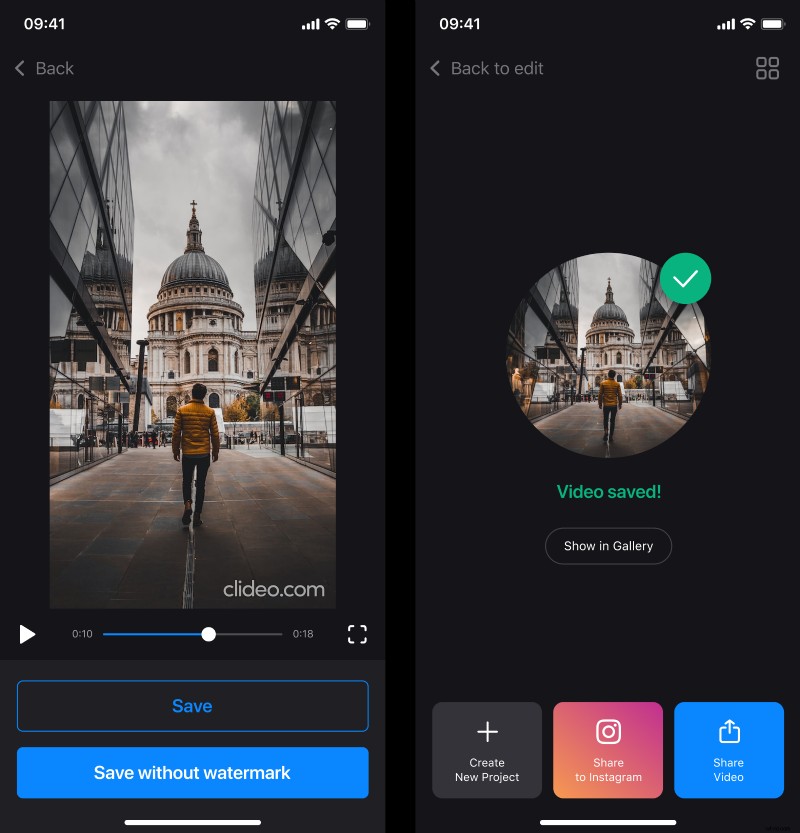
When the video is saved, you can share it to any social media right from the app by using the buttons at the bottom. You can also create another video by tapping the "Create New Project" button or add changes to the current one by hitting "Back to edit" in the top left corner.