Why crop your video on iPhone online
Crop video tools usually let you choose the part of your initial video, cut it in accordance with the popular broadcasting format (4:3, 16:9, 1:1, etc.) and make the separate video from this part. Your subscribers won’t even know that somewhere exists the original video which is the basis for the masterpiece they enjoy.
Every video hosting or blog platform has its own requirements for the videos. The content that fails to meet these requirements will be surrounded by black spaces or even not broadcasted as intended.
Finally, the Crop options let you correct your own mistakes made during the filming process: unintended details, poor angle, etc.
So, the perfect tool for cropping your videos on iPhone should be:
- easy-to-launch as you shouldn’t wait for its installation, initialization, customization;
- extension-agnostic as you should be able to upload video in multiple formats;
- powerful as the processing of your files shouldn’t take more than a couple of minutes;
- RAM-effective as it shouldn’t take all memory of your device, either PC, laptop or mobile;
- Last but not least, it should charge you with little or zero fees.
Clideo’s Video Crop Tool is a perfect match there. Maybe, it's the right time to try it?
Crop your video with Clideo: Manual
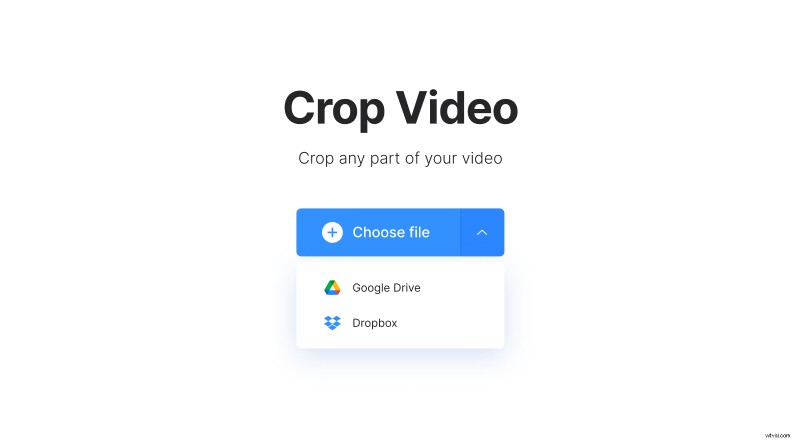
- First of all, open the Online Video Cropper be Clideo and upload your video by clicking the button or choose an option of uploading files from Dropbox or Google Drive.
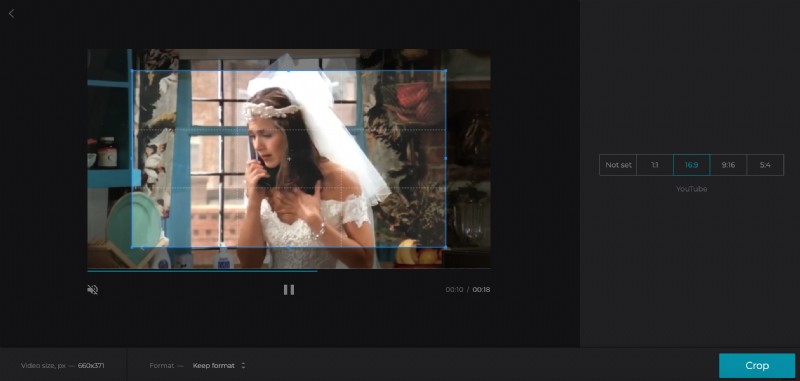
- Once your file is uploaded (usually it takes less than 30 secs), you can start to crop your iPhone video. Firstly, set the format you would like to use. Four sizes are available now: Facebook (5:4), YouTube (16:9), Instagram (1:1) and those your beloved Instagram Stories (9:16). You will see the selected area and will be able to customize it within the framework of the format chosen.
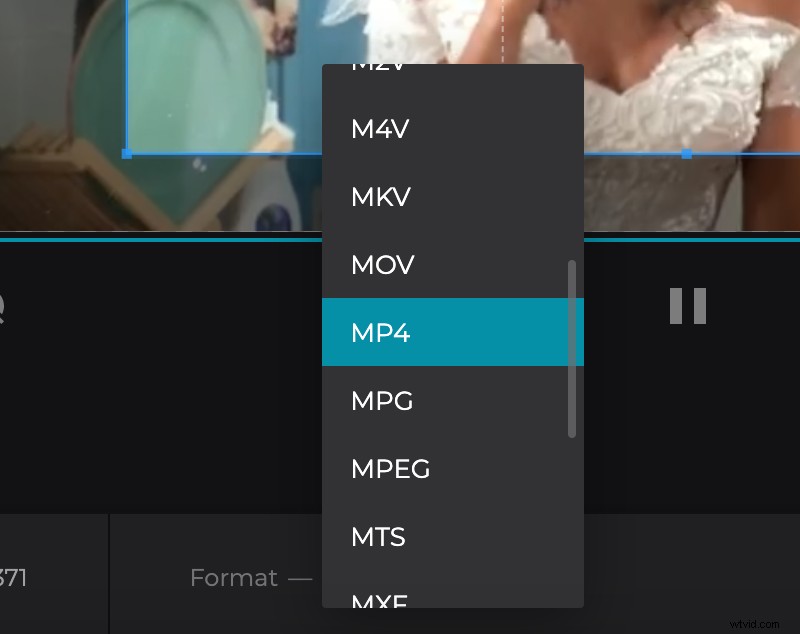
- Then you can set the format of the new video Clideo will make for you. Click ‘Format’ and customize the extension.
- When format, extension, and space to the crop are settled, please, press ‘Crop’ in the lower right corner and wait. This process can take one or two minutes, but the results of the tool will worth it.
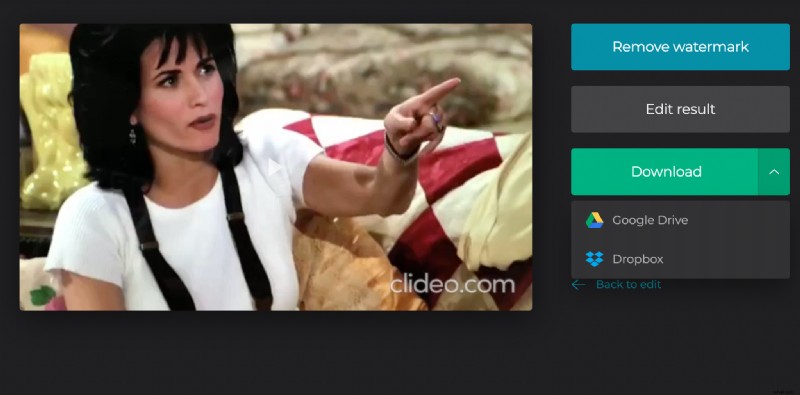
- Well done! Now you can download video Clideo has cropped for you with patience and love.