
Wondershare Filmora is a prominent video editor which has been praised for its excellent functions. This post introduces you to how to crop videos in Filmora and further improve your technique of creating a good video!
Filmora is an excellent video editing software and enjoys a high reputation in the field of video editing. It was developed by Wondershare, a Chinese company, that aims to help users quickly create their own satisfactory videos to tell their own wonderful stories.
This post will discuss a skill that many users cannot avoid when editing videos – video cropping. When the video frame we shoot contains many unnecessary spaces or elements, we need to abandon these redundant frames and highlight the video subject we want to represent.
Although the cropping function is one of the most basic editing operations, there are still many video editing novices who do not know how to crop videos. But don’t worry, reading this post can solve this problem. We will show you how to crop a video in Filmora.
Steps to Crop Videos in Filmora
Here comes the way to crop videos in Filmora. Filmora provides complete functions and concise pages, so it is not difficult to operate. In addition to the detailed steps, we also provide you with clear screenshots to help you quickly master the method of cutting video. Now, start the Filmora program and follow the tutorial below!
Step 1. Insert a Video into Filmora
First, you need to import your target video into Filmora and bring it down to the timeline.
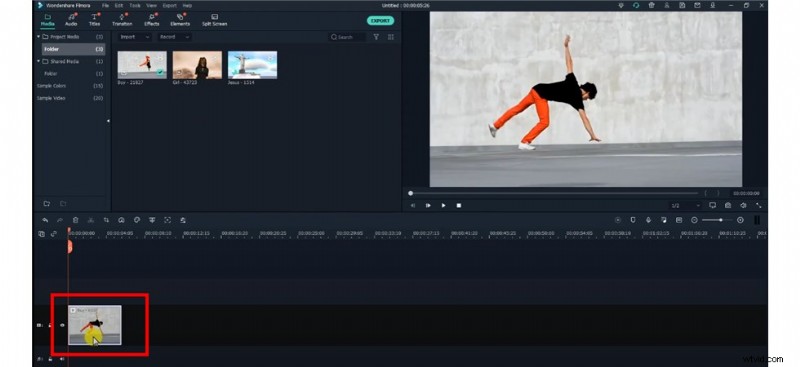
Insert a Video into Filmora
Step 2. Crop the Video
Then click the Crop button on the timeline to open a crop and zoom control window.
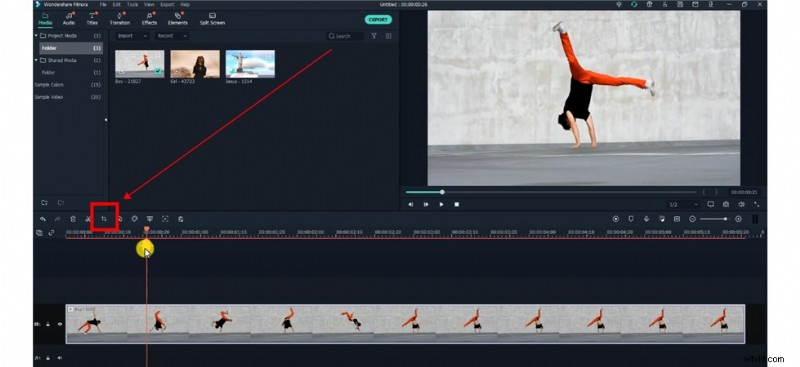
Hit the Crop Button
You can choose a preset aspect ratio to maintain your video size at the ratio section on the left lower corner, or select custom to change the size freely.
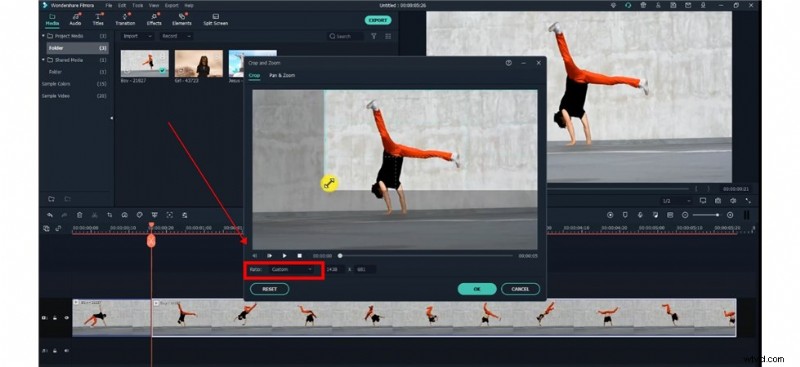
Crop Now
Step 3. Save New Video
You can click the play button to preview, and if you are satisfied with the effect presented, click Ok to go back to the editing page and save your new video.
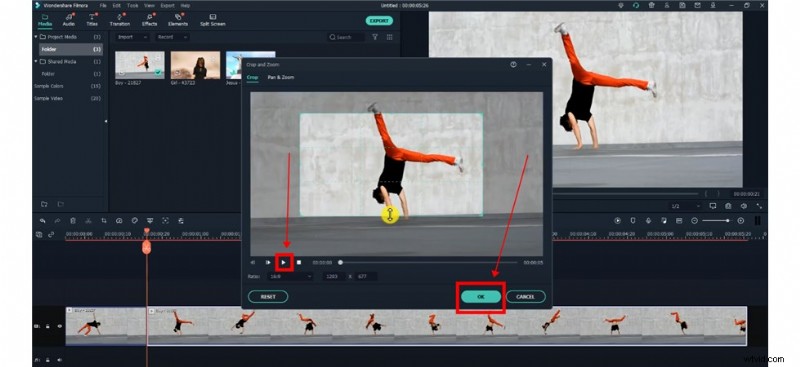
Save the New Video
Filmora is very popular recently, but you should mention that the annual pay of Filmora is $55.98. so if you haven’t bought Filmora and are a little hesitant because of its price, then you might as well learn about the best Filmora alternative we recommend for you. This is a more cost-effective video editor, but it can also provide extraordinary video editing performance.
Bonus: The Best Filmora Alternative
FilmForth is the best Filmora alternative for video editing novices to crop videos efficiently and simply. It’s a cost-effective video editor with an easy-to-use interface and rich editing functions.
And we also list some highlight features you’d like to know:
- Works on Windows 10 and Windows 11.
- Very friendly for video editing beginners.
- Rich music, filters, and effects for users to add freely
- Provide picture-in-picture function and replacement of video background
You can read the FilmForth official guide or watch the following video directly for more functional information and some basic editing skills.
Frequently Asked Questions about Cropping Videos on Filmora
How to trim a video in Filmora
First of all, we need to know that crown and trim are not the same concepts. Crop refers to modifying the frame of the video, removing redundant spaces, and highlighting the main subjects. The Trim is to change the length of time of the video to achieve a compact effect. Filmora allows users to both crop and trim videos.
Here are the brief steps we offered below.
Step 1. Start Filmora and import your video to it.
Step 2. Bring the video to the timeline and hit the crop button on the right-top of the timeline.
Step 3. Trim the video on Timeline by moving your mouse forward or backward at the edge.
Step 4. Save and export the video.
In addition to cutting videos, if you want to edit more videos with rich visual effects, finding a more cost-effective and powerful video editor to minimize the cost of money and increase work efficiency will be your best choice. Filmforth is such software that meets all the above conditions. You might as well go to the Microsoft Store, download it for free, and start your video production!
How do you crop an object in Filmora?
Here are the simple steps for you to know the way to crop an object in Filmora.
Step 1. Hit the “File“ button and select Settings.
Step 2. Then a setting panel will appear for you to switch to the Editing tab.
Step 3. Go to Photo Placement and choose Crop to Fit/Pan&Zoom.
Step 4. Now you can apply the effects you want to all your objects.
Conclusion
Wondershare Filmora is a video editing software with unique charm. Using it to crop your video or beautify your video with filters, music, etc. can further stimulate your creative desire and refine your creative skills. However, Filmforth, as an equally excellent video editor, also provides a free solution for your creative journey. Welcome to download and use FilmForth freely!
More Related Articles
- 16 Best Video Editing Software for Mac: Free and Paid
- How to Crop a Video on Android [3 Free and Easy Methods]
- Top 7 Video Croppers for Free in 2021
- How to Crop a Video on iPhone
- 15 Best Split-Screen Video Editors for Professionals and Beginners