
QuickTime Player doesn’t have the crop function, so you cannot crop a video in QuickTime on Mac. In this post, I will share other ways to crop videos on Mac and how to use QuickTime to trim a video. (Try MiniTool MovieMaker to trim or split videos on Windows)
How to Crop a Video in QuickTime
QuickTime, as a media player, can play videos, record screens, as well as edit videos. Can you crop a video in QuickTime? The answer is no. QuickTime doesn’t support the crop function. The only exception is QuickTime Pro (costs $30), which is no longer supported by Apple.
But QuickTime can help you trim the unwanted parts of a video. Here’s how to trim video in QuickTime on Mac.
Step 1. Launch QuickTime Player.
Step 2. Click on File in the top menu bar and open the video you want to trim.
Step 3. Click Edit and choose the Trim option from the drop-down menu.
Step 4. The trimming bar will appear at the bottom of the QuickTime Player window. Drag the yellow handles to the center of the trimming bar and the area outside of the yellow handles will be trimmed.
Step 5. If you are happy with the result, tap on Trim to cut out the wanted parts.
Step 6. Go to File > Save to save the trimmed video.
If you want to split, trim, or merge video on Windows, try MiniTool MovieMaker! It’s feature-rich and fast!
How to Crop a Video on Mac
So how to crop a video on Mac? Here are two video croppers for you: iMovie and Ezgif.
iMovie
To crop video frames on Mac, you can use iMovie. It’s the native video editor on Mac, iPad, and iPhone. iMovie allows you to edit videos by cropping, cutting, combining, reversing, applying green screen effect, split-screen effect, etc.
Step 1. Open the iMovie app on your Mac.
Step 2. Click the + to create a new project and click the import icon to add the video from your computer.
Step 3. Add the video to the timeline and select it.
Step 4. Click the crop icon above the preview window. Tap on Crop to Fill. Then you can adjust the size of the video frame and move the rectangle to the desired place.
Step 5. After that, click the checkmark icon next to Reset to apply the change.
Step 6. At the top right corner of the screen, click the Export button to save the cropped video.
Ezgif
Ezgif is an online video cropper that helps you crop videos on Mac quickly. Besides cropping videos, Ezgif can also resize, cut, optimize, split videos and make a GIF from a video.
Step 1. Go to the Ezgif website: https://ezgif.com/.
Step 2. Navigate to Video to GIF > Crop video to get the Crop page.
Step 3. Click Choose File to upload a video from your computer. Click the Upload video button.
Step 4. Draw a rectangle or square on the video frame. Then drag to adjust its size and move it.
Step 5. Once done, click Crop video.
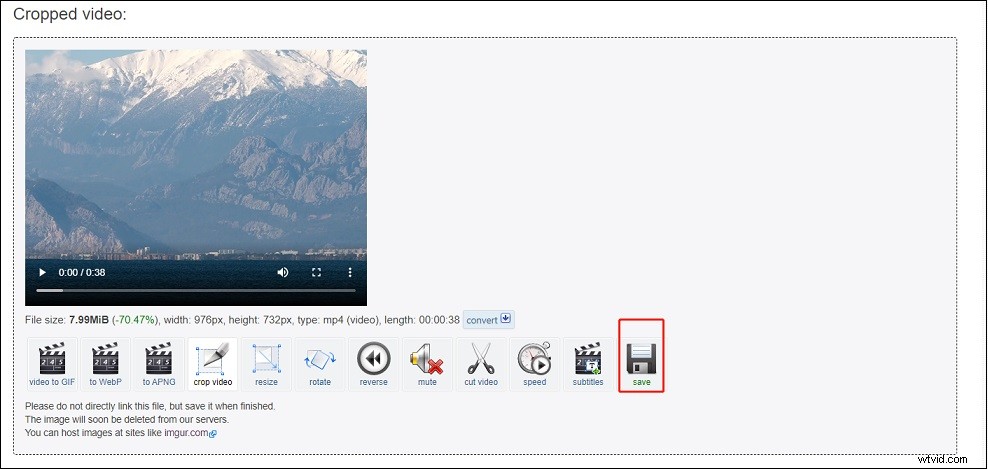
Step 6. Click on Save to download the cropped video.
Conclusion
Although you can’t crop a video in QuickTime, you can use other tools like iMovie, Ezgif to crop a video on Mac.