
QuickTime Player on Mac is a well-known software that runs smoothly on MacBook systems. This video player can also allow you to perform basic video editing tasks. With QuickTime player on Mac, you can undoubtedly edit films with no quality loss. QuickTime Player allows you to perform video trimming, rotating or splitting hassle-free. But if you want to crop video with QuickTime on Mac, it takes unnecessarily difficult steps to conduct this task.

Part1: Crop Video with QuickTime
QuickTime Player can't crop a video directly. You need to upgrade to QuickTime Pro and start cropping your video. Let's discover how to crop your videos in QuickTime Player Pro on Mac.
Step1: Capture Frame of Your Video
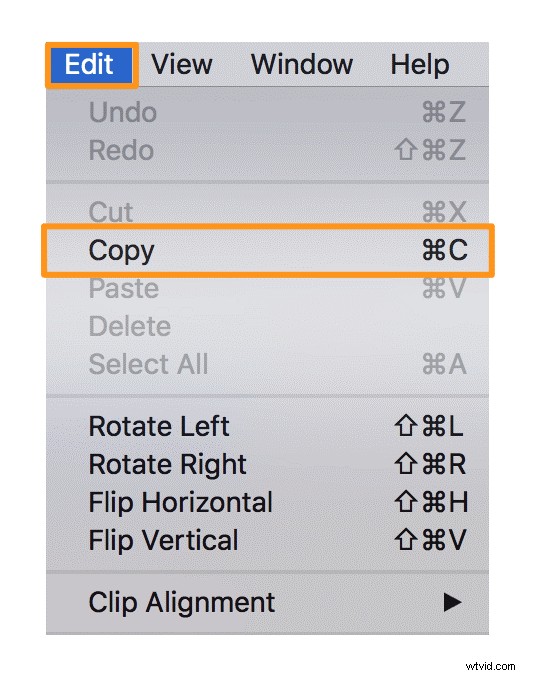
Go to File>Open File to open the video you want to crop via QuickTime Player and then go to Edit>Copy to capture frame of the video and export it in JPG format.
Step2: Create mask file with Photoshop
Open Photoshop or another tool to edit image. Go to Edit>Copy to paste the image you exported before. Use the Rectangular Marquee Tool to select the area you want to keep, and fill it with black, and others with white as a mask. Save it as GIF or TIFF.
Step3: Apply the mask file in QuickTime Pro
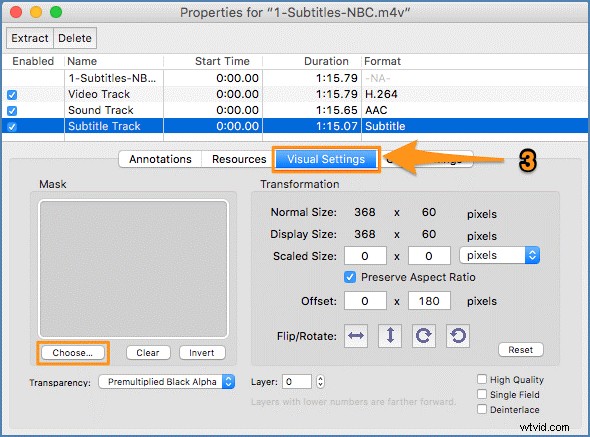
Back to QuickTime Pro, and go to "Window" > "Show Movie Properties" > "Visual Settings", and apply the mask file.
Step4: Save/Export cropped video
Once you’ve done cropping, go to File>Export to save the cropped video to your desired location.
Part2: Crop a Video Easily with Filmora
Truly, it's somewhat muddled to crop with QuickTime. Hence, we introduce Wondershare Filmora for Mac to you, which makes video cropping a breeze for you. It is the most ideal video editor for beginners and new users as it performs video editing from basic to advanced level in a few clicks. Let’s take a look at how to crop video easily with Filmora.
Step1: Import a video
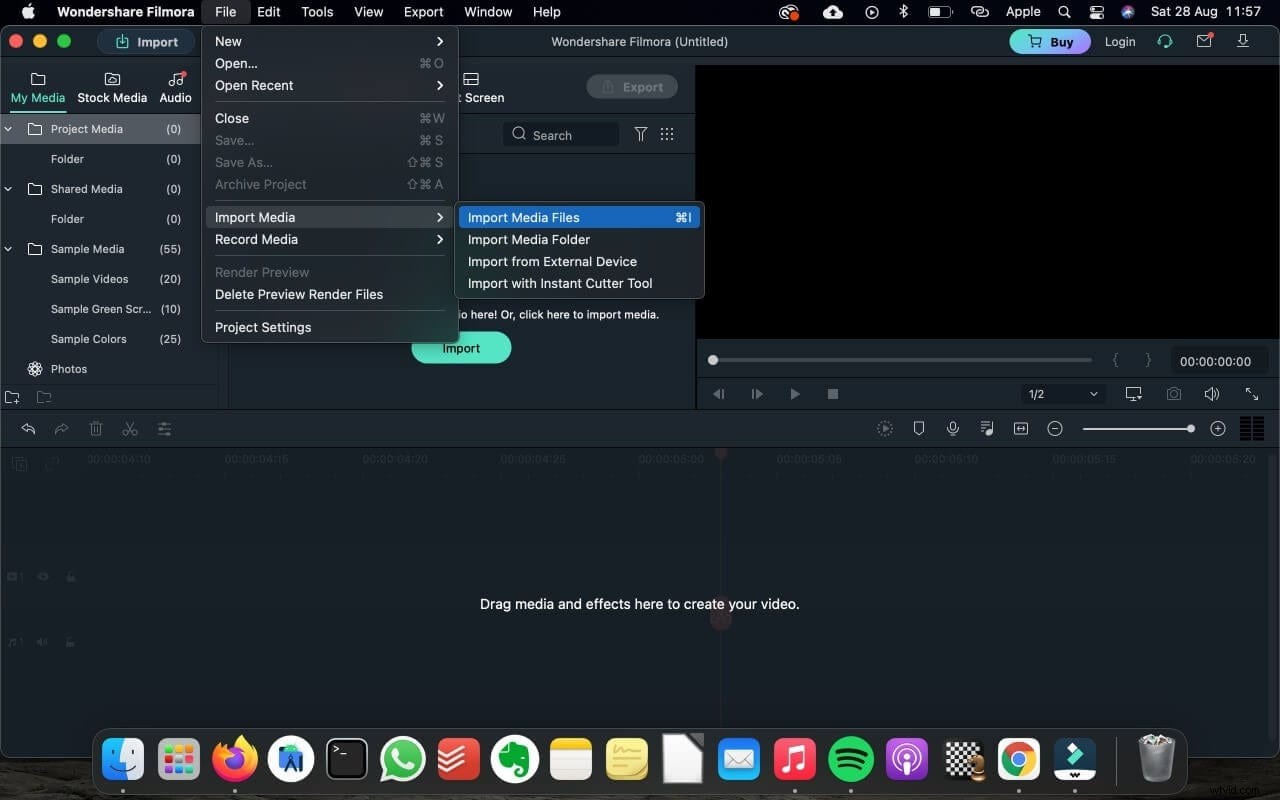
Launch Filmora for Mac from your Mac and then import the video file you want to crop.
Step2: Crop the video easily
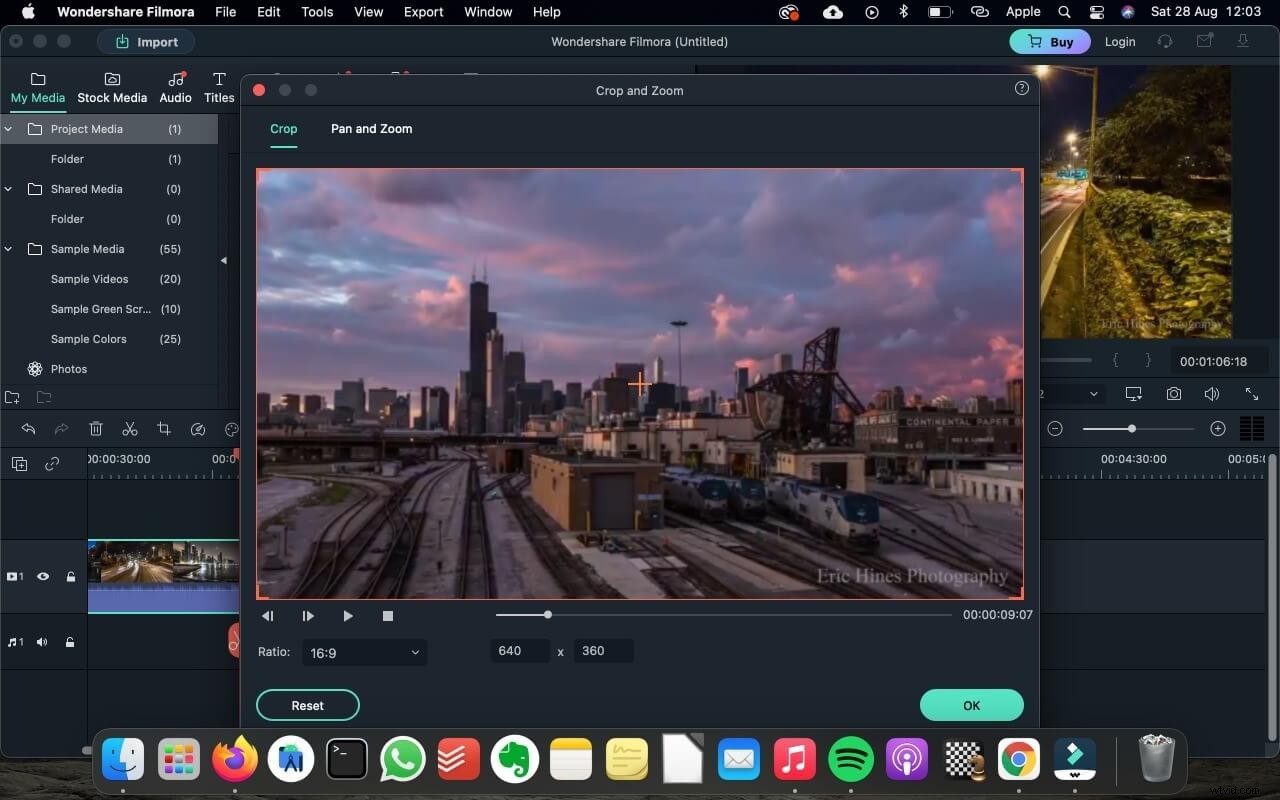
Easily drag-and-drop the imported video to the timeline, select Crop and Zoom by right-clicking on the video. Then you can crop it the way you like.
Inside the timeline, you can also double click on the video to open the crop and zoom features for easy cropping.
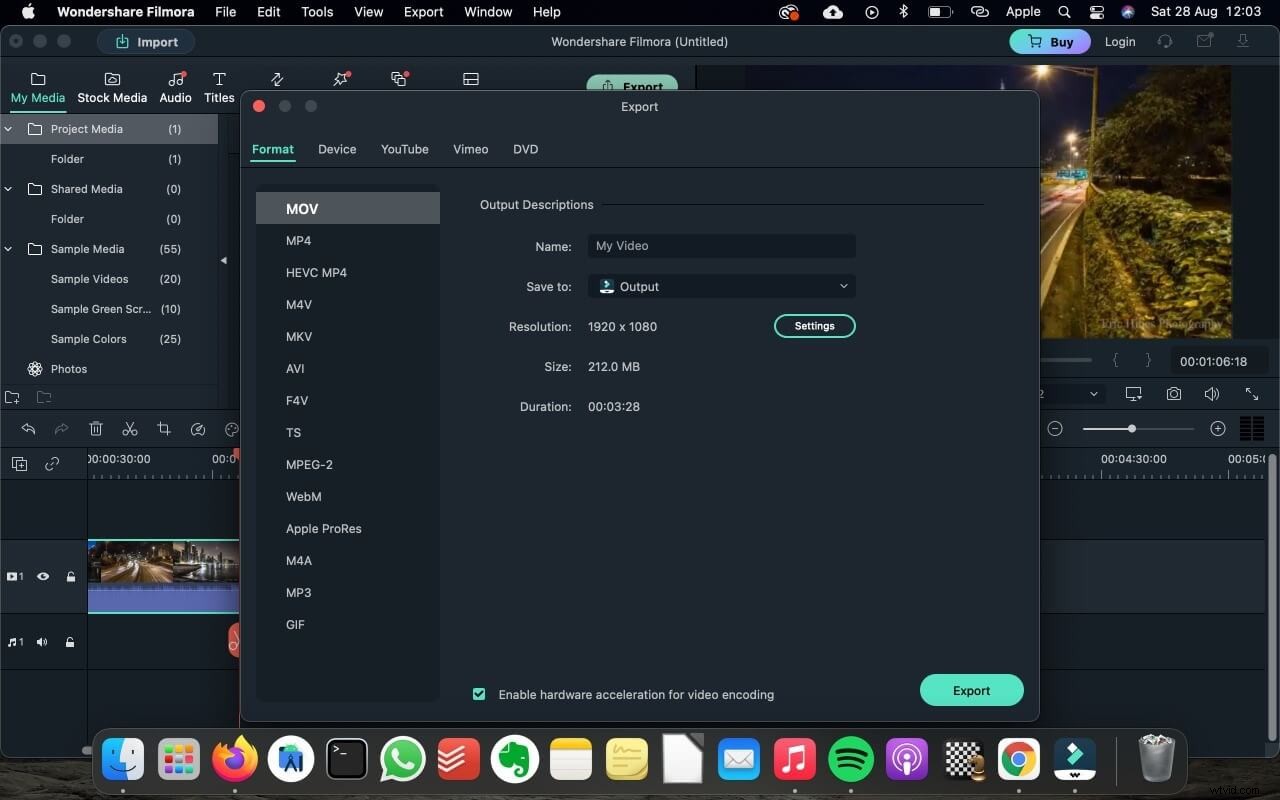
Step3: Save/Export cropped video
Hit Export button and export your cropped video. You can save it in different formats or directly share it on YouTube.
Part3: Edit Video with Filmora
With its super handy interface, Filmora can not only crops a video easily, but also lets you perform a variety of video editing tasks from basic to pro-level features smoothly. So it will be a wise decision to edit with Filmora, even you do not have any prior experience with video editing.
Filmora for Mac is easy to use and loaded with tons of built-in templates, overlays, cool effects like AR Stickers and AI Portrait, text templates, and some loyal-free music to make your video attractive. With advanced features like motion tracking and key framing, and audio ducking, you can edit like a pro with Filmora. What’s more, auto reframe feature can quick reframe your video for different aspect ratio.
Key features:
- Simple cut, trim, crop, merge and split video
- Cloud-based effect library with 20,000+ effects
- Green screen, motion tracking, color tuning and other powerful tools
- Popular formats supported
Conclusion
Crop a video with QuickTime Player is complicated and does not worth for trying. You can crop a video quickly with Filmora. Download Filmora now, to start cropping and editing easily on your Mac.