
iMovie is one of the best video editing software for iOS and Mac users with a variety of editing options. Are you confused about how to add subtitles in iMovie? Don’t worry, this post will give you clear steps to put text on iMovie easily.
Adding subtitles to video is an effective way to help viewers understand your videos simply. And for the majority of people, they prefer the video with subtitles because they can get a better comprehension.
iMovie is a great video editor loaded with many features, such as making a clip shorter or longer, trimming and splitting videos, etc. But how to add subtitles in iMovie? Luckily, this post will answer you. And if you’re a Windows user and desire to add subtitles to video, MiniTool MovieMaker, a professional video editor without watermark, can help you.
How to Add Subtitles in iMovie on iPhone/iPad
iMovie, a free video editor, can also permit users to add subtitles to video. But how to add subtitles to iMovie on iPhone/iPad? Here’re the steps about how to add subtitles on iPhone/iPad.
Step 1. Launch iMovie on your iPhone/iPad.
Step 2. Choose Movie and click + button to import the video you want to add subtitles to.
Step 3. Add video to the timeline and stop at the point where you want to add subtitles.
Step 4. Click the T button to present more options.
Step 5. Choose the text style from Center or Lower to change where the text appears on screen.
Step 6. Delete the sampled text and type your subtitles in the viewer.
Step 7. Tap Done after finishing your subtitles.
How to Add Subtitles in iMovie on Mac
How to add subtitles in iMovie on Mac? The following are the clear steps that you can refer to.
Step 1. Open iMovie on your Mac.
Step 2. Click Project > Create New > Movie to create a new project.
Step 3. Tap on Import Media to import your video clips.
Step 4. Drag and drop the video to the timeline.
Step 5. Tap on Titles to choose a style and then type your subtitles.
Step 6. Edit the text: change the text font, size, and color, text alignment, and so on.
Step 7. Save your video.
Note: iMovie offers many title styles for you to choose, you can preview them by moving your mouse. When you find the text style you like, just drag and drop it where you want to add subtitles.How to Add Subtitles in MiniTool MovieMaker (Windows)
MiniTool is a simple but professional video maker and editor. With it, you can create videos from images and video clips, and you’re allowed to add audio to video. To make your video more amazing, you can also edit it. For example, you can trim, cut, rotate, and split video, and add text, transitions, and effects to video.
Following is the clear guidance on how to add subtitles in MiniTool MovieMaker
Step 1. Download and install this video editor on your PC.
Step 2. Launch it, shut down the pop-window, and enter the interface.
Step 3. Import your videos by clicking Import Media Files.
Step 4. Click Text to choose a caption style.
Step 5. Right-click the caption style and enter your subtitles.
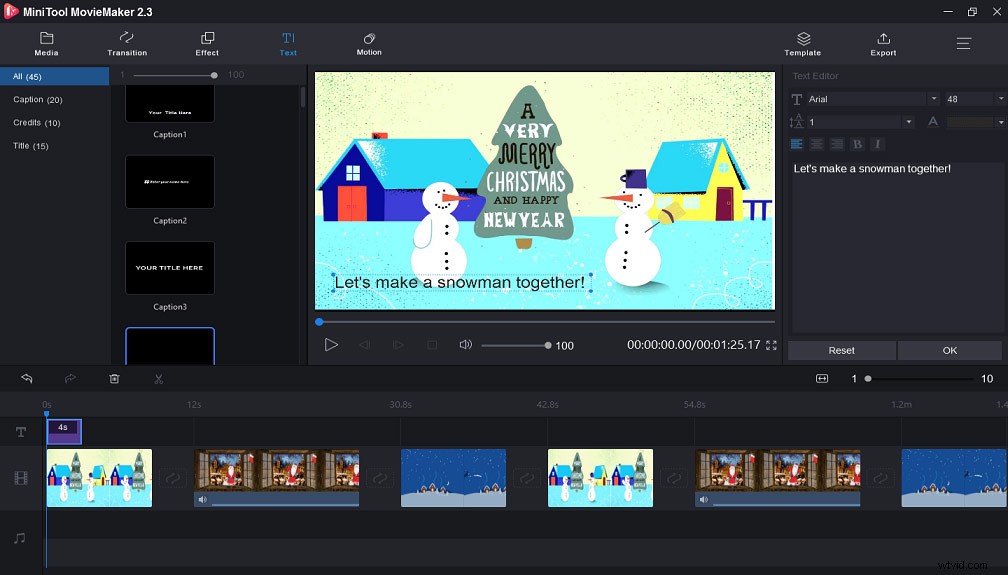
Step 6. Select a suitable text color and size as well as a font in the upper right corner.
Step 7. Tap on OK to save your settings and then click Export to save your videos.
Bottom Line
Now, you’ve learned 2 methods to put text on iMovie, including how to add subtitles to iMovie on iPhone/iPad and add subtitles in iMovie on Mac. What’s more, this post also gives Windows user a bonus tip to add subtitles to video.