
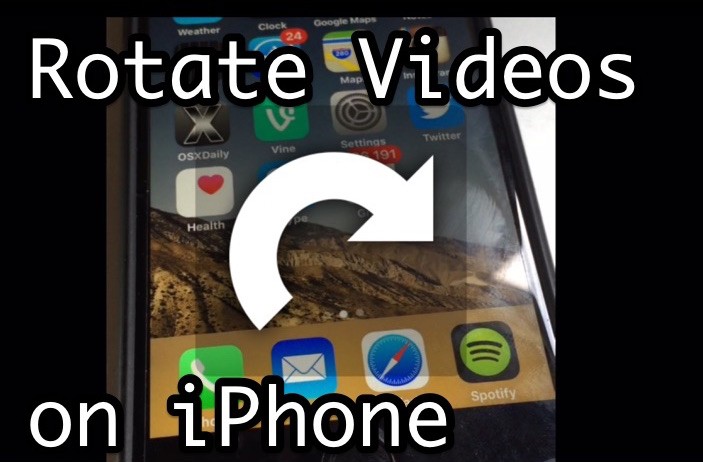
Many people record video on the iPhone or iPad and have the device oriented vertically, and while there is nothing inherently wrong with that, a side effect is you end up capturing vertical videos with large black bars on the sides. Fortunately there’s an easy way to rotate movies in iOS with little effort, which means you can fix a vertically aligned video by converting it to horizontal, go the other direction by rotating a horizontal video to vertical format, or even flip a video upside down.
To rotate the video we’re going to use the iMovie app in iOS, which comes free on new iPhone and iPad devices. If you have an older device, you can download iMovie from the App Store. And yes this works to rotate any video type, whether the movie is 4K, slow motion, regular speed, time-lapse, and whether it’s your own video or someone elses on your device.
How to Rotate or Flip Video on iPhone and iPad with iMovie
You can rotate any movie on your iOS device 90 degrees, 180 degrees, 270 degrees, or if you feel like going back to the default view you can rotate the video 360 degrees as well. This isn’t particularly obvious, but it’s easy, so here’s how to do it:
- Open iMovie on the iPhone or iPad
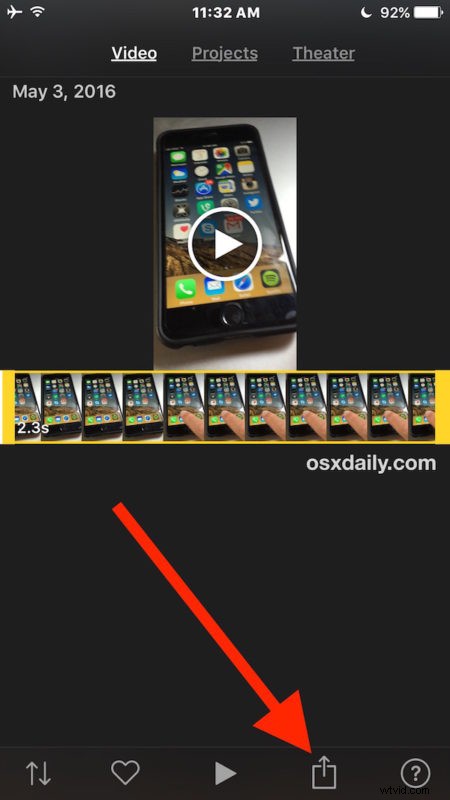
- Choose the video you want to rotate from the video selection list, then tap on the ‘Share’ / action button, it looks like a box with an arrow flying out the top of it
- Choose “Create Movie”
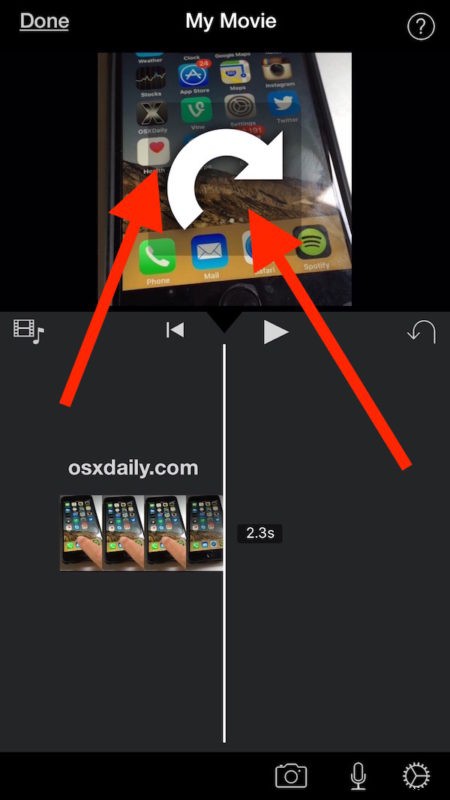
- Place two fingers about an inch apart on the video in iMovie, and rotate them like you’re turning a dial to the direction you want to flip or rotate the video to, a little white rotate image will appear on the display
- When the video has been rotated to the orientation you’d like to keep, tap on the “Done” button in the upper left corner
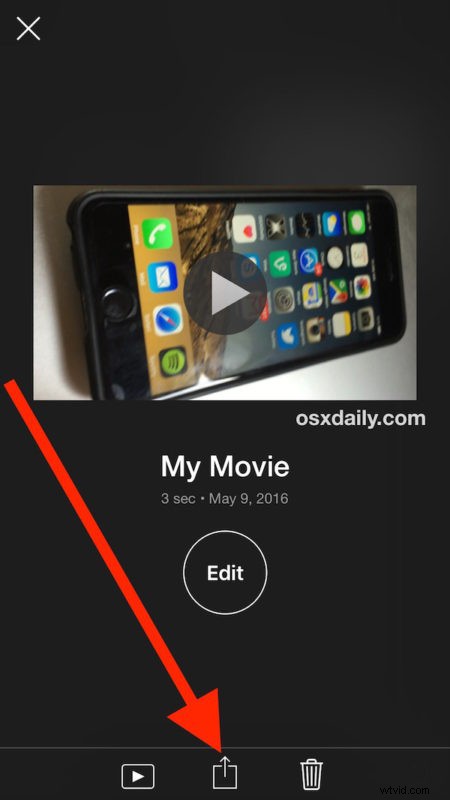
- Now tap the Sharing button again (it’s the box with the arrow flying out of the top)
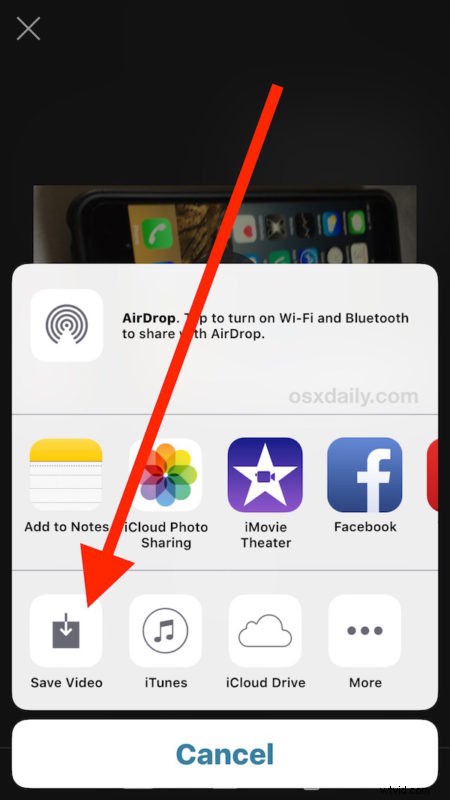
- This time choose “Save Video” (optionally, you can share it on Facebook, YouTube, iCloud, etc, but we’re saving the rotated video here)
- Select the video resolution you’d like to export the movie as: 360p, 540p, 720p, or 1080p
- When finished, iMovie will alert you the video has been saved to your Photos Library, so you can open the Photo app to look at your rotated video




That’s all there is to it, your video has now been rotated and saved as a separate movie file onto your iPhone, iPad, or iPod touch.
And yes, your iPhone and iPad videos are stored in the Photos app, not in the Videos app. This leads to a lot of confusion for newcomers to the iOS platform, but given that both are typically recorded with your own camera, it makes some degree of sense. You can make it easier to locate your videos within the photos app by using the Videos album to display movies only in iOS, otherwise just launch the Photos app and you will find the movie you just saved.

By the way, we also covered how to rotate videos on the Mac using QuickTime, which offers a super simple desktop based solution to reorientate videos if you’re in Mac OS X or have copied the videos to your computer. Similar offerings are available on Windows too.
If you find yourself rotating videos constantly, a great recording tip is to just reorient the camera yourself and turn the iPhone or iPad sideways when recording video, that way you won’t end up with the vertical video to begin with.