
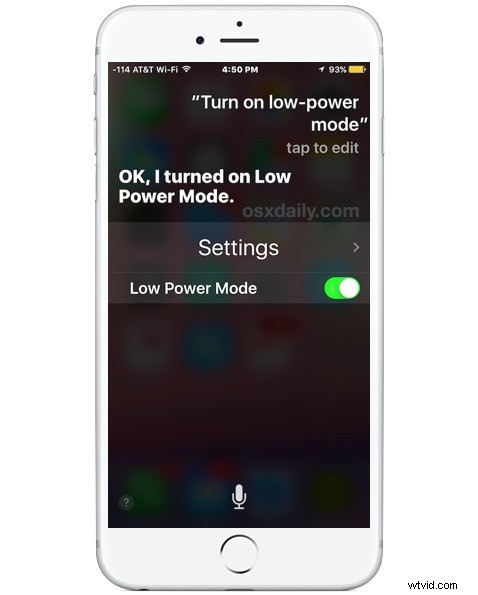
The excellent battery saving Low Power Mode available to iPhone users in modern versions of iOS typically requires being enabled through battery settings, but there’s an even faster way to toggle the feature on and off again at any time; Siri.
Siri can quickly turn on low power mode or turn the feature off again, and it even works with the magical hands-free Hey Siri feature, so you can command the battery longevity feature from a distance if need be.
Tell Siri “Turn On Low Power Mode” to Enable Battery Saving on iPhone
Don’t want to enable Low Power Mode on iPhone through Battery Settings like some kind of animal fumbling through the Settings app to go to the Battery section and then flipping a switch? Me neither, and thanks to Siri we can just issue a quick voice command to turn on Low Power Mode instead.
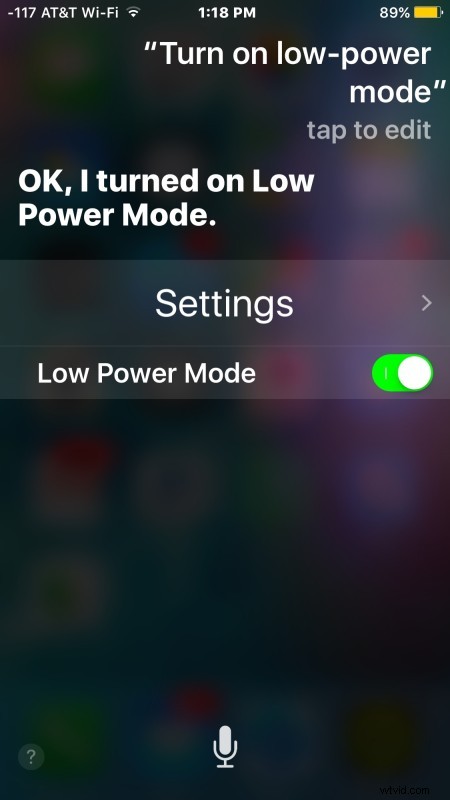
Tell Siri “Turn Off Low Power Mode” to Disable on iPhone
If you have found the yellow battery icon on the iPhone and don’t want Low Power Mode turned on, simply summon Siri by holding down the Home button on the iPhone and saying “turn off Low Power Mode”
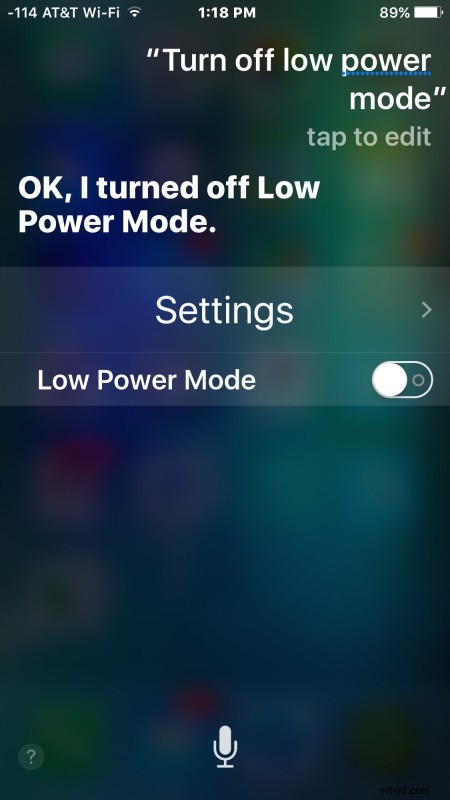
Several language variations work to switch the power use reduction and power saving mode off and on again, including telling Siri to:
- “Turn on low power mode”
- “Turn off low power mode”
- “Switch on low power mode”
- “Switch off low power mode”
- “Enable Low Power Mode”
- “Disable Low Power Mode”
We’ve discussed Low Power Mode before, it’s an excellent feature and by far the single most effective method of extending battery life of an iPhone without manually going through and adjusting a ton of settings on your own. Try it out, understand how it works with Siri, and get in the habit of using it when you want your battery to last much longer.