
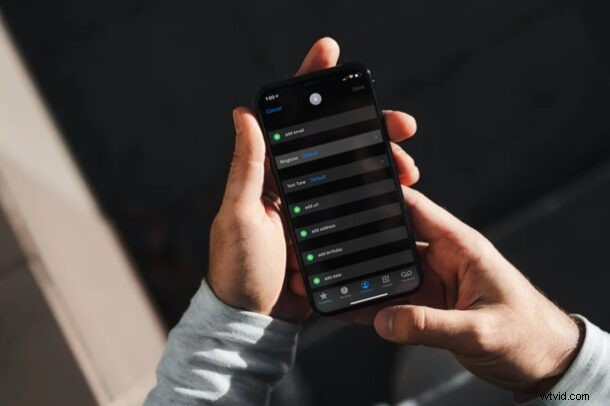
Are you getting unwanted phone calls from one of your contacts, but don’t want to block them? If so, you may be interested in muting all their phone calls using this neat silent ringtone trick, and they will have no idea that you muted their inbound calls to your iPhone.
Of course, blocking the contact is the route many users would take with a nuisance caller, but that isn’t always practical for some contacts, and besides it is fairly easy for them to figure out that they’ve been blocked when all their calls get forwarded to voicemail or when their text messages don’t get delivered. This is why using this strick might be a better option in some cases. Although there isn’t an option to mute a particular contact directly, you can assign a custom silent ringtone to the contact and silence all their phone calls.
Interested in taking advantage of this workaround to silence a specific caller to your iPhone? Then read along and you’ll be using the handy silent ringtone in no time at all!
How to Turn Off Ringtone for a Single Contact on iPhone with a Silent Ringtone
First of all, you’ll need to get a silent ringtone. You can learn how to create a silent ringtone using your Mac here, or to make things easier, here’s a direct downloadable silent ringtone file. If you want to do everything right on your iPhone, you can also purchase silent ringtones from the Tone Store.
- Launch the “Phone” app from the home screen of your iPhone.

- Head over to the “Contacts” section and select the contact you want to mute.
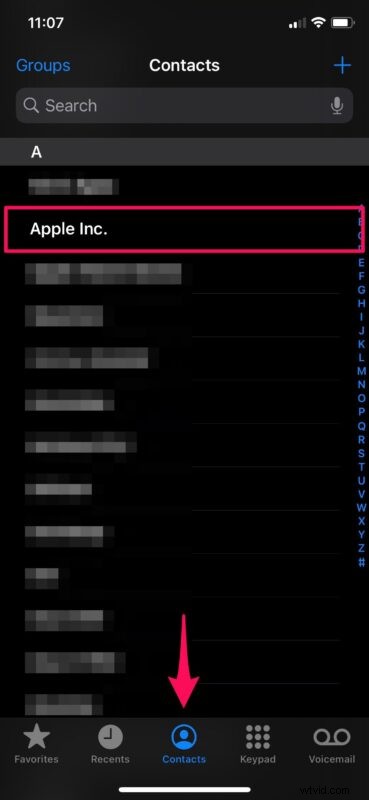
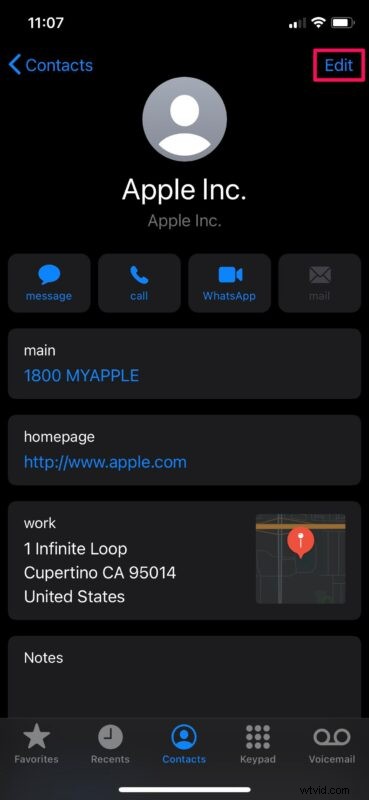
- Next, tap on “Edit” located at the top-right corner of the screen.
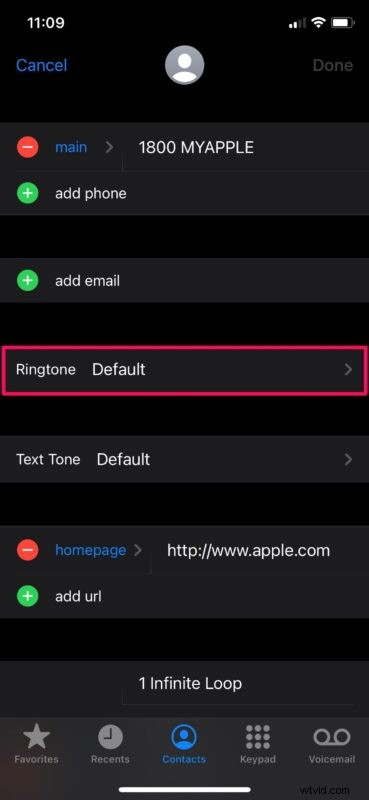
- Now, scroll down and tap on “Ringtone” to assign a custom ringtone for the contact.
- Here, simply select the silent ringtone you downloaded and set it as the custom ringtone for that contact. You’ll also have the option to turn off Vibration for their phone calls as you can see in the screenshot below. To save all your changes, tap on “Done”.
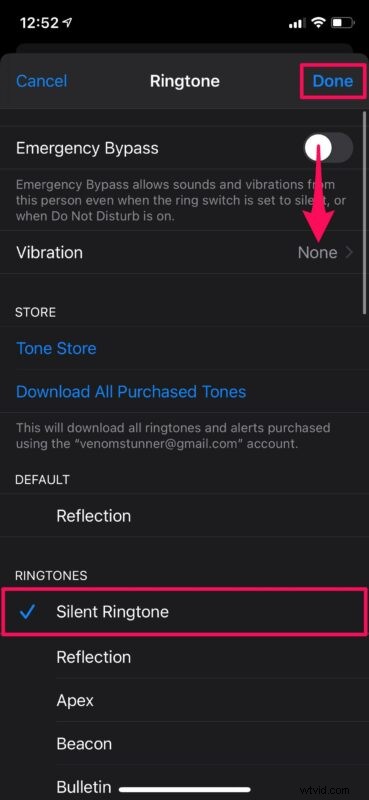
That’s pretty much all there is to it. Now you know how to easily silence phone calls from a specific caller using the handy silent ringtone trick. You can assign this ringtone to as many contacts as you want.
From now on, all the incoming phone calls from this particular contact will be silenced and your iPhone won’t even vibrate, provided you have vibrations turned off anyway. Additionally, they will have no idea that you have silenced their calls since all you did is assign a custom ringtone to them.
You can follow these exact steps to silence text messages from the same contact as well. Instead of choosing Ringtone in the Contact Edit menu, you need to choose Text Tone and assign the silent ringtone in a similar way. Or, if you want to hide all the message alerts, you can simply mute the conversation in the Messages app.
If you’re getting spammed with repeated phone calls from unknown phone numbers, you can easily mute or silence them. Just head over to Settings -> Phone -> Silence Unknown Callers and enable this feature on your iPhone. Apart from that, if you want to temporarily mute all phone calls, messages and alerts to your device, just turn on Do Not Disturb on your iPhone.
This workaround has been around a while, but perhaps a future iOS version will offer a direct “Do Not Disturb” mode for specific contacts calls, similar to what is available for iMessages. Time will tell! Until then however, the silent ringtone trick works wonders, and it’s just a variation on setting a specific ringtone for a particular caller anyway.
We hope you were able to take advantage of this trick to silence specific contacts on your iPhone without their knowledge. How many contacts did you silence so far? What’s your take on this handy workaround? Do share your valuable opinions and experiences in the comments section down below.