

Have you ever wanted to create contact groups on your iPhone to sort out the people in your list? While this is not possible natively for some reason, you can use iCloud’s web client to make contact groups for your iPhone.
Most people have hundreds of contacts stored on their iPhones these days. The list of contacts includes your colleagues, family members, friends, or anyone else really. As the number grows, organizing those contacts becomes increasingly difficult. The best way to manage all your contacts would be by sorting them into different groups. Most users would like to keep their personal and work contacts separate, so making a group specifically for work colleagues would be a really good start.
How to Set Up Contact Groups for iPhone
Making a contact group using iCloud.com is pretty straightforward and you can do it from any device that has a web browser.
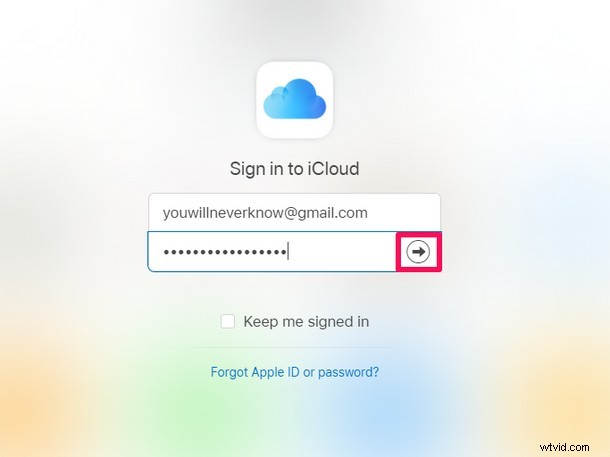
- Head over to iCloud.com using any web browser on any of your devices. Sign in to iCloud by clicking on the “arrow icon” once you’ve typed in your Apple ID and password.
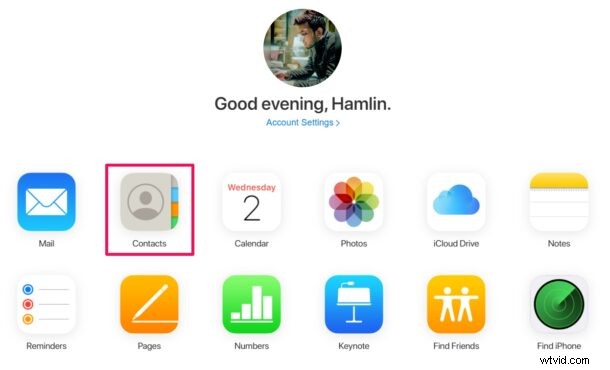
- On the iCloud home page, click on the “Contacts” app to proceed to the next step.
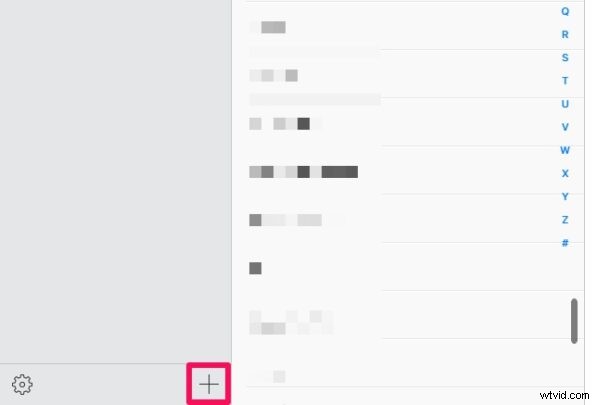
- This will display all the contacts you currently have. At the very bottom of the left pane, you’ll find a “+” icon. Click on it.
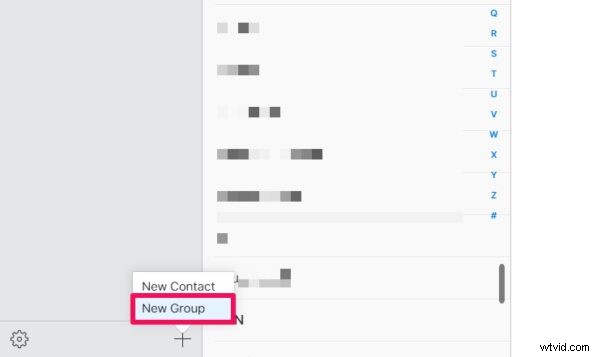
- Once the options pop up, click on “New Group”.
- Now, right below “All Contacts” on the left pane, you’ll find the newly created group. You can enter any name for your contact group and press “Enter” or “Return” on your keyboard.
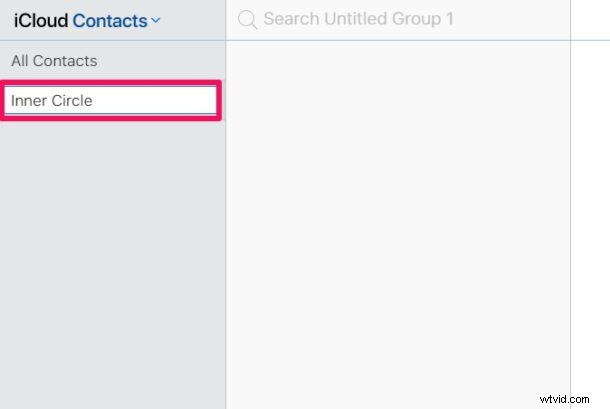
- Next, to add a new contact to this group, make sure the group is selected and click the “+” icon at the bottom of the left pane. Then, choose “New Contact”.
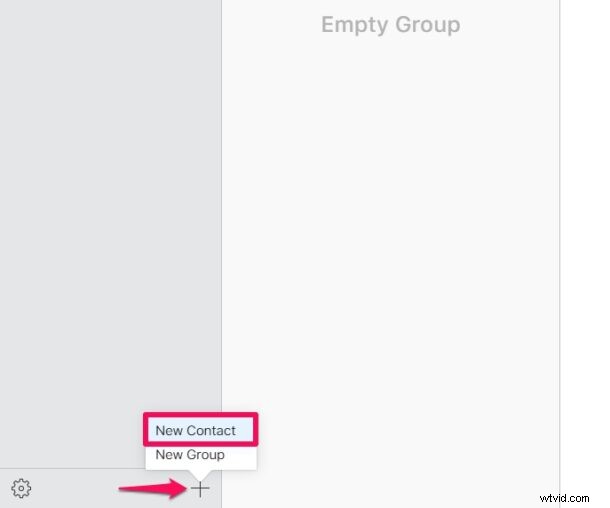
- Fill in the contact details and click on “Done” located at the bottom-right corner of the page.

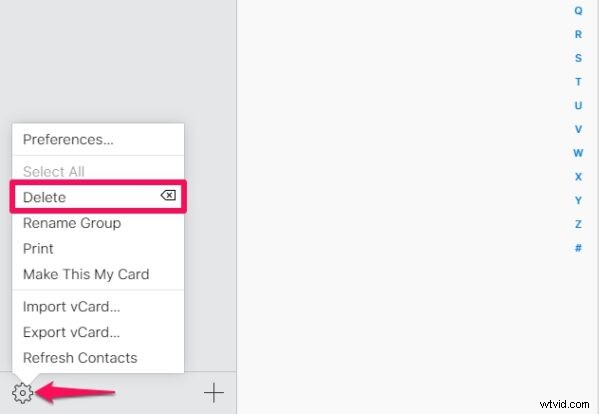
- If you ever want to delete the contact group at any point, you can select the particular group and click on the gear icon at the bottom of the left pane. Here, you’ll find the Delete option. You can also import vCards to the group from here.
There you go, you’ve set up your first contact group for your iPhone.
You can repeat the above steps to create multiple contact groups and sort out the people on your list.
At this point, you may be thinking about how you can move a contact from All Contacts to your newly created group. You can make use of the good old drag and drop method on iCloud.com to move an existing contact to the group. Doing this will not remove the contact from your All Contacts list, but rather just make a copy of the contact in the group.
Adding New Contacts to the Contact Group via iPhone
Now that you’ve set up your first contact group, you can manually add new contacts to the group directly on your iPhone.
To do this, just tap on the “Groups” option which is located at the top-left corner of the Contacts app and deselect everything except the group.
Now, proceed to add a new contact like you normally would and it will be added to the selected group.
However, you cannot move an existing contact to your new group on your iPhone. Yup, you’ll need to get back on iCloud.com for that, for the time being anyway.
–
Some of the limitations on the default Contacts app on iOS devices may be frustrating to some users, thus it’s possible to use third-party apps like Groups for easy management of your contacts.
Do you use iPhone contact groups, setup via iCloud? What do you think of this feature? Do you have another solution? Let us know your thoughts and experiences.