
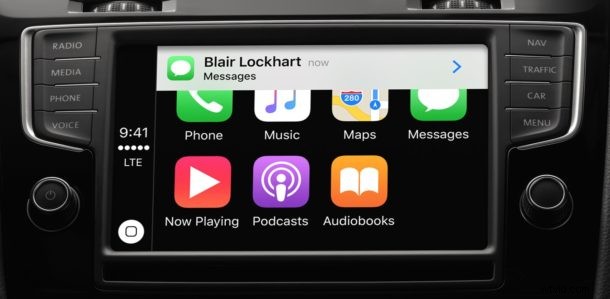
CarPlay allows an iPhone to show maps, directions, messages, calls, Siri, and music on a compatible in-dash car display, making it easier and safer to access some iPhone features while you’re in a car. The CarPlay feature is increasingly supported on new model vehicles and there are aftermarket in-dash CarPlay units available as well.
Whether you have a new car, are using a rental, or have one of the aftermarket CarPlay units, we’ll show you how to quickly set up CarPlay to connect an iPhone to the car dash display.
Before anything else you’ll need to be sure the iPhone is reasonably new (anything new than 5) and running a modern version of iOS, and that the car or stereo supports CarPlay. Apple has a running list of cars here that you can check against. While newer model cars may have it as a factory option, any car with a CarPlay compatible aftermarket stereo like this Pioneer unit can have the feature as well, so if you want to you could put CarPlay in a ’68 Camaro too.
How to Setup CarPlay with iPhone
You can setup CarPlay through a wired USB port or Bluetooth, either way you must have Siri enabled on the iPhone for the feature to be available:
- Turn on the car if you haven’t done so already
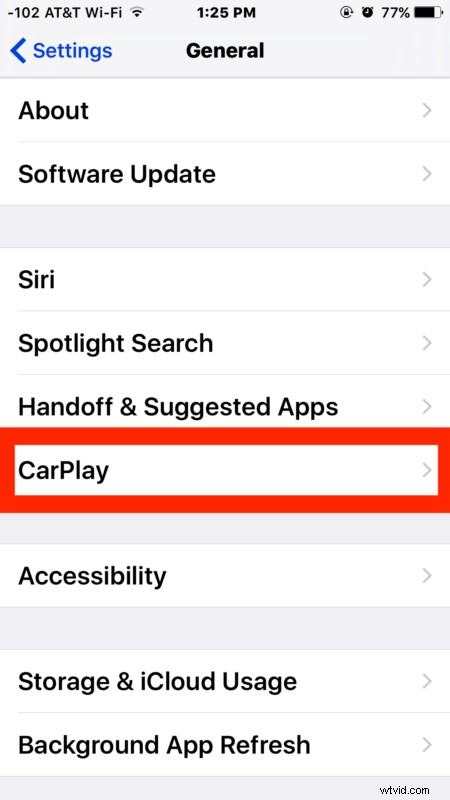
- Open the Settings app on iPhone and go to “General” and then to “CarPlay”
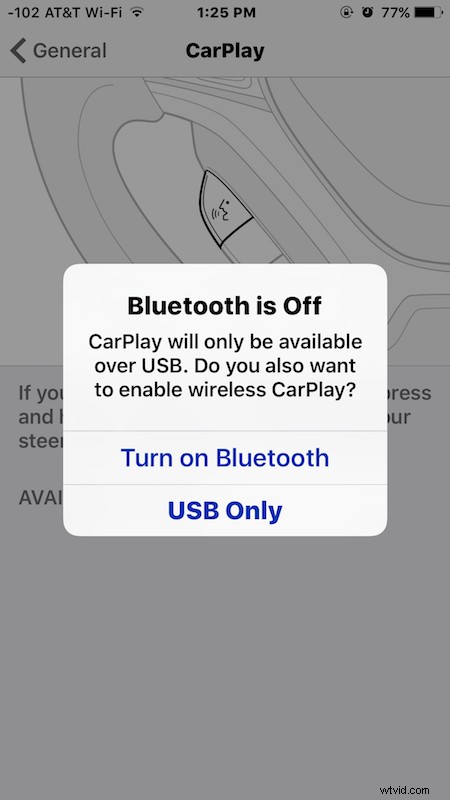
- You now have two options to setup CarPlay: Bluetooth, or with USB. Bluetooth is easy but it requires CarPlay to be built-in to the car steering wheel, whereas USB allows for connections to the cars general USB port
- For Bluetooth setup: choose “Turn on Bluetooth” and then press and hold the cars voice control / Siri / CarPlay button on the steering wheel to begin the CarPlay setup process
- For USB setup: connect the iPhone to the USB port in the car to begin the CarPlay setup
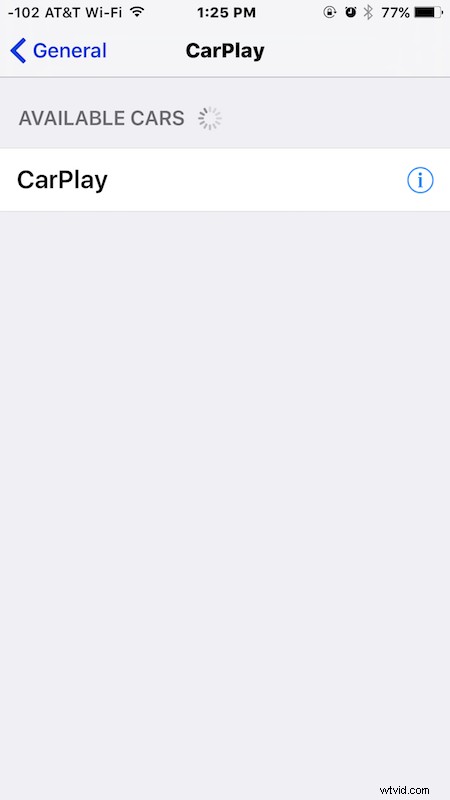
- Once the CarPlay unit has been detected, select it from the list of available cars and the in-dash display should display CarPlay immediately
- Confirm CarPlay is working by summoning Siri using the Voice Control button on the steering wheel, or by using the CarPlay dash unit touch screen
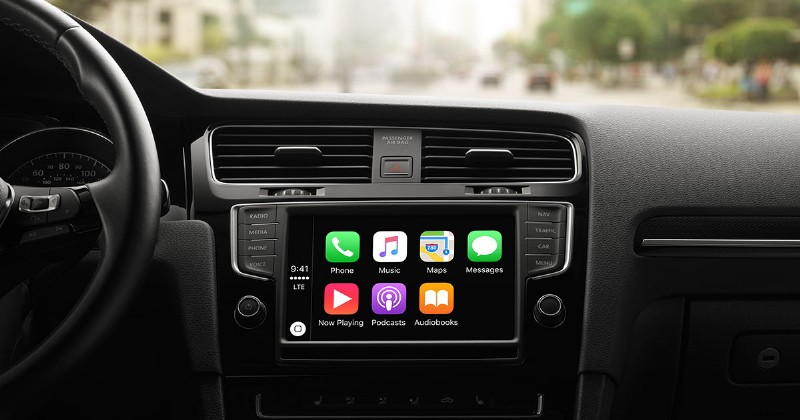
Now that CarPlay is setup, you can interact with it just like you would with your iPhone, except it’s in the car dash display unit. Summon Siri and use anything from the big list of Siri commands available, whether it’s directions, sending messages, making calls, playing music, or just general inquiries.
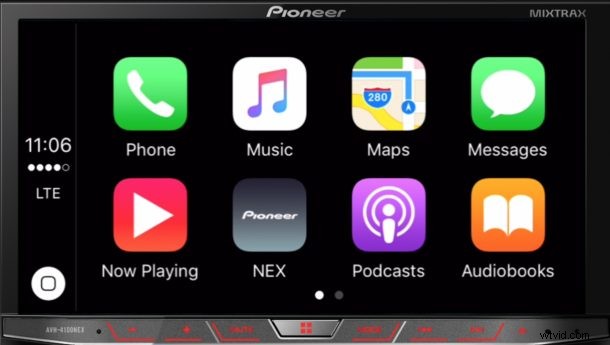
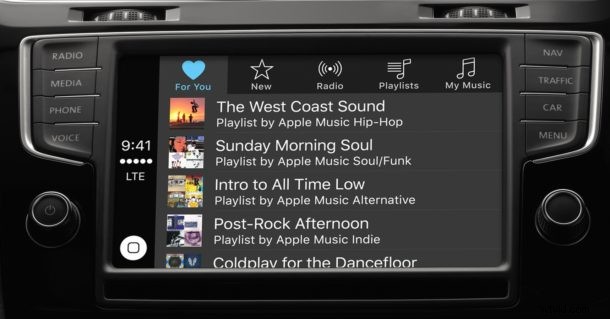
CarPlay is undoubtedly useful if your car or stereo supports the feature, and it’ll likely appear in more vehicles and aftermarket stereos as time goes on too. If you have an iPhone and spend a lot of time in a car either commuting or even just for fun, it’s certainly a feature worth using if you can.
If you’re still not quite sure how to setup CarPlay, Honda has a helpful guide walkthrough through the entire process on their cars and it’s pretty widely applicable to other vehicles as well: