
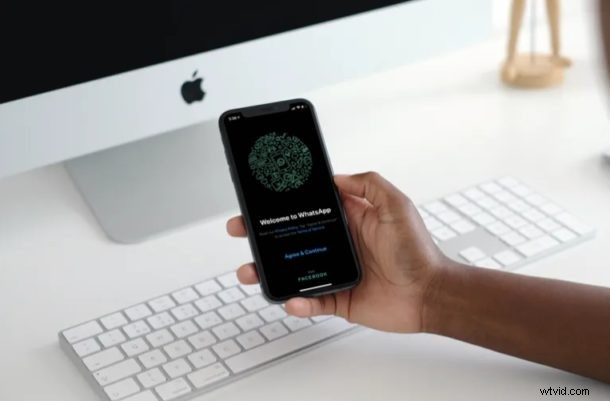
WhatsApp offers a free and easy way to make and join video calls directly from iPhone. Whether you’re looking for yet another video chat solution, an alternative to FaceTime, or you just have large network on WhatsApp, it’s another option for making video calls. So if you miss seeing your friends, family, and colleagues for any reason, perhaps while you’re staying at home in self-isolation due to the global pandemic, you can try making a video call with WhatsApp.
With over 1.6 billion active users, WhatsApp is undoubtedly the biggest instant messaging platform at the moment and although it’s primarily used for texting, the app also allows you to quickly video call other WhatsApp users for free.
WhatsApp might not be quire as popular in North America, but if you have friends and relatives who live across the seas, you might want to use this platform to get in touch. Today, we’ll be discussing exactly how you can make video calls with WhatsApp on iPhone.
How to Make Video Calls with WhatsApp on iPhone
First of all, you need to download and install the latest version of WhatsApp from the App Store. You’ll also need a valid phone number to take advantage of this service. Simply follow the steps below to get started with WhatsApp on your device.
- Open “WhatsApp” from the home screen of your iPhone.

- Tap on “Agree & Continue” to accept WhatsApp’s Terms of Service.

- Now, choose your country and enter the phone number you’re using with your iPhone.
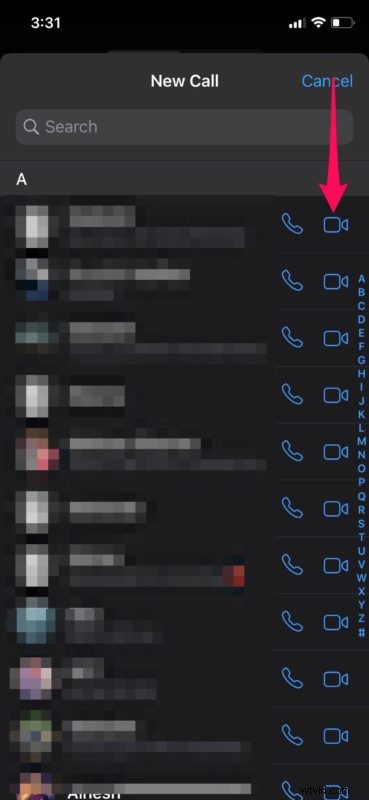
- Next, type in your name, add an optional profile picture and tap on “Done” to proceed to the next step.
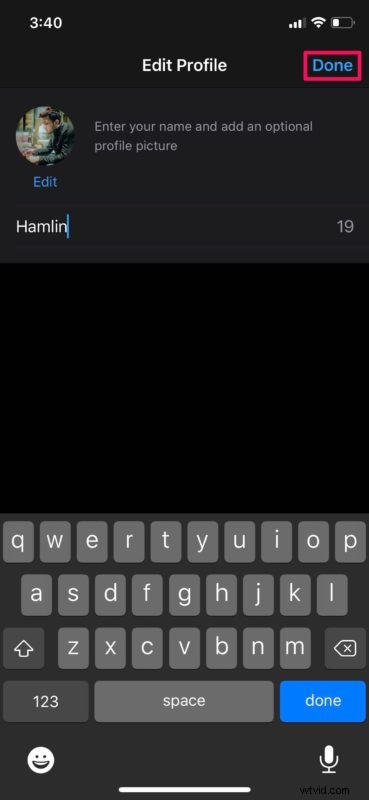
- You’ll be taken to the “Chats” section within the app. Tap on “Calls” located in the bottom menu.
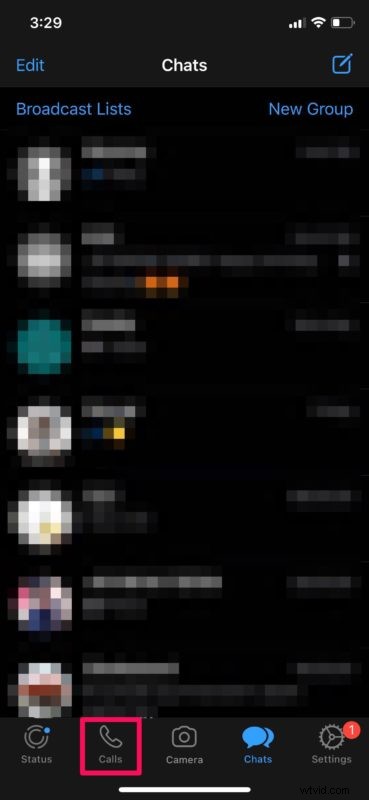
- Here, tap on the “phone” icon located at the top-right corner of the screen.
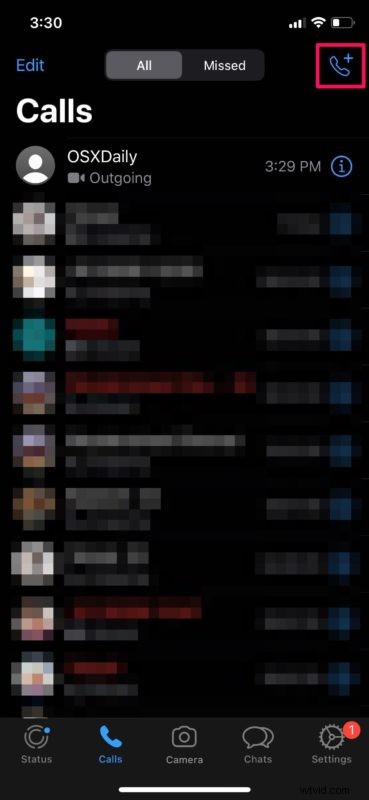
- Now, scroll through your contacts list and choose the person you want to video call. You can also use the search bar to find a specific contact. Tap on the “video” icon located next to the contact names to start the video call.
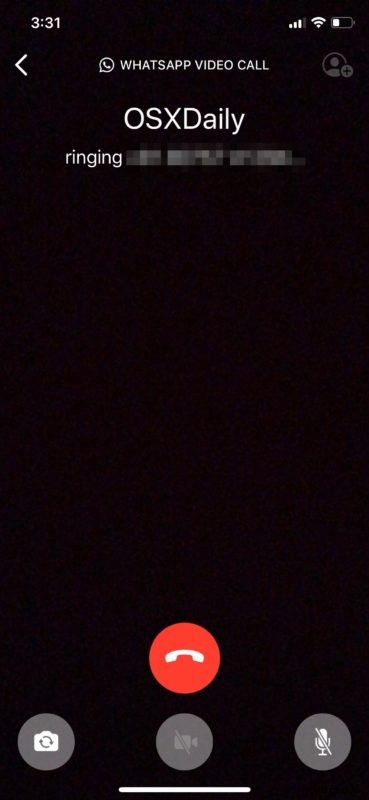
- As you can see here, you’ve initiated a video call session. You can switch between your primary and secondary cameras by pressing the camera icon located at the bottom-left corner. You can also turn off video completely by simply tapping on the video icon.
That’s pretty much all there is to it. You now know how to video call your contacts with WhatsApp on iPhone.
Similarly, you can also initiate group video calls using WhatsApp on your iPhone. However, group calls are limited to 4 people, unlike other competing platforms like Skype and Group FaceTime that allows you to video call up to 50 and 32 people respectively.
That being said, unlike FaceTime, WhatsApp isn’t restricted to Apple devices. Thanks to multi-platform support, WhatsApp is accessible on almost any smartphone, so video calling your friends and family members who use Android devices shouldn’t be an issue at all.
Looking for other options to make video calls? There are so many competing services you can try out, like Google Duo, Snapchat and Skype to name a few. All these services are multi-platform too, and can be used to stay connected with your loved ones while you’re at home.
However, if you want a more sophisticated video conferencing service for work meetings, check out Zoom, a business-oriented service that allows up to 100 participants in meetings of up to 40 minutes for free. Google Hangouts could be a compelling group video chat option too.
We hope you managed to video call your loved ones using WhatsApp on your iPhone. What other video calling services have you tried? If so, how does it compare to WhatsApp? Do let us know your thoughts and opinions in the comments section down below.